Free Cam Screen Recorder Review: Features & How to Use
In this technological era, screen recording has become a necessary tool for educators, content creators, and other professionals. It can help you create instructional or tutorial videos, capture webinars, create product demos, record your gameplay, and more. With so many screen recorders available, Free Cam Screen Recorder stands out as a lightweight, simple option. This tool is ideal since it provides the functions you need. If you are interested in learning more about the recorder, read this review right away. We'll outline its features, limitations, and methods for recording your screen. Thus, read here and explore more.

PAGE CONTENT
Part 1. An Introduction to Free Cam
Free Cam Recorder is an excellent screen recorder that is capable of capturing your screen easily and instantly. This tool is also free to use, allowing you to get the result you need without spending a penny. The best part of this tool is its simple layout. With that, even if you are a non-professional user, navigating all the functions is simple. In addition to recording, you can access more functions to produce a better final file. Thus, if you want to discover all the features of the tool, read all the information below.
Screen Recorder
The core feature of the tool is Screen Recorder. With this useful feature, you can record your screen however you want. We like that you can choose whether to record/capture your entire screen or a specific area. Aside from that, you can also record various content. You can capture meetings, webinars, a particular tab/window, gameplay, and more. You can even create an instructional video if you want to. Thus, for an effective screening process, consider using this platform.
Audio Recorder
In addition to screen recording, the tool can help you record audio. This feature is ideal if you want to record your screen and voice/mic at the same time. You can even ensure a nice audio quality, resulting in a better listening experience.
Video Trimmer
Free Cam Recorder can also offer its video trimmer feature. With this feature, you can effectively cut unnecessary parts from your captured screen. Plus, trimming your video is simple. All you need to do is click the feature, use your cursor, and start removing the video part. Moreover, during the process, you can remove video noise and apply Fade In and Fade Out effects. Using these basic editing tools, you can produce a better version of your clip.
Fast Saving Process
The screen recorder is ideal not only for smooth screen recording but also for other tasks. It can also provide a fast saving/export process, ensuring you can get results within a few seconds. One thing we like here is that you can not only save your video on your computer. You can also upload it directly to your YouTube account to make it more prominent.
Part 2. How to Use Free Cam
As mentioned, the Free Cam Recorder is a simple and effective program for recording your screen. If you are looking for a tutorial on how to operate the tool, follow the simple steps below.
Step 1. First, download Free Cam Screen Recorder. After that, install and launch it on your computer to start recording your screen.
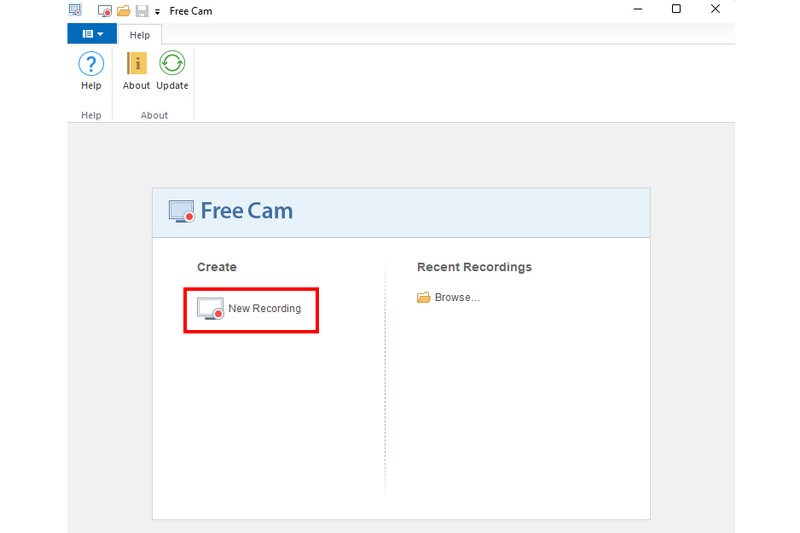
Step 2. Then, from the main interface, click the New Recording option. Once done, you can start preparing the content you want to record.
Step 3. Now you can use the adjustable frame on your screen to select the area you want to record. You can also capture your entire screen. After that, tick the Record button to begin the screen-recording process.
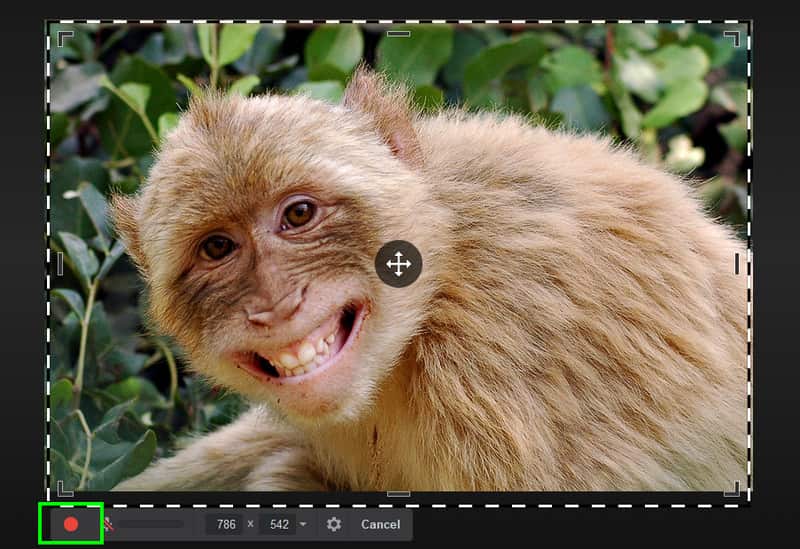
Once done, hit the Done button below.
Step 4. For the last step, tap the Save as Video button at the top of the interface. With that, you can keep the captured screen on your computer.
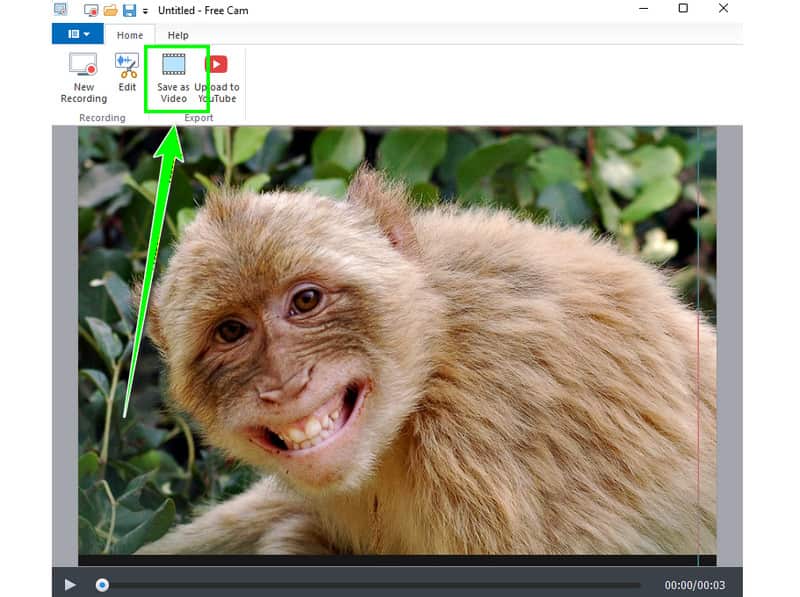
You can also click the Upload to YouTube option to upload the video directly to your YouTube account.
With this method, you can see that recording your screen with the Free Cam Screen Recorder is easy. You can even trim your video, remove noise, and add a fade to create an appealing output. Thus, if you want a free screen recorder with no watermark, feel free to access the tool.
Part 3. Limitations of Free Cam
Free Cam is ideal for beginners because it offers a simple layout and a fast recording process. However, you might encounter some limitations when using the screen recorder. To explore its disadvantages, see the information below.
Doesn't Support Webcam
One drawback of the screen recorder is that it lacks a webcam feature. With that, you can still create instructional videos, but you can't include your face, which may not be satisfying to some learners or viewers.
Lacks of Video Editing Tools
The tool focuses only on trimming and removing video noise. It does not offer essential editing tools, such as a cropper, rotator, effects, and more. To enhance the overall appearance of your captured screen, you need another video editing software, which can be a hassle.
Single Output Format
After the screen recording, you can only save the file as a WMV file. You might deal with compatibility issues when playing it in certain media players, especially those that don't support the WMV format.
Not Available on Mac
Free Cam is only accessible to Windows computers. If you want to record your screen on a Mac, it is recommended that you look for an alternative screen recorder.
Limited Video Quality
When using the recorder's free version, you can only save videos at 720p, which is not satisfactory at all. To get better video quality, it would be ideal to switch to its paid version.
Part 4. Best Alternative to Free Cam
If you need a simple screen recording process, there is no doubt that Free Cam is ideal. However, you may encounter drawbacks such as limited video quality, support for only one format, and a lack of video editing tools. If you are looking for the best alternative to Free Cam that offers all the features you need, we recommend Vidmore Screen Recorder.
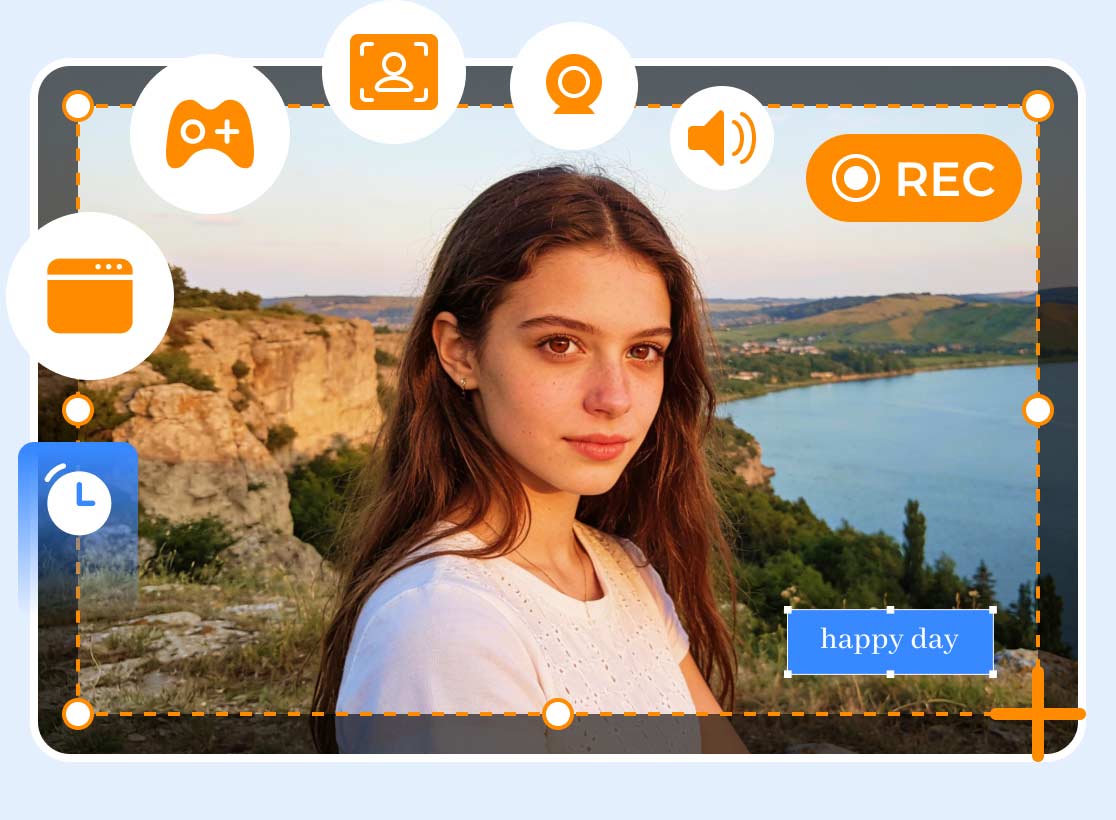
This screen recorder is far better because it provides a smooth recording process. You can also record various content, such as meetings, webinars, gameplays, videos, and more. It can even include a webcam feature, allowing you to show your face when creating instructional videos. What's more, it can offer numerous video editing tools. You can access the video cropper, trimmer, rotator, filters, effects, and more. You can even save the final video in various formats, such as MP4, M4V, MOV, WMV, MKV, AVI, and more. Lastly, you can access this software on both Mac and Windows. Thus, if you need a better screen recorder than Free Cam, look no further than Vidmore Screen Recorder.
More Features
- • The program can record various content, such as videos, meetings, gameplay, anime, documentaries, and more.
- • It can offer a smooth screen/video recording process.
- • The program can record high-quality video and audio.
- • It can offer its Snapshot feature, ideal for taking a screenshot while recording.
- • The screen recorder supports real-time drawing.
- • To start recording your screen, follow the steps below.
Step 1. Download Vidmore Screen Recorder on your Mac or Windows computer. Then open it to start the recording.
Step 2. Then, from the interface, you can choose how to record your screen by selecting Full or Custom.
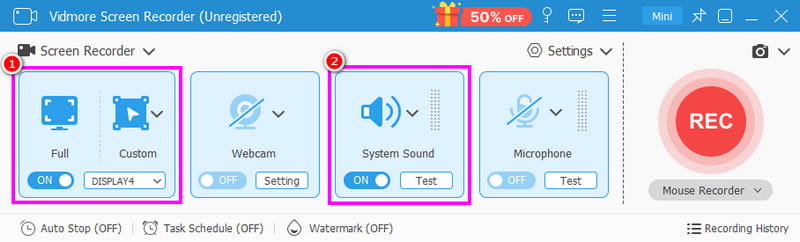
Ensure the System Sound function is also enabled to record your screen and audio simultaneously.
Step 3. Now, you can open the content you want to record. Then, hit the Record button. The recording process will start after the three-second countdown.

Press Stop to finish the recording.
Step 4. To complete the process, tap the Export button below. After the process, you can now watch the captured screen on your media player.
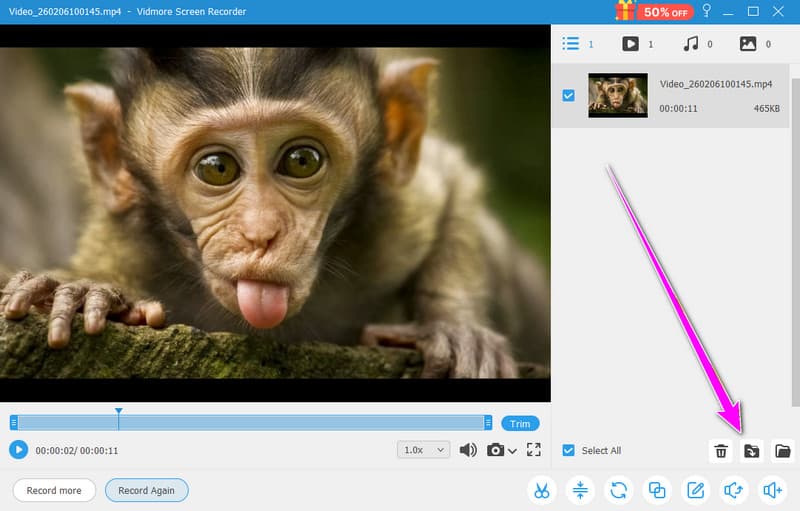
With this method, you can instantly record your screen. Plus, you can tell Vidmore Screen Recorder is superior to Free Cam because it offers all the features you need. Thus, rely on this program and obtain your desired outcome.
Part 5. Final Verdict
Free Cam is a reliable tool for recording your screen. It also has a user-friendly interface, suitable for all users. However, we can't ignore its numerous limitations. For a simple screen recording, you can use FreeCam to achieve the result you want. However, if you want to record your screen without restrictions, it's better to use an excellent alternative like Vidmore Screen Recorder.
Conclusion
In this Free Cam Screen Recorder review, you have explored its features, limitations, and how to use it for recording your screen. With that, you now have all the information you need about the tool. Plus, if you need a better screen recorder that offers almost everything, you can try Vidmore Screen Recorder. This program promises to deliver the results you need by recording your screen.