How to Sharpen Video Quality to Increase the Contrast of Edges
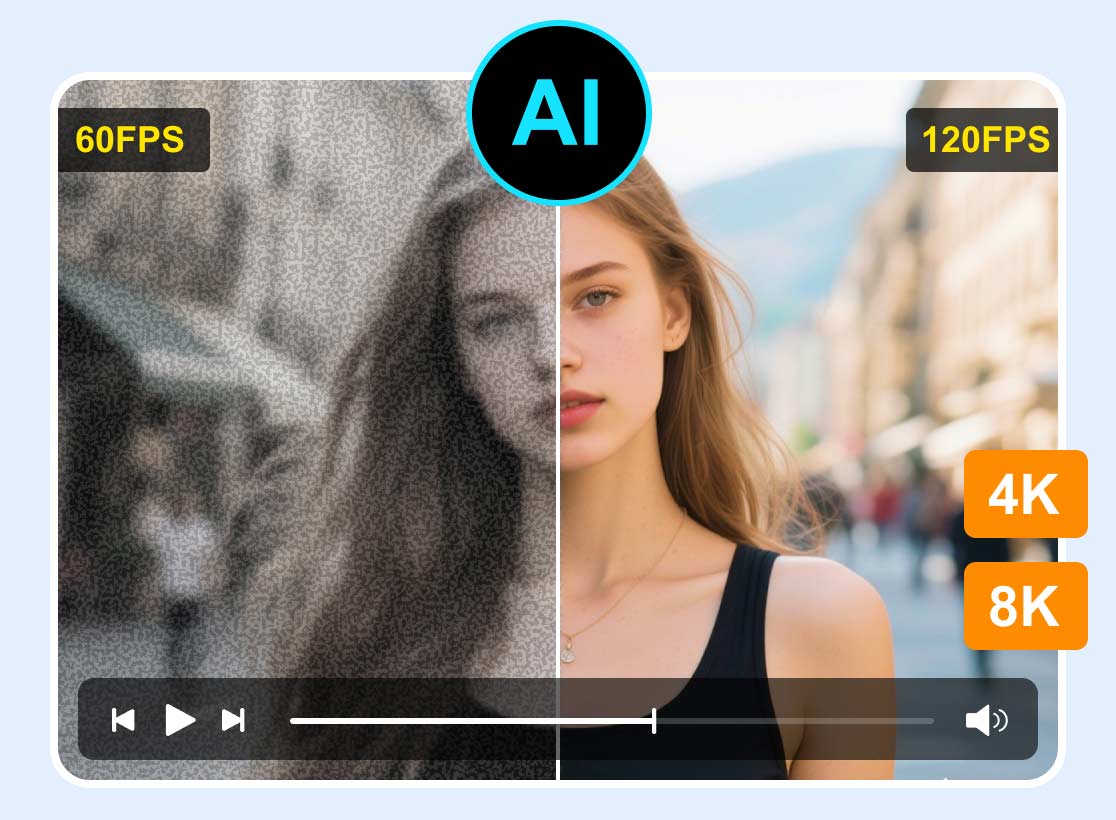
Sharpening a video is essential, especially if you want to produce a more detailed and high-quality video. Sharpening videos means making your blurry video look clearer by increasing the contrast around the edges. It is possible to sharpen a video by changing the basic effects of the video. It might be changing the brightness, increasing the contrast, adding more exposure, and saturating the image. In addition, enhancing the resolution of your video can help you produce a sharper video. Do you have a video you wish to sharpen? If so, this post is for you. It will present various methods how to sharpen video quality using different devices. To learn more about these methods, continue reading for more details.

PAGE CONTENT
Part 1. Sharpen Video on Windows and Mac
1. VidHex Video Enhancer
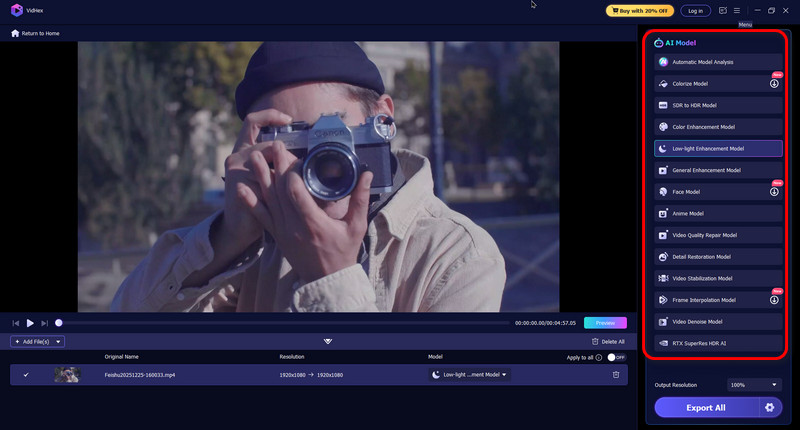
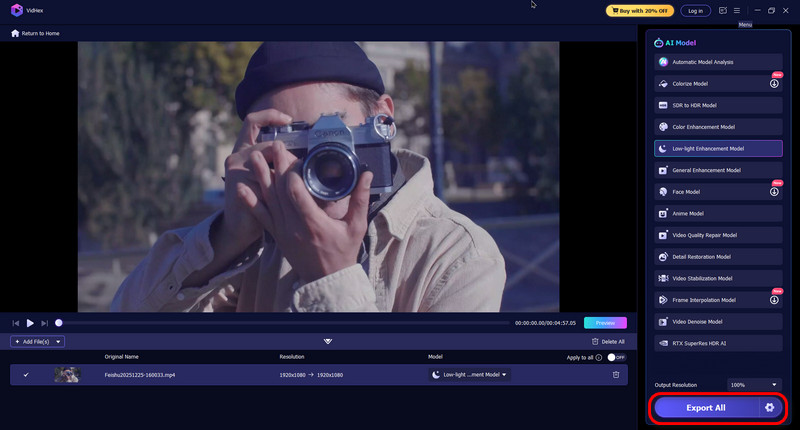
VidHex is one of the most excellent programs to sharpen your blurry video’s quality. It has powerful AI features, which can automatically analyze the issues of your videos. Plus, you can also choose AI models from 13 options according to your needs, such as Video Qualiry Repair Model, Detail Restoration Model, SDR to HDR Model, etc. You can get a HD video with it.
Besides, it offers 100%, 200%, and 4K resolution choices to upscale videos retaining quality and helps you optimize brightness, remove noise, make slow motion smoother and more. In spite of rich functions, beginners can still use it without hassle due to its clear interface and simple steps. To apply that to your video, use the instructional guide to learn how to sharpen video quality.
Step 1. Download VidHex by clicking the download button below or visiting the website to learn more and download it.
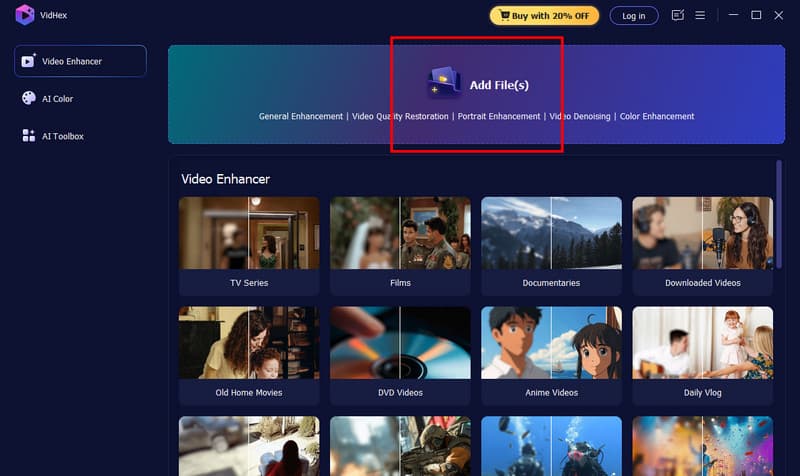
Step 2. Then, click the Add Files button on top, and choose the video file that you want to brighten.
Step 3. Next, you can see the Video Issues that AI analyzed and a AI Model list on the right. You can choose one as needed. Then, VidHex will help you sharpen your video quality.
Step 4. Finally, you can Preview and adjust your desired resolution, output format, bitrates, and saving path. And then, click Enhance Full Video to save the brightened video.
2. iMovie
Another excellent application that is pre-installed for Mac computers is iMovie. This program is a video editing platform commonly used to produce high-quality video projects. It has high-quality effects, editing options, and tools that help create movies and videos. The good thing about this application is that it supports 4K resolution video, which appears clearer, and more detailed on screen. On top of that, it has built-in features that can help users to enhance and sharpen their videos quickly and hassle-free. Rely on the steps to learn how iMovie sharpens video.
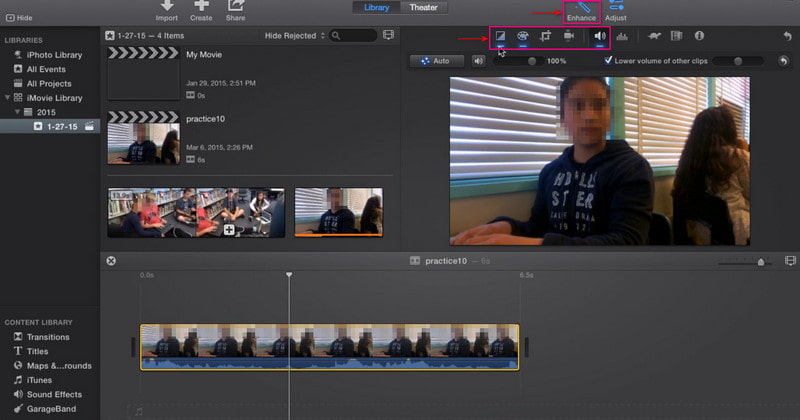
Step 1. First and foremost, launch iMovie, which you can find on the taskbar or application. Suppose that your video is already exported in the program’s timeline. In your project, click on the video, and click the Enhance button in the toolbar. After that, additional tools will appear screen than can help you sharpen your video.
Step 2. Click the first button on the left, which consists of Match Color, White Balance, and Skin Tone Balance. Next, proceed to the second button to enable the color correction. Adjust the Shadows, Brightness, Contrast, Highlights, Color Saturation, and Color Temperature from this section. Afterward, click the fifth button from the left for volume control. To maximize the average volume of the video, click the Auto button. Alternatively, you can also adjust the audio using the sliders.
Step 3. Once satisfied with the changes, head to the Exporting button to save your sharpened video to your folder.
3. Sharpen Video Online
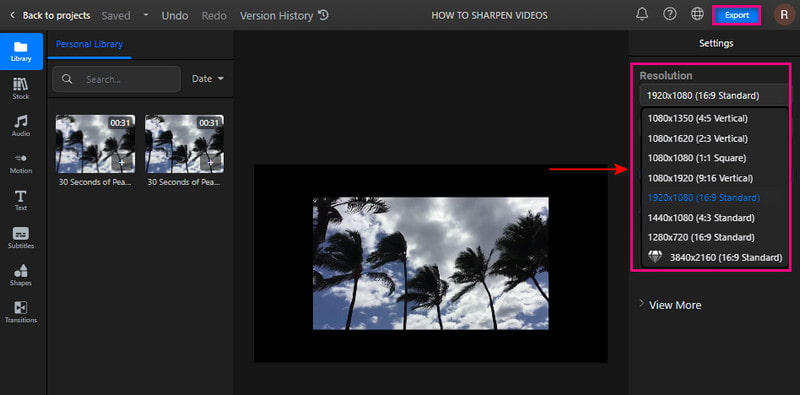
It is possible to sharpen your video straight online using Flixier. This web-based editing platform can help you produce more crisp and detailed videos. It can sharpen your video in minutes without installing any application on your device. Flixier will require you to sign in to your account to upload your videos to your library. It enables users to sharpen their videos by increasing the resolution. To learn how to sharpen video online using Flixier, refer to the steps presented.
Step 1. Visit Flixier's official website on your browser. Click the + Choose Video button presented in the center of your screen. You must sign in to your account to proceed with the editing section.
Step 2. Once the editing section is opened, click the Library button, right-click on your mouse, and click the Import button. Select a video you want to undergo the sharping procedure. After that, drag the imported video to the timeline section to start sharpening your video.
Step 3. Head to the right corner of your screen to locate the Resolution section. Set the pixel to help you sharpen your video from the drop list. Once done, click the Export button and Download to save your video successfully.
Part 2. Sharpen Video on iPhone and Android
1. iMovie
If you want to create a high-quality video like never before, you can rely on iMovie. This application includes advanced editing functions and tools to edit your clips and add animated titles, filters, and effects. It enables you to unleash your creativity using the built-in features and share your project with social media sites. It enables users to alter and enhance video color settings and set up the resolution to sharpen the video. Now, let us see how to sharpen video on iPhone.
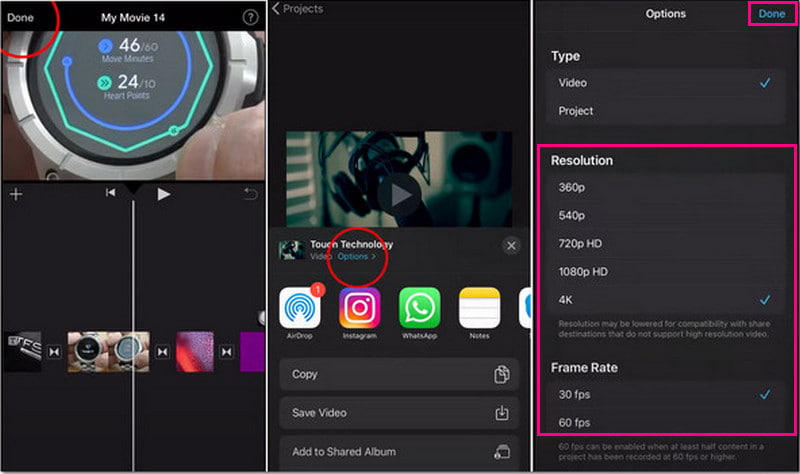
Step 1. Suppose that you are done editing your video using the application. Hit the Done button to proceed with the process.
Step 2. Before saving your video, click the Options button to see the option where you can change your video resolution. Choose the Resolution and Frame Rate you desire to input into your video. Once settled, hit the Done button once again.
Step 3. Afterward, hit the Save the Video button. After that, the application will undergo a saving procedure. Once done, it will save your sharpened video to your gallery.
2. Videoshop
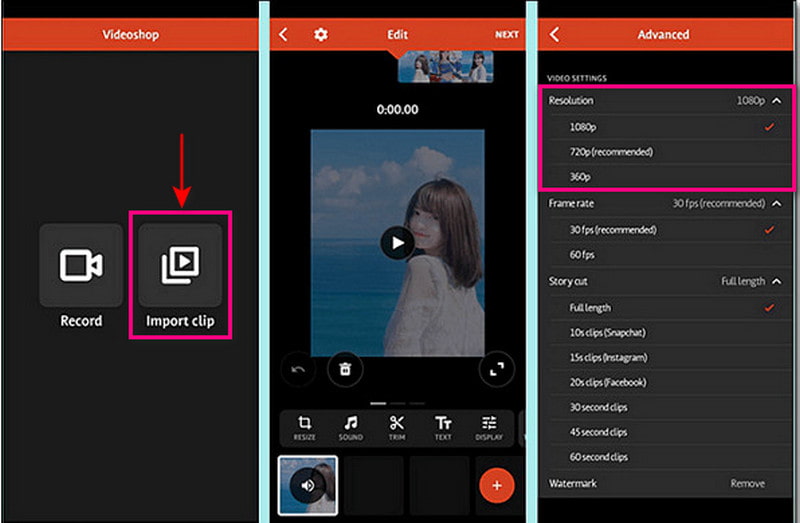
Videshop has plenty of built-in features, such as trimming, adding music, and sound effects, apply slow and fast motion. This application can help you sharpen your video by adjusting the display, such as brightness, contrast, temperature, sharpening, blur, saturation, hue, etc. In addition, you can sharpen your video by selecting a higher resolution from the resolution option. Follow the steps provided to learn how to sharpen your video.
Step 1. Download and Install the application on your mobile device. After the installation process, open the application to start the process.
Step 2. Click the Import clip button to upload the video you want to sharpen. Next, hit the Adjust Display option to modify the brightness, contrast, saturation, and more.
Step 3. Once done, click the Tick to bring you to the saving options. From there, head to the Resolution section, and select a higher resolution for your video. Once settled, proceed to save your sharpened video.
Part 3. FAQs about Video Sharpening
What is sharpen effect?
It highlights the edges of an image by focusing on blurred areas and increasing the contrast of pixels.
Does sharpening increase resolution?
Sharpening does not increase the resolution. However, it will change the size of a compressed format like JPG.
Is output sharpening necessary?
Sharpening is one of the factors in editing that should be included in having a crisper video. Also, it will provide a better viewing experience when watching it.
Conclusion
Watching a video that provides a better viewing experience would be better. With that, consider having a crisper, clearer, more detailed, and sharper video output. It is possible to sharpen video using the tools mentioned above. You can use your personal computer, mobile devices, and online tools to make it happen. What are you waiting for? Try the methods presented!