7 Ways to Merge Audio Files with the Best Audio Merger Tools
Do you want to merge audio files? There are times when you need to combine your music or other audio files to create a single file or document. It is also an ideal process if you want to play them continuously. If you are looking for an effective way to merge your audio files, this post is a must-visit. This article will guide you through the process of merging your songs using the most reliable audio merger software available, both online and offline. With that, to learn more, check everything from this tutorial.

PAGE CONTENT
- Part 1. How to Combine Audio Files Efficiently
- Part 2. Combine Audio Files with Audacity
- Part 3. Merge Audio Files Using VLC
- Part 4. Combine Audio Files on iTunes
- Part 5. Merge Audio Files Using iMovie
- Part 6. Combine Audio Files on Adobe Audition
- Part 7. Join Audio Files Online
- Part 8. FAQs about Merging Audio Files
Part 1. How to Combine Audio Files Efficiently
Looking for an efficient way to merge your audio files? In that case, you can use Vidmore Video Converter. This program is ideal for those who want to easily and smoothly combine their audio files. What we like here is that you can add as many files as you want. What makes it better is that you can even select your preferred audio formats. The program supports MP3, AAC, FLAC, M4A, WAV, AC3, and more. Additionally, you can adjust the volume, bitrate, and delay level of your file to achieve your desired output. Thus, if you need the best audio merger, there is no doubt that Vidmore Video Converter is the best software you can have.
More Features
• The audio merger has a simple user interface.
• It can support various audio formats.
• It can offer basic editing functions to enhance audio quality.
• The program can merge audio with different formats.
• It is accessible on both Mac and Windows.
To learn how to merge audio files using this program, you can check the simple instructions below.
Step 1. Access Vidmore Video Converter by clicking the buttons below. After that, run it to begin the audio-merging process.
Step 2. From the interface, click the Add Files option and add all the audio files you want to merge.
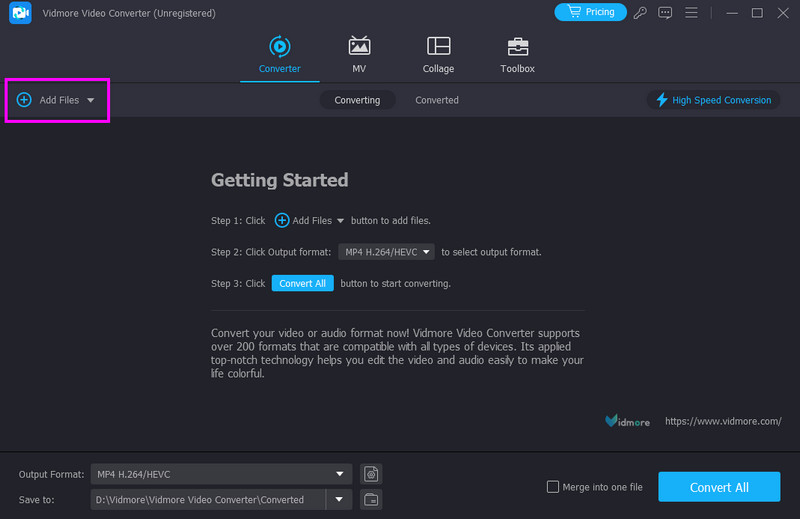
Step 3. You can now click and drag the audio to arrange it in the order you prefer. Then, proceed to the Output Format section and choose your desired format.
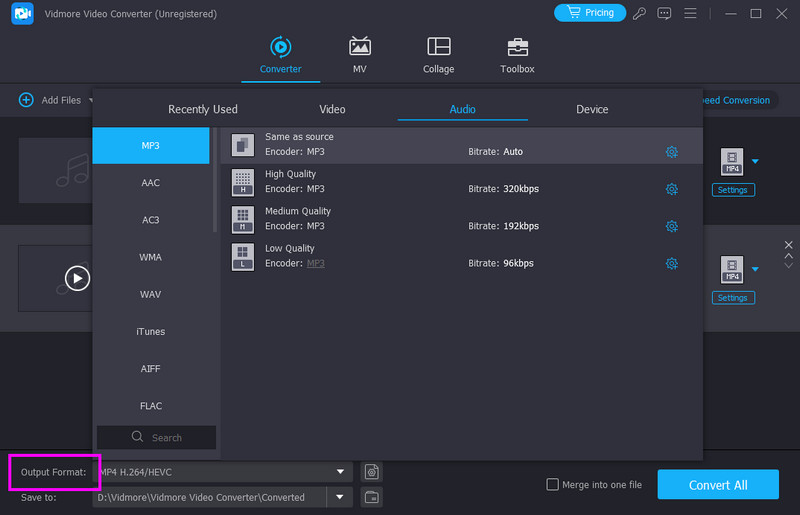
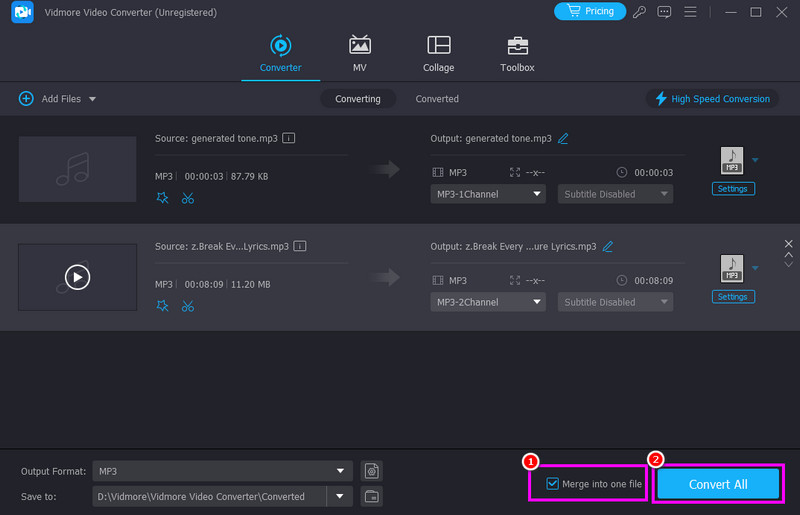
Step 4. Finally, click the Merge into one file option below to combine all the videos. Once done, tap Export to start the saving process.
In terms of combining your audio, there is no doubt that Vidmore can deliver the results you need. Thus, rely on this program and have a better listening experience.
Part 2. Combine Audio Files with Audacity
Audacity is among the open-source programs you can access for merging your audio. With this MP3 merger, you can ensure that you combine all your files. What we like here is that you can also use some functions to improve the audio. You can adjust the tempo and pitch level, adjust the volume, add fade effects, and more.
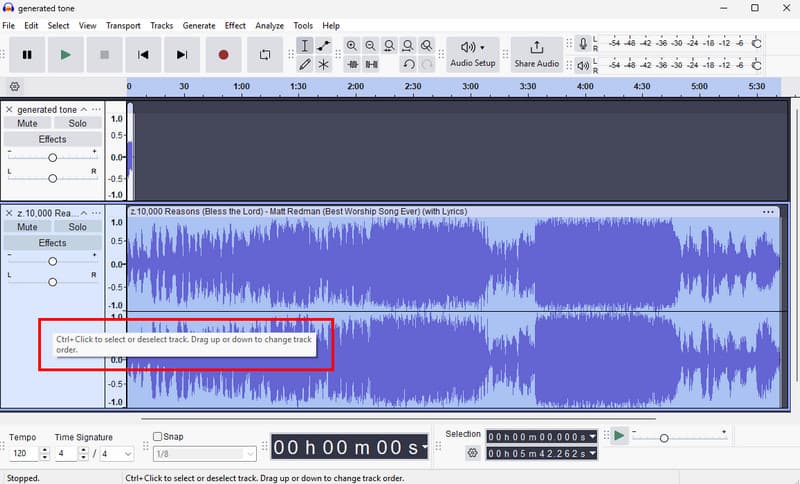
Step 1. Download Audacity on your PC and launch it. Then, proceed to the File > Open option to add all the music or audio files you want to combine.
Step 2. Then, click and drag the music to arrange it in the order you prefer.
Step 3. Tap File > Export Audio > Export on Computer to save the merged audio.
With this process, you can effectively join audio files. However, there are times when merging audio affects its quality. But still, for a better audio-merging process, you can rely on this software.
Part 3. Merge Audio Files Using VLC
Another audio file merger you can access is VLC. With this media player, you can join all the audio files without encountering any issues. It is because the program can offer a hassle-free audio-merging process. You can even play the files instantly without saving them, making it ideal.
Step 1. Install VLC on your computer and run it to start the process.
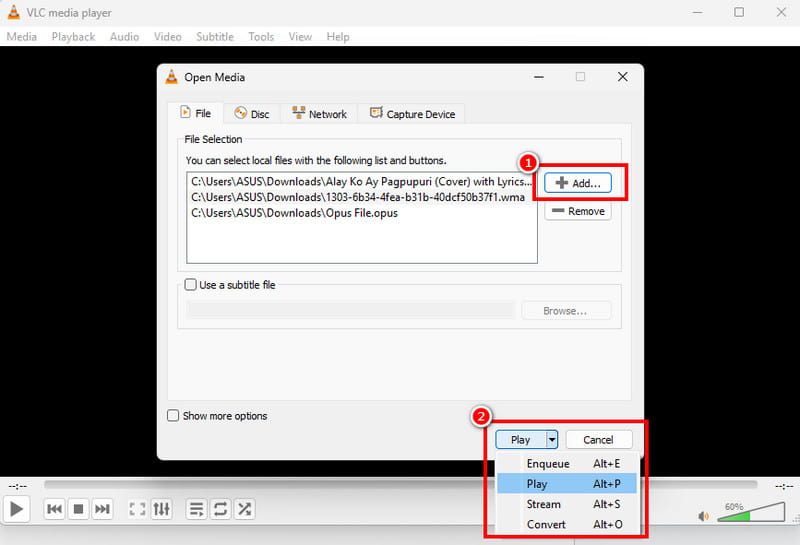
Step 2. Then, from the Media section, click the Open Multiple Files option and hit Add to insert all the audio files you want to combine.
Step 3. Then, from the drop-down button below, you can click the Play option to instantly play the audio. You can also use the Convert option to convert and save the files as a single file.
VLC is an excellent software for merging audio files. The only drawback here is that it has an outdated-looking layout, which is not engaging for some users.
Part 4. Combine Audio Files on iTunes
If you want to merge two audio files on a Mac, you can access iTunes. With this program, there is no doubt that you can get the result you need. The best part here is that it has a simple layout, allowing you to enjoy and access all the functions without difficulties.
Step 1. Launch iTunes on your Mac.
Step 2. Choose your audio files to merge. You can use the keyboard hotkeys Ctrl + Shift and click on your favored audio file.
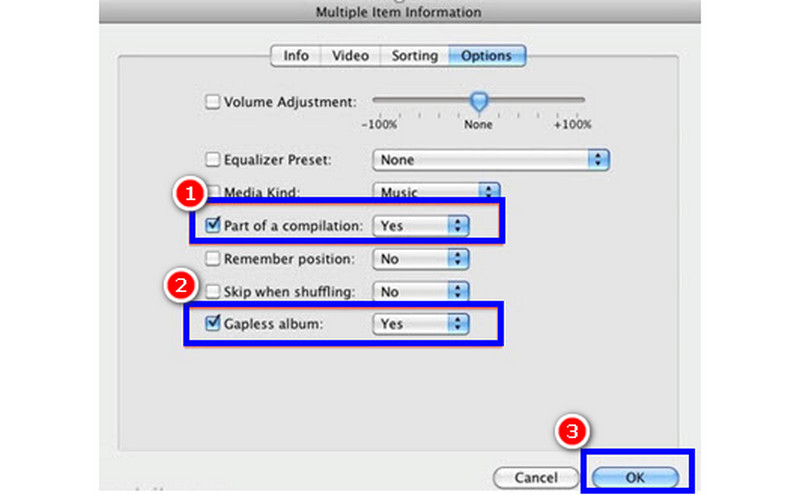
Step 3. Right-click on each song and select Get Info in the drop-down list. Then, select the Options tab, check the Part of a compilation and Gapless album boxes, and click the OK button.
Thanks to this process, you can instantly join any audio files on your Mac. Thus, consider using this program for an effective audio-merging process.
You can also check: Best methods to merge AAC files.
Part 5. Merge Audio Files Using iMovie
You can also use iMovie as your go-to audio merger on your Mac. This built-in program allows you to merge and combine all the audio files from your device. The good part here is that you can even organize them based on your preferred arrangement. With that, if you want to start merging your MP3 audio files, see the instructions below.
Step 1. Open the iMovie program on your Mac and proceed to the Create New > Movie option.
Step 2. Then, proceed to the File > Select Media to add all the audio files from your Mac. Then, drag them to the Timeline section and organize them.
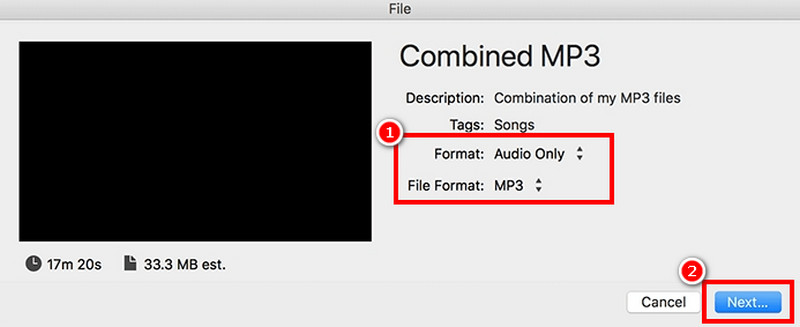
Step 3. After that, navigate to the File > Share > File section. Then, click the Audio Only from the Format section and tap Next to proceed to the saving process.
Thanks to this process, you can effectively merge your audio files in iMovie. The only drawback is that this method is only compatible with Macs.
Part 6. Combine Audio Files on Adobe Audition
Are you looking for an advanced method to merge your audio files? In that case, you can try using Adobe Audition. This software features automatic syncing of multiple audio files, making it the ideal program for all users. Additionally, you can access more audio editing features to enhance your audio file.
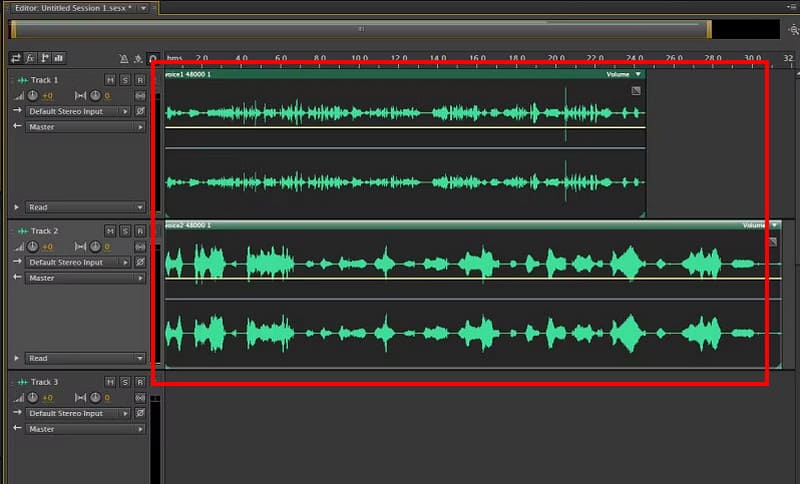
Step 1. Download and launch Adobe Audition on your computer. Then, go to the New File icon to attach the audio files you want to combine.
Step 2. Then, you can start organizing the files from the Timeline section.
Step 3. Once done, go to the File > Save option to begin saving your combined audio files.
With this process, you can ensure that you can get the result you want. However, you must be skilled enough to operate this tool, as it has a complex user interface.
Part 7. Join Audio Files Online
If you want to listen to audio online, you can use Clideo. This online-based tool is perfect if you want to merge your audio files on your browser. It can even support various output formats, including MP3, AIFF, AC3, AAC, WAV, FLAC, and more. To test its capability, follow the steps below.
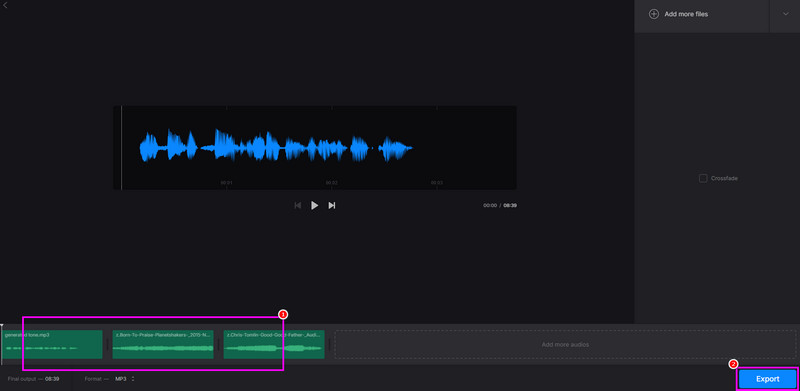
Step 1. Access Clideo on your browser. Then, tap the Choose Files button to upload all the audio files you want to combine.
Step 2. After that, you can click and drag the file to your desired position.
Step 3. Finally, click Export to start the saving process.
If you want to merge audio files online, it's best to use Clideo as your audio merger. This tool ensures that you can get the best results, making it an exceptional online tool.
Part 8. FAQs about Merging Audio Files
What is audio merging used for?
Its main purpose is to combine audio files and create a single file. It is an ideal process if you want to play audio continuously without having to play each one individually. You can also use this method to create long-form audio.
What is the best audio merger?
For the best audio merger, we recommend using Vidmore Video Converter. This software is ideal if you want to combine audio files, as it offers all the necessary features. You can even access basic editing tools to improve the audio, making it an exceptional program.
What is the common problem of merging audio?
If the audio field has different frequencies and channels, you may notice a decline in quality during playback, which can be dissatisfying. Thus, for a smooth playback, ensure that all files have the same parameter level.
Conclusion
Merging audio files is ideal if you want to create a single file. With that, to achieve your desired outcome, you can rely on the steps from this article. Plus, if you want the best audio merger, there is no doubt that Vidmore Video Converter is the best choice. This program provides all the necessary features for an effective and seamless audio merging process.