WonderShare DemoCreator: Is It an Ideal Screen Recorder?
WonderShare DemoCreator is created as an all-in-one solution for recording your screen and editing videos, catering to content creators, marketers, educators, and other professionals. Its straightforward interface makes it simple for beginners to capture and edit content, while providing flexibility for more advanced content creators. Is it the best tool you can use to capture your screen smoothly? If you want to find out, you must read this article. This review will help you explore all the capabilities of the program, including its features, limitations, pricing plans, and more. After that, you will also discover the best alternative for an instant recording process. Thus, read this honest review and learn more about WonderShare DemoCreator.

PAGE CONTENT
Part 1. Introduction and Features of WonderShare DemoCreator
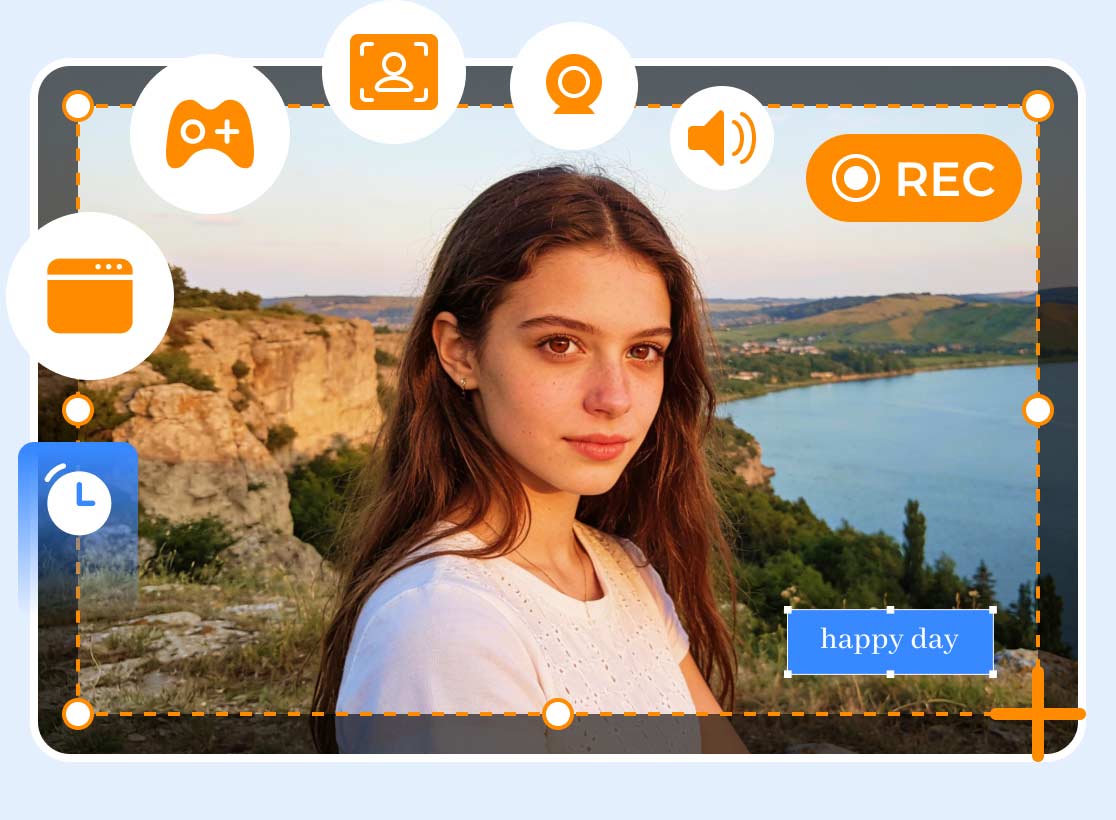
WonderShare DemoCreator is an AI-powered screen recording and video editing program. It is designed for creating professional-grade quality content with a simple procedure. This software allows users to record/capture their screen, microphone, webcam, and system audio, making it an ideal tool for creating tutorials, recording gameplay, and capturing webinars. The best part here is that it supports 4K UHD and 120 FPS, ensuring crisp visuals and smooth playback for any project type.
In addition to that, beyond recording, the program also offers various editing tools to enhance/improve videos. It lets you insert an animation, effects, filters, transitions, and more. It even includes audio editing functions, enabling precise control over system sounds and microphone output. With that, WonderShare DemoCreator is among the most powerful screen recorders and video editors you can access on your Mac and Windows.
Do you want a detailed explanation about the program's overall capabilities? Then, you can check all the information below and explore its helpful features.
Screen Recording
One of the core features of the program is screen recording. This feature allows you to capture any content from your computer screen. You can record videos, webinars, meetings, and gameplays. You can even create a tutorial in this software since you can record your webcam. Plus, recording your screen is simple, thanks to its intuitive user interface. You can even ensure to save your final output with the best quality. Thus, you can access this program if you need an excellent screen and audio recorder for Windows and Mac.
AI Avatar Recording
Another useful feature you can access in this program is its AI Avatar Recording. With more than 30 AI avatars, DemoCreator provides a cutting-edge avatar recorder. With the use of these avatars, users can produce webcam avatar videos that look professional by imitating natural face expressions and movements. Teachers, trainers, and presenters who wish to add a personal touch without being on camera may find this function extremely helpful.
Video Editing
Aside from screen and audio recording, you can also use the program as an excellent video editor. It offers various video editing tools you can access to enhance your overall videos. Some of the tools you can utilize are cropper, filter, trimmer, effects, captions, animation, transitions, adding music, and more. What we like here is that it supports green screen editing, audio adjustments, and AI facial recognition, offering creators the flexibility to improve and polish their content for professional use.
AI Beauty Filter
DemoCreator can also offer the AI Beauty Filter feature. This feature is perfect for creators who want to record their screen with their face on a webcam. It lets you enhance your appearance by adjusting various parameters. It includes skin toning, even skin, skin brightening, face slimming, plump, chin size, eye size, and more. This ensures that you can achieve your preferred output after modifying all the necessary parameters.
Part 2. How to Use WonderShare DemoCreator
Want to learn how to use the program to record your screen? Then, you can use the detailed instructions we have provided below.
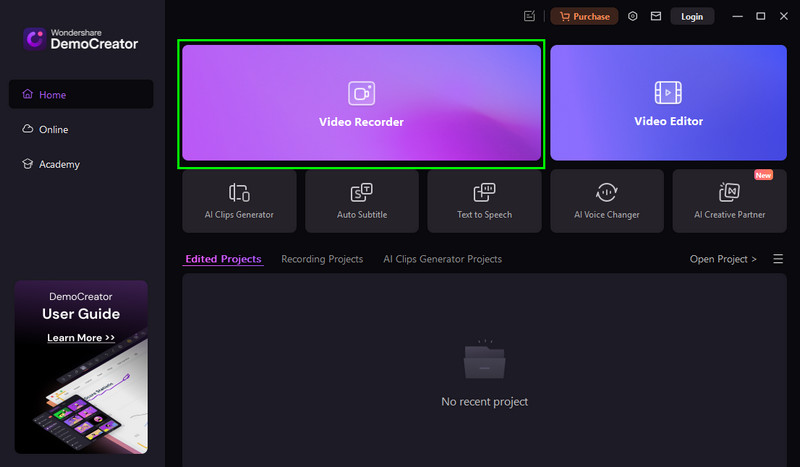
Step 1. First, download WonderShare DemoCreator on your computer. Then, after the installation process, launch it and tap the 'Video Recorder' feature.
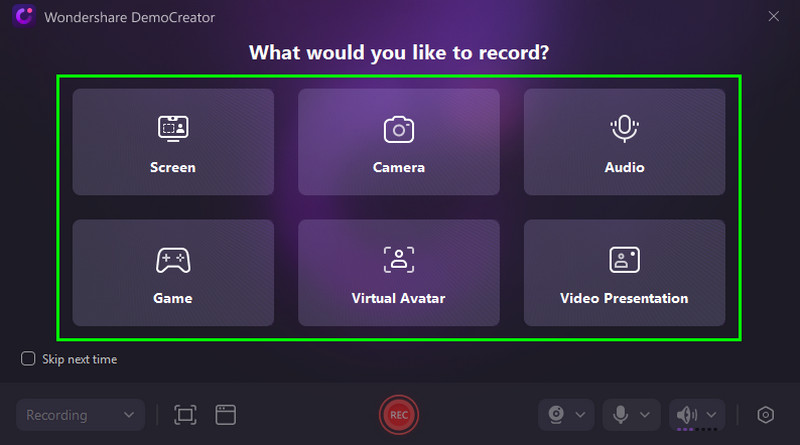
Step 2. After that, you can now choose the content you want to record. You can record your screen, gameplay, camera, audio, video presentation, and more.
Step 3. You can adjust the frames on your screen to record your preferred screen area. After that, tap the REC button to begin the recording process. You can also press F9 as a shortcut.
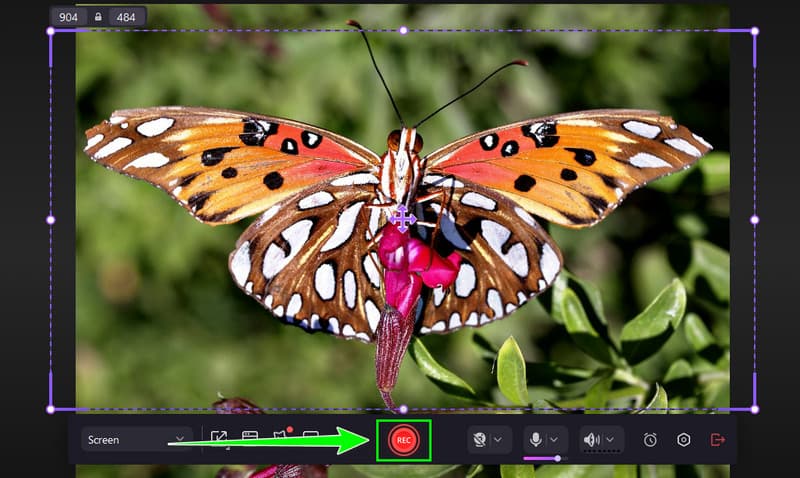
Tap the Stop button or press the F10 key to finish the recording process.
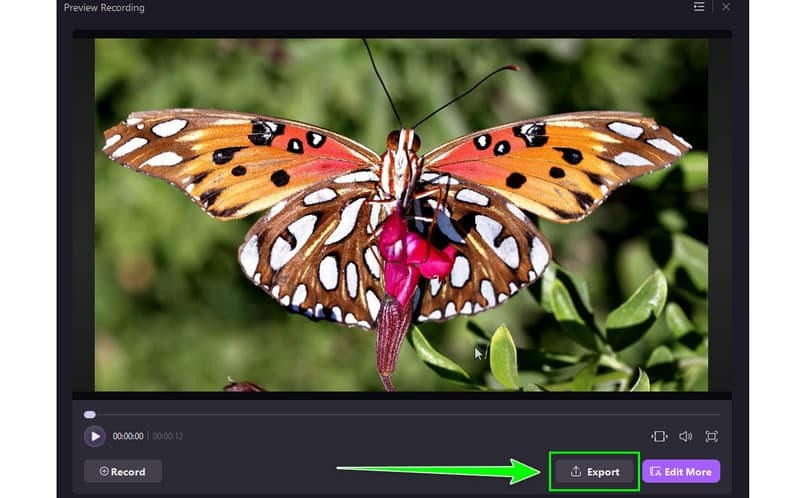
Step 4. Finally, you can hit the Export button below to begin the saving process. Once done, you can watch your video on your device.
With this process, we can tell that DemoCreator is among the best screen recorders that can offer such a smooth process and great quality output. Thus, consider using the tool to achieve your preferred outcome.
Part 3. Pricing Plans of WonderShare DemoCreator
Want to see the price of DemoCreator? Then, you can check the table below, as we offer all the plans for better insights.
| Plans | Cross-Platform Quarterly Plan | Cross-Platform Yearly Plan | Perpetual Plan |
| Pricing | $19.99 | $29.99 | $49.99 |
| Inclusions | ●Keep up to date with future versions ●Save without a watermark ●Record/capture video up to 4K UHD and 120 FPS ●10+ AI tools for video capturing and editing ●Record/capture and edit the microphone, screen, and camera separately ●50,000+ creative assets | ●Keep up to date with future versions ●Save without a watermark ●Record/capture video up to 4K UHD and 120 FPS ●10+ AI tools for video capturing and editing ●Record/capture and edit the microphone, screen, and camera separately ●50,000+ creative assets | ●Unlimited access to V8.X ●Save without a watermark ●Record/capture video up to 4K UHD and 120 FPS ●Record/capture and edit the microphone, screen, and camera separately ●10+ AI tools for video capturing and editing ●50,000+ creative assets |
Part 4. Limitations of WonderShare DemoCreator
DemoCreator is an ideal recorder and editor for users. However, there are also limitations/drawbacks that you must be aware of. You can read the details below and discover some of its limitations.
Limited Advanced Editing Features
Even though the software can offer a solid set of editing tools, it still lacks some advanced editing features you find on Camtasia or Premiere Pro. Some of the editing features it can't offer are complex multi-track editing, motion graphics, and advanced color grading.
Resource-Intensive
The program is resource-intensive. You must have a high-spec computer to run it smoothly while recording and editing.
Limited Customization of Templates and Effects
Although DemoCreator offers a collection of templates and effects, there aren't many choices for modification. Compared to more configurable platforms, the pre-built elements may be too generic for those who desire highly customized images, restricting creative potential.
Part 5. Best Alternative to WonderShare DemoCreator
When it comes to recording, DemoCreator is one of the best options. However, if you have a low-spec computer, then it is unsuitable since the software is resource-intensive. There are also some restrictions when using the free version. With that, if you need an excellent alternative to WonderShare, we suggest using Vidmore Screen Recorder.
This program is perfect if you want to record any content from your screen without any restrictions. You can capture gameplays, webinars, music, webcam, and more. It can also offer a comprehensive layout, making it ideal for non-professional users. What we like here is that it ensures to give you the best video and audio quality so that you can get a better viewing and listening experience. Plus, you can improve your captured screen by using its pre-built editors, such as cropper, trimmer, effects, and more. It can also offer its Snapshot feature for taking screenshots during the recording process. Thus, if you need an exceptional alternative to DemoCerator, there's no doubt that Vidmore Screen Recorder is the best tool to consider.
More Features
- The program can offer a smooth recording process.
- It offers various annotation tools to make the recording engaging.
- The screen recorder can provide shortcut keys for an instant recording process.
- It supports real-time drawing, ideal when creating a tutorial video.
To start recording your screen using the software, use the method below.
Step 1. Download and install Vidmore Screen Recorder. After that, launch it to begin the recording procedure.
Step 2. From the interface, you can choose how you want to record your screen. Click Full to record the entire screen. Tap 'Custom' to record a certain screen area.
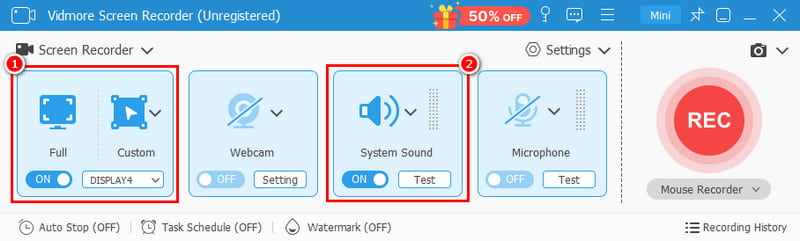
You can also turn on the System Sound to record the audio from your screen.
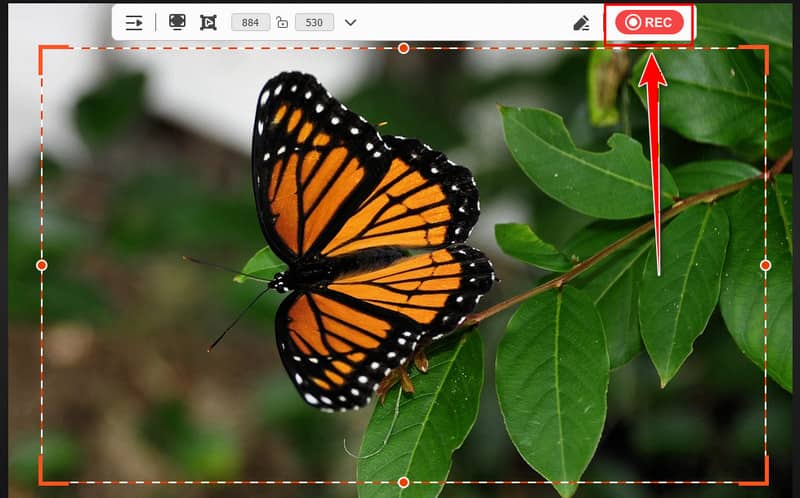
Step 3. To start the recording process, hit the REC button. Once done, hit Stop to finish the recording.
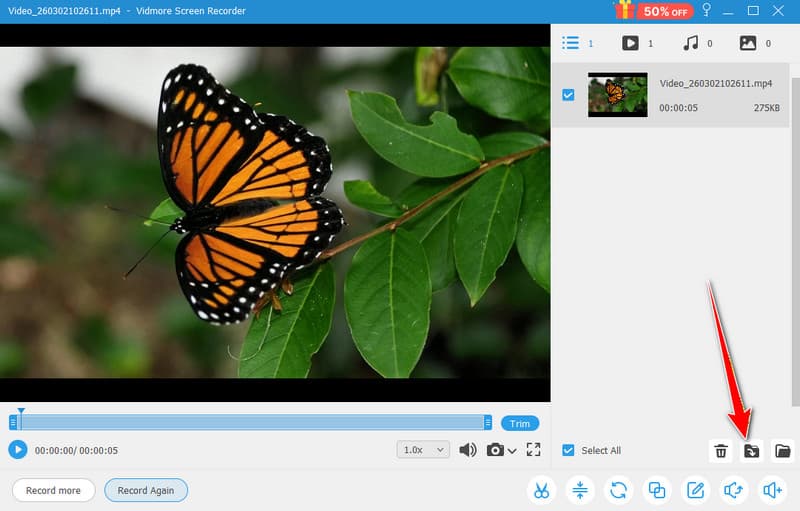
Step 4. For the last process, hit the Export button below to save the captured screen on your desktop.
Thanks to this method, you can capture your screen effectively and smoothly. It can even offer various editing functions, helping you to improve your videos. With that, if you want to record your screen on Mac and Windows, follow these instructions.
Final Verdict
WonderShare DemoCreator is an astounding screen recorder and video editor. Thanks to this review, you have explored its capabilities, features, limitations, and pricing. You even discovered some of its drawbacks. Plus, if you need the best replacement for DemoCreator, we recommend using Vidmore Screen Recorder. It ensures to offer all the features you need, helping you to achieve your desired result after the recording process.