4 Ways to Convert AIFF to MP3 on Your Mac for Easy Sharing
You should be familiar with the AIFF format as a Logic Pro user or someone who often edits audio on a Mac. It is an uncompressed audio format developed by Apple. This lossless format can deliver studio-quality sound. At the same time, it has a large file size (often 10 times that of a high-quality MP3). These heavy audio files are not ideal for sharing.
Before you send or upload an AIFF file, you often need to convert it to a lightweight format first. This guide tells four proven methods to convert AIFF to MP3 while maintaining high sound quality. You can learn the key differences between these two formats and then choose your preferred method for converting your Apple audio files on a Mac.
PAGE CONTENT
Part 1. AIFF vs. MP3: When to Use Which?
AIFF (Audio Interchange File Format) is an uncompressed audio format designed by Apple. This lossless format can be the Mac equivalent of the Windows WAV format. AIFF files can save all the source audio data recorded without compressing any information to save space. That will lead to a large file size, as mentioned above.
If you want to archive master tracks and enjoy the best possible sound quality, the AIFF format is an ideal choice. However, the massive file size is not for quick sharing or loading.
MP3, on the other hand, is the most popular audio format and has a small file size. As a compressed audio format, MP3 strips out audio frequencies to reduce file size while maintaining good sound quality.
It is ideal for social media sending, uploading, and sharing. Moreover, MP3 is a good option for storing large music libraries on mobile devices and players. Most devices, platforms, and systems widely support this audio format. So, MP3 is often the target format for conversion to fix compatibility issues. The only drawback is its sound quality. It cannot provide the same studio-quality audio as AIFF.
Part 2. Quick Check: 4 Efficient Ways to Convert AIFF to MP3
Check the following quick comparison of the four AIFF-to-MP3 conversion methods.
| AIFF to MP3 Converter | Best For | Output Control | Price | Pros | Cons/Limits |
| Apple Music App | Quick, free local conversion | Presets (custom bitrate) | Free | Built-in to Mac, zero installation | Create duplicates in your music library Slow for large batches |
| Vidmore Video Converter | High-quality batch processing | Full custom parameters | Paid (free trial) | Super fast, lossless options, batch conversion, hardware acceleration | Requires software installation |
| CloudConvert | Fast, single-file task, no-install | Bitrate and settings options | Free tier/Paid plans | No installation needed, works on any OS | Requires internet Has size limits on free tier Slow uploads and downloads |
| Audacity | Free audio editing and conversion | Extensive fine-tuning | Free, open-source | Open-source, highly customizable | Limited to audio editing and conversion |
Part 3. The Fastest AIFF to MP3 Ways for macOS
This section will share the four conversion methods one by one. You can navigate to the desired section using the comparable table above.
Method 1: Convert AIFF to MP3 in the Apple Music App (Direct)
If you prefer a built-in way to convert your AIFF files directly, you can start with the Apple Music app on your Mac. It has a dedicated Create MP3 Version option that converts AIFF to MP3 seamlessly.
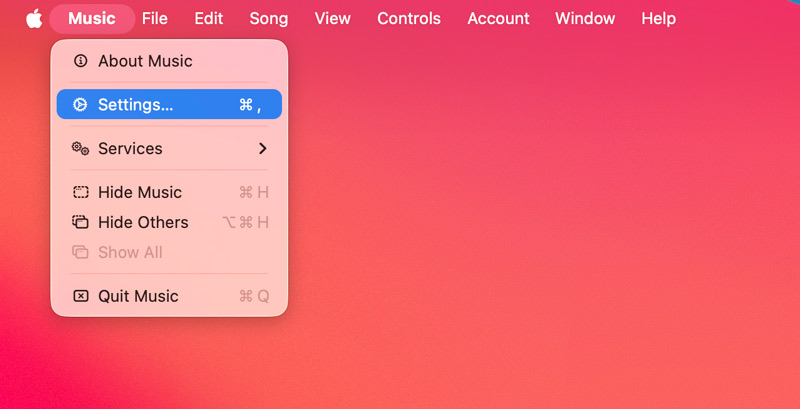
Step 1. Open the Apple Music app on your Mac. Tap the top Music menu and go to Settings.
Step 2. Under the Files tab, click the Import Settings button. In the new pop-up window, select MP3 Encoder in the Import Using dropdown menu. Choose the desired quality, then click OK.
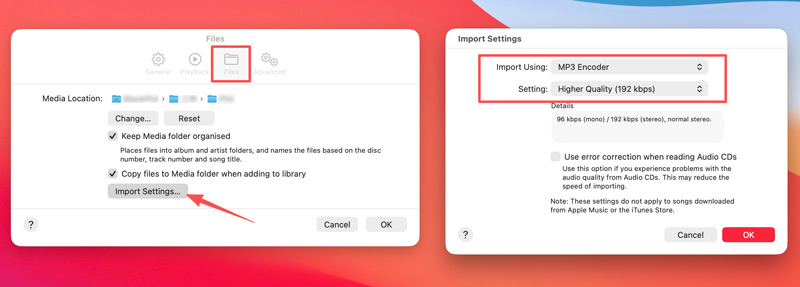
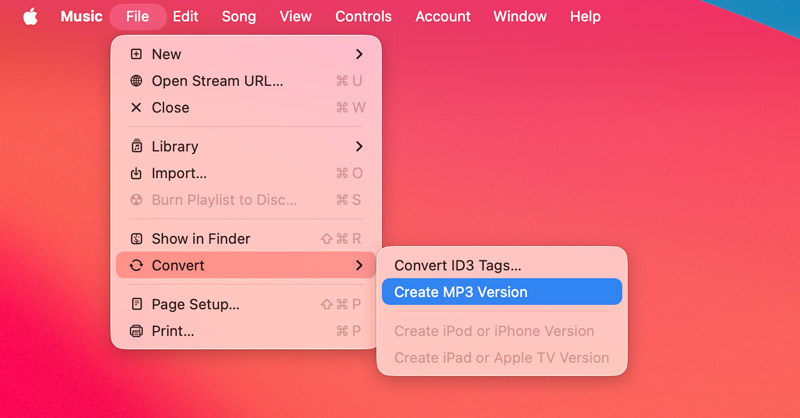
Step 3. Choose your AIFF file in your Apple Music library. Go to the top File menu, click Convert, and then choose Create MP3 Version. Wait for the process to complete, and the new MP3 will appear in your library under the original AIFF.
Method 2: Change AIFF File to MP3 with Vidmore Video Converter
The Apple Music app’s AIFF-to-MP3 conversion requires importing files into your library first, which will cause duplicate tracks. If you need a straightforward audio conversion way, turn to the easy-to-use Vidmore Video Converter. The software supports all commonly used lossless and lossy audio formats. It lets you convert AIFF files to MP3 with high sound quality.
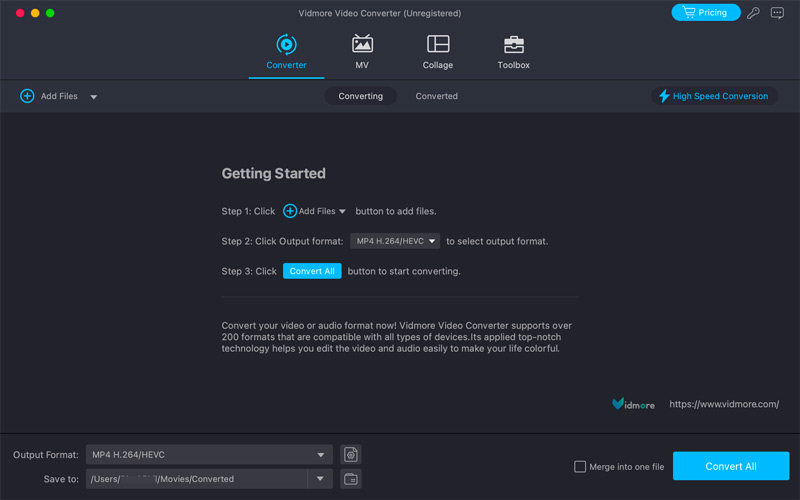
Step 1. Download and launch Vidmore Video Converter on your Mac. Load your AIFF files. This audio converter can handle dozens of AIFF files and convert them in batches.
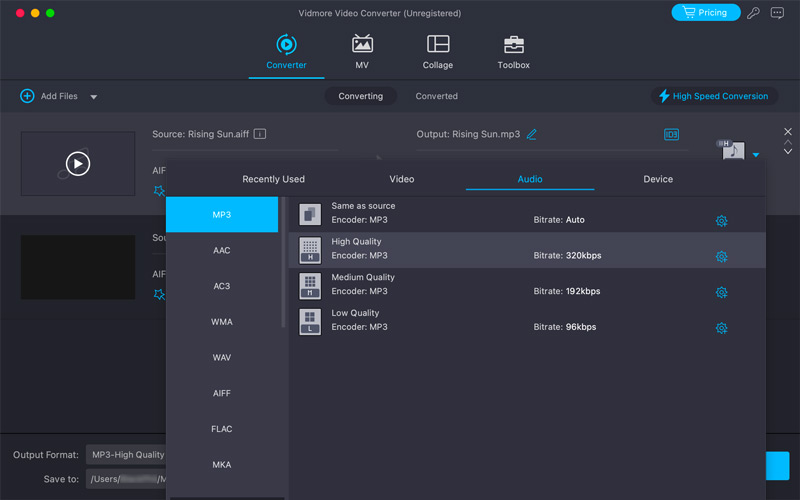
Step 2. Click the format icon on the right side of your audio track, click the Audio tab, and select MP3. Vidmore also allows you to convert AIFF to other formats you need, including AAC, AC3, WMA, WAV, and FLAC. It also allows you to control audio channels, sample rates, and bit rates as needed.
Step 3. Choose a safe destination folder for exported MP3 files, then click the Convert All button.
Method 3: Turn AIFF into MP3 Online with CloudConvert
If you have only a few AIFF files to convert and don’t want to install a dedicated MP3 converter on your Mac, a free audio converter like CloudConvert is often the best choice.
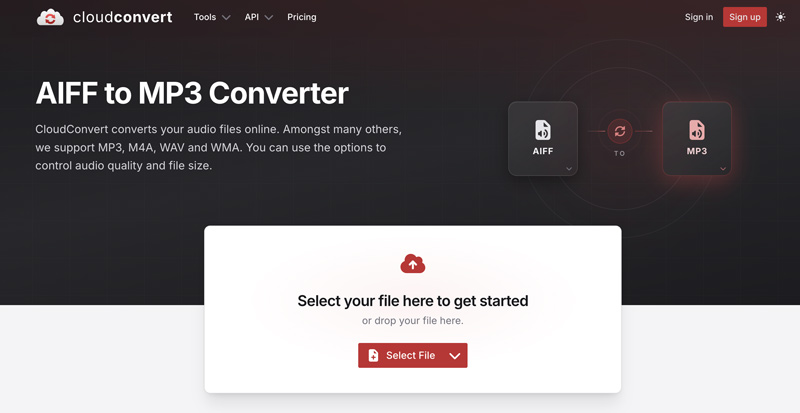
Step 1. Open your Safari or Chrome browser on your Mac and go to the CloudConvert website. You can navigate to its dedicated AIFF to MP3 Converter page.
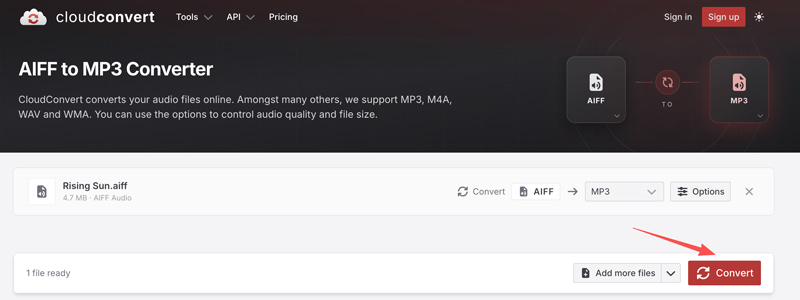
Step 2. Add the AIFF file you want to convert and ensure the output format is MP3. Click Options to customize additional audio settings. After that, click the red Convert button. Once converted, you need to manually download the MP3 file to your device.
Method 4: Export AIFF to MP3 for Free Using Audacity
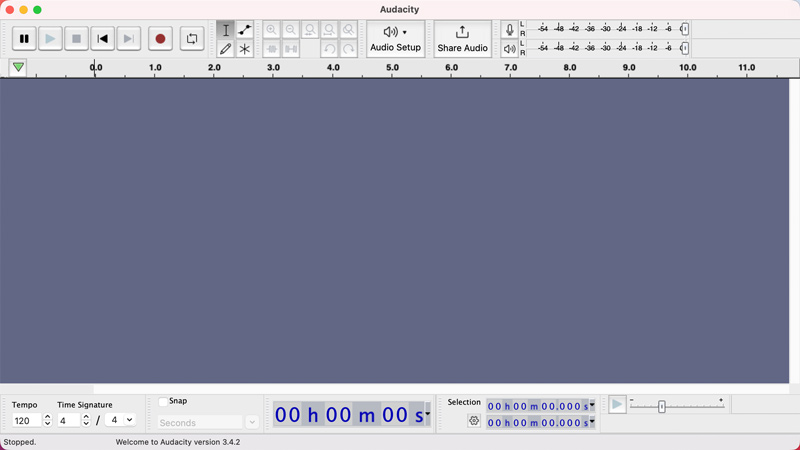
Audacity is a popular, open-source audio recorder and transcoder. It can help you convert audio files with ease. Download Audacity for Mac and follow the steps below to turn your AIFF files into MP3.
Step 1. Open Audacity on your Mac and drag your AIFF file onto the interface to load it.
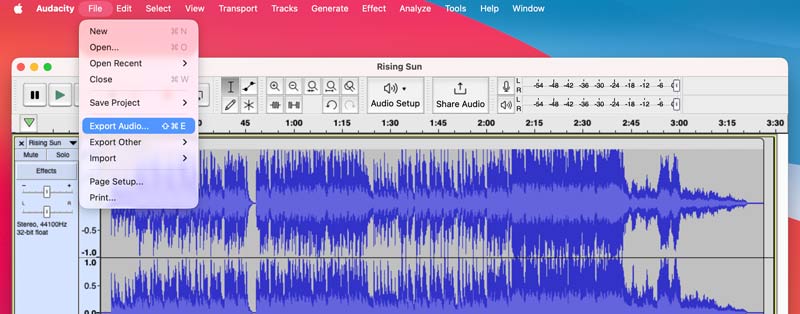
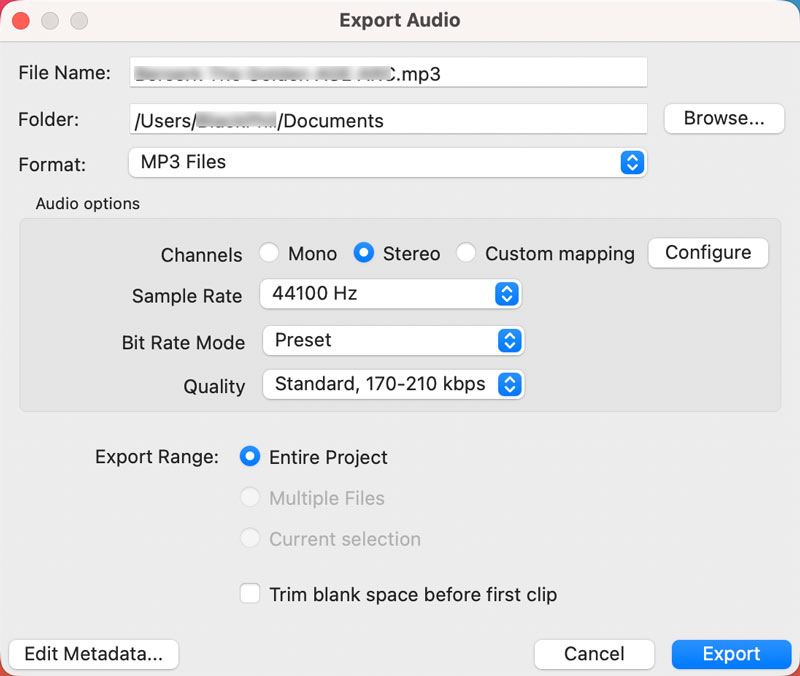
Step 2. On the top menu bar, click the File menu, then choose Export Audio.
Step 3. Select MP3 Files from the Format dropdown. Rename the output audio and customize various audio settings to suit your needs. After that, click the Export button.
Part 4. FAQs of Converting AIFF to MP3
Question 1. Is AIFF higher quality than MP3?
Yes, as mentioned above, the uncompressed, lossless AIFF is much higher quality than MP3. It stores exactly what was recorded without losing any information to save space. MP3 is a compressed, lossy audio format. It is primarily designed to deliver high sound quality in a much smaller package. MP3 will delete some audio data (often at very high and very low frequencies) that the human ear cannot naturally hear.
Question 2. Is it safe to use online AIFF to MP3 converters?
Yes, it is often safe to use a reputable online converter to handle casual audio files. However, you should not use online tools to edit and convert highly sensitive or legally protected audio.
Question 3. Does the Apple Music app accept AIFF?
Yes. The Apple Music app natively supports AIFF files. AIFF is an uncompressed audio format developed directly by Apple. It can be played on Apple devices and built-in apps.
Conclusion
In most cases, you don’t need the heavy, uncompressed AIFF. Instead, MP3 is the format that best suits your needs, offering a good balance of file size and quality. This guide outlines four methods for converting AIFF to MP3. You can compare them and select a preferred way to start your audio conversion.