FLAC to WAV: Top 5 Methods for Lossless Audio Conversion
Why convert a lossless audio format to another, such as FLAC to WAV?
You may feel that converting FLAC to WAV is unnecessary or meaningless, especially considering that both are lossless formats. However, in certain cases, you have to make the transcode. For instance, you may need to convert audio for perfect compatibility with professional Digital Audio Workstations (DAWs) or specialized devices.
This guide breaks down the technical differences between FLAC and WAV, provides a clear comparison table, and shares five reliable methods for you to convert FLAC to WAV.

PAGE CONTENT
Part 1. FLAC vs. WAV: Understanding Lossless Storage
As mentioned, FLAC and WAV both store audio without quality loss. So, here is the main difference between them.
FLAC vs. WAV
FLAC (Free Lossless Audio Codec) is an open-source codec that compresses audio losslessly. This royalty-free codec excels at compressing audio without any quality loss. Compared to WAV, it typically reduces file size by 30‑50% while keeping all musical details intact.
WAV (Waveform Audio File Format), developed by Microsoft and IBM, is the standard audio container for Windows systems. It uses linear PCM encoding and stores raw, uncompressed PCM data.
WAV has been the standard format for studio recording, editing, and CD mastering for decades. This lossless audio format delivers the maximum compatibility with devices and players.
The difference lies solely in storage: WAV stores raw data, while FLAC packs that data more efficiently.
Why Would Anyone Convert FLAC to WAV?
The most common reason is compatibility. Many older hardware players, car stereos, and audio editing software cannot decode FLAC. On the contrary, they can handle WAV perfectly.
Second, most digital audio workstations support WAV files natively. You don’t need an extra decoding step. What’s more, these DAWs can handle WAV without any background conversion (FLAC to WAV) delays or missing codec errors.
Quick Comparison Table
| Feature | FLAC | WAV |
| Compression | Lossless | Uncompressed PCM |
| File Size | 50%-70% of WAV | 100% |
| Audio Quality | Bit-perfect, identical to WAV | Original, unaltered |
| Metadata Support | Extensive (covers, tags, ReplayGain) | Limited |
| Compatibility | Modern devices & players | Universal (Wider support for OS/hardware) |
| Best For | Archiving, streaming, personal collections | Recording, editing, mastering, CD burning |
| License | Opensource, royaltyfree | Proprietary (Microsoft/IBM) |
Part 2. Learn 5 Best Lossless Ways to Convert FLAC to WAV
Many converters and dedicated audio transcode tools claim to help you convert FLAC to WAV. With so many options, which one should you use? I tested 20+ popular converters and selected 5 top contenders for you to choose from.
1. Vidmore Video Converter
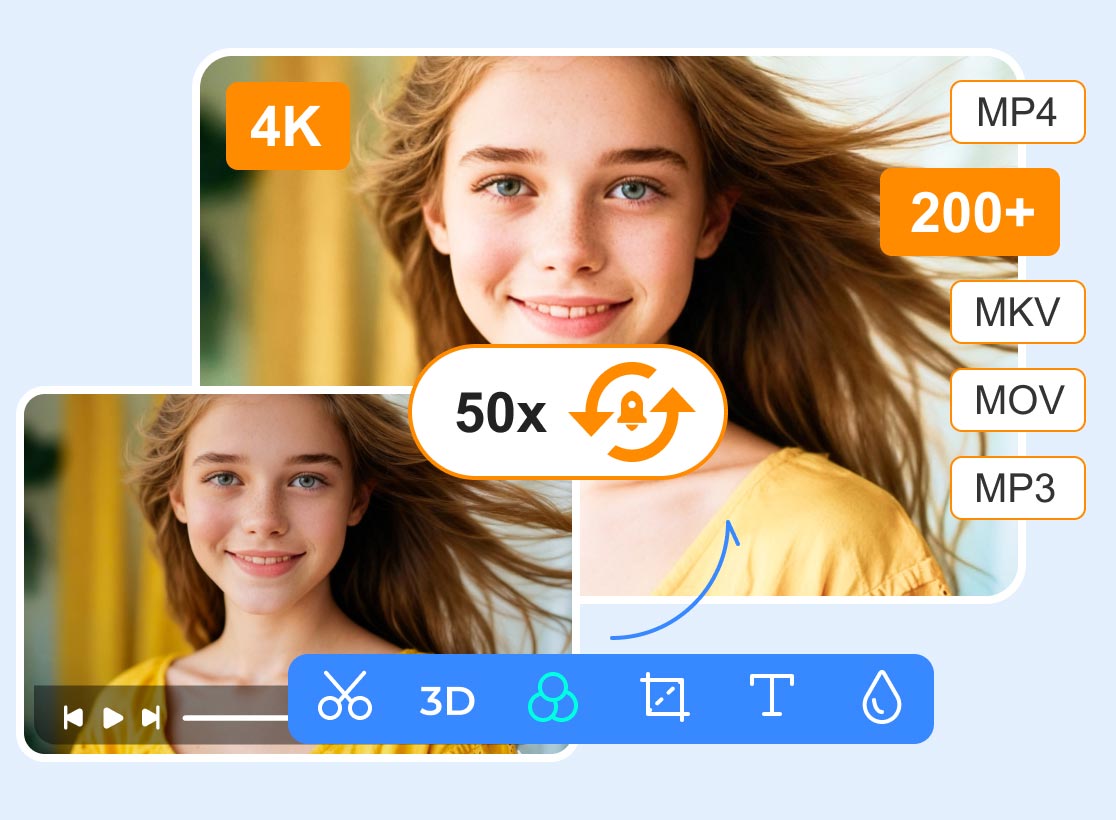
Vidmore Video Converter is a professional audio and video conversion tool that can decode FLAC to WAV with no quality degradation. It supports all the commonly used lossless and lossy formats. Vidmore supports advanced accelerated encoding to ensure fast conversion speeds. This is quite useful for handling large, lossless files quickly.
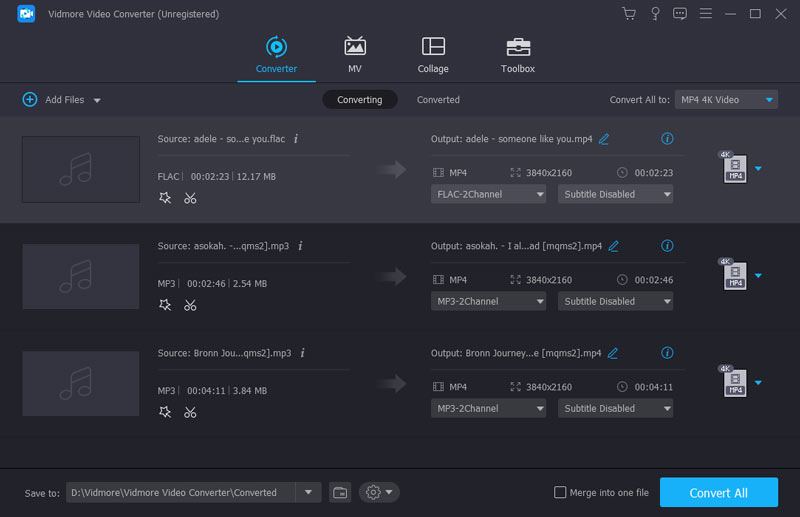
Step 1. Download and launch this FLAC to WAV conversion tool on your PC or Mac. Click the Add Files button or drag your FLAC files onto the central part of the workspace.
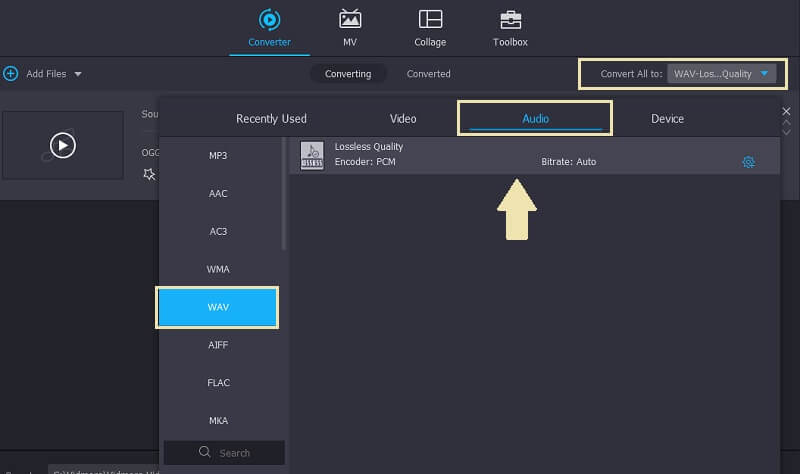
Step 2. In the Output Format section, click the Audio tab, then choose WAV. You can adjust sample rate, encoder, bit depth, and more settings.
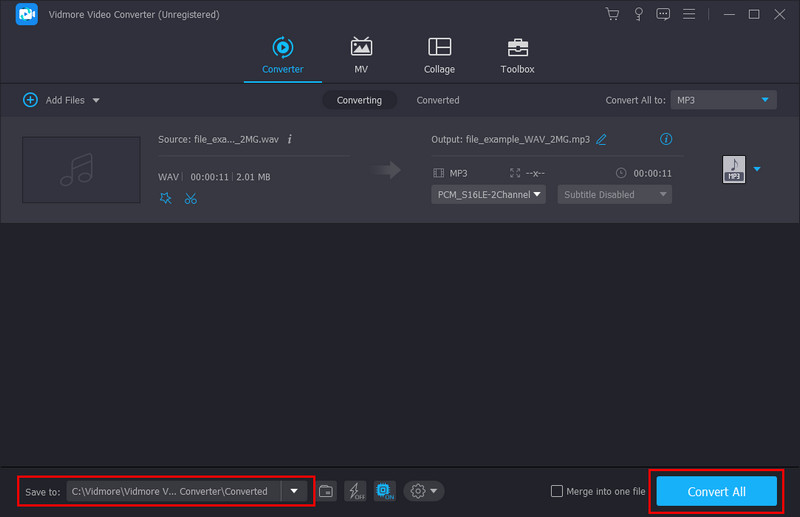
Step 3. Check and make sure the final output format is set to WAV, select a desired destination folder (Save to), then click Convert All to trigger the conversion.
2. Foobar2000 — The Lightweight FLAC to WAV Converter
Foobar2000 is a free lossless audio player for Windows and macOS that comes with a powerful converter. It has been a mainstay of lossless audio conversion for over a decade. It handles FLAC-to-WAV conversions without requiring extra plugins. If you already have Foobar2000 installed on your PC, you can use it to convert FLAC to WAV for free.
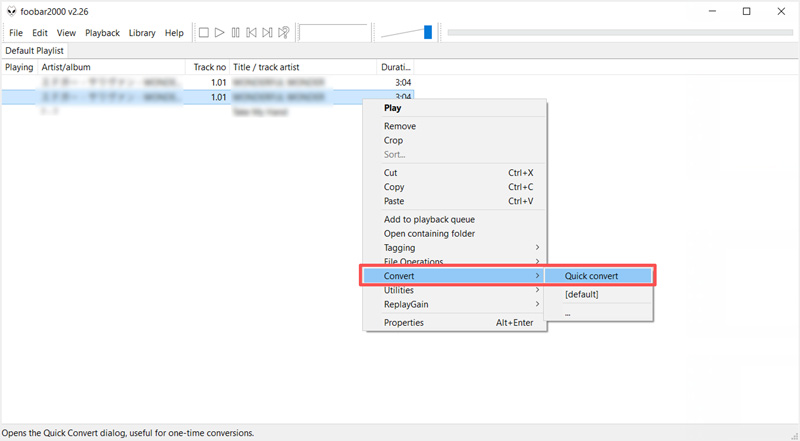
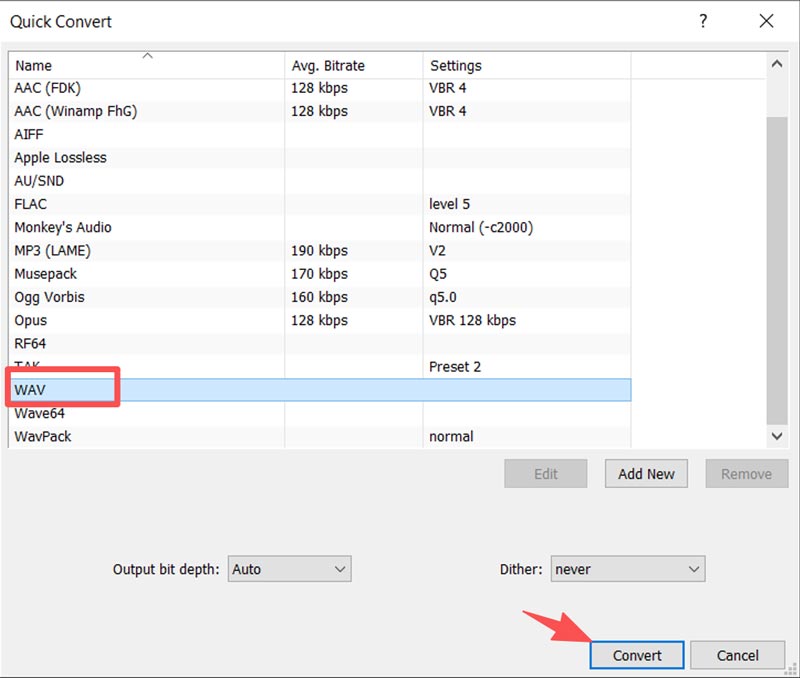
Step 1. To convert FLAC to WAV with Foobar2000, you need to load your audio files into its playlist first. Select all the audio you want to convert, right‑click on any selected file, select the Convert option, and choose Quick Convert. This opens the converter setup.
Step 2. In the pop-up Quick Convert window, set WAV as the output format. Set the Output bit depth to “Auto”, “24-bit”, or “16-bit” depending on your source. Click Convert and choose a destination. Foobar2000 processes files in parallel if your CPU supports it, making batch conversion fast.
3. Freemake Audio Converter (Windows-Only)
Freemake Audio Converter is a popular freeware for Windows. This FLAC to WAV converter supports over 50 audio formats, including FLAC, WMA, WAV, MP3, M4A, AAC, and AIFF. Moreover, it can extract audio from videos with high quality.
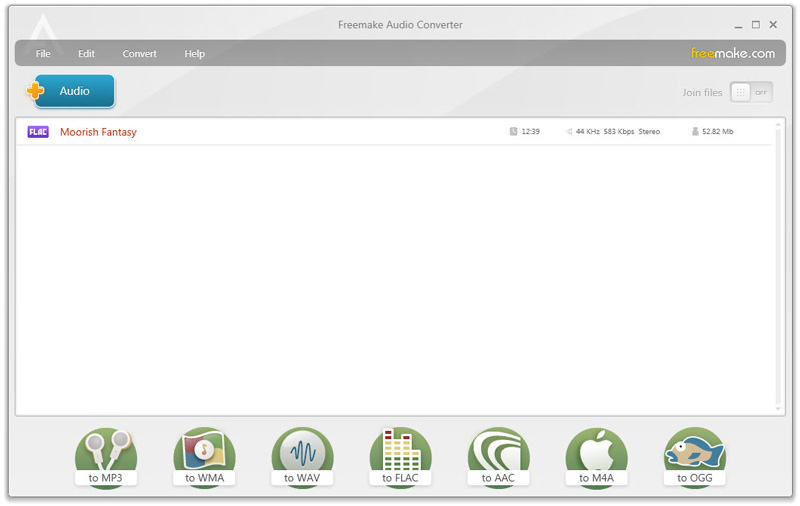
As you can see, Freemake provides a straightforward way to turn FLAC files into WAV. You can drag audio files into the window, click To WAV from the format bar at the bottom, customize output settings, and then click the Convert button.
Note that the free version adds a short audio watermark on output unless you upgrade to the paid version.
4. X Lossless Decoder (XLD) - macOS
For macOS users, X Lossless Decoder is a great converter tool for FLAC to WAV conversion. This free, open-source converter is designed specifically for lossless audio formats. XLD supports FLAC, WAV, AIFF, ALAC, WMA Lossless, and other codecs. It can decode FLAC to WAV with perfect bit-for-bit accuracy.
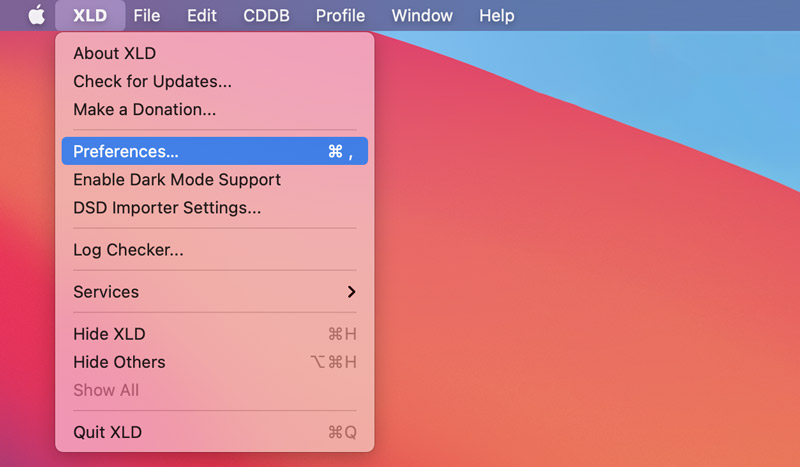
Step 1. Download the latest version of XLD on your Mac and open the application. Click XLD in the menu bar and go to Preferences.
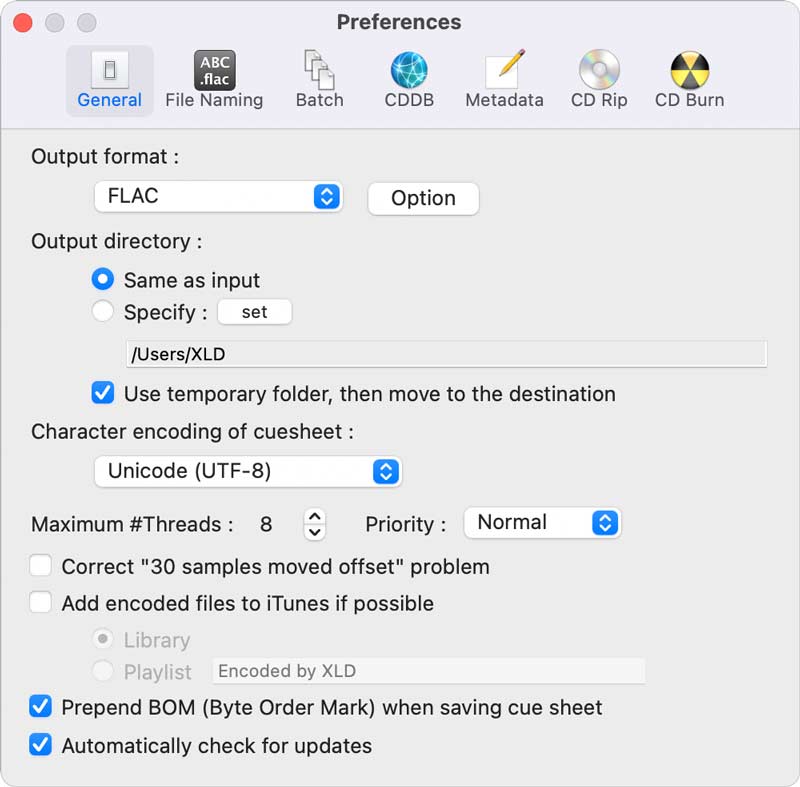
Step 2. In the pop-up Preferences window, choose WAV from the drop-down list of Output Format. Adjust other settings as needed, then save.
Step 3. Click the top File menu and click Open to select your FLAC file(s). XLD will automatically detect the source sample rate and bitrate, and preserve those settings unless you manually override them. Start the lossless audio conversion and let XLD do the rest.
5. Audacity - Open Source Audio Transcoder and Editor
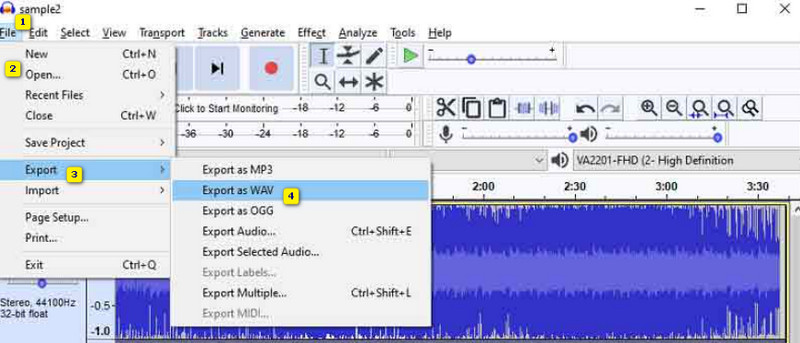
Audacity is useful for changing audio files into different formats, such as the conversion from FLAC to WAV. It supports most commonly used audio formats and enables you to transcode FLAC files without any trouble. What’s more, Audacity lets you edit the audio before converting it, such as by cutting it down and adding effects as you want. The best part is that you can convert multiple files at the same time.
Step 1. Download Audacity on your computer and open it. Go to the File tab and click the Open option to upload your FLAC files.
Step 2. Once all the audio files are uploaded, click the File tab and click the Export button. A pop-up window will appear. From there, click the Export as WAV option.
Part 3. Tips: How to Preserve Audio Tags During Lossless Conversion
After converting your FLAC files to WAV, you may often get related metadata loss. Here are some helpful tips to minimize it.
FLAC is designed to store metadata in Vorbis comments. Compared with it, WAV files use a different tagging system, such as the Broadcast Audio Format (BWF) or the newer RIFF INFO chunk. As you can see, album art is not part of the WAV specification.
To preserve as much metadata as possible, you can use Vidmore, Foobar2000, or XLD. They can maintain the most complete field mapping. Before converting FLAC to WAV, check and ensure the source audio files have clean, consistent tags. You can use tools like MP3tag to clean up your FLAC library.
Part 4. FAQs of Converting FLAC to WAV
Question 1. Does converting FLAC to WAV reduce audio quality?
No. FLAC is lossless audio compression. Converting FLAC to WAV will decompress the audio back to the original PCM stream. The output is bit-for-bit identical to the source.
Question 2. Is it worth converting FLAC to WAV?
Converting FLAC to WAV does not improve sound quality. Whether it is worth it depends entirely on your workflow. For everyday listening, it is not worth the large storage cost. However, for professional DAW editing or unsupported-format issues, the conversion is worth it.
Question 3. What is the best tool for batch converting FLAC to WAV?
You can start with the recommended Vidmore Video Converter for your FLAC to WAV conversions. If you already have Foobar2000 installed on your PC for music playback, try using it to convert your audio files. Audacity is also an ideal choice if you need to transcode audio, especially when you have audio editing and recording needs.
Conclusion
In this post, you can learn the main difference between FLAC and WAV. Moreover, five methods presented here cater to different needs. Converting FLAC to WAV is a straightforward process as long as you use the right audio transcoder based on your platform and workflow.
If you use Foobar2000 to play your music files, start with it to make the conversion effortlessly. Similarly, you can use VLC to convert audio. Vidmore Video Converter is the definitive choice if you often handle video and audio transcoding. It is ideal for various conversions on Windows and Mac without quality loss.