4 Easy Ways to Convert WMA to MP3 for Playback on Any Device
WMA (Windows Media Audio) files can be perfectly played on Windows. However, they are not natively supported by iPhones and many Android phones. If you have collections of older WMA audio files ripped from CDs that cannot be played on your phone or player, you may consider converting them.
How to convert WMA to MP3? This guide explains why these WMA files won’t play on your phone and shares four efficient ways to change WMA to MP3 format. You can compare these methods and select your preferred one for audio conversion.

PAGE CONTENT
Part 1. Why WMA Files Don’t Play on Your Phone
WMA, short for Windows Media Audio, is a proprietary format owned by Microsoft. This format is specially designed for its own ecosystem. That’s why WMA files play perfectly on Windows PCs, Zune players, and Xbox consoles. WMA is also the default format for ripping CDs via Windows Media Player.
Because Microsoft’s WMA remains proprietary, Apple’s iOS/macOS and Google’s Android systems don’t have native support for it. Instead, they prefer audio formats (universally licensed) like MP3 and AAC. In that case, iPhones, iPads, Macs, and many Android devices cannot play WMA files. They don’t have codecs to decode WMA.
Part 2. A Quick Comparison Table of 4 WMA to MP3 Conversion Ways
Check the following quick comparison of the four conversion methods. Select a desired one that best fits your workflow.
| WMA to MP3 Converter | Platform | Advantages | DRM Removal | Ease of Use | Speed | Best For |
| Windows Media Player | Windows | Built-in on Windows, free | Only via CD burn | Complex | Very Slow | Rip DVDs Unprotected tracks, no extra software |
| Vidmore Video Converter | Windows, Mac | Both video and audio conversions Lossless audio options Batch processing Editing features | Yes | Very Easy | Fast | Large batches of WMA files High-quality conversions |
| Any Video Converter | Windows, Mac | Handles many audio and video formats | No | Easy | Moderate | Free offline conversion |
| Convertio (Online) | Web-based | No installation needed Works on any device | No | Very Easy | Moderate (Internet-dependent) | A few small, unprotected files, no installation |
Part 3. How to Convert WMA to MP3 on Windows PC and Mac
If your player or device does not support WMA files, you can convert them to MP3 for optimal compatibility. Depending on how many audio files you need to convert and your device (operating system), choose a suitable WMA to MP3 converter.
Method 1: Rip WMA CDs to MP3 with Windows Media Player
If you are using an older Windows computer, try using the built-in Windows Media Player to convert WMA to MP3. It can rip audio from physical CDs directly into MP3 format.
Step 1. Open Windows Media Player on your device and insert the physical CD into your disc drive.
Step 2. Click the Organize tab in the upper-left corner, then select Options from the drop-down menus.
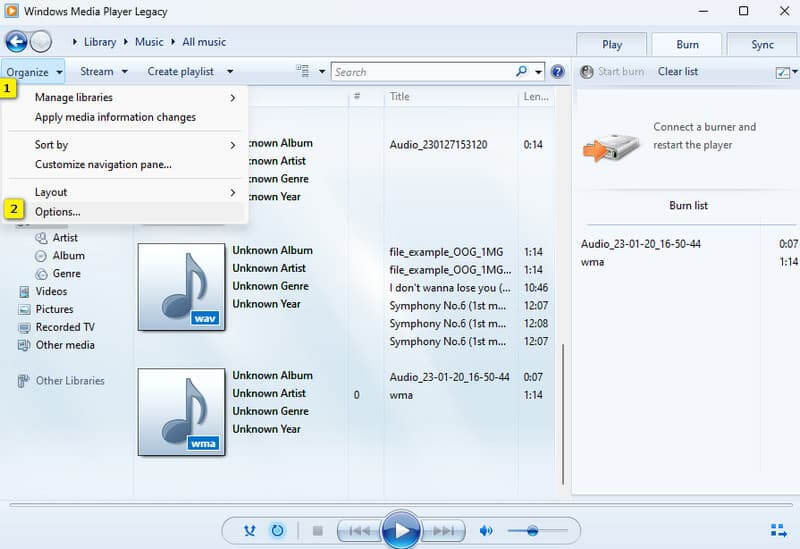
Step 3. Go to the Rip Music tab, change the source Windows Media Audio to MP3 in the Format dropdown menu. During this step, you can drag the Audio Quality slider to control the output quality.
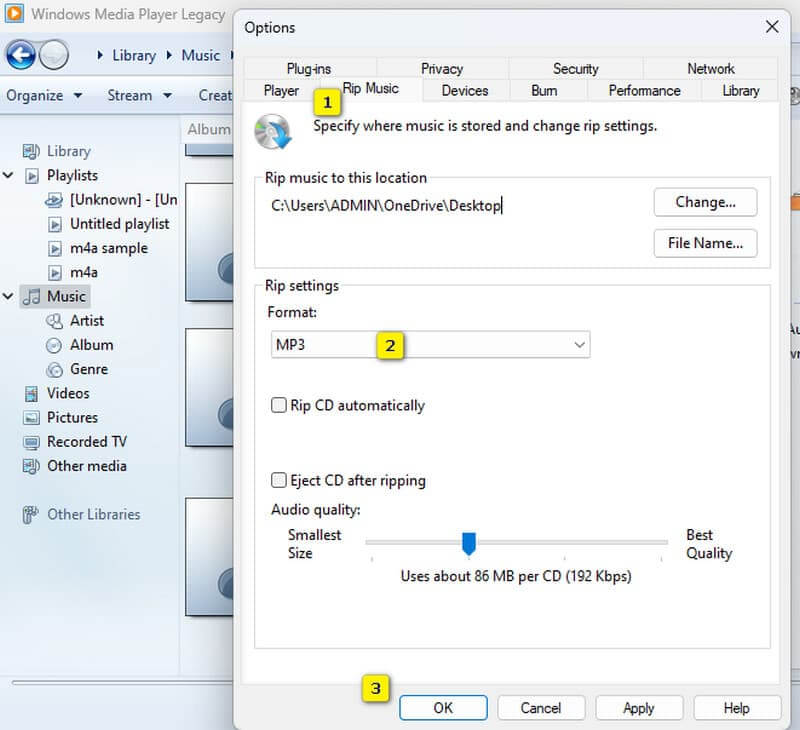
Step 4. Click Apply > OK to save your changes. After that, click Rip CD to change WMA to MP3 format.
Windows Media Player can only rip CDs to MP3. If your WMA files are saved on your computer, you need to burn them to a blank CD first. That can be time-consuming and laborious. This method is only ideal for handling some old CD collections.
Method 2: Convert WMA to MP3 Using Vidmore Video Converter
Vidmore Video Converter is a reputable video and audio conversion tool known for its professional-grade efficiency. Besides a straightforward WMA-to-MP3 conversion experience, it offers necessary customization controls for output quality. Besides MP3, Vidmore allows you to export AAC, AIFF, FLAC, or another desired lossless/lossy format.
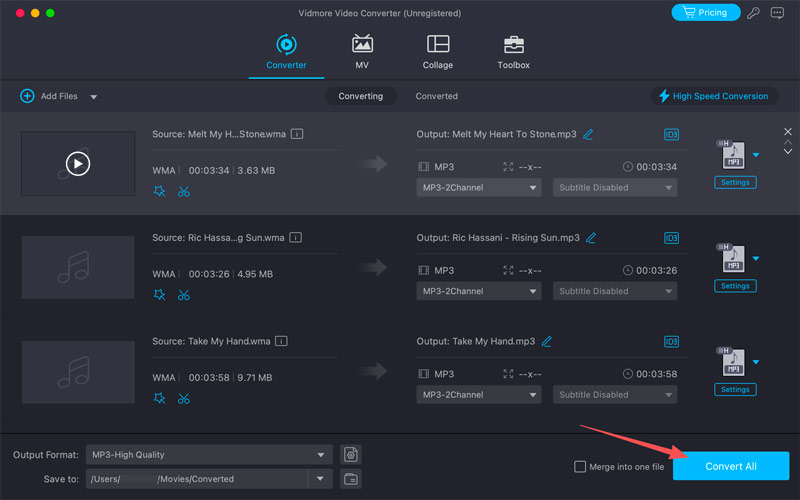
Step 1. Download and install this Vidmore WMA to MP3 converter on your Mac or Windows computer. Launch the program and drag your WMA tracks directly onto the interface to load them. You can also click Add Files to import your audio files. This WMA converter supports batch conversion.
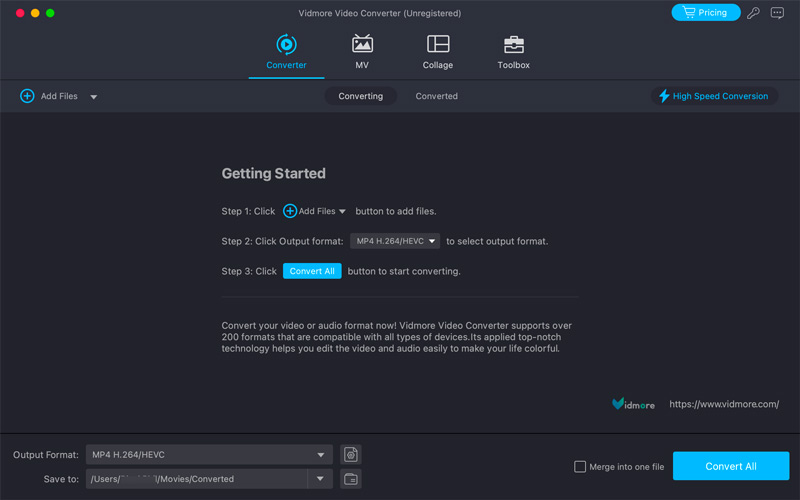
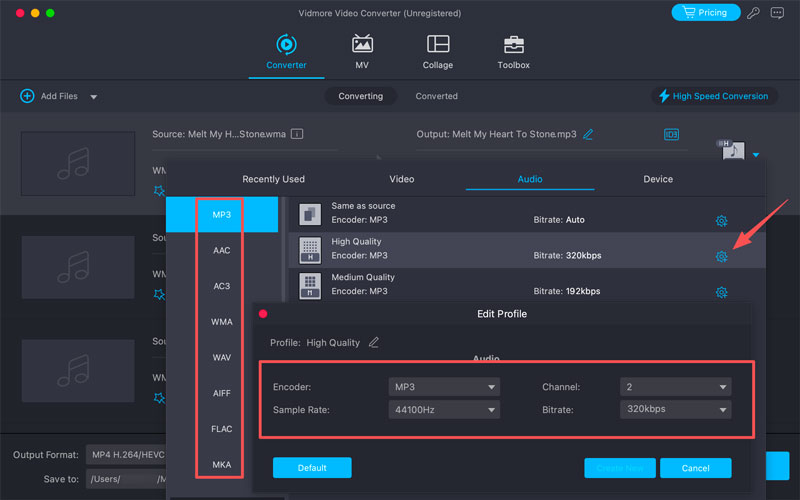
Step 2. Select MP3 as the output format. You can click Settings to customize the output quality. As you can see, Vidmore also lets you convert WMA to another audio format you need, such as AAC, WAV, AIFF, FLAC, or MKA.
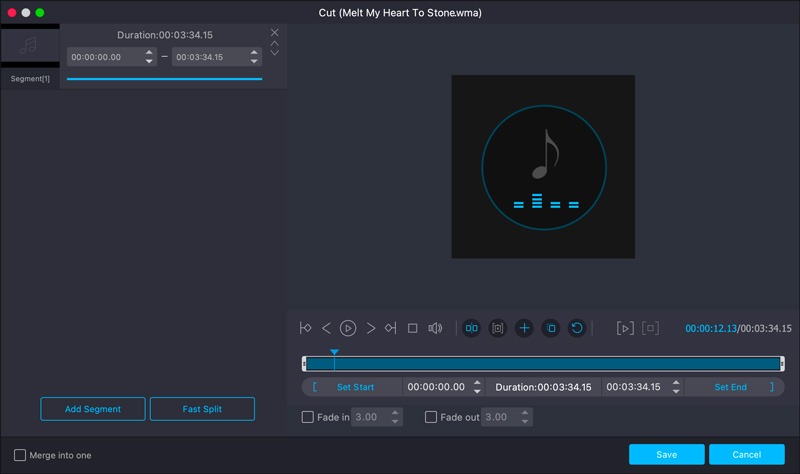
Step 3. Before the final conversion, you can use its built-in editor to edit your WMA files and enhance audio quality. For instance, you can freely cut audio, apply fade-in and fade-out effects, and more.
Step 4. Select a suitable destination folder for converted MP3 files. Enable hardware acceleration for your device, then click the Convert All button.
Method 3: Convert WMA to MP3 Using Any Video Converter
Any Video Converter is a popular video and audio conversion tool that can help you change WMA to MP3 format easily. Like Vidmore, it offers a quick way to process all types of audio files. You can add your audio to the software, select MP3 as the target format, and then click the Convert button.
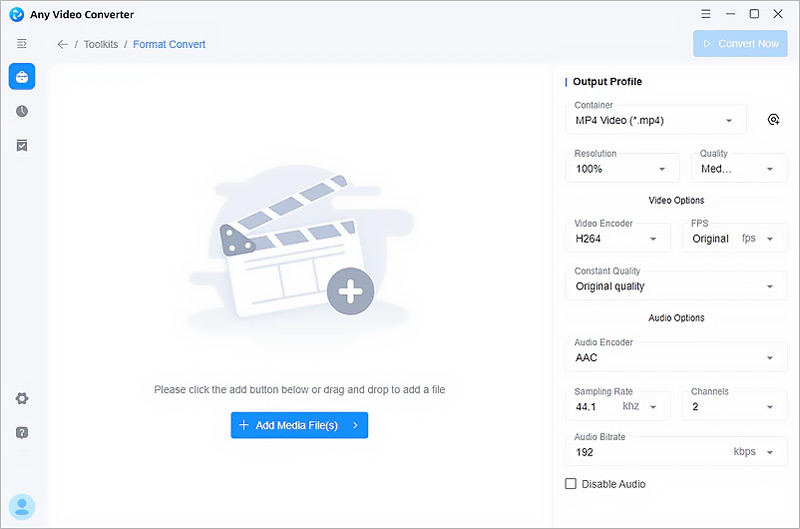
Any Video Converter offers a free way to convert WMA to MP3. The free version comes with various feature limits. But these limits often don’t affect the audio conversion.
Method 4: Convert WMA to MP3 Online for Free with Convertio
If you only have one or several WMA files to convert and do not want to install a dedicated tool on your computer, a web-based converter like Convertio is the best choice. It works entirely in your web browser. You can navigate to the website and start your conversion on any Windows PC, Mac, or mobile phone.
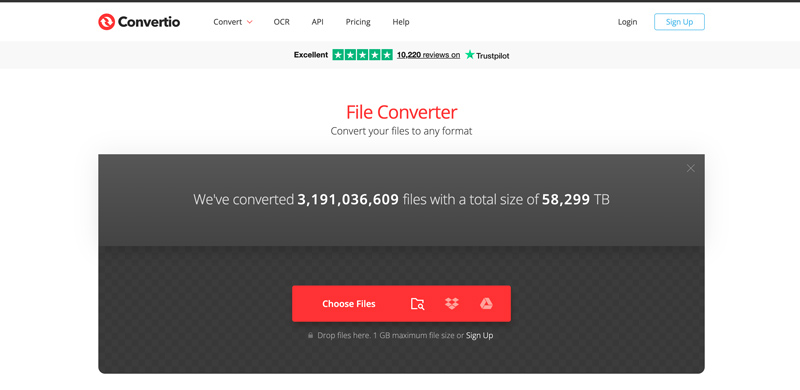
Step 1. Go to the Convertio File Converter page in your browser. Click Choose Files to upload your WMA file.
Step 2. Pick MP3 as the output format, then click the Convert button. After converting, you need to download the MP3 file to your device.
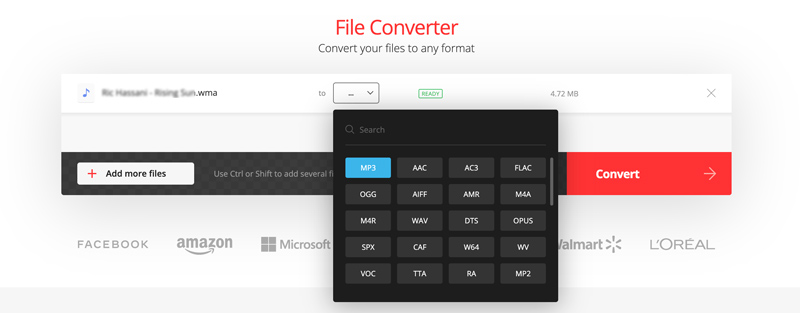
Because Convertio is a cloud-based service, your conversion speed is determined by your network speed. Moreover, its free version limits the maximum file size to 100 MB. This online WMA-to-MP3 converter is not designed to handle multiple files.
Part 4. Troubleshooting Protected WMA Files (DRM Issues)
If your WMA files are protected and won’t let you convert them, or your converted MP3 audio is silent, you may be dealing with DRM issues.
You should know that many music files are locked with DRM to prevent unauthorized copying. Most standard converters cannot process DRM-protected WMA files.
If you have a massive collection of protected WMA files, you might need a dedicated DRM removal tool. You can try using Windows Media Player to burn DRM-protected files to a physical disc, then rip the audio CD as unprotected MP3s.
Part 5. FAQs of Converting WMA to MP3
Question 1. Is it legal to convert WMA to MP3?
It is often considered legal to convert WMA to MP3 for personal, non-distributed use. You should not share these converted MP3 files with others. Moreover, you need to be more cautious about DRM-protected content.
Question 2. Is it safe to use online WMA-to-MP3 converters?
Many reputable online WMA converters, such as Convertio, Clideo, CloudConvert, and FreeConvert, are safe to use. They use encrypted connections and secure privacy policies to ensure your uploaded files are protected. Moreover, they will automatically delete your data from their servers after a short period.
Question 3. Does converting WMA to MP3 lose audio quality?
No. Even though WMA-to-MP3 conversion can technically cause minor degradation in quality, the difference is often indistinguishable to the human ear. What’s more, both WMA and MP3 are lossy and compressed audio formats.
Conclusion
Converting WMA to MP3 can help you easily fix various playback compatibility issues. You can learn four efficient ways from this guide. If you only want to convert one or two small WMA files, online converters like Convertio are often the best choice. However, if you have many WMA collections to process, you’d better turn to a stable, dedicated desktop solution like Vidmore Video Converter.