How to Convert FLV on Mac: 3 Effective Methods [2026]
Want to convert FLV on Mac? Well, FLV is a file format developed by Adobe. Its main function is to deliver video over the internet using Flash Player. However, there are times when you need to convert the file. It can be because of a compatibility issue, for smoother editing and sharing, and for future proofing. So, if you are looking for exceptional methods to convert FLV to other formats, it would be best to read this entire article. We are here to offer the best ways to transcode FLV files, both offline and online. Therefore, read here and learn more about the discussion.

PAGE CONTENT
Part 1. What is FLV
Flash Video, or FLV, is a file format designed by Adobe for delivering video over the internet using Flash Player. This format became popular in the early 2000s because it allowed smoother streaming on websites like YouTube before HTML5. Additionally, the format usually contains video embedded with codecs like H.264 and audio with AAC or MP3. They are lightweight and ideal for web playback. The only problem here is that the format is not compatible with other media players and modern devices, resulting in a video playback error.
Part 2. Easiest Way to Convert FLV on Mac
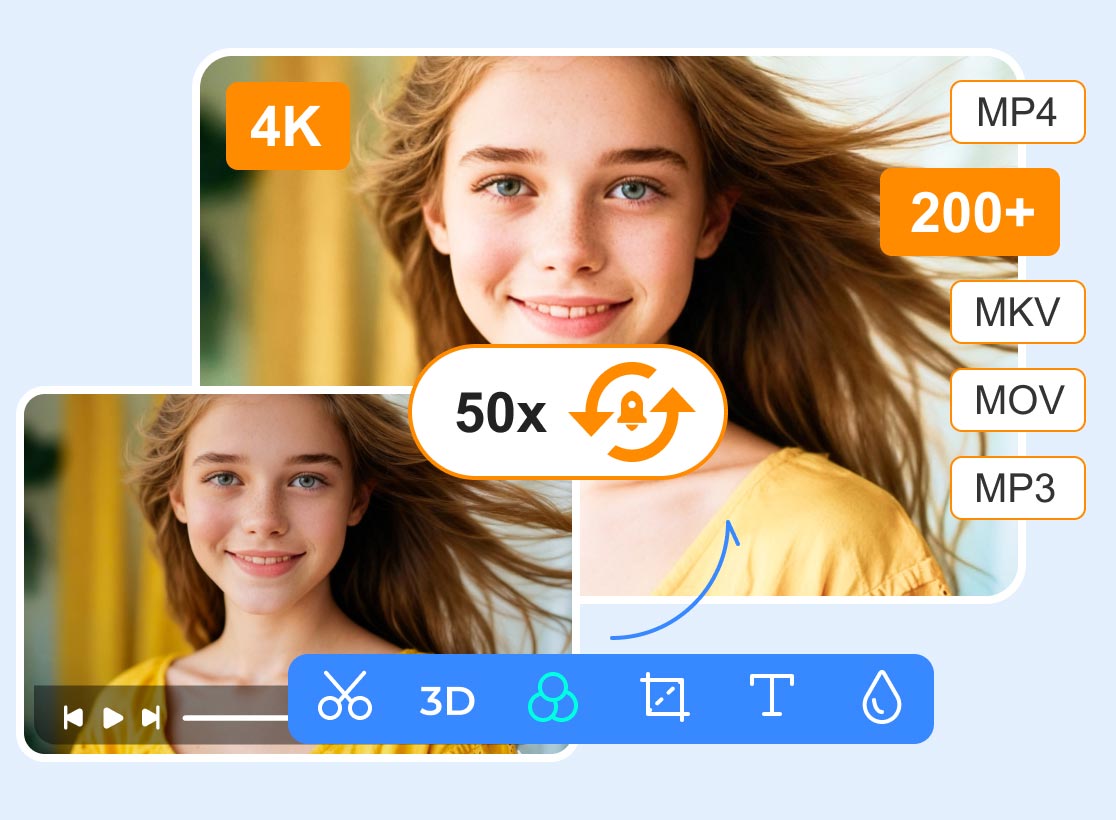
Are you looking for the easiest way to convert FLV on Mac? In that case, we recommend using Vidmore Video Converter. This converter is perfect because it ensures your FLV files are converted smoothly. It can even support 200+ formats, such as MP4, MKV, AVI, MOV, WMV, VOB, and more. What makes the converter powerful is its ability to deliver conversion speeds up to 50× faster than other converters.
Additionally, the program allows you to change various parameters, such as bitrate, frame rate, encoder, and more. You can even access various basic and editing tools. It includes a cropper, trimmer, speed adjuster, effects, filters, metadata editor, and more. So, if you want a remarkable converter and editor, there is no doubt that Vidmore Video Converter is the best program you can access on your Mac.
More Features
- The converter can save the converted video up to 4K resolution.
- The converter can offer a smooth export process.
- The converter supports batch conversion for multiple conversions.
- It can also convert other media files, like audio and images.
- It supports advanced hardware acceleration via NVIDIA CUDA, Intel QSV, NVENC, and AMD APP to achieve fast, smooth video conversion.
If you want to convert FLV to MP4 on a Mac, follow the instructions below.
Step 1. Download Vidmore Video Converter on your Mac. You can use the Free Download buttons provided below to instantly access the converter.
Step 2. Navigate to the Converter section above and start adding the FLV file by clicking the Add Files button. You can even add multiple FLV files since the software supports batch conversion.
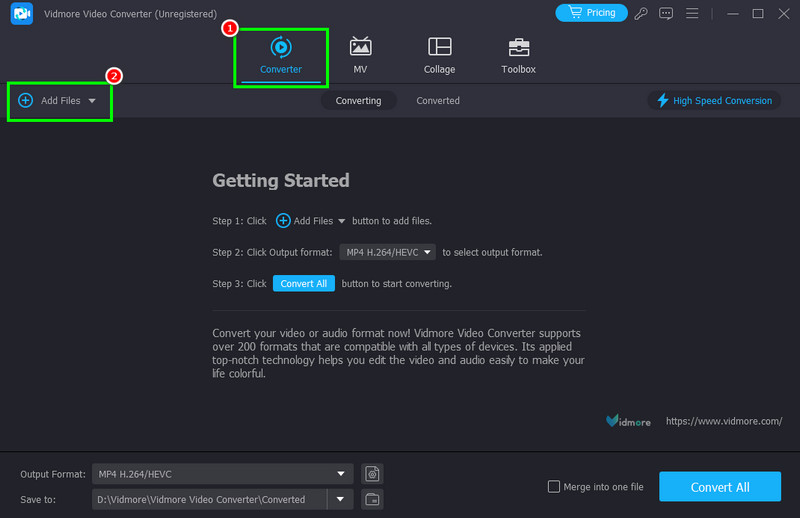
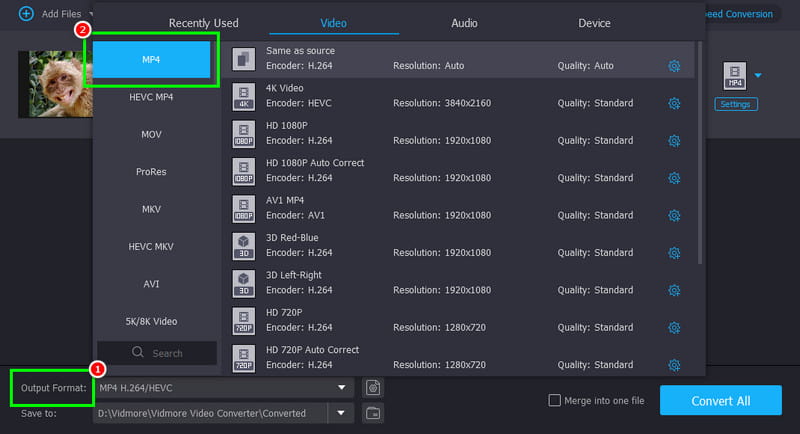
Step 3. For the next step, go to the Output Format and select MP4. Then choose your preferred video quality.
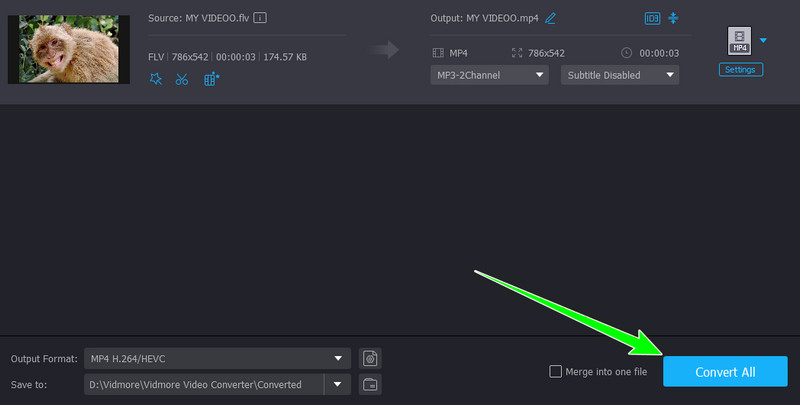
Step 4. Finally, start the FLV-to-MP4 conversion process by tapping the Convert All button at the bottom of the UI.
Part 3. Convert FLV on Mac for Free
Do you want a free method to convert FLV files on Mac? Look no further than Handbrake. This free and open-source program is best for all users since it is simple to operate and 100% free. What makes it great is its easy-to-use UI, which lets you convert videos with ease. It is also ideal for customization, as the software can adjust various parameters, including scale size, pixel aspect, resolution limits, presets, and more. You can also use this program to convert more media files. You can convert MP4 to MKV, MP4 to WebM, FLV to MKV, and more. So, if you want to learn how to convert FLV to MP4 on Mac, check the steps below.
Step 1. Download and install Handbrake on your Mac. Then run it to start the FLV conversion process.
Step 2. Click the File button to add the FLV file you want to convert. You can also use the drag-and-drop method.
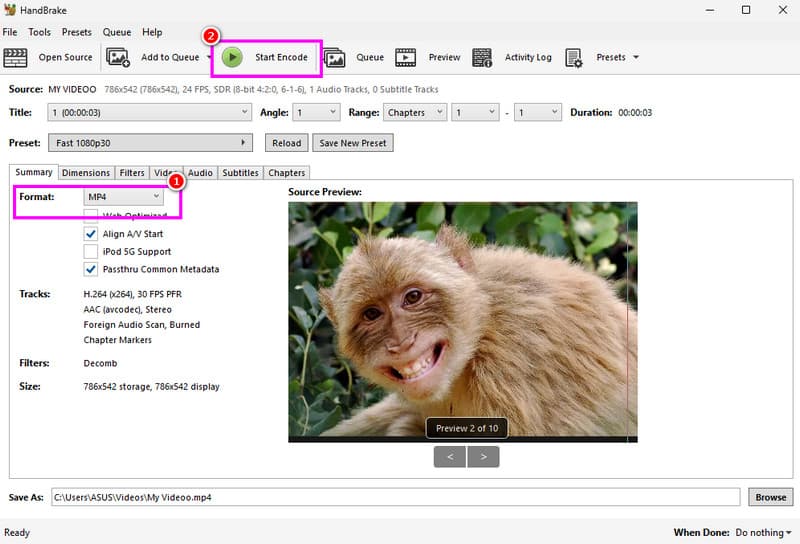
Step 3. Then, navigate to the Summary section and choose MP4 from the Format option.
Step 4. For the final conversion process, click the Start Encode button above.
Drawbacks
- The converter's main interface is not appealing enough.
- It lacks editing tools to improve the converted video file.
- There are times when the converter is not performing well.
Part 4. Convert FLV on Mac Online
If you prefer to use an online converter to convert FLV on Mac, consider using CloudConvert. This web-based FLV converter is ideal for converting your FLV files in Safari. When it comes to converting FLVs, you can enjoy a smooth process without any disruptive ads. You can even adjust various parameters from the Settings section. You can change the video codec, resolution, aspect ratio, tune, and more. The tool also ensures that the quality is maintained after the conversion process. Plus, CloudConvert can also convert more files. You can convert MP4 to AVI, FLV to WMV, MKV to MP4, and more.
Step 1. Go to Safari and access CloudConvert. After that, click the Choose Files button in the center layout to upload the FLV file you want to convert.
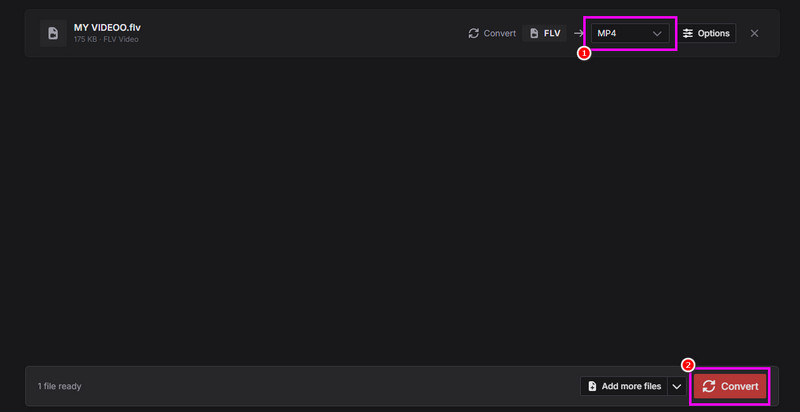
Step 2. Then, go to the Format section and click MP4. You can also go to the Options section to adjust parameters such as resolution, codec, tuning, aspect ratio, and more. Once done, click Okay.
Step 3. To start the FLV conversion process, hit the Convert button. After that, tap Download to start saving the converted video on your Mac.
Drawbacks
- The converters require a fast internet connection.
- The free version has various restrictions.
If you are looking for the best FLV conversion process, there is no doubt that all of these methods are effective. Thus, to successfully convert your FLV files, start using all the methods above!
Part 5. FAQs about Converting FLV on Mac
How to convert FLV to QuickTime on Mac?
Converting FLV to QuickTime means transcoding the file to MOV format. There are various converters you can use. You can access Vidmore Video Converter, FreeConvert, CloudConvert, FFmpeg, and more.
Is converting FLV the best choice?
Definitely, yes. FLV is less supported now, especially by modern media players and devices. If you want to watch your favorite videos smoothly, it is better to convert them to a more universal format, like MP4.
What is the best FLV converter?
If you want an exceptional FLV converter, try Vidmore Video Converter. This converter has a simple UI and a smooth conversion process, making it perfect for all users.
Conclusion
Thanks to this tutorial, you have learned how to convert FLV files on Mac, both offline and online. With that, to watch your video smoothly, choose your preferred conversion method. Also, if you are still unsure what process to try, we suggest using Vidmore Video Converter. This video converter can offer a comprehensive interface, fast conversion speed, editing tools, and a smooth export process, making it the go-to software for all users.