3 Methods to Convert H.265 to H.264 Quickly [Full Guide]
How to convert H.265 to H.264? Well, converting H.265 to H.264 is the best technique for users who need better compatibility across devices, editing software, and media players. While H.265 can offer better compression and a balanced file size, H.264 remains widely supported, making the conversion important for smooth sharing and playback. In this guide, we will teach you how to convert your files using the best video converters, like Vidmore Video Converter. Thus, read this tutorial and learn more.

PAGE CONTENT
Part 1. H.264 vs. H.265
H.264, or Advanced Video Coding (AVC), is a widely used codec standard that can balance efficiency and quality. It became the standard for playing, recording, streaming, and distribution since it is compatible across platforms and devices. Even though H.264 is already outdated/old, it remains dominant due to its universal support and stability.
H.265, on the other hand, also called High Efficiency Video Coding (HEVC), is the better version of H.264. It can maintain the same output quality as H.264 while using about half of the bitrate, making it perfect for 4K and 8K content. The only drawback here is that its adoption is slower since it needs more powerful hardware and modern software for smoother playback and editing.
If you want to learn more about H.264 and H.265, you can check the table below.
| H.264 | vs. | H.265 |
| • Moderate • Needs a higher bitrate for the same quality | Compression Efficiency | • High • Achieves 50% bitrate reduction for the same quality |
| • Good • Widely acceptable for HD content | Video Quality | • Better • Optimized for 4K/8K and HDR |
| Very high, supported on most devices and platforms | Compatibility | Limited, newer devices/software required |
| Larger compared to H.265 | File Size | Smaller due to advanced compression |
| • Lower • Less demanding on hardware | Processing Power | • Higher • Requires a more powerful CPU/GPU |
Part 2. When to Convert H.265 to H.264
Are you wondering when you need to convert your H.264 to H.265? There are many reasons why and when you need to convert your files. To learn more about them, see the information below.
Device Compatibility
Some devices, such as mobile phones, smart TVs, and media players, especially the old ones, only support H.264. If you have an H.265 file, you might encounter a compatibility issue that causes a playback error. To solve the problem, it would be better to convert your H.265 to H.264.
Editing Software Support
Some video editors and tools struggle with H.265, making H.264 easier to work with. With that, if you want a smoother video editing process, always use the H.264 codecs for your videos.
Streaming Platform
H.264 is more ideal for streaming platforms since it can offer universal compatibility across virtually all devices and needs less processing power for smoother playback.
Part 3. How to Convert H.265 to H.264
Can you convert H.265 to H.264? The good news is that conversion is possible as long as you have the right tool. In this section, we will teach you how to convert H.265 to H.264 codecs easily and effectively.
Method 1. Convert H.265 to H.264 Using Vidmore Video Converter
If you want an easier H.265 to H.264 conversion process, we recommend using Vidmore Video Converter. This program is ideal because it offers all the features you need. You can even use its batch conversion feature to convert multiple videos in a single go. Additionally, it offers conversion speeds up to 50× faster than other converters. It can even support 200+ formats, including MP4, MKV, AVI, FLV, MOV, M4V, WMV, and more. You can also save the video with the best quality for better viewing playback. Therefore, if you want to convert your H.265 to H.264, there is no doubt that Vidmore is among the converters you can rely on.
More Features
- The program can convert H.265 to H.264 smoothly.
- It can offer an editing feature to improve the video before the final save.
- The software allows users to adjust some parameters, such as compression, channel, resolution, and more.
- The converter can also convert various media files, such as audio and images.
To convert H.265 to H.254, you can follow and check the simple instructions below.
Step 1. First, download and launch Vidmore Video Converter on your desktop. You can access it on your Mac and Windows.
Step 2. From the interface, click the Converter feature and hit the Add Files option to start adding your video with the H.265 codec.
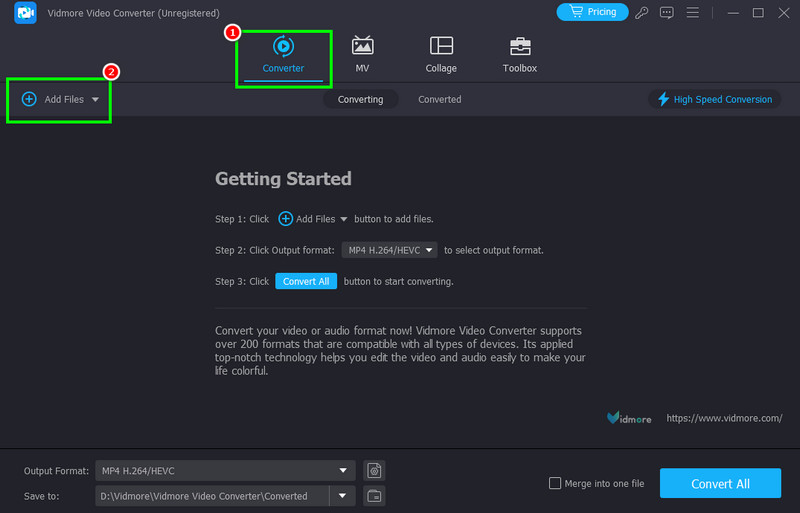
Since the converter supports batch conversion, you can add multiple files.
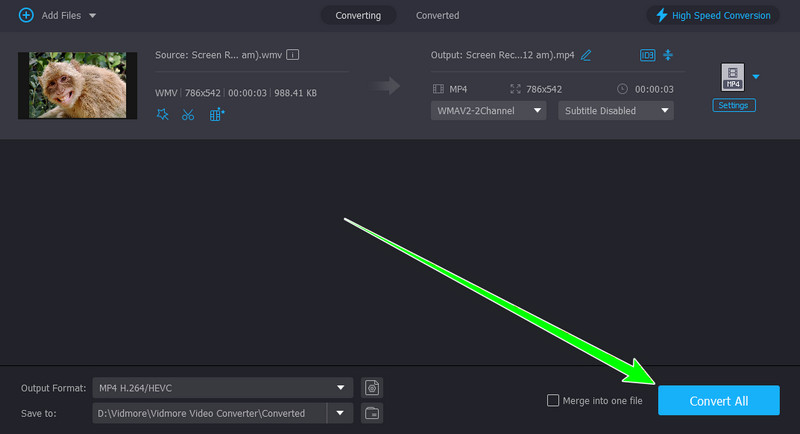
Step 3. Proceed to the Output Format section and select your preferred format using the H.264 codec.
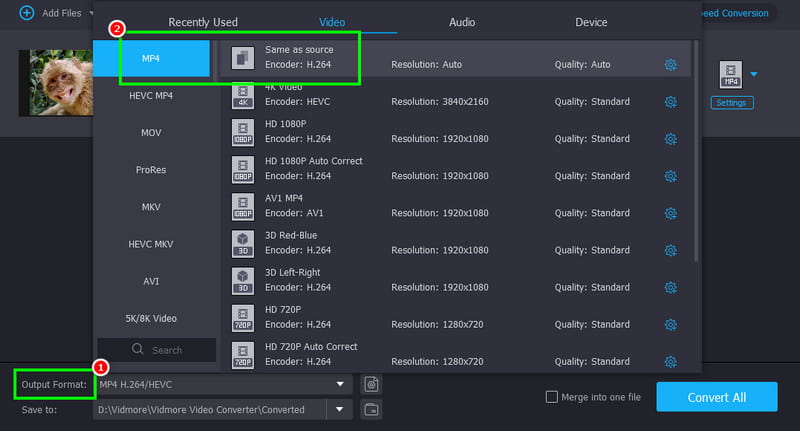
Step 4. For the final process, hit the Convert All button from the bottom interface. Once done, you can now play your converted file on any device and media players.
Method 2. Convert H.265 to H.264 Using FFmpeg
Another helpful tool for converting H.265 to H.264 is FFmpeg. This command tool is ideal if you want a fast and effective conversion process. The best part here is that it is 100% free. With that, you can convert any files at no cost. Plus, besides converting, you can also use more features. You can trim H.264, crop, adjust the playback speed, and more. Thus, if you need a reliable command tool that can help you achieve the result you need, consider using FFmpeg.
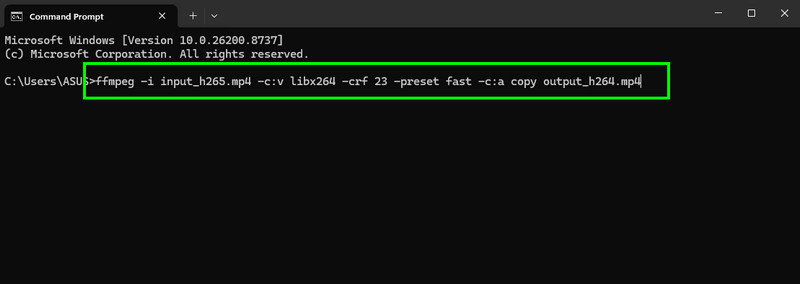
Step 1. Download and set up FFmpeg on your computer. Then, start launching your CMD.
Step 2. After that, insert the command to begin the conversion process. The command is ffmpeg -i input_h265.mp4 -c:v libx264 -crf 23 -preset fast -c:a copy output_h264.mp4. Then, press Enter.
-i input_h265.mp4 - your source file encoded in H.265
-preset fast - this command balances speed and compression efficiency (options: ultrafast, fast, medium, slow).
-c:v libx264 - specifies H.264 as the output codec.
-crf 23 - controls quality (lower values = higher quality, larger file size).
Step 3. Once done, you can start playing the converted video on your device.
Drawbacks
- Setting up the tool is complicated and time-consuming.
- The tool is not for beginners, as it requires multiple commands to achieve the desired result.
Method 3. Convert H.265 to H.264 Using VLC
To convert H.265 to H.264 codec, you can also use VLC. This program is not just your everyday media player. It can also use its converter feature to convert media files effectively. The good thing here is that the conversion process is simple, making it suitable for users. It also helps preserve quality for better video playback. Lastly, it supports various formats, such as MP4, MOV, MKV, WMV, and more.
Step 1. Access VLC on your desktop. You can download it on both your Mac and your Windows computer.
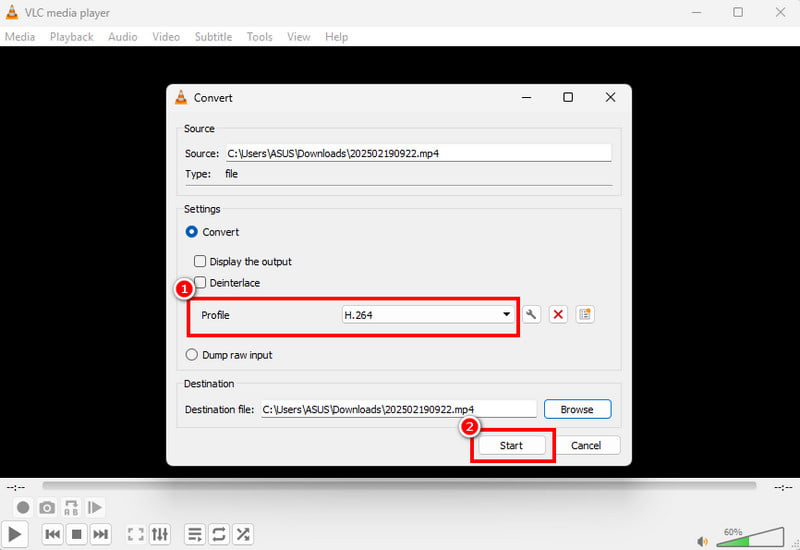
Step 2. Go to the Media section and click the Convert / Save option. A mini window will pop up on your screen.
Step 3. Click Add to start adding the video with the H.265 codec you want to convert. Then, go to the bottom interface and click the Convert / Save button.
Step 4. Go to the Profile section and select H.264. After that, hit Start to begin the H.265 to H.264 conversion process.
Drawbacks
- Even though it can preserve quality, it is sometimes inconsistent.
- It lacks the necessary editing tools to improve the video.
Part 4. FAQs about Converting H.265 to H.264
Is H.265 the best codec compared to H.264?
Well, we can tell that H.265 is better since it is the successor of H.264. However, we can't hide the fact that it's not yet compatible with all platforms, especially older devices. Thus, for smoother playback, it is ideal to use H.264.
What is the best converter to convert H.265 to H.264?
If you want the best converter, we suggest using Vidmore Video Converter. This software can offer a smoother, faster, and easier conversion process, making it the best converter available.
Can I convert H.265 to H.264 online?
Definitely, yes. You can convert your files online. Some converters you can use include Convertio, Online-Convert, and FreeConvert. These tools ensure you get the result you need after converting from H.265 to H.264.
Conclusion
Now, you have learned how to convert H.265 to H.264 with the best converters. You even get more insights about the two codecs and when to convert the videos. Plus, if you want the best converter, we suggest using Vidmore Video Converter. With its fast conversion speed, you can obtain the result you need, making it the most powerful converter for users.