EaseFab Video Converter Review: Features and Pricing Plans
EaseFab Video Converter is created to make video conversion fast and painless while maintaining high quality and efficiency. Known for its user-friendly layout, it caters to both beginners and advanced users who need reliable performance for tasks like editing, compressing, or preparing videos for playback on different devices. So, is this tool the best option for you? Read this review as we give all the information you need about the converter, along with its features, pricing plans, and steps to use. You will also discover the best alternative for a better conversion process.

PAGE CONTENT
Part 1. Overview of EaseFab Video Converter
EaseFab Video Converter is a versatile program created to convert video to other formats. It supports over 500+ presets and 1,000+ formats, which is great for avoiding those annoying 'file not supported' errors. Additionally, it has a simple user interface, allowing you to navigate everything without encountering any trouble.
If you want to learn more about the software, you can explore its features below.
Convert Video
The core feature of the program is to convert video. With this feature, you can transcode your video file to another format. What we like here is that it can give you a smooth conversion process, thanks to its comprehensive user interface. You can even convert files to numerous formats, including MP4, MKV, MOV, AVI, FLV, and more.
High Quality Output
It handles 4K and HD resolutions without breaking a sweat, ensuring your videos look just as sharp after the conversion as they did before.
Basic Editing Tools
Besides converting your videos, the program can also offer some basic editing tools. Some of them are rotator, trimmer, cropper, effects, and adding watermark. With this feature, you can improve the overall output of your video, leading to a better playback.
Batch Conversion
If you have dozens of clips, don't waste time doing them one by one. The batch mode lets you queue up your entire library and convert everything in a single click. It's also helpful for users who want to save more time while dealing with numerous files.
DVD Ripping Support
Want to digitize your DVD? If so, you can also access the program's DVD Ripper. With this feature, you can turn your DVD into a digital file, ideal for collecting and archiving your old movies on your device.
Customize Video Settings
The software also lets you customize the video settings. With this feature, you can adjust various parameters, such as video and audio codec, bitrate, frame rate, sample rate, channels, and more.
You can also visit: Everything you need to know about Wondershare Video Converter.
Limitations of EaseFab Video Converter
- • The free version has various limitations.
- • There are no advanced editing tools that can help you enhance your video.
- • While the interface is easy to navigate, it feels stuck in the 2010s. It’s functional, but it lacks the sleek, modern look you see in newer apps.
- • Keep in mind there’s no built-in support for Google Drive or Dropbox, so you’ll have to upload your files manually after they are finished.
Part 2. Pricing Plan of EaseFab Video Converter
Check this section and get to learn more about the pricing plan of EaseFab Video Converter.
| Pricing Plans | 1 Year License | Lifetime License | Family License |
| Price | $17.95 | $27.95 | $52.95 |
| Inclusions | ●1 year access to full features. | ●One-time payment, forever to use ●Lifetime access to full features and free upgrades ●Priority for technical support ●90-day money-back guarantee | ●Access all benefits of Lifetime License. Support 5 computers for family use. |
You can also check: Comprehensive review of Any Video Converter.
Part 3. How to Use EaseFab Video Converter
In this EaseFab Video Converter review, you have explored its various features. Now, you can read the details below and learn how to use the converter to convert your videos on your computer.
Step 1. Download and install EaseFab Video Converter on Mac or Windows. After installing, open the app to get started.
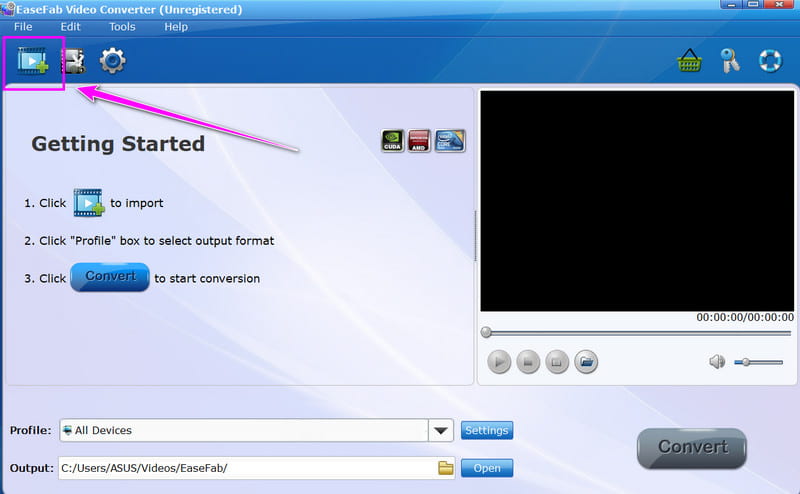
Step 2. From the interface, click the Plus option above to add the video file you want to convert. You can also add multiple videos if you want to.
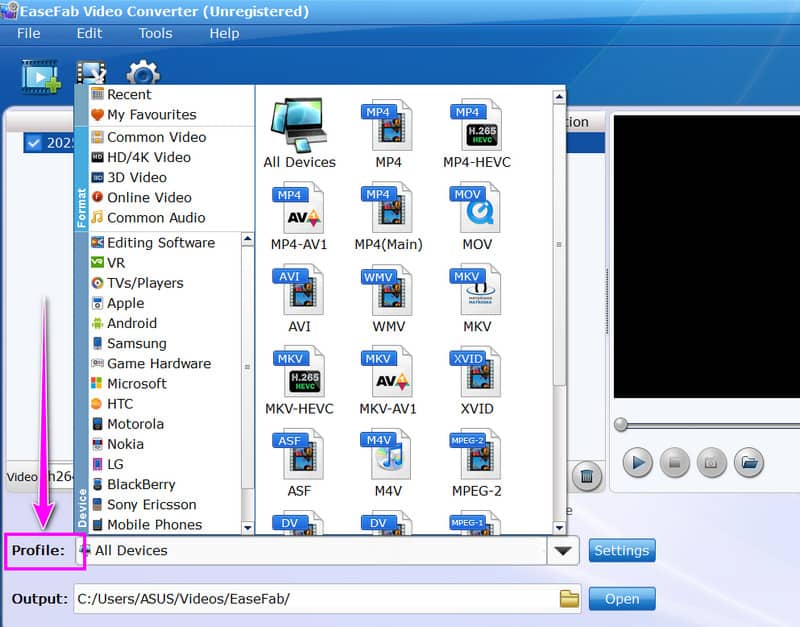
Step 3. After adding the video, you can proceed to the Profile section below and start selecting your preferred video format.
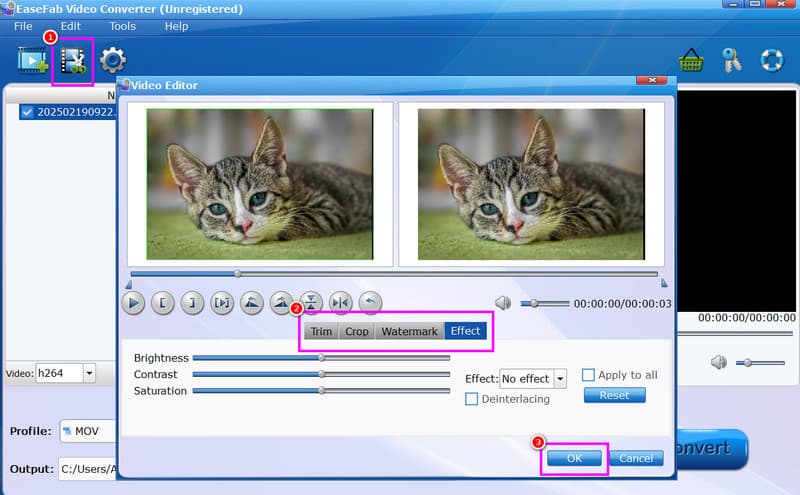
Step 4. You can also click the Edit feature to edit your video. You can rotate the video, trim, crop, add watermark, adjust brightness, and more. Once done, hit the OK button.
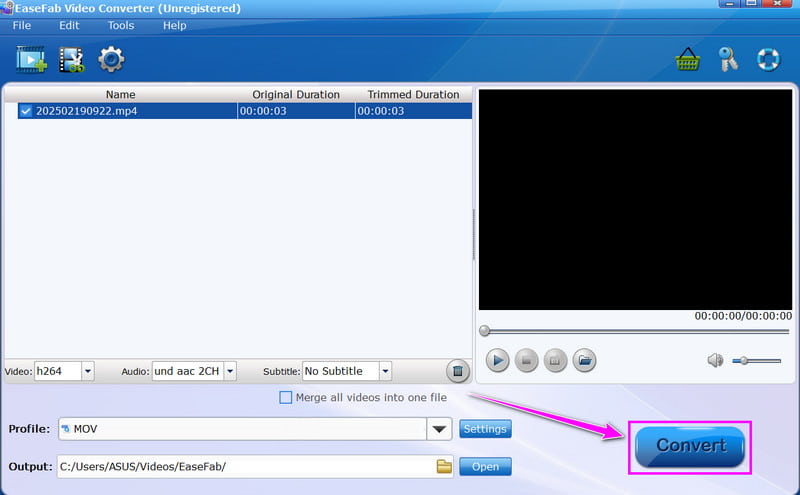
Step 5. For the final process, you can tap the Convert button on the right interface. After the process, you can now check the converted file on your computer.
Pay a visit: Detailed review of HD Video Converter Factory.
Part 4. Best Alternative to EaseFab Video Converter
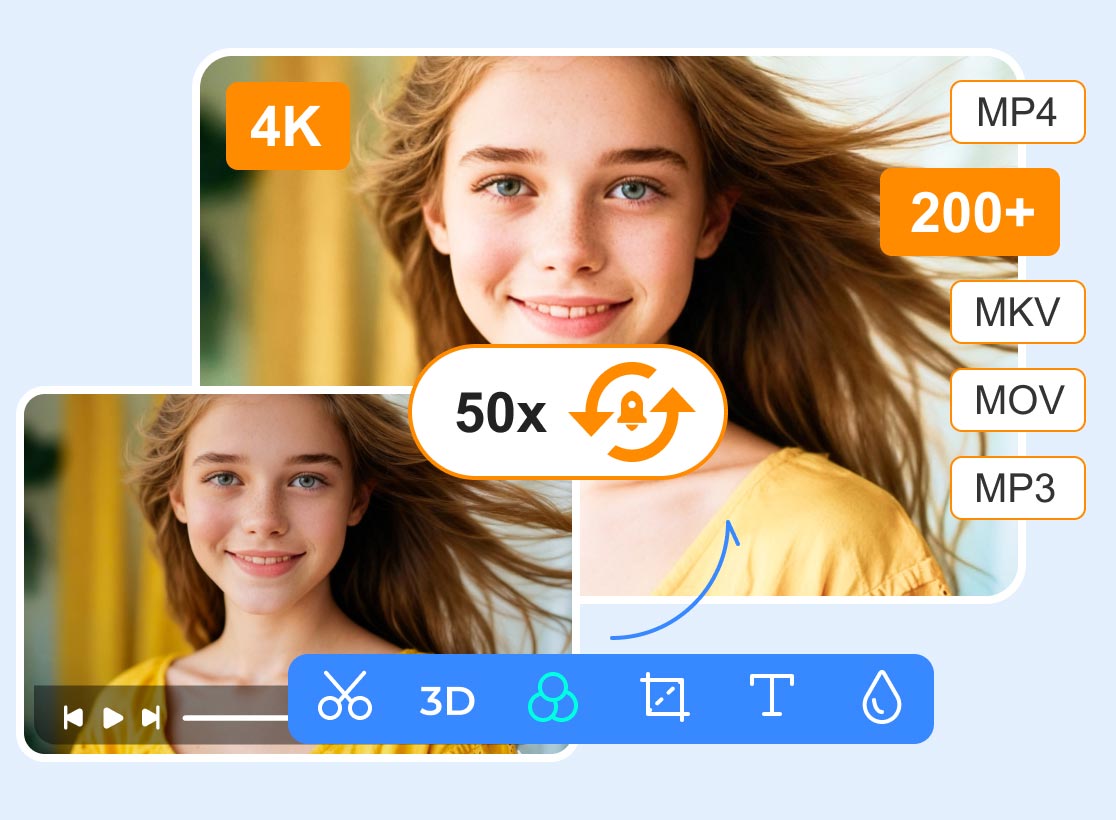
EaseFab Video Converter is a reliable tool for converting videos. However, it has drawbacks, such as outdated-looking interface, limited advance editing, and no cloud integration. So, if you are looking for an excellent alternative, we suggest using Vidmore Video Converter. This program can offer a more modern, feature-rich, and flexible solution that addresses some of EaseFab's limitations. The best part here is that it provides faster conversion speeds, broader device presets, advanced editing tools, and better support for 4K/HD workflows. Using Vidmore Video Converter ensures you get a more streamlined experience with higher customization, making it a stronger long-term option for professional and everyday video conversion needs.
More Features
- • It can offer a fast conversion speed up to 50× faster.
- • It can support hundreds of formats, including MKV, WMV, MP4, AVI, VOB, MOV, FLV, and more.
- • The software can save and convert video with the best quality up to 4K.
- • The converter is accessible on both Mac and Windows.
To learn how to use this converter to convert videos, you can follow the methods below.
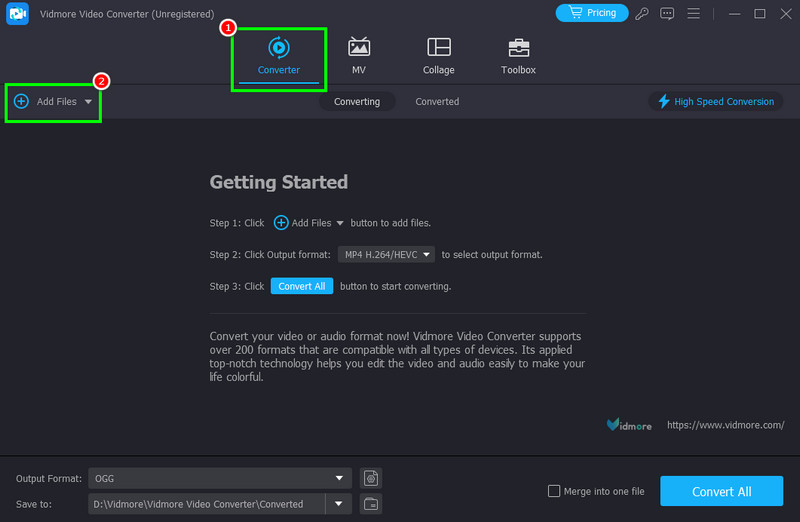
Step 1. Download Vidmore Video Converter on your desktop. Then, you can begin with the video conversion process.
Step 2. Navigate to the Converter feature and tick Add Files to add the video you want to convert.
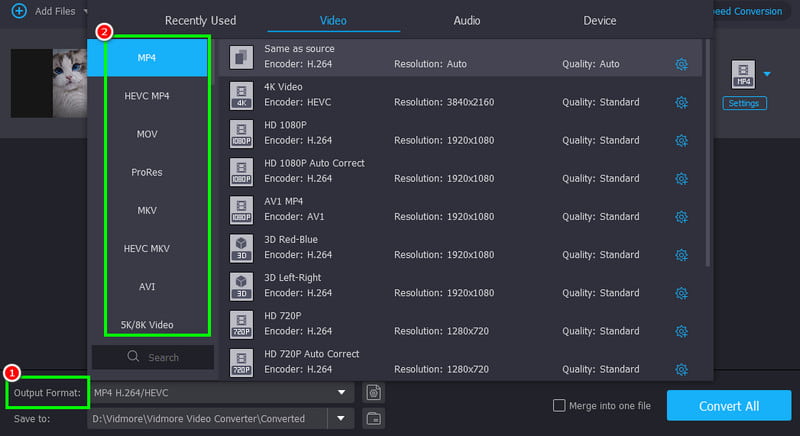
Step 3. From the Output Format section, choose the video format you want. You can also choose and click your preferred quality.
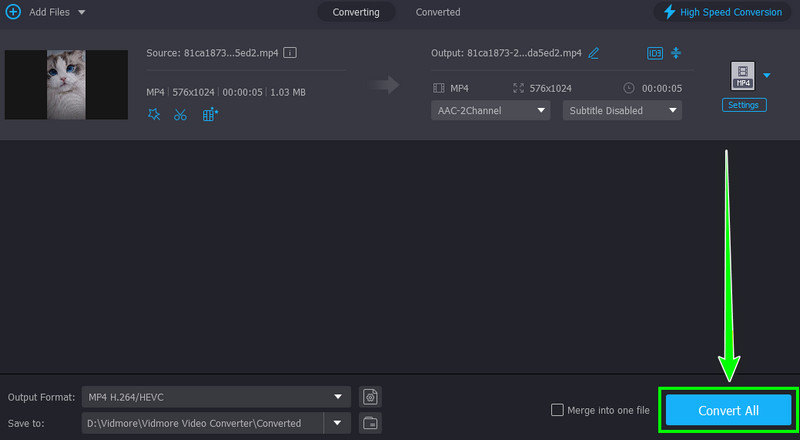
Step 4. Hit Convert All to start the conversion process. Once done, you can now check the converted video on your computer.
Part 5. Final Verdict
In this EaseFab Video Converter review, you have learned that it's among the best converters you can access on your computer. It can convert files, edit videos, and give you the best quality for better playback. The only drawback here is that the free version has significant limitations, such as watermarks and length caps. To unlock the full potential, you'll need the premium license.
Conclusion
EaseFab Video Converter is a reliable tool for converting videos. With its simple user interface, you can convert your files smoothly. However, its UI is looking outdated, which can be not satisfying to some users. So, if you want an excellent converter with a modern-looking user interface, we recommend using Vidmore Video Converter. It can also give you a faster conversion speed and various editing tools, making it the best converter and editor for users.