HandBrake Review: Is It the Best Open-Source & Free Tool?
No matter where you look for the most powerful and cost-effective video converter, you're bound to come across HandBrake. It's been around for a long time and is now fully compatible with Windows, Mac, and Linux systems. Plus, since it's developed by a team of volunteers, you don't even have to pay a dime to use it.
These conditions are incredibly tempting. So when I actually put it to use, will its performance disappoint me?
Check out this HandBrake review. We'll break down every feature it offers, how to use it for video processing, and any potential pitfalls. Hopefully, this information will help you make an informed decision.

PAGE CONTENT
Part 1. Main Features of HandBrake
HandBrake is most renowned for its video format conversion capabilities. This is merely an overview; to understand the conveniences it offers for seamless conversion and its other auxiliary video processing features, we need to delve deeper. Here's a feature breakdown in this section:
• Extremely practical video conversion:
HandBrake supports converting nearly all popular video formats to MP4, MKV, and WEBM. You can also perform video transcoding with optional presets including AV1, H.265, H.264, MPEG-4, MPEG-2, VP8, and VP9. Audio transcoding is also supported.
Performance-wise, HandBrake currently offers batch and high-speed conversion, with output quality and speed rivaling professional paid software.
• File Compression:
HandBrake enables users to adjust video quality and transcode to H.265 format to reduce the size of oversized files.
• Disc Ripping:
HandBrake can rip DVDs or Blu-ray discs, exporting their videos into common digital formats. Note that it does not support discs with copy protection or restrictions.
• Additional Video Processing Features:
Supports adding subtitles to videos, compatible with VobSub, CEA-608, SSA, and SRT format files.
Offers basic video editing functions such as cropping, scaling, noise reduction, deinterlacing, and more.
Part 2. How to Use HandBrake to Convert Videos
Now that we've covered the theoretical aspects of the service, it's time to dive into hands-on practice. In this section, we'll demonstrate how to use this video converter by converting a file format as an example.
Step 1. Download and install HandBrake on your computer. Launch it to access the main interface.
Step 2. Click the Open Source icon in the top-left corner and select the video file you wish to convert.
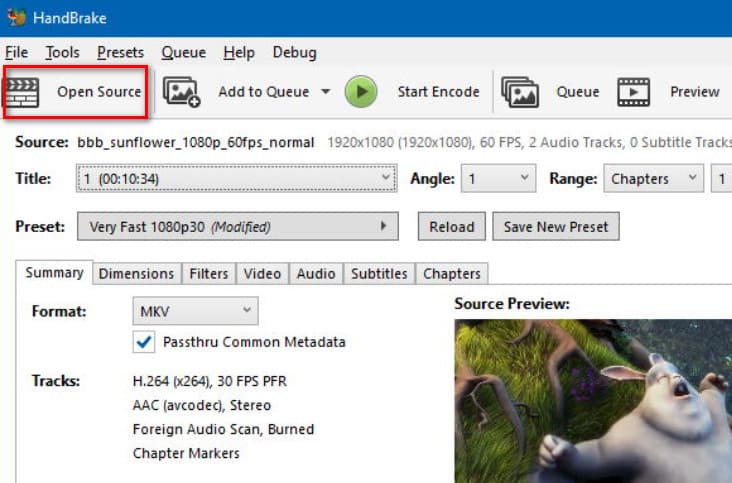
Step 3. After successful upload, view the file's current format, codec, and other details under the Summary tab. Expand the menu next to Format and select your desired output format.
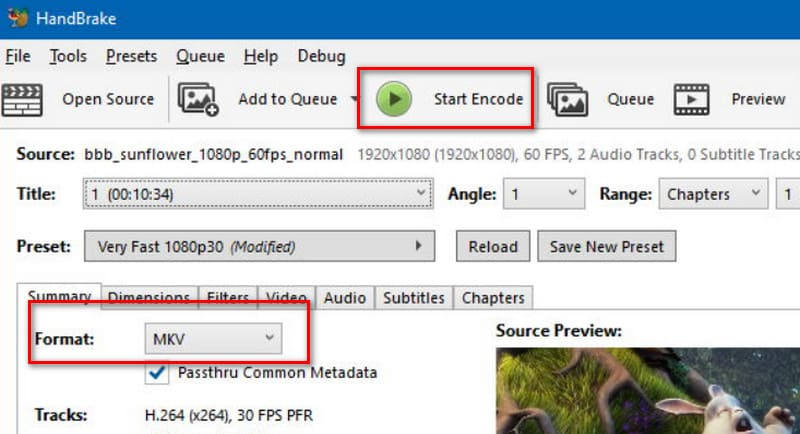
Step 4. Adjust additional video parameters under the subsequent tabs if needed.
When ready, click the green Start Encode button.
Part 3. Drawbacks of HandBrake
Since this is a HandBrake converter review, organizing and highlighting the existing issues that may affect user experience is an essential part of the discussion.
Based on feedback collected from users worldwide and research conducted across online platforms, the following drawbacks are worth noting:
• High CPU Usage
HandBrake may consume a significant amount of your computer's processing power while running, which can cause delays or lag in other tasks you're working on.
• Slow DVD Ripping Speed
Ripping DVDs with HandBrake can be time-consuming. In addition, it cannot process discs that contain any type of copy protection.
• Limited Output Format Options
Although HandBrake supports importing most popular video formats, it only offers three output format options: MP4, MKV, and WebM.
• Overly Complex Parameter Settings
There are numerous tabs in the interface, and each tab contains a large number of adjustable parameters. Beginners may easily feel overwhelmed by the complexity.
Part 4. Best HandBrake Converter Alternative
Beyond HandBrake, there are several other highly versatile and stable video format converters available on the market. Therefore, if you wish to avoid some of HandBrake's existing issues, such as overly complex settings or limited output formats, we recommend trying comparable products like Vidmore Video Converter.
Vidmore Video Converter is an all-in-one video format conversion tool that currently supports over 200+ formats, covering nearly all those encountered in daily use. It also offers specialized presets optimized for common devices, ready for immediate use.
Besides, it provides a full suite of intuitive and user-friendly video editing features, including trimming, cropping, rotating, compressing, enhancing, splitting, merging, and more. Additionally, it offers numerous high-quality video filters and effects for your use.
Ease of use is never a concern. Vidmore Video Converter provides clear step-by-step guidance starting from file upload. Its clean, straightforward interface, paired with a real-time preview window, lets you instantly see how parameter changes affect your video.
Main Features
- • Supports conversion between 200+ digital formats.
- • Offers a full suite of video trimming, merging, enhancement, and toolbox features.
- • Combines images and short clips to create professional-level videos.
- • One-click 2D to 3D conversion.
- • Includes a Toolbox with numerous audio and image processing tools.
Here's how to convert video using Vidmore Video Converter.
Step 1. Download and install Vidmore Video Converter on your computer.
Launch the program and enter the main interface. Click the Add Files button in the top-left corner to upload your video file.
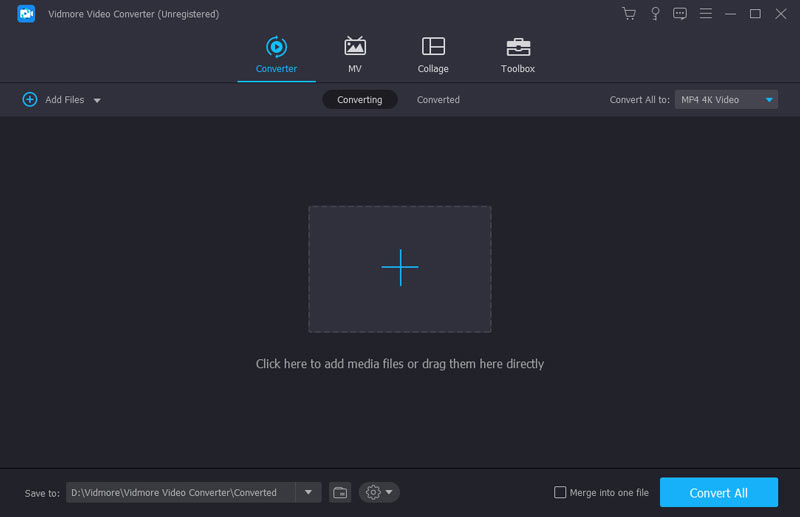
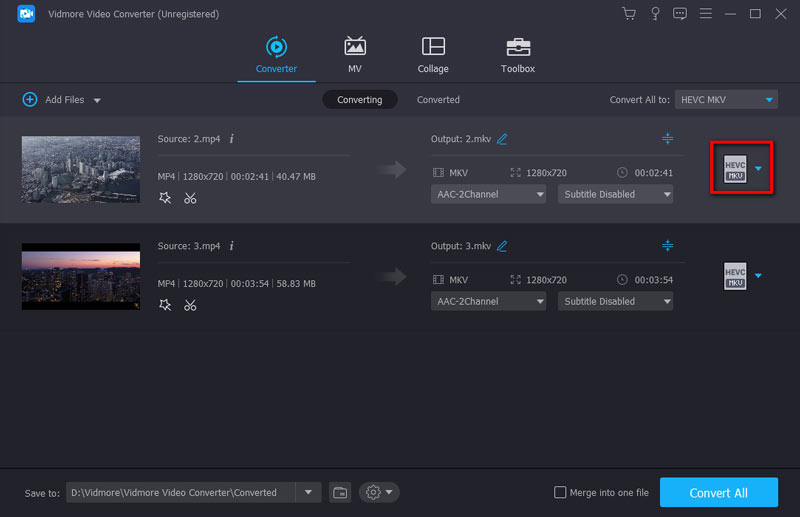
Step 2. Locate the format icon to the right of the uploaded video project. Click it, then select Video and your desired output format in the new window.
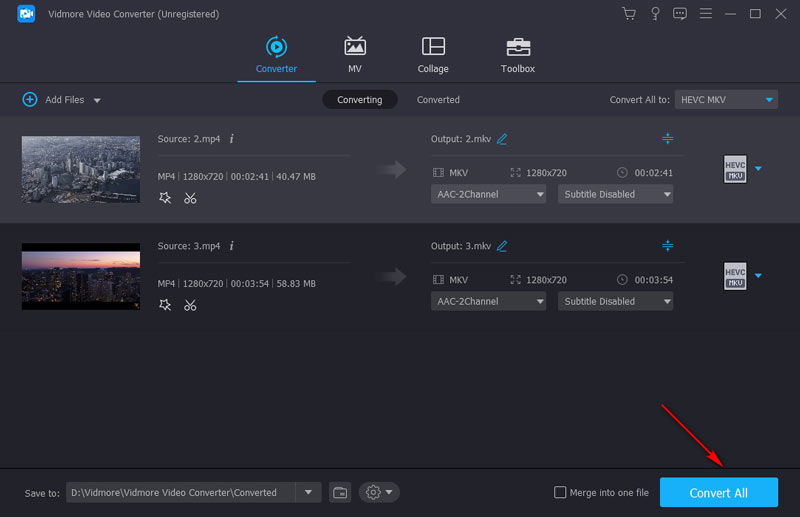
Step 3. Return to the main interface. Set an appropriate storage path, then click Convert All.
Part 5. FAQs of HandBrake Review
Is HandBrake trustworthy?
Yes, HandBrake has been around for a very long time and is trusted by a large number of users. There are no security issues within the software itself—it contains no ads or viruses. It is also compatible with Windows, Mac, and Linux systems. As long as you ensure you download it from the official website, you can use it with confidence.
Is HandBrake really free to use?
After completing our HandBrake software review, we can confidently tell you: yes. This software is developed by a team of volunteers and contains no paid features or hidden fees. This very aspect is why it's beloved by so many users.
Does HandBrake lose quality?
HandBrake offers a setting called Constant Quality. As long as you use this default setting, your video will maintain consistent quality from start to finish. The only exception is if you manually adjust the output quality to achieve a smaller file size.
Conclusion
This HandBrake review begins with its features, gradually introducing what services it can provide and how it performs during these processes. Overall, HandBrake is trusted for its broad compatibility, free availability, and stable performance—making it absolutely worth trying. However, its functionality remains relatively basic, and overly detailed customization options may confuse beginners.
If you wish to bypass such issues, consider using Vidmore Video Converter as an alternative.