Best MP4 to VOB Converters and How to Convert [Detailed]
MP4 is a file container that can handle various data, such as video, audio, subtitles, and more. You can even use this format container for various media player platforms. However, if you are planning to put your video into a DVD, the best way to do so is to change your video format to VOB. VOB is more ideal when it comes to playing your favorite videos on DVD players, TVs, and more. Now, if you want to get a VOB format but don't know what to do, we are here for you. This post will give you all the best MP4 to VOB converters you can access on your desktop and browser. We will also show you the methods of converting your files for better insights. Without further ado, check the informative article and explore the best converters for you.

PAGE CONTENT
How We Test the MP4 to VOB Converters
In this article, we didn't introduce various converters out of nowhere. Our team did a lot of things before recommending the best converters for you, such as:
• The team tried the converters so it could give a better review and experience.
• We ensure that the converters are perfect for converting MP4 to VOB smoothly.
• The team also ensures that all the converters can offer a nice video quality for better video playback.
After taking a lot of considerations, we assure that all the converters are effective and legitimate. Thus, see all the information below and explore the best MP4 to VOB converters.
Part 1. Vidmore Video Converter
Platform: Windows and Mac
Best for: Smooth and fast conversion process.
If you are looking for an excellent converter that can change your MP4 to VOB, look no further than Vidmore Video Converter. This program can offer all the necessary features for an effective conversion process. You can get its comprehensive and clean user interface, fast conversion process, and basic editing features. What we like here the most is that you can even save the video with the best quality, for up to 4k. It can even offer its batch conversion feature, allowing you to deal with multiple videos in a single go. Thus, consider using this MP4 to VOB format converter and follow the instructions below.
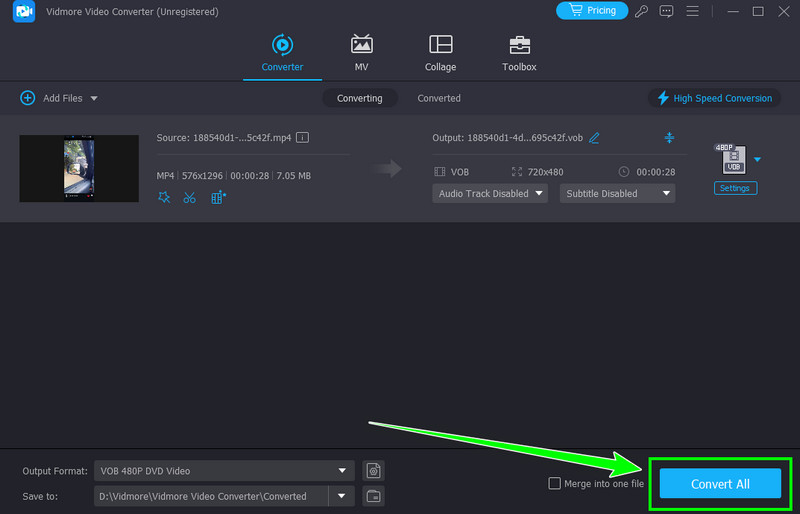
Step 1. Download Vidmore Video Converter on your Mac and Windows. After you launch the software, begin the MP4 to VOB conversion process.
Step 2. Tap the Converter feature and insert your MP4 file by clicking the Add Files button. You can add as many MP4s as you want.

Step 3. Once the MP4 file is already in the interface, go to the Output Format section and select the VOB format.
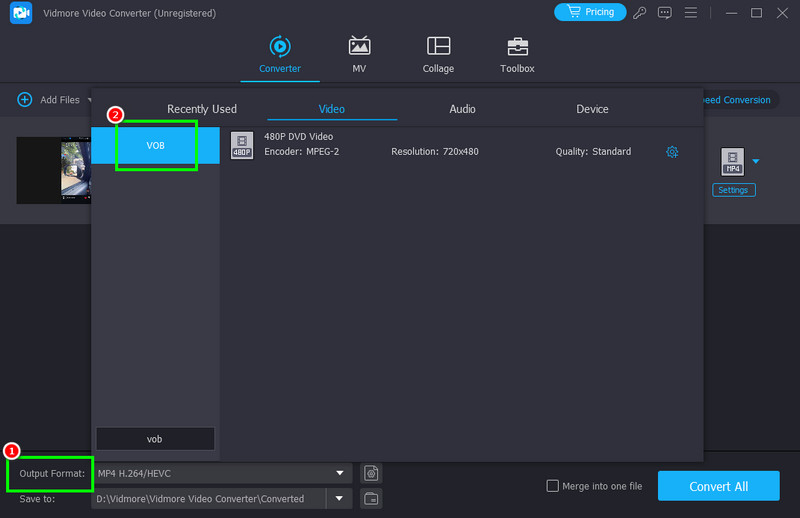
Step 4. Finally, tap the Convert All button to save the VOB file on your computer.
Limitation
• For more enjoyable features, access the Premium version.
Part 2. Handbrake
Platform: Windows and Mac
Best for: Simple conversion procedure
Handbrake is another MP4 to VOB file converter you can rely on. It is a free and open-source video converter that can help you get your desired output. What we like about this program is that it has an understandable layout. With that, even if you are a beginner, you can operate all the functions without any difficulties. What's more, you can access various editing features to improve your video. You can attach a filter, increase the video resolution, remove video noise, and much more. So, if you need a simple yet effective software to transcode your MP4 file to VOB format, consider using Handbrake. You can use the simple guide provided below.

Step 1. Download and install HandBrake software on your computer. After you run it, start the conversion process.
Step 2. Then, tap the File button to insert the MP4 file you want to convert.
Step 3. You can now navigate to the Format section and hit your desired output format. Then, click the Start Encode button above to begin the MP4 to VOB conversion process.
Limitations
• The main layout of the program looks outdated.
• Some of its basic video editing features are hard to locate.
• There are times when the converter is not performing well.
Part 3. VLC Media Player
Platform: Windows and Mac
Best for: Converting MP4 to VOB with good video quality.
If you are looking for another open-source and free program to convert your files, try using VLC Media Player. This program is not an excellent video player that you can access on your device. You can also access its video converter feature to achieve your preferred result. You can even ensure getting a great quality after the conversion process. The best part here is that it can offer a fast conversion process, allowing you to save more time. Plus, you can even edit your videos. You can rotate the video in VLC, crop, adjust video playback, and more. Therefore, VLC is an excellent video player, editor, and converter. Follow the detailed methods below to instantly convert MP4 to VOB.

Step 1. For the first step, download and install the VLC software on your Mac or Windows PC.
Step 2. After that, go to the Media section and tap the Convert / Save option. Once done, click the Add button to insert the MP4 video you want to transcode.
Step 3. Go to the bottom interface and click the Convert / Save button. Proceed to the Profile section and hit the VOB file or any format that suits for DVD.
Step 4. Hit the Start function below to start the video conversion process.
Limitations
• When dealing with a video with a large file size, the conversion process might take time.
• Its user interface is looking old, which is not appealing to some users.
• The software doesn't support batch processing.
Part 4. Clideo
Platform: Browser
Best for: Offering a simple layout for easier conversion.
Do you want an online tool that can give you a simple layout and a smooth conversion process? If so, we recommend using Clideo. This online-based converter ensures that you can obtain the VOB format from your MP4 video. The good thing about this tool is that it has a direct conversion process, making the conversion simple and fast. You can even use some basic editing functions to enhance your video. You can add text, insert filters, effects, and more. It also supports various video output formats, such as MP4, MKV, WMV, OGV, MOV, and more. It also ensures that you won't get any watermarks on the video after the process. You can even access it on various web platforms, which makes it more accessible to all users. Use the instructions we have provided below for an effective MP4 to VOB conversion procedure.
Step 1. Proceed to your main browser and visit the main website of Clideo. Then, tap the Get Started button.
Step 2. After the loading process, tap the Choose Files button to add the MP4 video file from your computer folder.
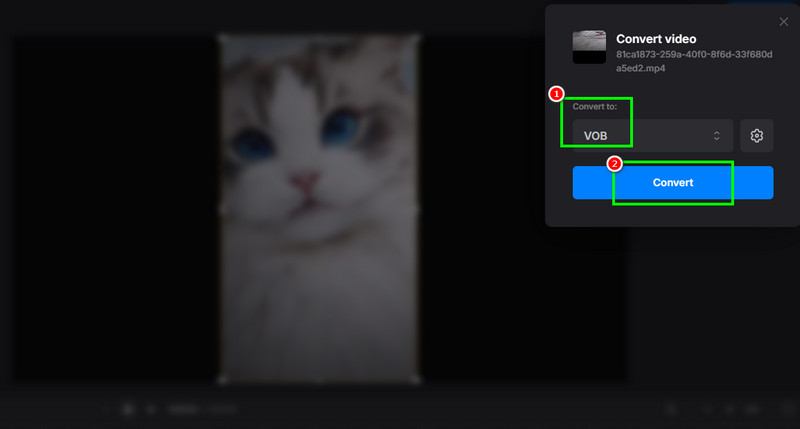
Step 3. Once the uploading process is done, you can now start choosing the VOB format from the Convert to section.
Step 4. For the final process, click the Convert button. Once the process is done, you can now check the video on your computer.
Limitations
• Since it is a web-based tool, ensure that you have a stable internet connection.
• It cannot deal with large files.
• The batch processing is poor.
Part 5. VEED.io
Platform: Browser
Best for: Ideal for a simple and quick conversion process.
For our last MP4 to VOB converter, we suggest using VEED.io. This online tool is ideal if you are a beginner. It can give you a comprehensive layout for a simple conversion process. Additionally, during the process, there are more things that you can do. You can change the aspect ratio, sample rate, resolution, and more. You can also access this converter on various web browsers, which is convenient for all users. To check the tool's capability, see the steps below and convert MP4 to VOB format for free.

Step 1. Visit the main website of VEED.io on your browser. Then, start adding the MP4 file from your device.
Step 2. From the interface, navigate to the Convert to section and choose the VOB format.
Step 3. Now, tap the Convert File button below to start the conversion process.
Conclusion
With these MP4 to VOB converters, there is no doubt that you can transcode your files smoothly and successfully. You even explored the best methods you can follow to achieve your preferred result. Also, if you are still confused about which converter to use, feel free to access Vidmore Video Converter. This video converter has all the features you need, such as a fast conversion process, simple UI, editing tools, and more, making it an all-in-one video converter and editor.