Change TS to MP4 Format for Smooth Video Playback
Do you want to convert TS to MP4 format? Well, users dealing with TS files often come from scenarios like live TV Recording, extracting Blu-ray from disc, and IPTV streaming. While the format is designed for broadcasting, there are times when it suffers from playback issues, such as audio-video desynchronization, lag, stutter, and more, making it unreliable for viewing. With that, if you want a smooth video playback, check here as we offer the best methods that can help you convert your TS file into MP4 format. Converting your files also ensures that you can play your videos across platforms and devices. Thus, check this tutorial and learn more about the best conversion procedure.

PAGE CONTENT
Part 1. An Introduction to TS Format
Transport Stream, also known as the TS format, is a video file type that is commonly used for broadcasting and streaming applications, including TV recordings and Blu-ray discs. The format is designed to transmit audio and video data over unreliable networks, which makes it suitable for real-time playback. Additionally, TS files are effective for streaming, although they frequently lack the compatibility and reliability of more widely used formats like MP4.
Common Issues of the TS Format
- Stuttering Playback - There are times when the TS files freeze or lag during playback.
- Audio-video Desynchronization - Video and sound can fall out of sync, which might dissatisfy users.
- Limited Compatibility - Some platforms don't support the TS format.
- Large File Size - TS files tend to be bigger, which is not ideal for collecting media files.
Part 2. A Quick Peek at the Best TS to MP4 Converters
Want to take a peek at the best TS to MP4 converters? Then, you can check the table below, as we give some information you need to get more insights about its capabilities.
| TS to MP4 Converters | Conversion Speed | Ease of Use | Platform | Offers Batch Conversion |
| Vidmore Video Converter | Up to 50× faster | Simple | Windows and Mac | Yes |
| VLC Media Player | Fast | Simple | Windows and Mac | Yes |
| FFmpeg | Standard | Complicated | Windows and Mac | Yes |
| FreeConvert | Depend on the internet connection | Simple | Browsers | Yes |
| Video Converter, Compressor | Standard | Simple | Android and iOS | No |
| iConV | Standard | Simple | iOS | No |
Part 3. Best Ways to Convert TS to MP4 on a Computer
To convert TS to MP4 format, you can now use all the methods we have provided in this section.
Method 1. Convert TS to MP4 Using Vidmore Video Converter
One of the best TS to MP4 converters out there is Vidmore Video Converter. This program ensures that you can get the result you need after the conversion process. It has a fast conversion speed of up to 50× faster. It also has a simple and neat user interface suitable for non-professional users. What we like here the most is its batch conversion feature. With this feature, you can convert multiple TS files to MP4, allowing you to save more time during the process.
More Features
- It can convert video with the best quality for up to 4K.
- The program can support more formats, including MKV, FLV, AVI, MOV, M4V, WMV, etc.
- It offers basic editing features to improve the video.
- The converter has a fast and smooth export process.
Use the steps below to learn how to convert a TS file to MP4.
Step 1. Run Vidmore Video Converter after the downloading process. After that, you can start with the TS to MP4 conversion process.
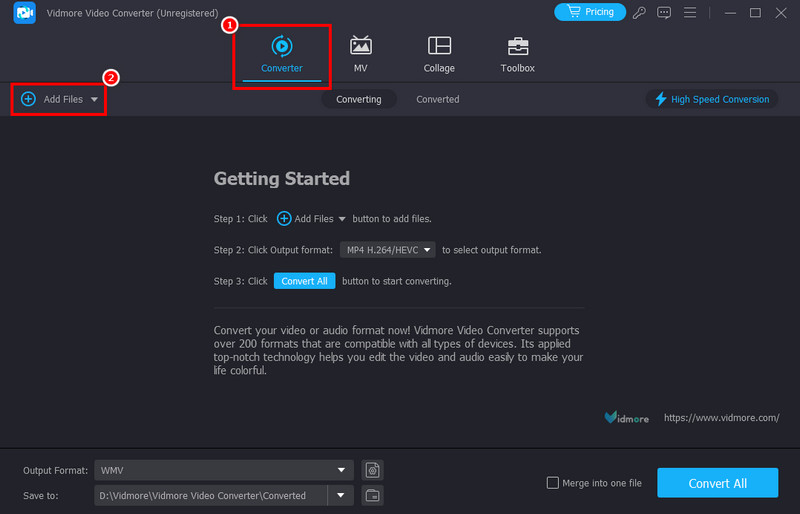
Step 2. Then, from the UI, you can proceed to the Converter > Add Files option to add the TS files you want to convert.
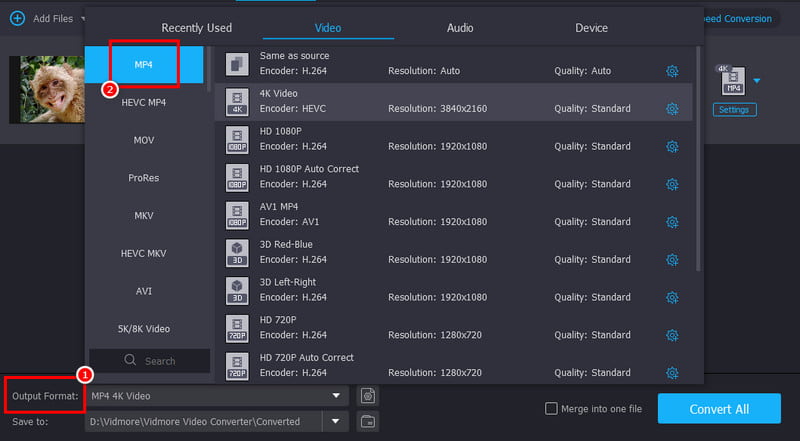
Step 3. After adding the file, navigate to the Output Format section and choose the MP4 format. You can also pick/choose your preferred video quality.
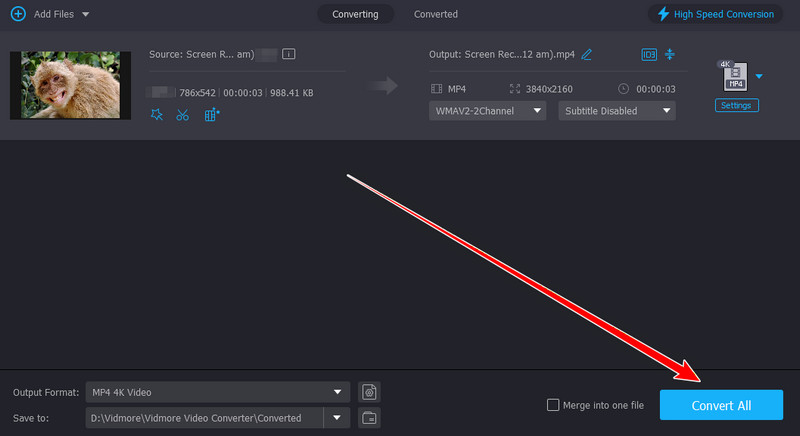
Step 4. For the final procedure, tick the Convert All function below to start the TS to MP4 conversion process.
Drawbacks
- If you want to fully access its features, you can use its premium version.
Method 2. Change TS to MP4 Using VLC Media Player
VLC Media Player is not just your everyday video/audio player. With its converter feature, you can turn TS files to MP4 format in just a second. The good part here is that it can give you a comprehensive user interface, making it an ideal converter for beginners. It can even convert more files, such as MP4 to AVI, MKV to MP4, FLV to MOV, and more. Thus, consider using this program when transcoding files.
More Features
- It can convert various media files smoothly.
- It can offer basic editing tools for video enhancement.
- The software can play both video and audio with the best quality.
To begin the TS to MP4 conversion process, you can follow the provided steps below.
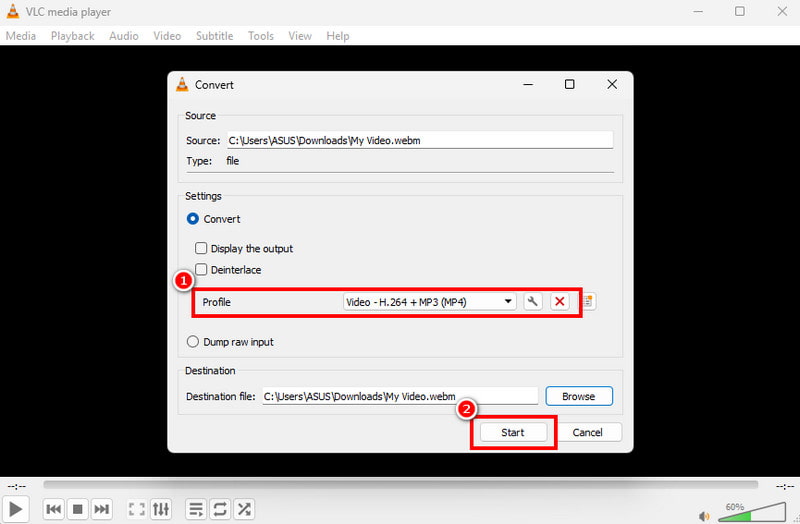
Step 1. After downloading VLC Media Player, go to the Media > Convert / Save options.
Step 2. After that, hit the Add button to start inserting the TS file from your computer. Then, click the Convert / Save button from the bottom interface.
Step 3. From the Profile section, click the MP4 format. Lastly, tap the Start button to begin the conversion procedure.
Drawbacks
- The software's UI is looking outdated.
- Sometimes, the program gives poor video quality.
Method 3. Turn TS to MP4 Using FFmpeg
You can also change TS to MP4 format using FFmpeg. This command tool is perfect if you want to use commands or codes for an effective conversion process. You can also use this to improve the video by cropping, trimming, adjusting the speed, and more.
Features
- It can also stream video and audio.
- It can enhance the video by using commands.
Start converting TS files to MP4 formats by following the provided steps.
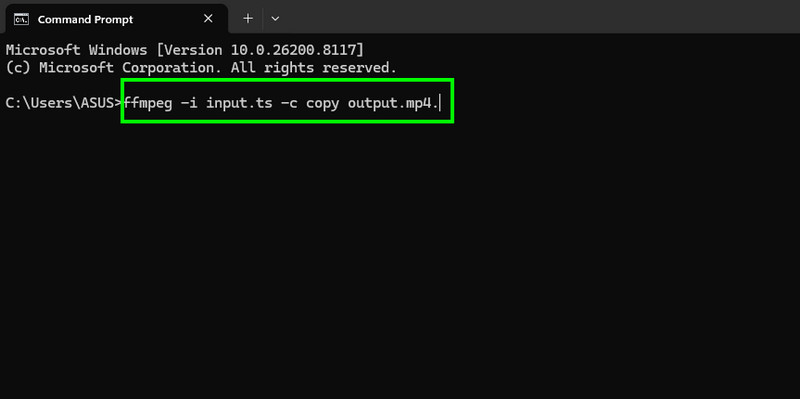
Step 1. Install and set up FFmpeg on your computer. After that, launch CMD.
Step 2. Then, insert the command. The command will be ffmpeg -i input.ts -c copy output.mp4.
Step 3. Hit the Enter button to begin the process. Once done, you can already have the MP4file on your desktop.
Drawbacks
- The tool is complicated to set up.
- It is not ideal for beginners since it requires complex commands.
Method 4. Convert TS to MP4 Using FreeConvert
If you prefer converting your TS files to MP4 online, you can use FreeConvert. This web-based converter has a smooth and simple conversion process, which makes it an ideal tool for users. You can also convert more files, such as MP4 to WMV, AVI to MP4, AVI to FLV, and more. Plus, you can use it on almost all web platforms, making it more accessible to all.
More Features
- The tool can adjust various parameters such as video codec, aspect ratio, frame rate, and more.
- It can also adjust audio settings.
Use the steps below to start converting TS to MP4.
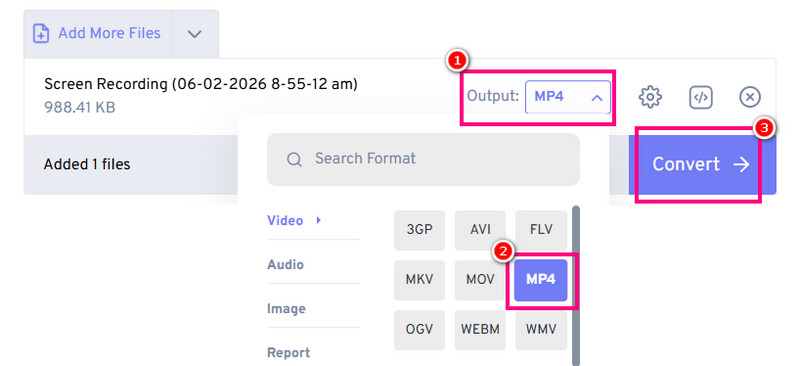
Step 1. Access FreeConvert on your browser. Then, click the Choose Files option to upload the TS file.
Step 2. From the Output section, proceed to the Video and choose MP4.
Step 3. Click Convert to start the TS to MP4 conversion process. After that, use the 'Download' button to save the MP4 on your computer.
Drawbacks
- The tool has various ads, which are disturbing during the process.
- The conversion process/speed depends on the internet connection.
Part 4. Change TS to MP4 on a Mobile Device
If you are a mobile user, you can read this section and learn the most effective process.
Method 1. Change TS to MP4 Using Video Converter, Compressor
Video Converter, Compressor app, is among the most reliable converters you can access on your Android and iOS devices. With this converter, you can turn TS files to MP4 format without encountering any problems. It is also free to use, making it more accessible to all users. To start the process, use the steps below.
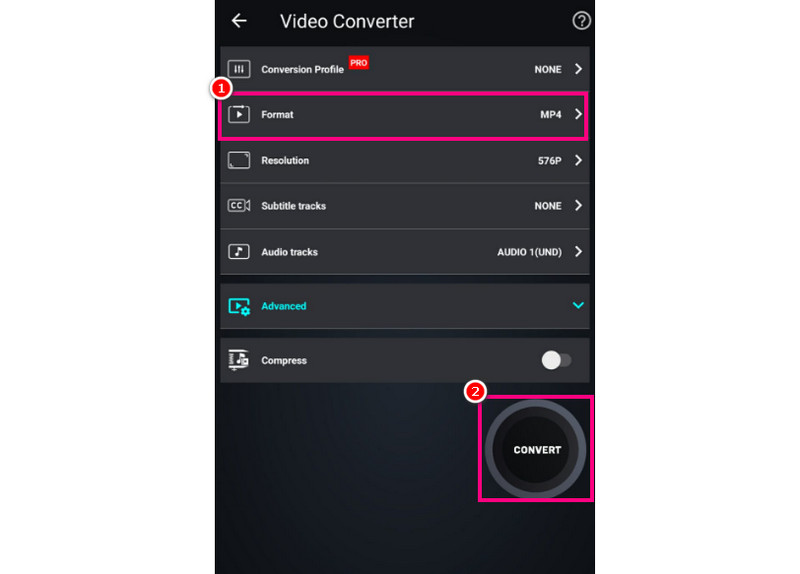
Step 1. Download the Video Converter, Compressor app on your mobile device.
Step 2. Then, tap the Convert or Compress button to add the TS file. Then, choose the MP4 format as your output format.
Step 3. Finally, press the Convert button to begin the process.
Method 2. Transcode TS to MP4 Using iConv
Another app you can use is iConv. This app is perfect if you want to transcode TS to MP4 format while preserving the quality. You can also convert more files when using the converter. You can turn MPEG to MP4, AVI to MP4, WMV to MKV, etc. Plus, it can even offer more features than you imagined. You can crop the video, add text, insert filters, and more. Start changing TS to MP4 using the instructions below.
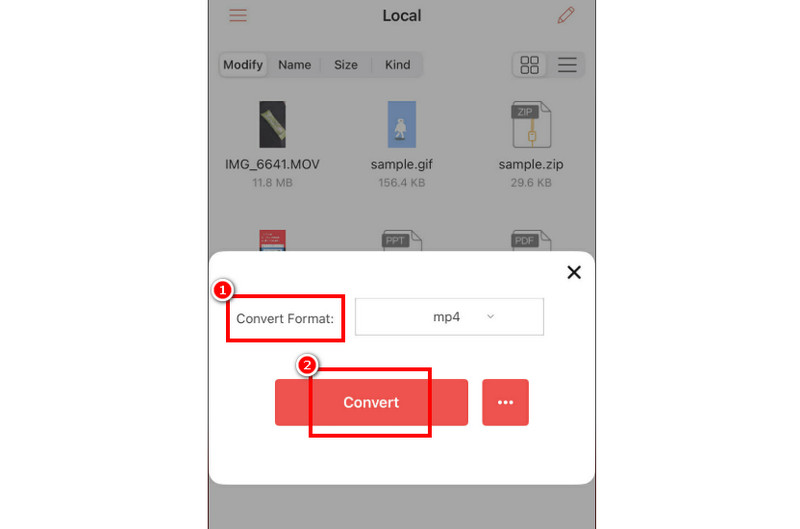
Step 1. Download iConv on your device. After you run it, press Plus to start adding the TS file.
Step 2. Hit the Convert button and select the MP4 format.
Step 3. Finally, press the Convert option to start the TS to MP4 conversion procedure.
With these methods, you can ensure that you can get an MP4 format from your TS file. You can even improve the video by accessing their built-in editing functions. Thus, rely on these apps when converting files on your mobile devices.
Part 5. Bonus: Best TS Editors Before Converting to MP4
If you want to edit your video before the conversion process, you can read here, as we offer the best TS editors you can access.
1. Bandicam
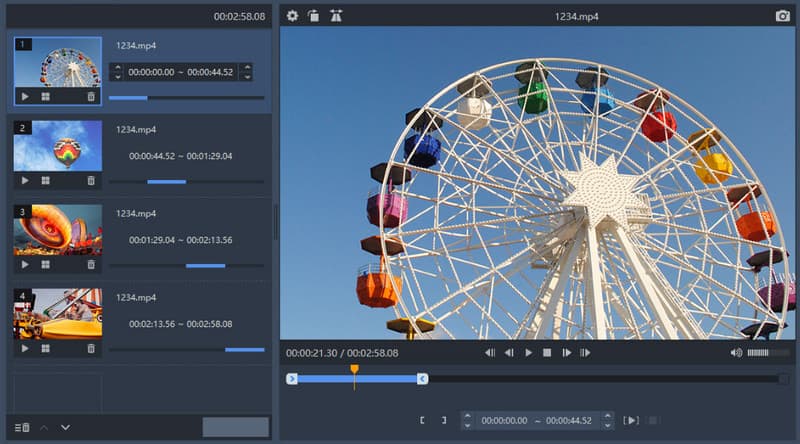
This editor is lightweight, making it ideal for all devices. It can offer various features, such as a cropper, trimmer, splitter, and more. With this editor, you can improve the video before converting it to MP4.
Pros
- It has a fast saving process.
- The main UI is comprehensive.
Cons
- It lacks advanced editing features.
- It is only available on Windows OS.
2. ReStream Online

The main purpose of Restream Online, a web-based software, is to manage and edit live streams. TS-based recordings can be edited, repurposed, and shared straight from the browser. Teams that need to edit and broadcast content across several platforms can benefit from its collaborative features.
Pros
- There is no installation required.
- The tool is useful for collaborative workflow.
Cons
- The performance will depend on the internet connection.
- The free version has various restrictions.
3. InVideo

You can also rely on InVideo if you want to improve your TS file. You can access overlays, transitions, effects, and more. This editor is ideal if you want to get a better version of your video.
Pros
- It can offer various templates for better results.
- It works directly in the browser.
Cons
- The editor requires re-encoding, which is time-consuming.
- The advanced features are available on the premium version.
Part 6. FAQs about TS to MP4
Why should I convert TS to MP4?
Converting TS files to MP4 can give you a smaller file size, deal with stutter, and give you a better and smoother playback.
Which is the best TS to MP4 converter I should use?
The best converter you can access is Vidmore Video Converter. With its fast and smooth conversion process, you can get the result successfully.
Is MP4 universally supported?
Absolutely, yes. If you want to play your files on any platforms and media players, you can use the MP4 format. This way, you won't encounter any compatibility issues.
Conclusion
To convert TS to MP4 for smoother and better video playback, you can use all the methods we have provided in this tutorial. Plus, if you need the best converter, it would be better to use Vidmore Video Converter. This program has a fast conversion process, simple UI, and can offer the batch conversion feature, making it a powerful converter you can access on your Mac and Windows.