3 Effective Ways on How to Send Large Video Files [Detailed]
Sharing or sending high-resolution videos can be challenging when standard email attachment limits cap files at 25MB, leaving users searching for better solutions. Whether you are dealing with 4K videos, long-form files, or raw clips, users need reliable methods to share files without sacrificing quality. In this method, we will teach you how to send large video files effectively. You will also learn how to compress your videos using Vidmore Video Converter. To learn everything, check here immediately.

PAGE CONTENT
Part 1. Why You Can't Email Large Video
Do you wonder why you can't send large video files? Well, Email platforms typically limit attachments to around 25 MB. With that, it will be impossible to send large video files, especially via standard email. High-quality videos, especially those in 4K, 8K, and long-form videos, often exceed hundreds of megabytes. So, trying to send large video files can lead to failed uploads, corrupted transfers, and bounced emails.
Part 2. How to Send Large Video Files
Are you looking for the best way to send large video files? Well, since regular email can't help you with the task, we are here to assist you. Read everything in this section and learn how to share your videos successfully.
Method 1. Send Large Video Files on WeTransfer
For an effective video-sharing process, we suggest using WeTransfer. This tool is ideal if you want to send videos with a file size of 2GB or more. What we like here is that the tool is simple to access. You can even use its free version to send files. Aside from that, the tool's main interface is comprehensive, making it ideal for both skilled and non-professional users. Thus, if you want an effective tool to achieve the result you need, look no further than WeTransfer.
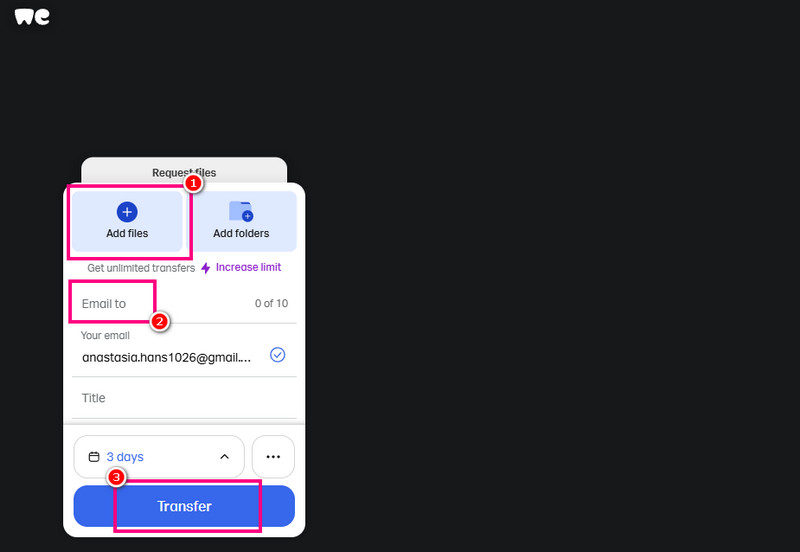
Step 1. Go to your browser and visit WeTransfer's main website. Then, start creating your account and select its Share Files feature.
Step 2. After that, another web page will pop up on your screen. Click the Add Files option to start uploading the large video file you want to share. You can even send a folder if you want to.
Step 3. You can now proceed to the Email to section and type the email address of the user you want to send the video file to.
Step 4. Lastly, tap the Transfer button below to send the large video file to the recipient. You can now message the other user and check if the video was successfully sent.
Limitations
- • The tool requires a stable internet connection for a smoother sharing process.
- • If you have a video larger than 2GB, you must use the tool’s premium version.
Method 2. Send Large Video Files on Google Drive
Are you looking for another tool that can send large video files? You can try using Google Drive. It is among the most accessible and versatile tools you can use in your browser to help you achieve your desired result. With this tool, you can send your videos since it has 15 GB of storage, perfect for storing and sending long-form videos. In addition, the tool is not only good for dealing with videos. You can also store and send other media files, such as documents, images, audio, and more. With that, if you want an ideal cloud storage you can rely on, consider using your Google Drive.
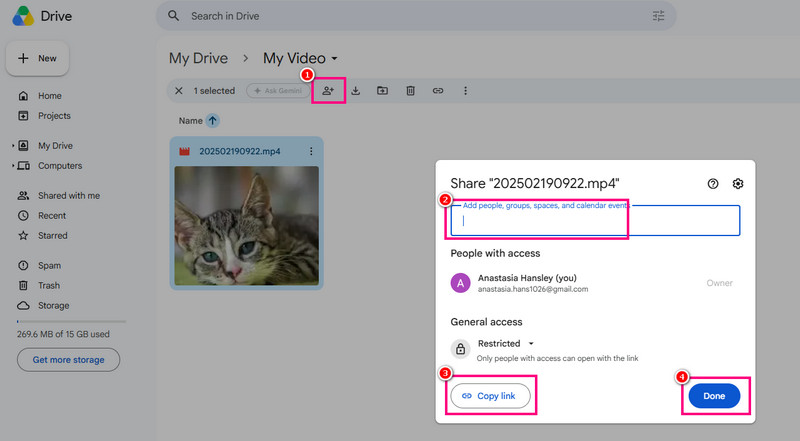
Step 1. Go to your browser and proceed to your Google Drive. If you don't have an account yet, you can create one.
Step 2. Then, proceed to the My Drive section. After that, right-click and select the New Folder option.
Step 3. From the blank page, right-click and select File Upload to upload the large video files.
Step 4. Now, click the Plus symbol to add the email address of the user you want to send the video to. Then, hit the 'Done' button. You can also tap the 'Copy Link' option to send the link directly to the user via another communication platform.
Limitations
- • If the video is larger than 15GB, you need to upgrade to a higher-storage plan in the paid version.
- • If you have a poor internet connection, the video sharing process will slow down.
You may also need: Compress Video on Google Drive: Everything You Need to Know
Method 3. Send Large Video Files on FileMail
For our last tool, we recommend using FileMail for sending your large video files. This tool/service is specialized for securely transferring large files instantly. Plus, compared with traditional email attachments, it supports free transfers of up to 5GB. It only shows that you can send your favorite movies or any long-form videos without encountering any issues. The good thing here is that the platform emphasizes simplicity and speed, making it a strong choice for professionals and other users working on large-scale video projects. Aside from that, if you want to save and collect more files, you can also rely on this tool, since its free version lets you store up to 250 GB of files.
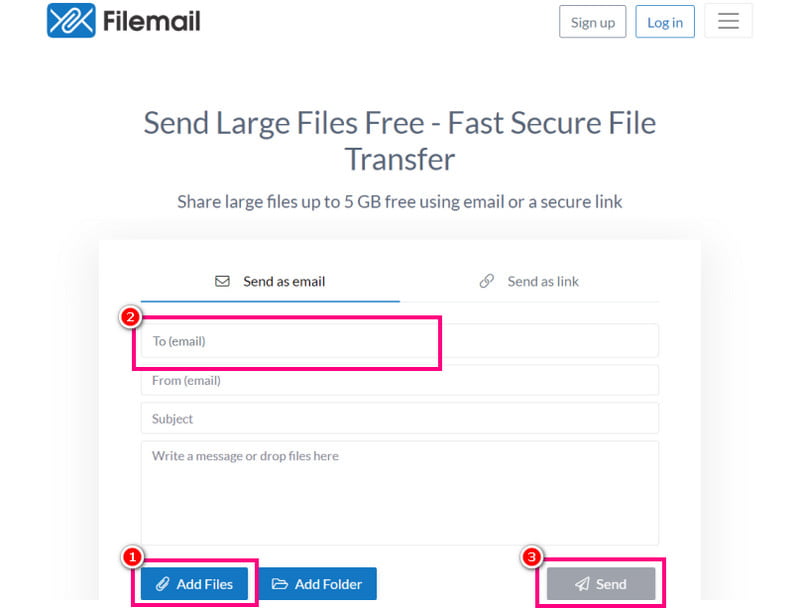
Step 1. In your browser, navigate to FileMail's main website. Then, start creating your account. You can also connect your Gmail account.
Step 2. Go to the 'To Email' section and insert the email of the receiver. After that, you can start uploading the large video file by clicking the Add Files option.
Step 3. To start the video-sharing process, hit the Send button.
Limitations
- • Use the paid version to send a video larger than 5GB.
- • The availability of files on the platform in the free version is limited to 30 days.
Part 3. Pro Tip: Excellent Tool to Compress Video Before Sending Them
If you have large video files, the best thing to do is to compress them. That way, you can get a smaller file size, making it easier to send to any platform without encountering problems. So, if you are looking for the best video editor to help you compress your videos, you can try Vidmore Video Converter.
The program can offer its Video Compressor feature. With this feature, you can resize and compress the video to your preferred dimensions and quality. The good part here is that you can also adjust various parameters. It includes changing the video format, resolution, bitrate, duration, and more. Plus, the video compression process is simple thanks to the program's user-friendly interface. It also has a smooth export process, making it ideal for all users. Therefore, if you need a reliable video compressor, it would be better to access Vidmore Video Converter.
More Features
- • The software can offer various editing tools, like a cropper, a video speed adjuster, a watermark, effects, and more.
- • It can convert MP4 to MOV or other format conversion.
- • The program can offer its video enhancer to get a better version of the video.
To start compressing the video, follow the steps below.
Step 1. Start downloading Vidmore Video Converter on your desktop. After that, run it to start the video-comparison procedure.
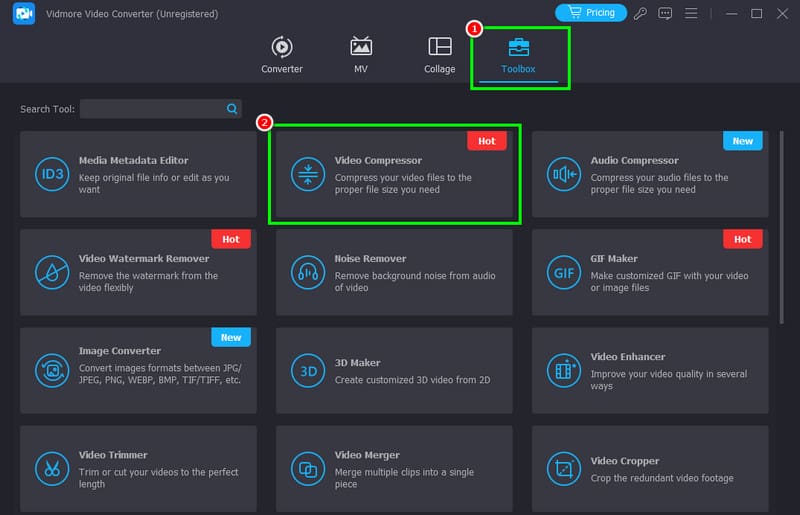
Step 2. From the interface, proceed to the Toolbox section. Then tap the Video Compressor feature and tap Plus to add the video you want to compress.
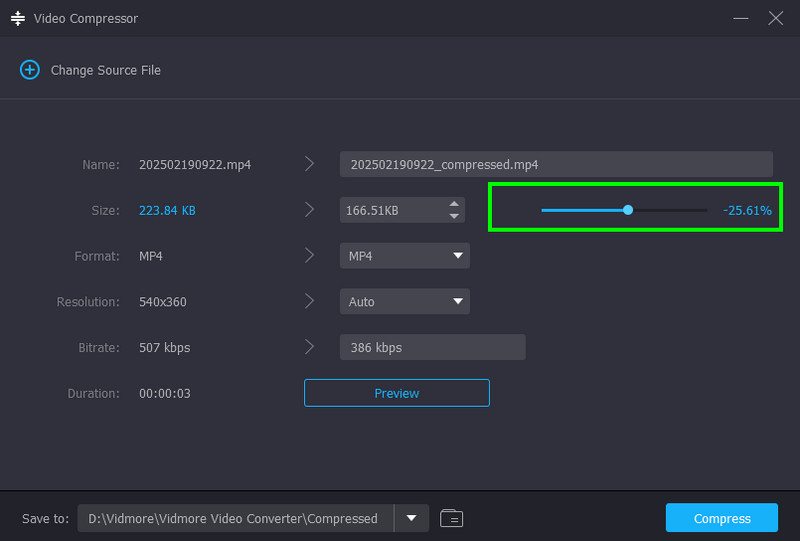
Step 3. You can now start compressing the video by using the adjustable slider from the interface. Compress the video as needed.
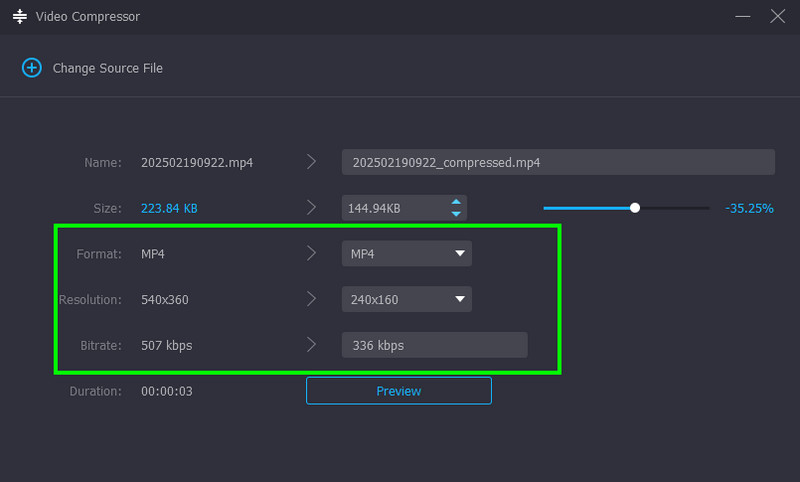
Step 4. You can also adjust/change parameters such as bitrate, resolution, and video format.
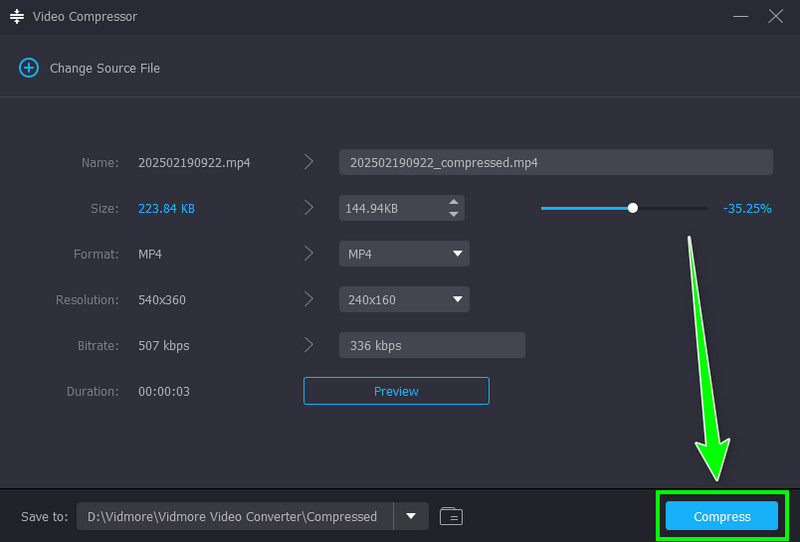
Step 5. Finally, click the Compress button below to start compressing the video.
Thanks to this method, you can effectively compress the video before sending it to any platform. With that, if you need an excellent video compressor, download Vidmore Video Converter on your computer!
Part 4. FAQs about How to Send Large Video Files
How to send large video files to email?
Unfortunately, you cannot send large video files via Email, as it can only send files up to 25 MB. To send a large video file, it is better to use other tools, such as WeTransfer, Google Drive, or FileMail.
Is compressing the video the best way to make the file smaller?
Absolutely, yes. To reduce the video file size, it is highly recommended to compress it. For better video compression, you can use Vidmore Video Converter. Its Video Compressor feature lets you compress video according to your preferences.
Is it safe to share the videos on the cloud?
Definitely, yes. If you use a reliable, secure cloud service, you can ensure your files are safe. Some safe cloud storage options include Google Drive, WeTransfer, FileMail, Dropbox, OneDrive, and more.
Conclusion
Now you have learned how to send a large video file, thanks to the methods provided in this tutorial. With that, sending your videos would be possible. So, start using the tools above to share your videos with other users. Plus, if you plan to compress the video before sending it, you can try using Vidmore Video Converter. With its Video Compressor, you can reduce the file size while still maintaining video quality.