How to Trim Videos Easily: 9 Feasible Methods for 2026
Trimming videos is essential for anyone who works with digital media, whether for professional projects or personal use. It lets you cut or remove unwanted parts, highlight key moments, and create polished content that flows smoothly. So, do you want to trim videos effectively? Luckily, this tutorial offers several methods. Read this guide to learn the best video-trimming process.

PAGE CONTENT
Part 1. What is Video Trimming
Video trimming is the process of cutting and removing unnecessary parts from a clip. Its main objective is to keep only the section you need for video editing. This process helps make content more polished, precise, and engaging. You can cut/trim videos with editing software or simple tools built into platforms and apps. This technique is widely used for creating tutorials, highlights, presentations, and social media clips.
Part 2. How to Trim/Cut Videos on Windows and Mac
Do you want to trim videos on your Windows and Mac computers? If so, check out the methods in this section.
Method 1. Trim Videos Using Vidmore Video Converter
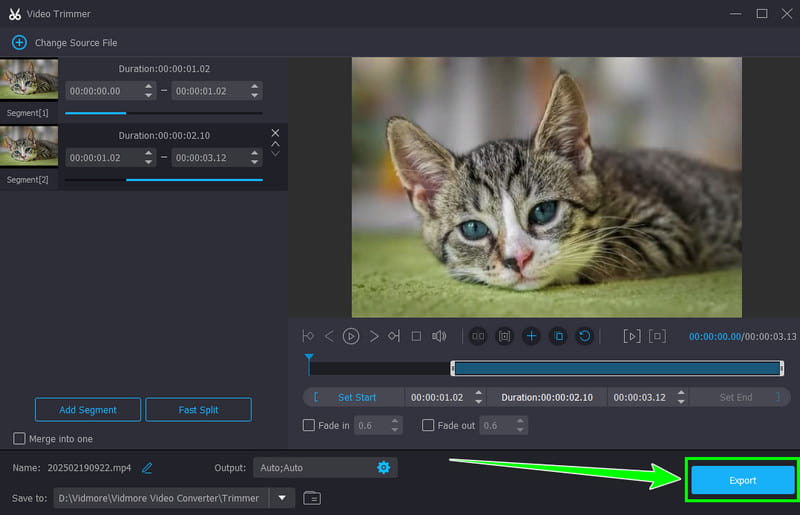
If you want to trim videos effectively and smoothly, we recommend Vidmore Video Converter. This program offers a Video Trimmer feature that lets you remove any unwanted part of your videos. We like that the trimmer has a simple user interface so that you can trim your footage without trouble. You can also use the Add Segment and Fast Split tools to separate or merge video clips. Additionally, Vidmore lets you save videos in formats like MP4, MKV, AVI, FLV, MOV, and more, making it one of the best trimmers available.
More Features
- The trimmer can save videos in up to 4 K quality.
- It offers various editing tools to enhance videos.
- The program lets you change parameters such as resolution and frame rate. Sample rate and more.
- The program includes fade-in and fade-out features.
To trim videos effectively, follow the steps below.
Step 1. Download Vidmore Video Converter on your Windows or Mac. Then, start the installation.
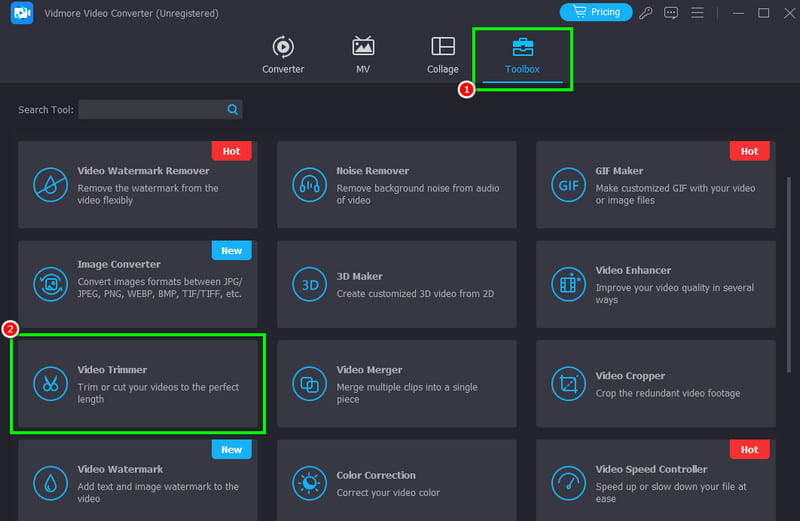
Step 2. From the interface, go to the Toolbox section and tap Video Trimmer. Once done, add the video you want to trim.
Step 3. You can now start trimming. Select or highlight the part of the video you want to trim, then tap Delete.
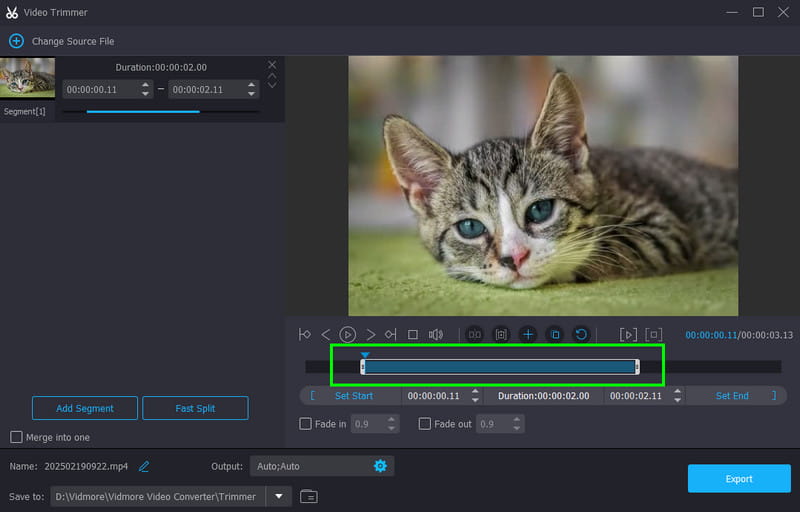
Step 4. Finally, hit Export to save the trimmed footage. You can now start watching the video to check the overall result.
Method 2. Trim Videos Using VLC
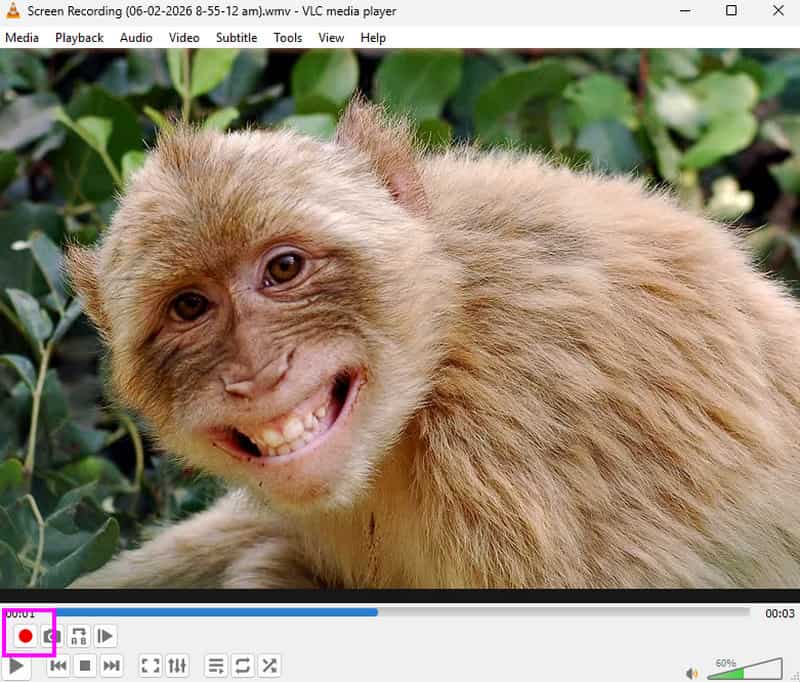
Another way to trim videos on Windows and Mac is by using VLC. This software is not just an excellent media player. You can also trim or remove unwanted parts of the video using its recorder feature. By recording, you can capture the specific section you want. The good thing is that the software retains video quality after the process so that you can enjoy the footage. To start trimming your videos, follow the instructions below.
Step 1. Download VLC and launch it to begin trimming.
Step 2. Click View > Advanced Controls. Then, various features will appear on your screen.
Step 3. Move to the part of the video you want to save. Then, hit the Record button. When you're done, hit the same button again.
Step 4. You can now check the obtained video in the VLC folder.
Drawbacks
- The software lacks video editing functions.
- The user interface may not appeal to some users.
Method 3. Trim Videos Using QuickTime Player
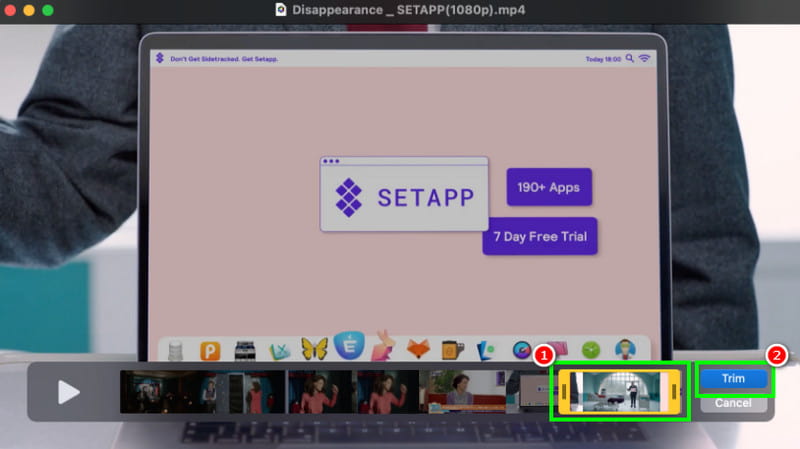
Mac users can rely on QuickTime Player to trim footage instantly and smoothly. The media player offers a Trimmer feature, which helps remove unnecessary parts from clips. The trimming process is also simple, making it suitable for beginners. It can also offer more editing tools. You can use its rotator to rotate or flip videos on Mac for a better viewing experience.
Step 1. Launch QuickTime Player on your Mac. Then, attach the video you want to edit.
Step 2. Then, go to the top menu and select Video > Trim options. To start trimming, select the part you want to remove.
Step 3. Lastly, tap the Trim button. Once done, you can now check and watch the video without any unnecessary parts.
Drawbacks
- It has limited editing tools.
- The software works best only with MP4 and MOV files.
Method 4. Trim Videos Using iMovie
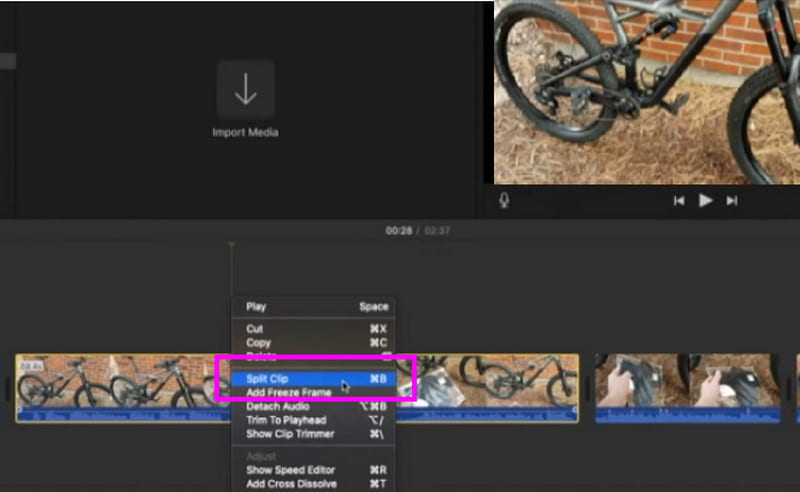
Another built-in software you can access on your Mac for video trimming is iMovie. This is perfect if you want to split and remove any part of the video. You can even refine the clips to produce professional-grade videos. iMovie also offers basic video editing tools, such as a cropper, rotator, effects, and more.
Step 1. Open iMovie on your Mac and import the video you want to trim.
Step 2. Select the part of the clip you want to trim. You can also adjust the handles by dragging the yellow trim handles at the start or end of the clip.
Step 3. Position the playhead and choose Modify > Split Clip. Once trimmed, you can begin exporting the video.
Drawbacks
- The software is only available on Mac.
- It can perform slowly with large files.
Part 3. How to Trim Videos on Android and iOS
Want to learn how to trim video on an iPhone or Android? Proceed to this part, as we offer several ways to trim your footage on mobile devices.
Method 1. Trim Videos on CapCut
CapCut is an excellent video editing app available on both Android and iOS. With its video trimmer feature, you can eliminate any part of your video. You can also use the Split feature to split a single file into two clips. Best of all, you can access more features to enhance your video. You can add effects, filters, subtitles, transitions, and more.
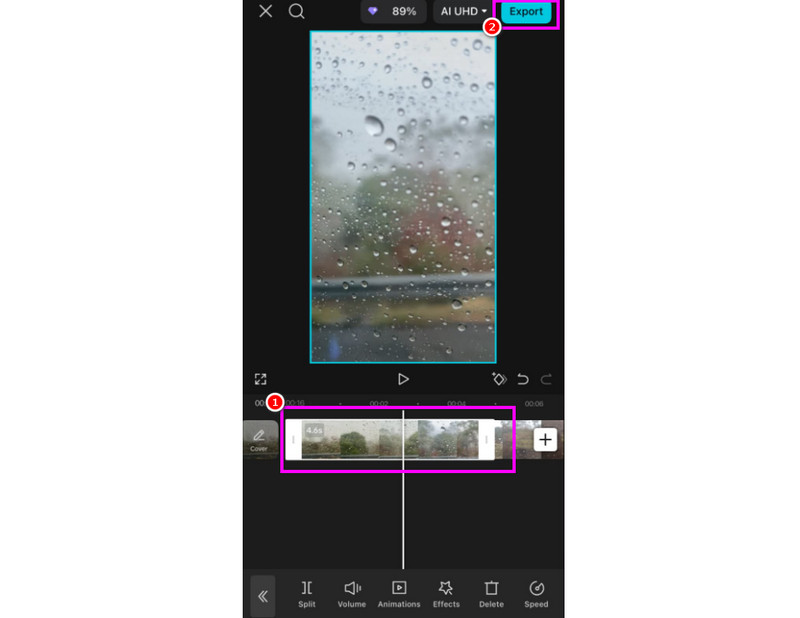
Step 1. Download CapCut on your Android or iOS device. Then, open it and tap New Video to add the video you want to trim.
Step 2. Tap the video in the Timeline section and adjust the edges. You can select the video you want to save. This removes the unselected part.
Step 3. Press the Export button above to start saving.
Drawbacks
- A watermark appears when you use the free version.
- To save the video with the best quality, access the paid version.
Method 2. Trim Videos on the Photos App
If you use an iPhone, you can also trim MP4 and other video files in the Photos app. This is ideal if you don't want to install any third-party video editors. Trimming footage is also simple and works for all users. Before saving, you can also crop your videos and add effects and filters. See the steps below and learn how to trim videos on the iPhone.

Step 1. Open the Photos app and go to the video you want to trim. Then, click the Edit symbol below.
Step 2. Drag the adjustable frame below and select the part of the video you want to keep.
Step 3. Finally, tap the Done button above.
Drawbacks
- The app is only ideal for basic trimming.
- The app doesn't allow frame-by-frame trimming.
Method 3. Trim Videos on the Google Photos App
Android users can also rely on the Google Photos app for basic video trimming. Under the Edit section, you can manually trim any unwanted part from the video. You can also enhance the video using editing tools. You can add text, insert background music, add filters, and more.
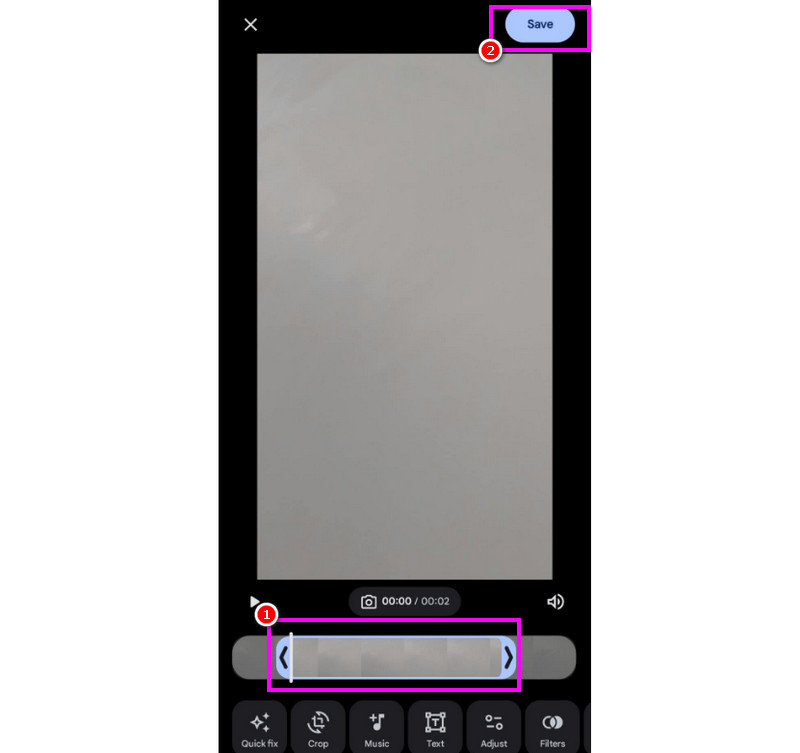
Step 1. Launch the Google Photos app on your Android device and choose the video you want to edit. Then, press the Edit function below.
Step 2. From the clip below, you can use the adjustable frame to select the video you want to keep.
Step 3. Then press the Save button below to save the selected video clip. Once done, you can enjoy the trimmed video.
Drawbacks
- It doesn't support advanced editing.
- For full functionality, you must be connected to the internet.
Part 4. How to Trim Videos Online
If you want to trim videos online, continue with this part. We will show you how to trim and remove unnecessary parts from your clips in your browser.
Method 1. Trim Videos Using Medio.io
Medio.io is an online video editor with a Split feature for trimming your video. It lets you remove the first or last part of the video smoothly and instantly. It's also more powerful because it offers various editing tools, such as merger, cropper, rotator, effects, text addition, audio extraction, and more.
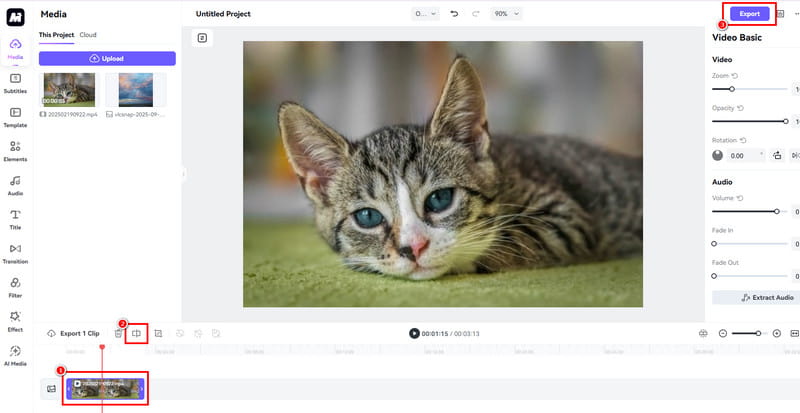
Step 1. Open your browser and go to the main Media.io website. Then, hit the Upload button to import the video from your device.
Step 2. Insert the clip into the Timeline section, use the red line, and place it where you want to split the video. Then, hit Split.
Step 3. After you finish splitting the video, select the footage you want to remove and press Delete. Then tap Export to start saving.
Drawbacks
- The tool won't work without an internet connection.
- Get a subscription plan to access all the features.
Method 2. Trim Videos Using Clideo
You can also trim videos online with Clideo. With its Video Trimmer feature, you can remove unwanted parts from your footage. It also offers a comprehensive layout, making it easy to get the result you want. What's more, you can also save the final video in any output format, such as MP4, WMV, MKV, AVI, FLV, VOB, etc. To start trimming, follow the steps below.
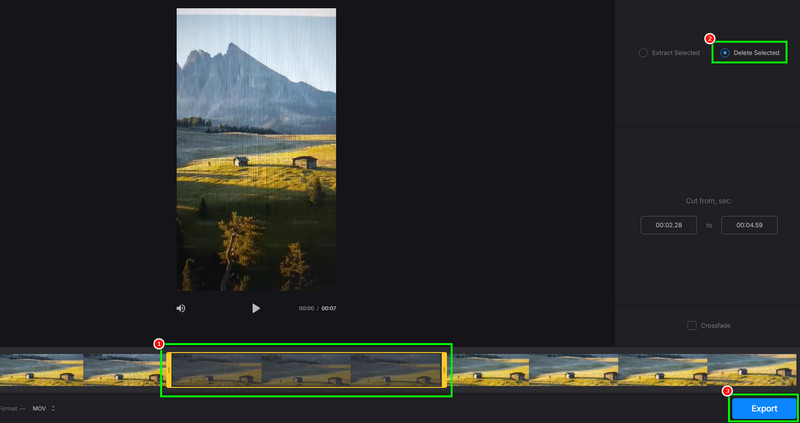
Step 1. In your browser, go to the main Clideo Video Trimmer website. Then, upload the video you want to trim.
Step 2. Select the part of the video you want to remove. Then, in the right-hand interface, click Delete Selected.
Step 3. Finally, click Export below to save the trimmed video to your device.
Drawbacks
- The free trial includes a watermark.
- Performance may be slow when editing large video files.
Part 5. FAQs about Trimming Videos
Is it hard to trim videos?
It depends on the video trimmer you use. If you want a simple video-trimming procedure, you can use Vidmore Video Converter. With its simple layout, you can trim videos and get the desired result at ease.
Why should I trim my videos?
There are several reasons you should trim your videos. To shorten the content, make it more engaging, highlight a specific moment, and remove unnecessary parts.
Does trimming reduce the video quality?
The answer is no. During trimming, the trimmer removes unnecessary parts of the clip while maintaining its original quality. This way, users can still enjoy the video.
Conclusion
Now, you have learned how to trim videos on Windows, Mac, iOS, Android, and in a browser. Use the methods we recommended to get the result you want. Plus, if you want a simple yet smoother trimming process, we suggest using Vidmore Video Converter. It lets you trim and edit videos in many ways, making it a top video trimmer and editor.