How to Convert Videos to HD: 4 Easy Methods for 2026
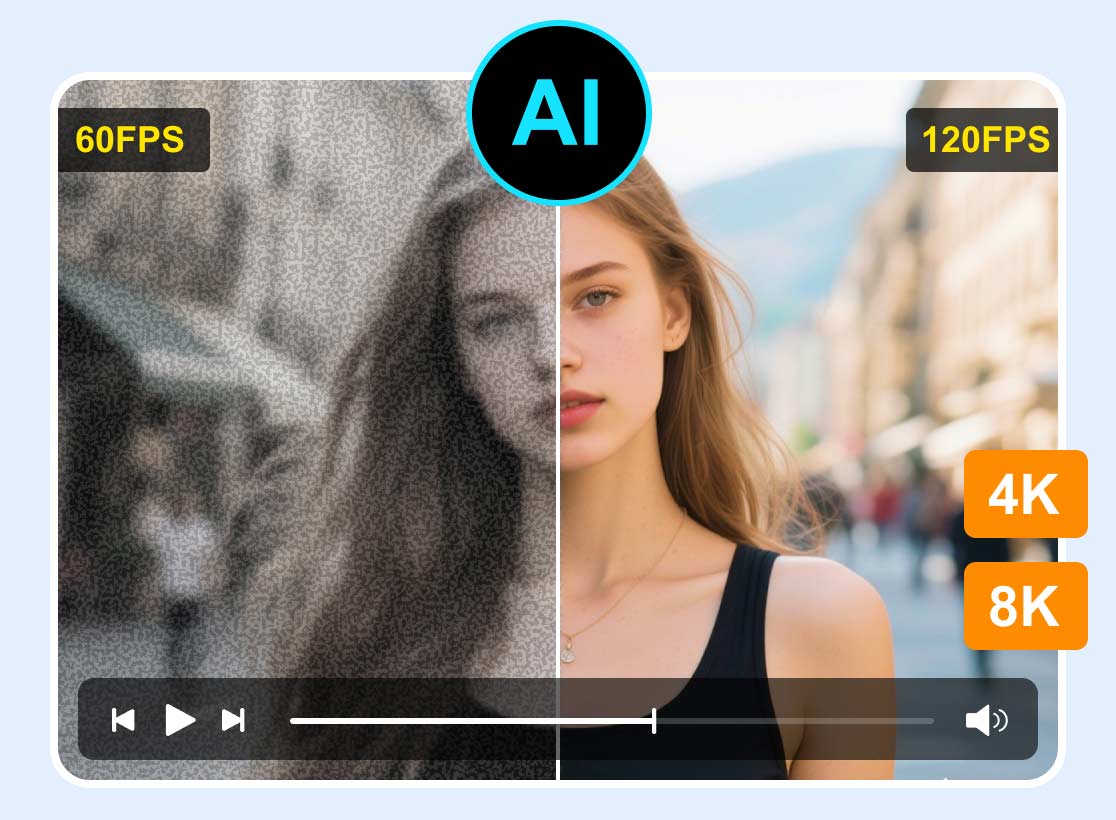
Converting videos to HD is one of the best ways for users who want crisp visuals and a more satisfying viewing experience. Whether you are improving old videos, preparing for social media, or simply enhancing your own clips, the process is simple. In this detailed tutorial, we will show you all the methods you can follow to effectively convert your videos into HD. Thus, start reading everything and explore all the best video enhancement processes.

PAGE CONTENT
Part 1. What is HD Video: 4K, 1080p, or 720p
HD videos generally refer to 720pp and 1080p. On the other hand, 4K is already considered Ultra HD. It offers a higher pixel density and detail. In short, 720p is the entry-level resolution, 1080p is considered Full HD, and 4K is Ultra HD. For more insights into the HD Videos, see the information below.
720p (HD)
- It contains 1280×720 pixels.
- Ideal for mobile viewing.
- Common budget for TVs, smaller-screen devices, and older streaming platforms.
1080p (Full HD)
- It contains 1920×1080 pixels.
- Standard for modern TVs, Blu-ray content, and monitors.
- It has a sharper detail than 720p.
4K (Ultra HD)
- It contains 3840×2160 pixels.
- Offer four times the detail of 1080p.
- Perfect for large displays, professional editing, and future-proof content.
Part 2. How to Convert Videos to HD Quality
Want to convert video files to HD quality? If so, come here and learn all the methods you can use to turn videos into HD using the best video enhancement tools.
Method 1. Convert Video to HD Using Vidmore Video Enhancer
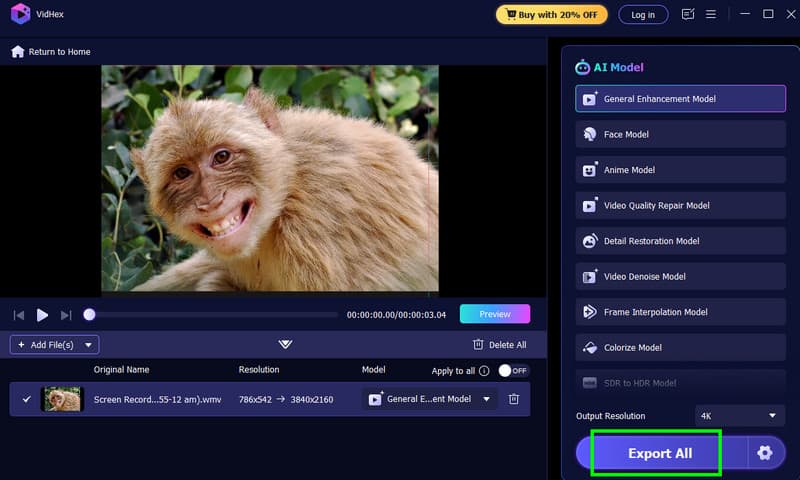
One of the most reliable tools for converting your videos to HD is Vidmore Video Enhancer. This program is ideal since it offers various AI enhancement models you can use to effectively enhance your videos. It can even help you turn your videos up to 4K. What's more, the enhancement process is simple, thanks to the program's intuitive user interface. The best part here is that it supports batch processing. With this feature, you can convert multiple videos at once, saving time when dealing with multiple files. Thus, for quick and effective video-to-HD conversion, it would be better to use Vidmore Video Enhancer.
More Features
- The software can offer a smooth enhancement process.
- It lets users adjust video format, encoder, and bitrate.
- It has various AI enhancement models, such as General Enhancement, Anime, Face, Video Denoise, and more.
- It offers a Preview feature to check the enhanced videos.
To start converting a video file into HD, see the instructions below.
Step 1. Download Vidmore Video Enhancer on your desktop. Then, launch it to start the video-to-HD conversion process.
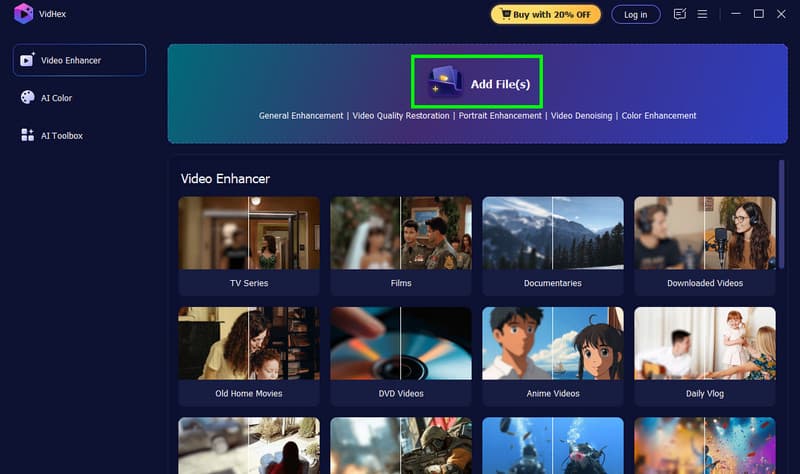
Step 2. From the main interface, click Add Files to add the video you want to convert to HD. You can also add more than one file.
Step 3. You can now choose the General Enhancement Model from the right interface. Proceed to the Output Resolution section and choose your desired resolution. You can also convert video to 4K.
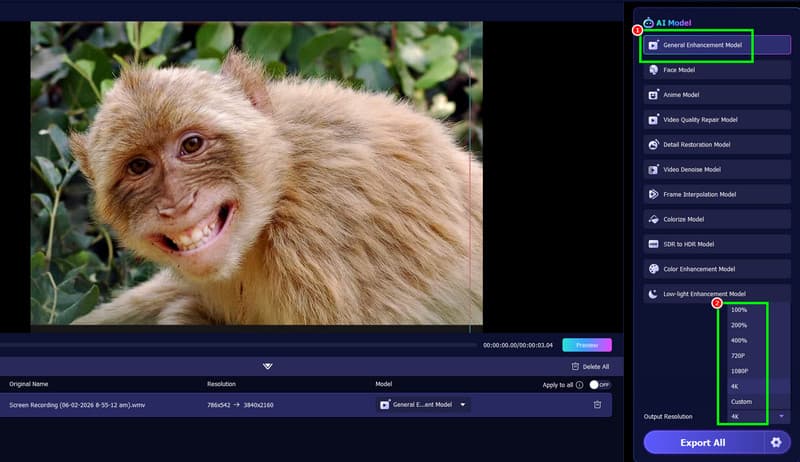
Step 4. For the last process, click the Export All button to save the enhanced video to your desktop.
Method 2. Convert Video to HD Using Topaz Video AI
If you need another AI-powered tool that can convert videos to HD, look no further than Topaz Video AI. This program has a smooth enhancement process, allowing you to transform your low-quality videos into sharper, more detailed ones. What makes this video enhancer better is that it lets you adjust various parameters to make your videos perfect. You can adjust the stabilization level, deblur videos, denoise, and more. Lastly, you can access Topac on both Windows and Mac, making it accessible to all users.
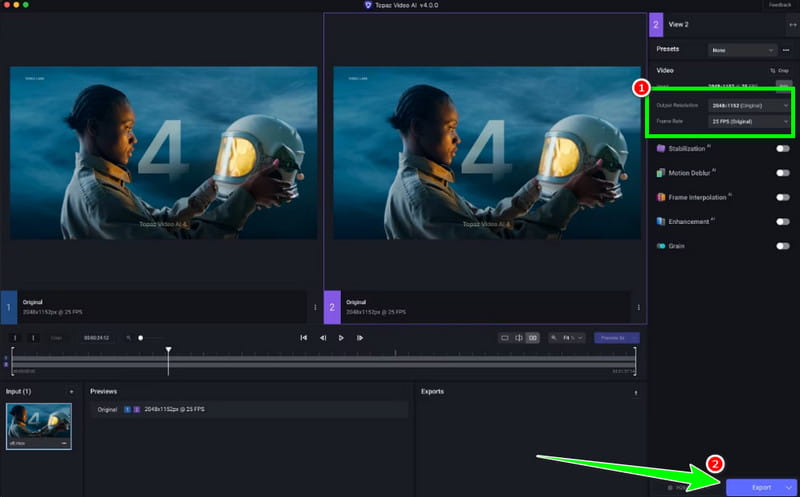
Step 1. Download and install Topaz Video AI on your computer. Then run it to start the process.
Step 2. Add the video, then choose your preferred resolution in the Output Resolution section. You can also change the frame rates and adjust all settings to your needs.
Step 3. Once you are done converting your video to HD, you can start saving by clicking the Export button below.
Limitations
- When using the free trial version, the Topaz watermark will be attached to the enhanced video.
- You have to get the premium version to enjoy the enhancements to your videos without any restrictions.
- Accessing the premium version is expensive.
Method 3. Convert Video to HD Using iMovie
If you are using your Mac, you can convert video to HD on the iMovie app. This built-in software helps improve your videos. You can even save the video at 720p, 1080p, or 4K resolution, ensuring smooth playback. Additionally, the program also offers various editing tools. You can enhance your videos by changing the brightness and saturation, adding effects, enabling the video stabilizer, and more. The good part here is that the program is simple to operate. Even if you are a beginner, you can convert your video to HD without any trouble. Check the steps below and learn how to convert a video file to HD.
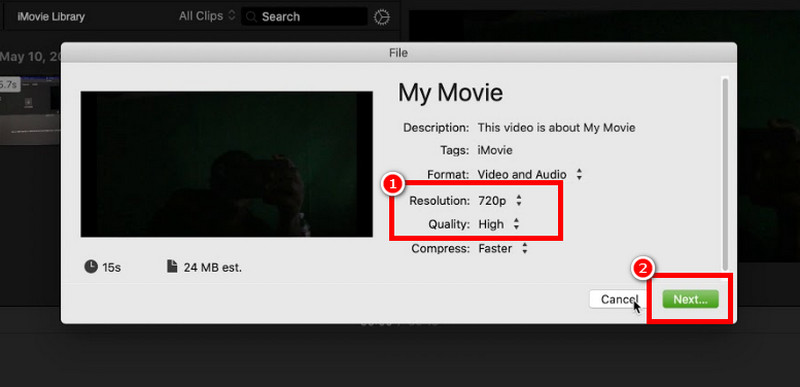
Step 1. On your Mac, launch the iMovie app and add the video you want to convert to HD. After that, go to the next step.
Step 2. Once the video is added, you can enhance it by adjusting brightness, saturation, contrast, and more. You can even tap the Auto Enhance feature for quicker fixes.
Step 3. You can also stabilize the video by clicking the Stabilization option.
Step 4. Lastly, go to the File > Share > File sections. Then start selecting your preferred resolution. You can choose 720p, 1080p, and even 4K. Then, tap Next to save the enhanced video.
Limitations
- The built-in enhancer lacks the AI upscaling feature.
- It is incapable of offering advanced video-enhancing features, such as detail recovery, color grading, and more.
- It is only available on Mac and iOS.
Method 4. Convert Video to HD Using AVCLabs Video Enhancer
Do you want to convert a YouTube video to HD? You can use AVCLabs Video Enhancer. It is one of the best video enhancers available on your computer. It is an excellent AI-driven tool designed to upscale and restore video quality with high accuracy. The program also uses advanced learning models to sharpen details, reduce video noise, and convert low-resolution clips into HD, Full HD and even Ultra HD. With that, we can tell that it is better at handling animations, old clips, and compressed videos, making it useful for both casual and professional users. So, if you want to improve your videos, consider using AVCLabs Video Enhancer.
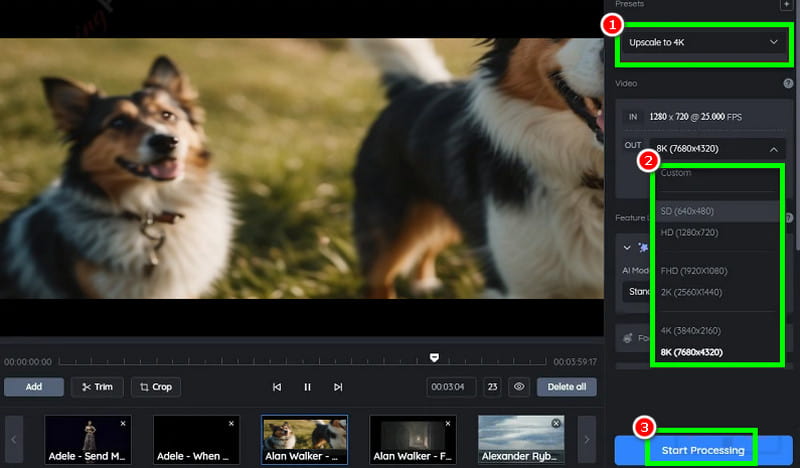
Step 1. Download and install AVCLabs Video Enhancer on your computer. After that, launch it to begin the video-to-HD conversion process.
Step 2. Tap the Browse option to start adding the video you want to enhance.
Step 3. Then, go to the right interface and select Upscale to 4K or the resolution you want. You can also change your desired output format, codec, AI model, and more.
Step 4. To start the final enhancement, hit the Start Processing button below. Once done, you can now play and check the improved version of the video.
Limitations
- The process of enhancing the video might be slower than other programs.
- There are times when the software produces unnatural face textures or artifacts in fast-motion scenes.
- It requires a high GPU for better performance.
- It is not 100% free. To access all the features, you have to subscribe.
Part 3. FAQs about Converting Videos to HD
Can you convert a video to HD 1080p online for free?
Absolutely, yes. Converting video to 1080p is a possible task as long as you have the right online video enhancers. Some tools you can use include AVCLabs Online HD Converter, Wink AI HD Converter, AIAI.com Video Quality Enhancer, and more. These tools ensure you can convert your low-resolution videos to HD for better playback.
Does converting videos to HD increase the file size?
Definitely, yes. Higher resolution means more pixels, which increases the video's file size. To make it easier to understand, a 1080p video can be 2 to 3 times larger and higher-quality than a 720p video, depending on the compression and codec.
Which resolution should I choose, 720p, 1080p, or 4K?
Well, choosing the resolution depends on your needs. For faster processing and mobile, use 720p. For a balance of quality and efficiency, it would be better to choose 1080p. It is also the standard for most platforms. Lastly, if you want to watch videos on a larger screen, choose 4 K resolution. It can offer maximum detail for better playback.
Conclusion
Thanks to this tutorial, you have learned how to convert videos to HD using the best video enhancers. You even get more insights about 720p, 1080p, and 4K. Also, if you want an exceptional tool that can convert any video to HD, we suggest using Vidmore Video Converter. This program ensures a smooth video enhancement process, allowing you to achieve the result you want for satisfying playback.