Upscale Video Using Adobe Premiere Pro [Tutorial 2026]
Interested in learning how to upscale video in Premiere Pro? Well, upscaling videos using this advanced video editing software is a powerful method to enhance your videos and make them look sharper. This procedure lets users transform standard-quality footage into high-definition output while maintaining detail and clarity. With Adobe Premiere Pro's advanced functions and settings, you can achieve a professional-grade result after the upscaling process. So, if you want to learn more about the best methods to upscale your clips in Premiere Pro, start reading this guidepost.

PAGE CONTENT
Part 1. How to Upscale Video in Premiere Pro
Can you upscale video in Premiere Pro? There is no doubt that upscaling is a simple task when using Adobe Premiere Pro as a tool. What makes this program powerful is that it can offer various features you can rely on to perfectly and smoothly upscale your clips. Some of them are resolution upscaling, AI upscaling, color adjustment, noise reduction, and more.
1. Upscale Video in Premiere Pro Using Resolution Upscaling
Resolution Upscaling is among the features you can use to effectively upscale your videos in Premiere Pro. It allows you to fit modern display standards like 1080p and even 4K. This ensures that your videos will look more professional and sharper on a larger screen.
Step 1. Download and install Adobe Premiere Pro on your computer. Then, launch it to start the process.
Step 2. Once the interface shows up, start importing the video and insert it into the Timeline section.
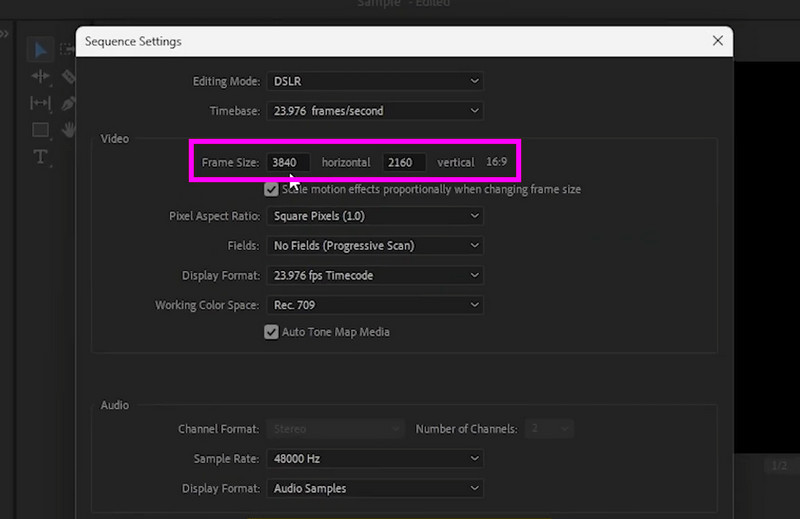
Step 3. Right-click the clip and tap the Set to Frame Size option.
Step 4. Now, start adjusting the Frame Size manually based on your preferences. You can adjust the size up to 4K. Then, hit OK. After that, start saving the video.
2. Upscale Video in Premiere Pro Using Detail Enhancement
For detail enhancement, the best tool you can use is the Unsharp Mask tool. This is ideal if you want to adjust various parameters in the video, like amount, radius, and threshold. This helps you balance the sharpness without introducing artifacts. Enhancing the detail is ideal if you are dealing with clips that look blurry and soft.
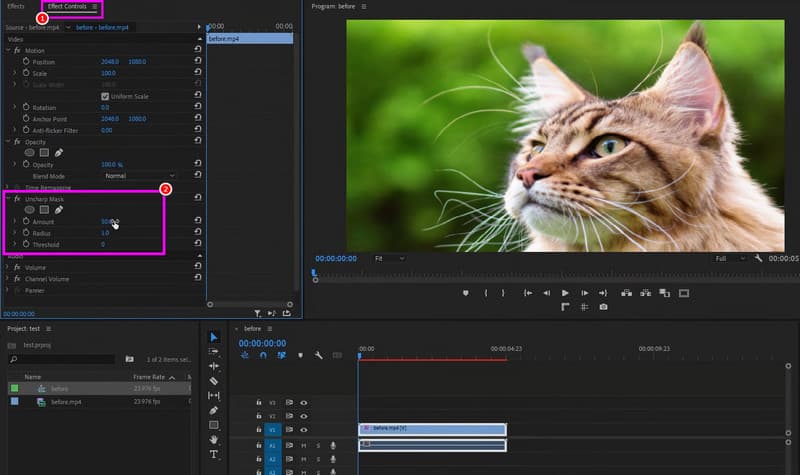
Step 1. After inserting the video into the Timeline section, go to the Effects panel and go to the Unsharp Mask.
Step 2. Under the Unsharp Mask section, you can start adjusting the Amount, Radius, and Threshold based on your needs.
Step 3. Preview the video to see the changes to your video. Once satisfied, start the saving process.
Take note that during the enhancement process, you can even edit your videos. You can trim video in Premiere Pro, crop, adjust playback speed, and more.
3. Upscale Video in Premiere Pro Using Noise Reduction
Do you have grainy videos you want to deal with? In that case, feel free to access the video noise reducer of the program. This feature lets you eliminate any noticeable visual artifacts after the upscaling process.
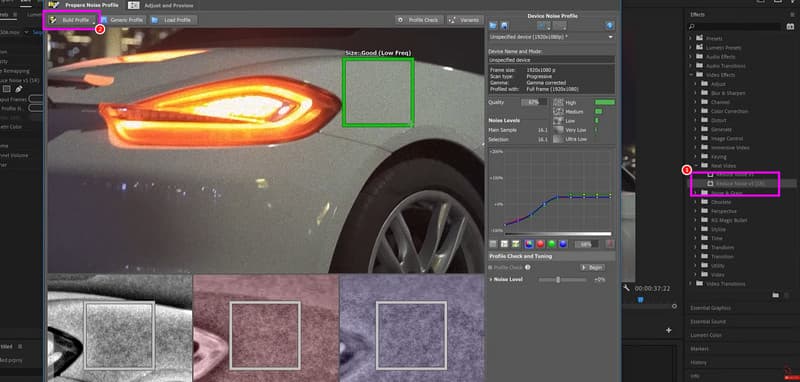
Step 1. First, you must use a plugin to reduce the video noise. You can download Neat Video. Once done, launch Premiere Pro and proceed to the Effects section. Then, click the Neat Video > Reduce Noise option.
Step 2. After that, drag the Reduce Noise option to the video from the Timeline section. After that, go to the left interface and click Prepare under the Reduce Noise V5 section.
Step 3. A window will appear. You can now select the grainy part of the clip that you want to remove and click Build Profile.
Step 4. Click Apply to start the process of reducing the noise from the clip. Once done, start saving the video.
4. Upscale Video in Premiere Pro Using AI Upscaling
AI upscaling uses machine learning algorithms to effectively and perfectly add detail and improve the video resolution. Adobe Premiere Pro supports plugins that leverage AI for better results compared to the traditional process of upscaling. See the steps below and learn how to AI upscale video in Premiere Pro.
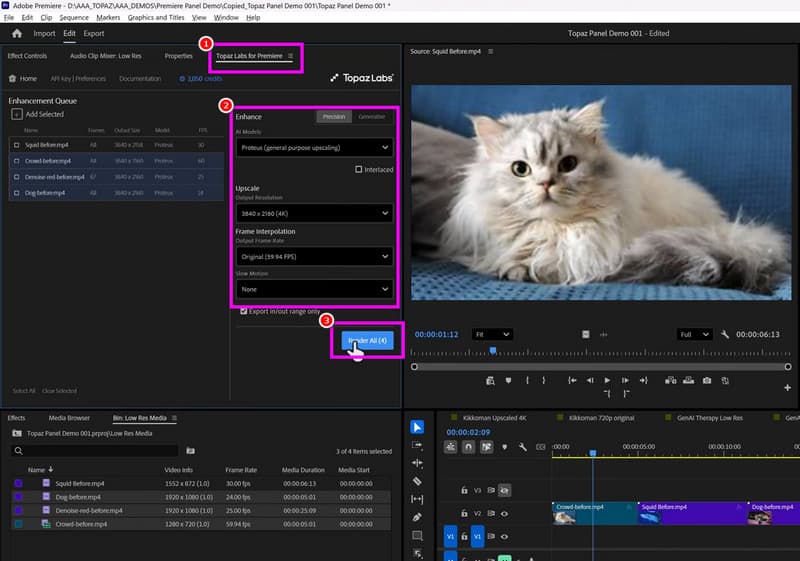
Step 1. Start downloading an AI-based plugin, like Topaz Video Enhance AI. After that, launch Premiere Pro and you will see a Topaz Labs for Premiere section on the left interface.
Step 2. Click and drop the video into the Video Enhancement Queue section. Then, start adjusting some parameters, such as the AI model, resolution, and interpolation.
Step 3. Finally, click the Render All button. Once done, the upscaled version of the video will appear on your screen.
5. Upscale Video in Premiere Pro Using Frame Interpolation
Frame Interpolation generates additional frames for a certain part of the video for smoother playback. The good thing here is that the process is simple, allowing you to get the desired result without too much hassle.
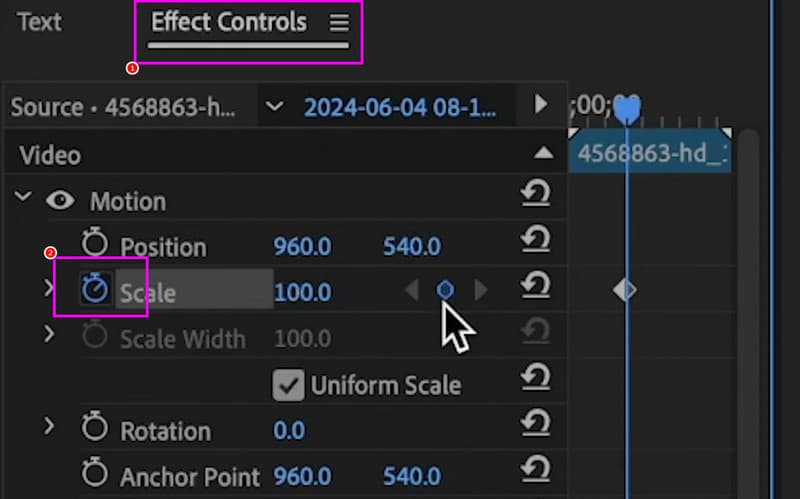
Step 1. After you launch Premiere Pro on your desktop, start adding the video and attach it to the Timeline section.
Step 2. Go to the Effect Controls section. Then, start clicking the Clock symbol beside the Scale option.
Step 3. A circle will appear beside that Scale option, indicating that a frame was added to the video. With that, you can now play the video smoother than the original one.
6.Upscale Video in Premiere Pro Using Color Enhancement
The Color Enhancement process is another way to improve the resolution of the video in Premiere Pro. The Color Correction in Premiere Pro lets you adjust various elements, such as tint, saturation, exposure, contrast, and more. This feature is perfect if you want to change and enhance the overall video color based on your desired theme. To learn how to upscale video quality in Premiere Pro, follow the steps below.
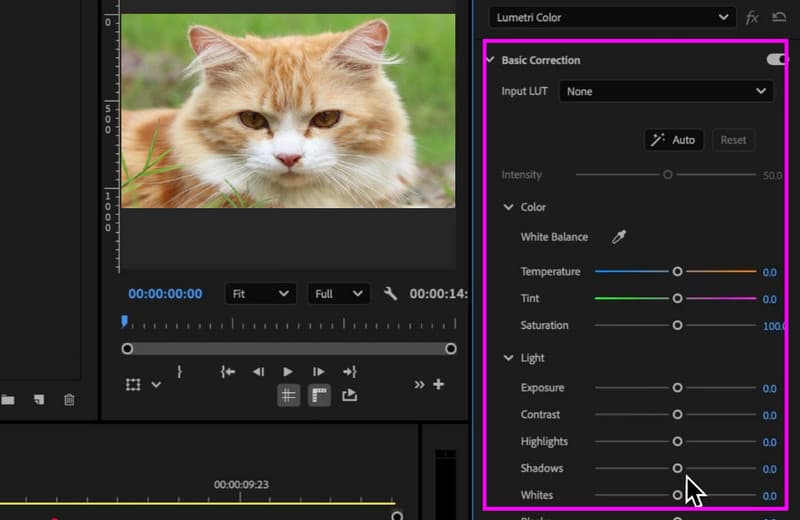
Step 1. After adding the clips to the Timeline section, proceed to the Lumetri Color panel.
Step 2. Then, you can go to the Basic Correction section to start adjusting the color using the sliders.
Step 3. Once you achieve the color you want for the video, you can start saving it on your device.
Part 2. Best Alternative to Premiere Pro to Upscale Video
Adobe Premiere is an excellent tool since it has lots of methods to upscale videos. However, it is not 100% free. Plus, its UI might be confusing to some users, especially beginners. So, if you want an easier way to upscale videos, we suggest using VidHex Video Enhancer as the best alternative.
The program is ideal since it can give you lots of features you can use to upscale your videos. You can even denoise the video, enhance facial output, restore outdated videos, add frames, and more. What we like here is that its main interface is more comprehensive than Premiere Pro, making it more suitable for non-professional users. It also lets you choose your desired output format and adjust some parameters, like the encoder and bitrate. So, if you need an ideal tool that can replace Premiere Pro, look no further than VidHex Video Enhancer.
More Features
- The program can save the video in up to 4K.
- The upscaling process is fast.
- It can offer various AI models, such as General Enhancement, Face, Anime, Denoise, and more.
- It can handle various videos, like anime, documentaries, old videos, DVD videos, etc.
To learn how to upscale video using VidHex Video Enhancer, see the steps below.
Step 1. Download VidHex Video Enhancer on your computer. Install it to start the video upscaling procedure.
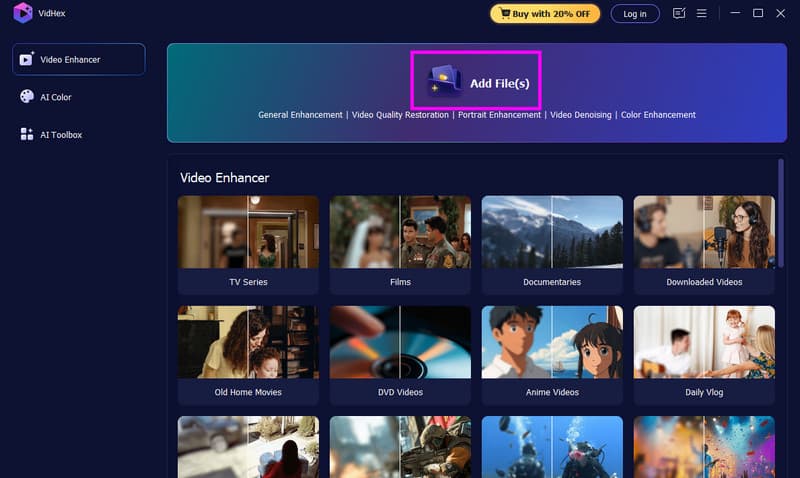
Step 2. From the primary interface, click the Add Files option to start adding the video you want to upscale.
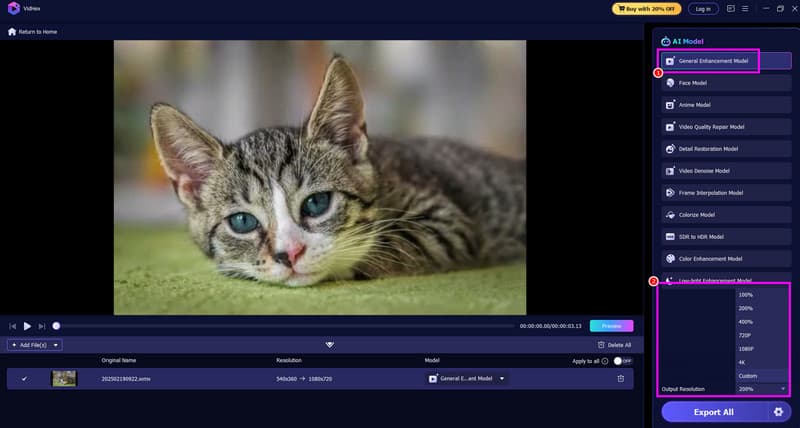
Step 3. Select the General Enhancement Model to start upscaling your overall video. You can also go to the Output Resolution section to select your preferred resolution.
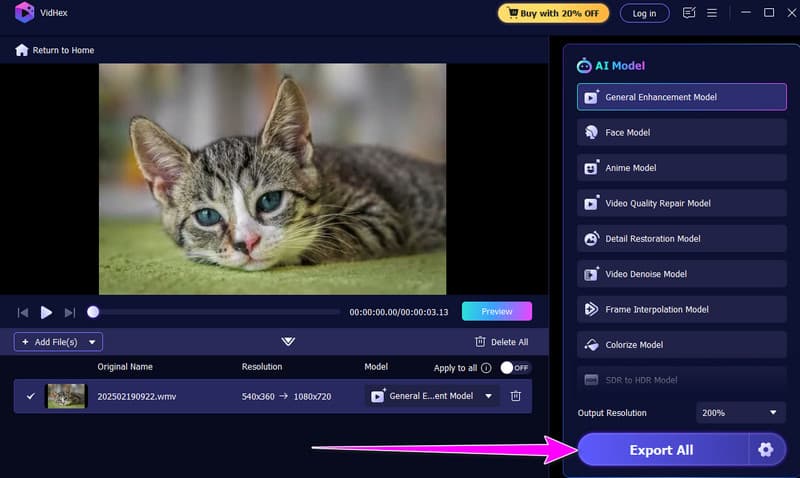
Step 4. Finally, click Export to start saving the upscaled video on your computer.
If you need the easiest way to upscale your videos with the best results, start using VidHex Video Enhancer by clicking the provided download button!
Part 3. FAQs about Upscaling Video in Premiere Pro
Is Premiere Pro the best tool to use for upscaling videos?
For professionals, there is no doubt that this video editor is ideal since it can offer all the needed features to upscale videos. It can even offer various editing tools that can improve the footage for better playback.
Is Premiere Pro free?
Unfortunately, the program is not free. It can only give you a 7-day free trial to test its capabilities. To deal with your videos without any limitations, you must use the paid version.
What is the best video upscaler for beginners?
If you are a non-professional user, you must use an easy-to-use video upscaler, like VidHex Video Enhancer. This program has a simple UI and a smooth upscaling process, making it the best video upscaler for beginners and casual users.
Conclusion
With this tutorial, you have now learned how to upscale video in Premiere Pro using various methods. So, rely on the methods we have provided to get a better version of your footage. Plus, if you think Premiere Pro is too much for you, you can use VidHex Video Enhancer as a replacement. This video upscaler has a simple and easy-to-use interface, allowing you to upscale your videos without any hassle, making it a go-to software for all users.