Detailed Review of NVIDIA Game Recorder [with Alternative]
NVIDIA Game Recorder has become a common choice for gamers who want to record gameplay with minimal impact on system performance. Built into NVIDIA's ecosystem, it can offer various features, including recording, instant replay, screenshot capture, and streaming. So, do you want to learn more about the NVIDIA Game Recorder? If so, proceed to this review as we cover all the recorder's key features, plans, limitations, and methods to record your game. Without anything else, check out this review to learn more about the discussion.
PAGE CONTENT
Part 1. Overview of NVIDIA Game Recorder
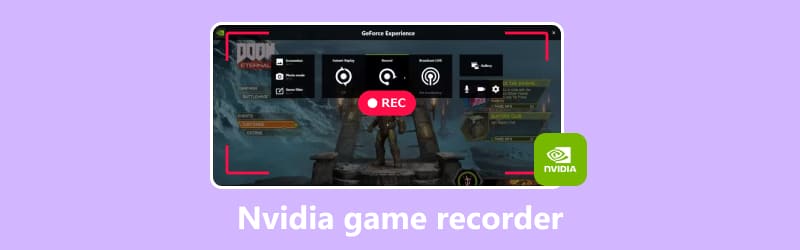
NVIDIA Game Recorder, also called NVIDIA ShadowPlay, is a gameplay recording feature built into the NVIDIA App and GeForce Experience ecosystem. It utilizes NVIDIA's hardware encoder to capture gameplay efficiently while minimizing performance impact on your device/system. Aside from recording gameplay, NVIDIA can offer more features than you imagined. To explore some of them, check all the details below.
Hardware-Accelerated Recording
The recorder uses the dedicated NVENC encoder found on supported NVIDIA graphics cards. This lets gameplay be captured without putting excessive load on the CPU, resulting in smoother recording performance. With that, users and gamers can record high-quality gameplay.
Instant Replay
Another good feature you can access is Instant Replay. This feature records gameplay in the background and saves only the most memorable highlights. This is perfect if you want to focus more on your satisfying gameplay or achievements. The good thing here is that gamers can customize the replay duration based on their recording preferences and computer storage.
Good Video Capture
What we like about the NVIDIA game recording app is its capability to offer high-quality output after recording. It supports 4K recording and high frame rates, ensuring that your visuals are sharp and have smooth motion. Gamers can also tweak the quality settings and bitrate to balance video clarity and file size.
Live Streaming Support
What makes the NVIDIA Game Recorder powerful is its Live Streaming feature. It lets gamers stream and broadcast their gameplay directly to supported streaming platforms. This is perfect for gamers who want to share their gameplay directly with their online audience/viewers.
Customizable Settings
The recorder supports settings customization. It can tweak the bitrate, resolution, audio sources, and frame rate. These parameters can offer flexibility for various recording needs, whether crafting professional-grade footage/highlights or conserving storage space.
Part 2. How to Use NVIDIA Game Recorder
Want to learn how to use NVIDIA Game Recorder to capture your gameplay? Well, recording your gameplay is a simple task since the recorder can offer an intuitive user interface. Plus, since it lets you adjust various parameters, you can ensure you have a better recording output. You can even record various games. You can record CS: GO, Elden Ring, Dota 1 and 2, and more. To start the recording process, see the steps below.
Step 1. On your desktop, open the NVIDIA App.
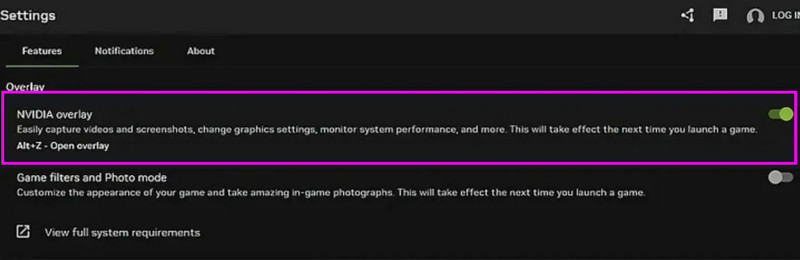
Step 2. Then, navigate to the NVIDIA App > Settings section. Ensure that the NVIDIA Overlay is enabled. Then, launch your game.
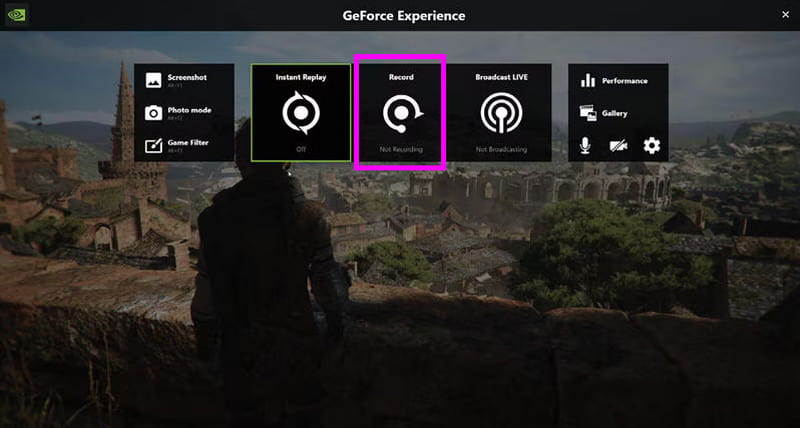
Step 3. After you launch the game, press the Alt + Z keys to open the NVIDIA Overlay.
Step 4. You can start hitting the Record button to start capturing your gameplay. To end the recording, press the Alt + F9 keys. Then, start saving your recording.
Part 3. Pricing Plans of NVIDIA Game Recorder
Are you wondering about the pricing plans of NVIDIA Game Recorder? The good news here is that you can access the recorder for free. You can enjoy its overall capabilities without spending a penny. With that, as long as you have compatible NVIDIA hardware and drivers installed, you can record your gameplay smoothly and instantly.
Part 4. Limitations of NVIDIA Game Recorder
NVIDIA game recording software is an exceptional recorder. It can give you a simple recording process, various features, and high-quality output. It can even record 3DS gameplay, DOTA, LoL, Clash of Clans, and many games. However, there are some limitations you might encounter. So, if you want to get more insights about its drawbacks, you can check all the information below.
- The recorder only works on supported NVIDIA GeForce GPUs. You cannot access the recorder on AMD or Intel graphics.
- It lacks video editing tools for improving the recordings.
- It can't capture some games, especially the older ones.
- Since the recorder can capture high-quality videos, it might instantly affect your computer storage.
- The recorder is only designed for simple and instant recording processes. Looking for an advanced game recorder is ideal for advanced recording, audio mixing, and production workflows.
Part 5. Best Alternative to NVIDIA Game Recorder
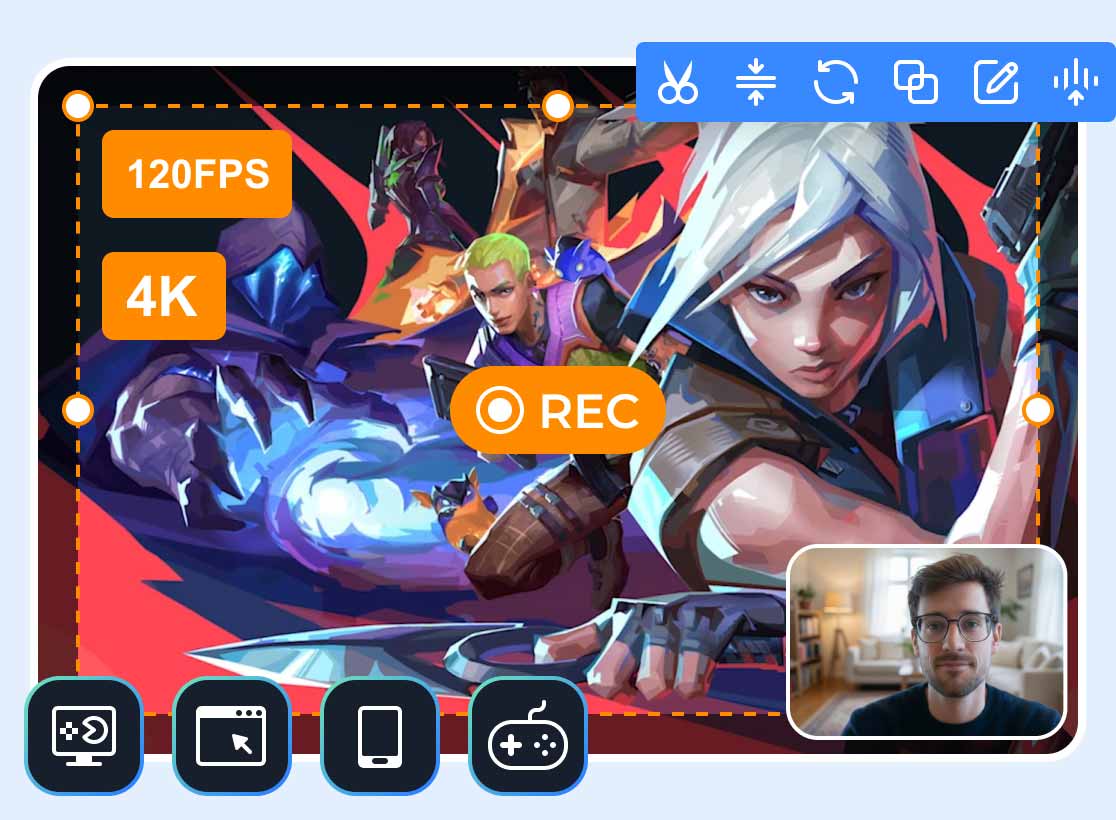
With NVIDIA's limitations, you might need to try another game recorder that can let you record games no matter what graphics card you use. In that case, we suggest using Vidmore Game Recorder. The best part here is that it can also offer a simple user interface, a smooth recording process, and high-quality recording for up to 4K. Plus, you can save/keep your recordings in any format, like MP4, MKV, AVI, FLV, WMV, and more. You can also access basic editing tools, letting you improve your recordings for better playback.
To learn how to record your game using Vidmore Game Recorder, follow the instructions below.
Step 1. Download and install Vidmore Game Recorder on your computer. After that, start launching the game you want to capture.
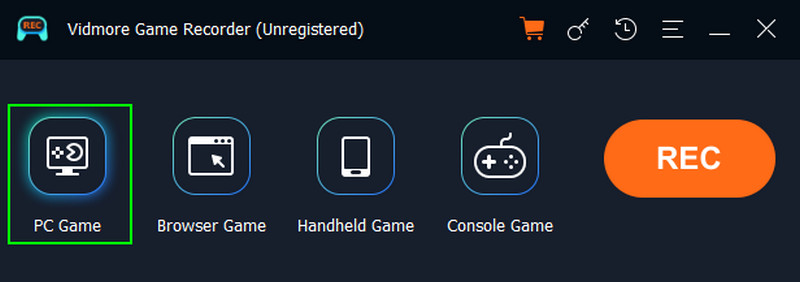
Step 2. From the interface, click the PC Game option. Then, another mini layout will appear on your screen.
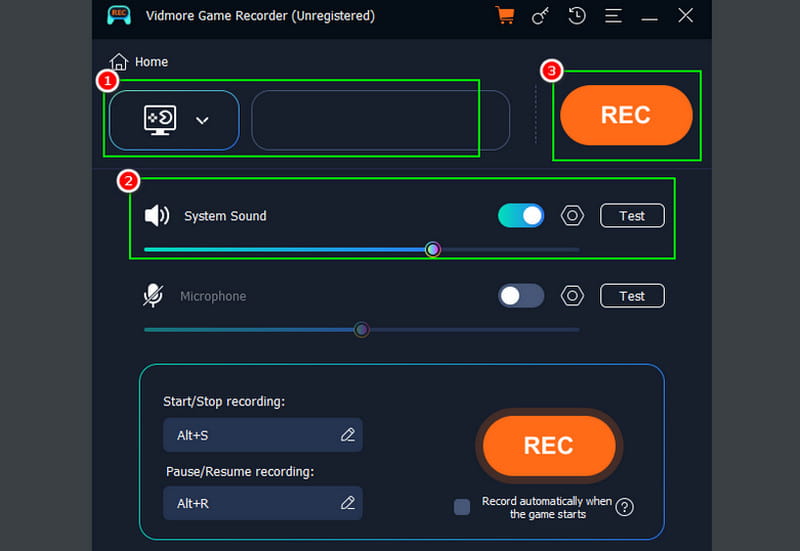
Step 3. Click the dropdown button to select the game you want to record. You can also enable the System Sound to capture the game's audio. Then, tap REC to begin the recording process.
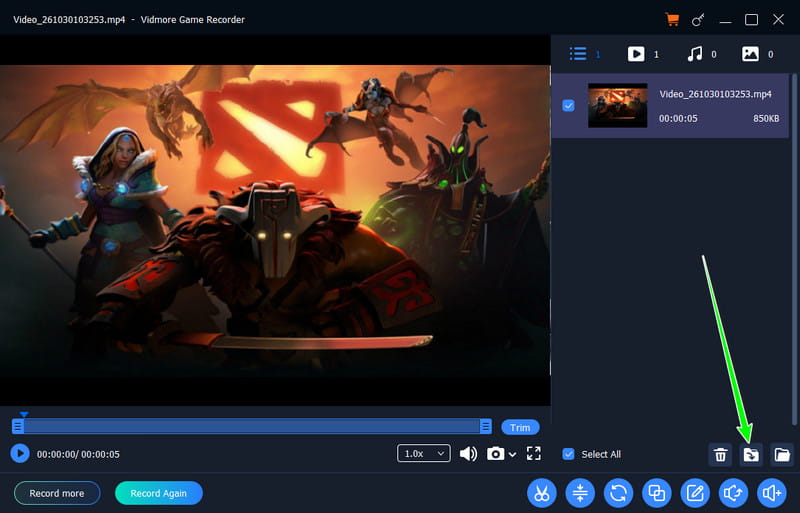
Step 4. After the recording process, tap the Stop button. Then, tap Export to start saving the recording on your computer.
Part 6. FAQs about NVIDIA Game Recorder
Is the NVIDIA Game Recorder safe to use?
Definitely, yes. NVIDIA Game Recorder is among the most reliable and trustworthy recorders since it is part of the NVIDIA ecosystem. It can also ensure that all your recordings will be saved safely and won't be shared without your permission.
Can NVIDIA Game Recorder capture desktop applications?
The answer is yes. By enabling the Desktop Capture option, the game recorder can capture your desktop, software tutorials, web browsers, and other applications.
What video formats does NVIDIA Game Recorder use?
The recorder primarily saves the recordings in MP4 format. This ensures that all your recordings are playable on almost all platforms.
Conclusion
Thanks to this detailed review of NVIDIA Game Recorder, you have explored its key features, limitations, and how to use it to record gameplay. Also, you have discovered Vidmore Game Recorder as an excellent replacement for NVIDIA for better compatibility and a smoother recording process. It can also support various output formats, so you can save the video and play it on any platform without any problem, making it the best recorder for gamers.