How to Record Clash Royale on Any Device: Phone & PC
I've put together an amazing deck and am finally on the verge of a glorious victory! Want to capture this moment to share it with your friends who play this game, or upload it to a video-sharing site to share your tips? Then go ahead and start recording your screen.
Here's everything you might need: the tools required to record Clash Royale on your iPhone or Android phone, step-by-step instructions, and everything you need to keep in mind during the recording process.

PAGE CONTENT
Part 1. How to Record Clash Royale on iOS/Android
First, let's look at the options available for mobile users.
If you play Clash Royale on your phone and want to record your gameplay at the same time, your device's built-in screen recording feature is likely the best tool for you.
Since iPhone and Android systems differ, this guide will explain the process for recording Clash Royale win streaks on both types of devices separately.
On iOS
The iOS system currently used on iPhone devices includes a built-in screen recording feature, so you don't need a third-party app. The recorded file will be saved directly to your Photos app, where you can even perform some basic editing.
Here's how to apply Clash Royale win streak recording on iOS.
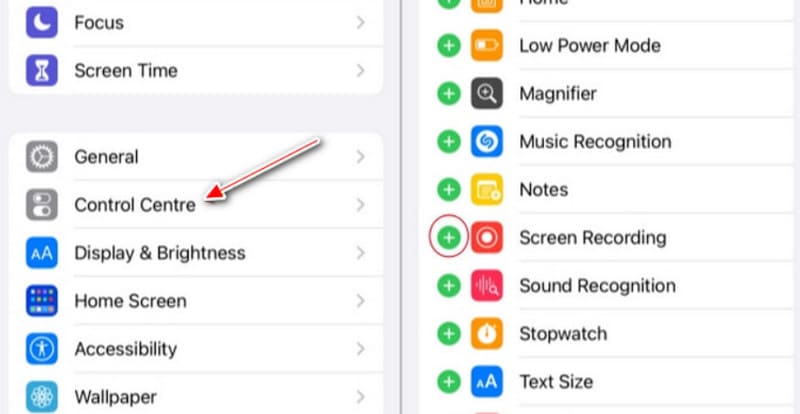
Step 1. Unlock your phone and swipe up from the bottom of the screen to open the Control Center. Check to see if there's an option labeled Screen Recording.
If so, simply tap it to start recording.
If not, you'll first need to go to the Settings app, find Control Center, and add Screen Recording to the Control Center.
Step 2. Once you've found the feature, you're ready to start recording.
Now, open Clash Royale on your phone, then tap Screen Recording in the Control Center. Wait for the three-second countdown to end, and the recording will begin.
Step 3. To stop recording, simply swipe down from the top of the screen to open the Control Center and tap the Screen Recording icon again.
Please note that with this method, you'll need to take an extra step to record your own voice: Press and hold the Screen Recording button, then turn on the microphone.
Limitations
- Too few recording options are available.
- You cannot record content from the camera at the same time.
On Android
The process for recording on an Android phone is actually quite similar to that on iOS, though the button locations and names may differ.
Here we'll show you how to apply Clash Royale recording on Android.
Step 1. Open Clash Royale on your phone.
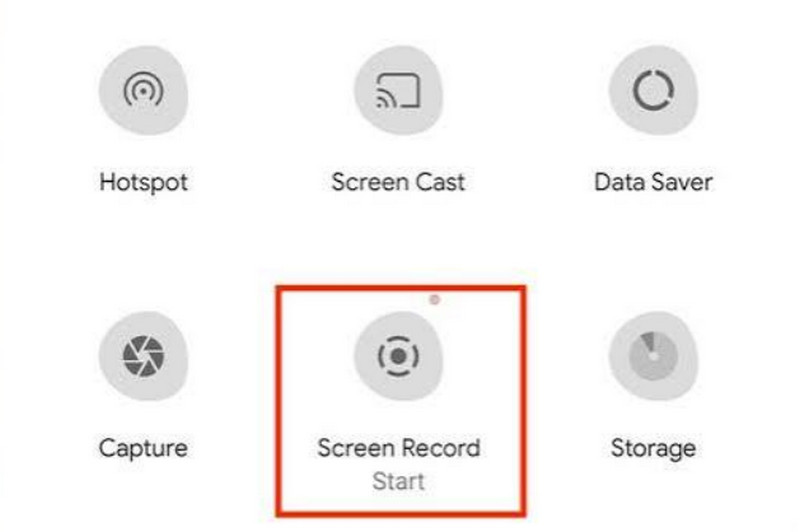
Step 2. Swipe down from the top of your phone's screen to open the Control Center, then select Screen Record.
Step 3. Recording will now begin. If you want to stop recording, swipe down again and tap Screen Record once more.
Part 2. How to Record Clash Royale on PC (Better Quality)
Yes, you can definitely play Clash Royale on a computer, and a computer will definitely provide you with better graphics, audio, and layout. Plus, recording video on a computer is more convenient than on a phone, and you'll have more recording options - such as simultaneously recording both the game screen and your own video feed from a webcam, taking real-time screenshots, and circling or annotating the screen.
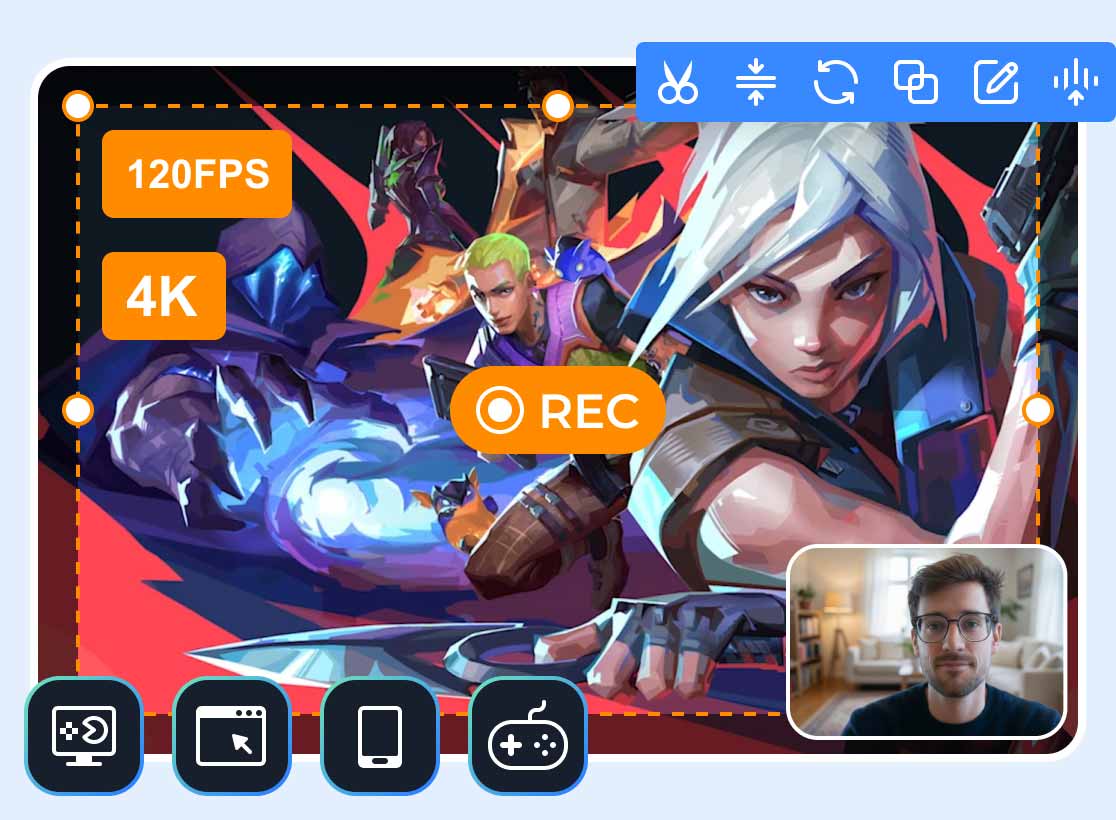
There's a tool that can help you do all of this - Vidmore Game Recorder. It's a desktop screen recording tool that supports recording any online or PC game, with recording quality up to 4K and frame rates as high as 120 FPS. It also supports picture-in-picture recording mode, allowing you to simultaneously record the game on your screen and your own movements via the webcam - making it very convenient for creating game commentary videos.
Main Features
- Seamlessly integrates with AMD and NVIDIA hardware to optimize game recording performance.
- Supports output in multiple video formats, including MOV, MP4, WMV, AVI, F4V, and more.
- Simultaneously records game audio from the system and commentary audio from the microphone.
- Takes real-time screenshots and saves each frame of the video individually.
- Offers simple video editing features to help you process your recordings.
Here's how to use Vidmore Game Recorder.
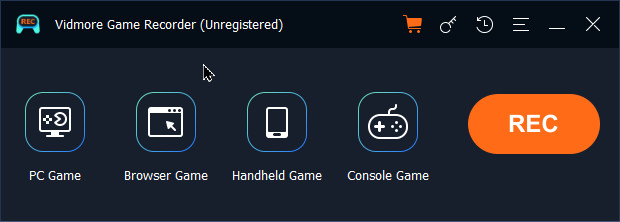
Step 1. Download and install Vidmore Game Recorder on your computer. Then launch it. Now, select PC Game mode.
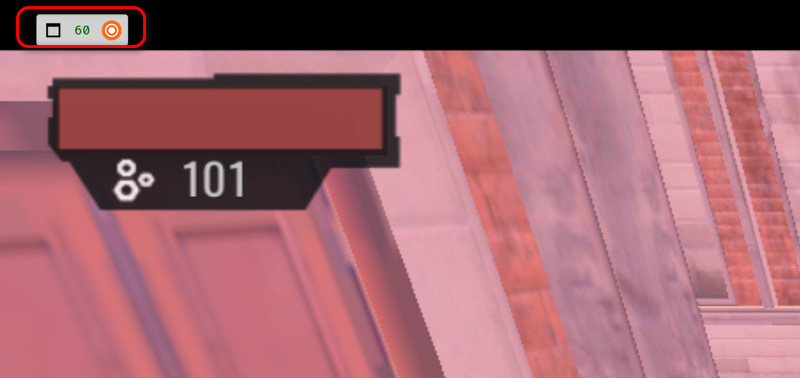
Step 2. Launch your game. Vidmore Game Recorder will automatically detect the running game, and you'll see a Rec icon - click it to start recording. If you want to change the recording settings, click the Toolbox icon to access additional features.
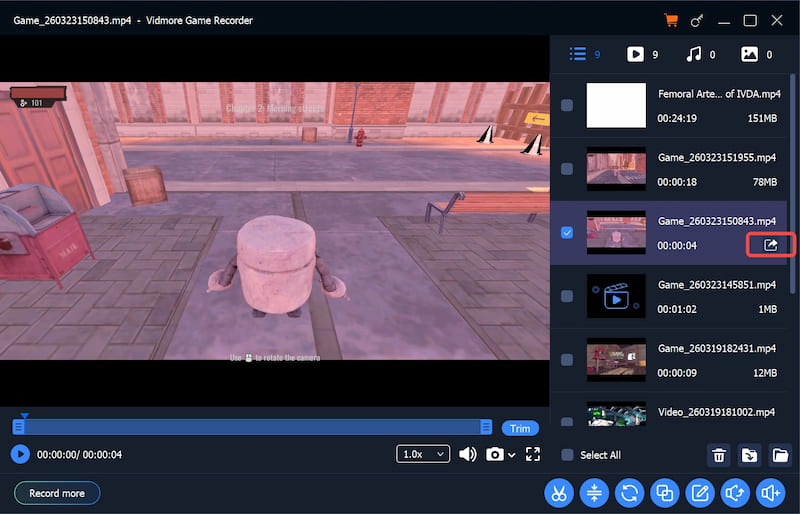
Step 3. After you finish recording, the video editing interface will automatically open. You can now trim your video, edit, adjust the playback speed, volume, and more.
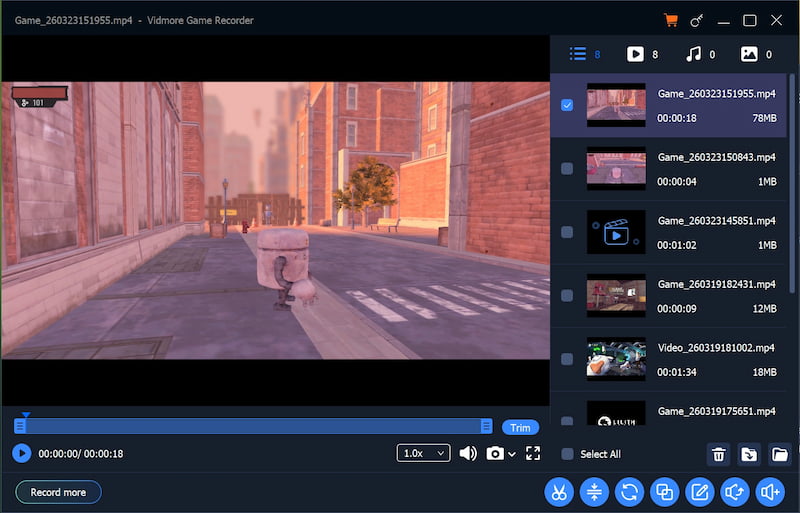
Once you're done editing, click the Export icon in the bottom-right corner of the recording file to export it.
Part 3. Tips for Smooth Recording
How can you record the best possible gameplay video? In addition to the basic step-by-step instructions above, this guide also offers the following tips.
• Close Other Apps
When recording gameplay, it's best not to have other resource-intensive programs running in the background.
First, pop-ups and notifications from other programs may interrupt the recording process, so it's best to close them beforehand.
Second, having other apps running may cause lag or stuttering in the game or recording software, affecting the smoothness of the video.
• Set Suitable FPS & Resolution
The quality of the recorded video often depends on the resolution and frame rate you choose. Higher resolution and frame rates result in better-looking, smoother gameplay footage, but they can also place an excessive load on your device, leading to stuttering or lag. We recommend selecting moderate settings based on your device and internet speed.
• Pay Attention to Audio Recording Settings
When recording video, audio is always one of the most common sources of issues. First, you need to determine whether you want to add voice-over commentary and whether your own voice needs to be included. This will determine whether you should enable the microphone recording option. If not, turn it off to prevent external noise from affecting the entire recording.
Remember to turn on the system sound toggle before recording; otherwise, you'll end up with a silent game recording.
Part 4. FAQs of Recording Clash Royale
How do I record myself playing a game on my phone?
You can use the built-in screen recording app on your phone. The screen recording feature for both iPhone and Android is located in the Control Center; simply swipe down on the screen to open the Control Center to find it.
What do YouTubers use to record gameplay?
They often opt for professional screen recording tools, especially those that support simultaneous recording of the computer screen, webcam, system audio, and microphone audio, which makes it easier for them to create gameplay commentary videos.
Which app is best for recording gameplay?
Vidmore Game Recorder is the best choice. First, it supports recording video and audio from both external sources and the device itself. Second, it supports recording in 4K resolution and at a frame rate of 120 FPS.
Conclusion
Here are all the tips you need to know for recording Clash Royale on your phone and computer. On a phone, you'll usually need to use the device's built-in screen recording feature. Simply launch the game, then activate the screen recording function from the Control Center; on a computer, you'll need professional screen recording software like Vidmore Game Recorder.
We've provided all the steps, along with tips for the recording process. We hope this information helps you capture your most exciting gaming moments.