4 Effective Methods on How to Record Games on PC [Detailed]
Do you want to learn how to record games on PC? Recording is one of the best ways to easily capture your gameplay. It is perfect for streamers or gamers who want to share and keep their personal highlights. With so many game recorders out there, it can be confusing to choose the right one for better recording. Thankfully, this guidepost will teach you how to capture your games on PC using the most reliable recorders. So, follow this guide to explore the best methods for recording your gameplay.

PAGE CONTENT
Want to take a peek at the best game recorders on PC? You can check the table below.
| Game Recorders on PC | Xbox Game Bar | Vidmore Game Recorder | OBS Studio | Bandicam |
| Ease of Use | Very easy, hotkey-based | Simple interface, beginner-friendly | Complex, requires setup | Straightforward, user-friendly |
| Performance | Low impact on system | Optimized, smooth recording | High resource usage | Efficient, lightweight |
| Customization | Basic options only | Adjustable settings, formats | Extensive, highly customizable | Moderate, limited editing |
| Output Quality | Up to 1080p/60fps | Supports HD/4K | Supports HD/4K | Supports HD/4K |
| Platforms | Windows 10/11 | Windows, macOS | Windows, macOS, Linux | Windows only |
After learning some of these recorders' capabilities, you can move on to methods for effectively recording gameplay on your personal computer.
Part 1. Record Games on PC Using Xbox Game Bar
If you want to record PC games, you can try using the Xbox Game Bar. It is a built-in game recorder available on Windows 10 and 11. This recorder is ideal since it is built to capture gameplay. The best part is that there is no limit on recording time. That means no matter how long you want to capture your gameplay, Xbox ensures you can get the result you need. Additionally, the tool has a simple layout, making it more accessible to all users, especially beginners. Moreover, the recorder also offers a Screenshot tool. This tool is useful if you want to take a screenshot of a certain gameplay. You can also turn on the mic or any audio from your device, so you can record video, audio, and your voice, which makes it more reliable. To learn how to record your games on PC, use the steps below.
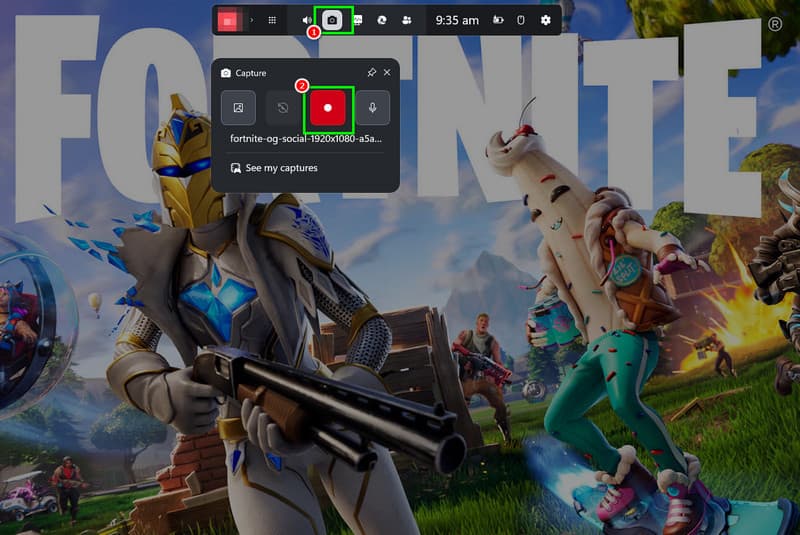
Step 1. First, open/run the game you want to record. Then, press the Win + G keys on your keyboard. After that, select the game.
Step 2. Click the Capture button; a mini interface will appear on your screen. To start the recording, hit the Record symbol.
Step 3. After the recording, click the Stop button. Then you can review the recording on your computer.
Drawbacks
- It has limited advanced customization.
- The recorder can cause performance drops on low-spec devices.
- Some games cannot be recorded in this program.
Part 2. Record Games on PC Using Vidmore Game Recorder
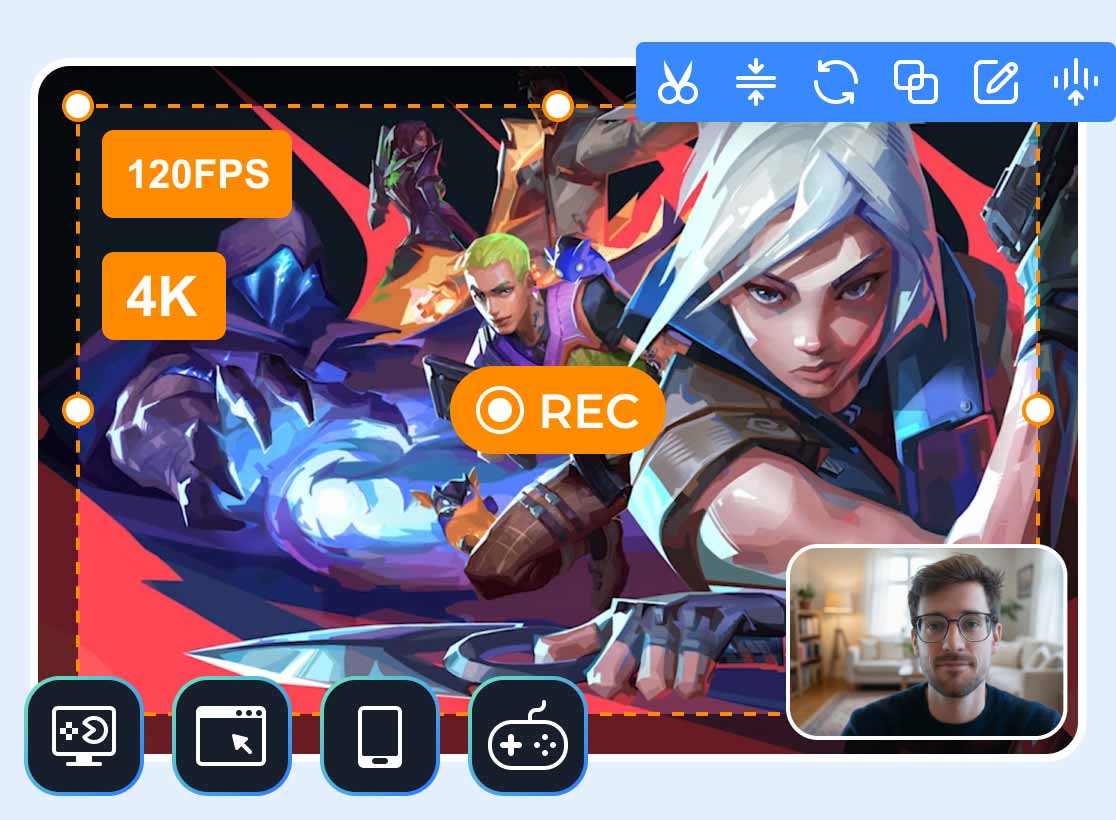
Looking for the best way to record games on PC? In that case, you can try using Vidmore Game Recorder. When it comes to recording gameplay, there is no doubt this is one of the recorders you can rely on. It has a simple UI that lets you navigate all the features without any hassle. You can record almost any game, including League of Legends, Dota 2, CS, Minecraft, and more. Best of all, you can record gameplay in 4K at 120 FPS for high-quality recordings. We also like that you can add your webcam during recording, making it ideal for streamers who want to capture their gameplay with their faces.
More Features
- The recorder can offer various annotation tools, such as lines, colors, shapes, pen, and more.
- It can provide basic editing functions, such as trimming, playback speed adjustment, effects, etc.
- The program can record various games on a computer.
- It can provide a user-friendly interface.
To learn how to record games on PC using Vidmore Game Recorder, use the instructions below.
Step 1. On your PC, download Vidmore Game Recorder. Then install and launch it to begin recording.
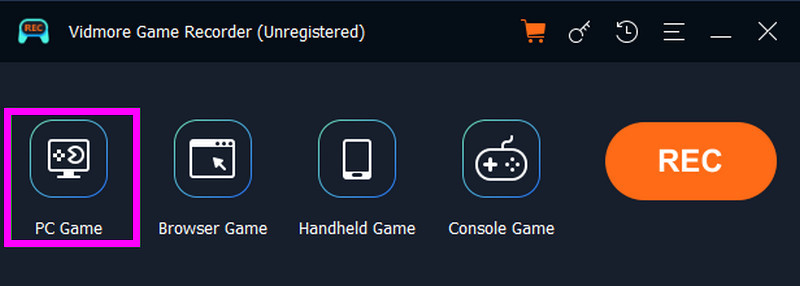
Step 2. From the interface, go to the PC Game feature and choose the game you want to capture. Then, another interface will appear on your screen.
Step 3. After setting everything up, start recording by clicking the REC button. After the countdown, the recording process will start.
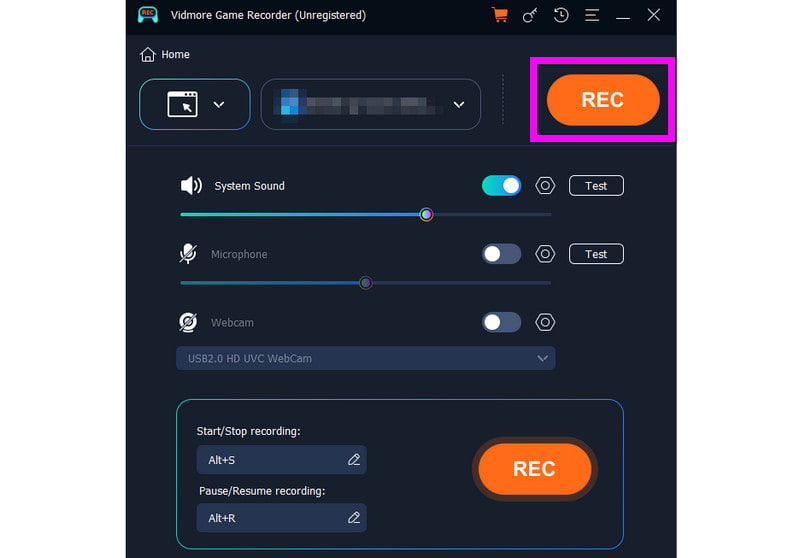
To finish the recording, tap the Stop button.
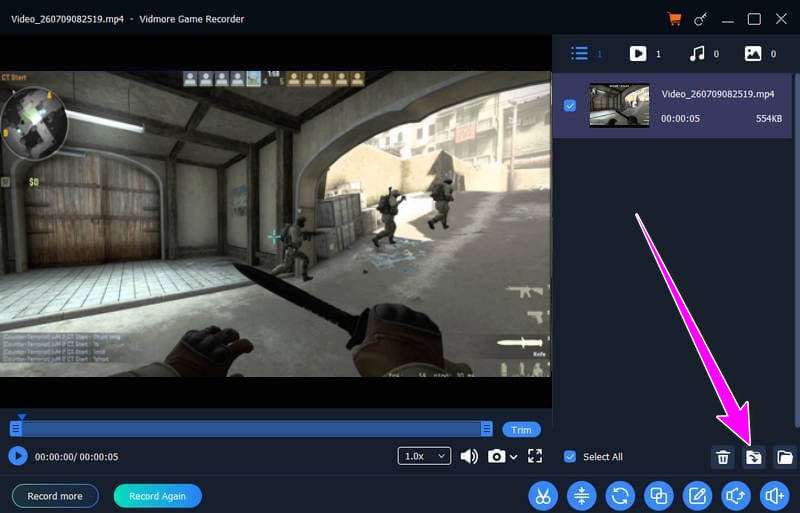
Step 4. Once the preview shows up, you can check your recording. If you are satisfied with the result, save the video by tapping the Export button.
Part 3. How to Capture Games on OBS Studio
OBS Studio is another program you can access on Windows and Mac to capture your games. It is a free, open-source recorder that offers a range of tools for capturing and streaming gameplay. We like that it supports customization, including resolution, bitrate, audio mixing, and multiple video sources. It also lets gamers create overlays and scene transitions, making it versatile for both recording and streaming. You can also record any game. You can record Fortnite, Dota, Roblox, Valorant, and more. To start the recording process, check the methods below.
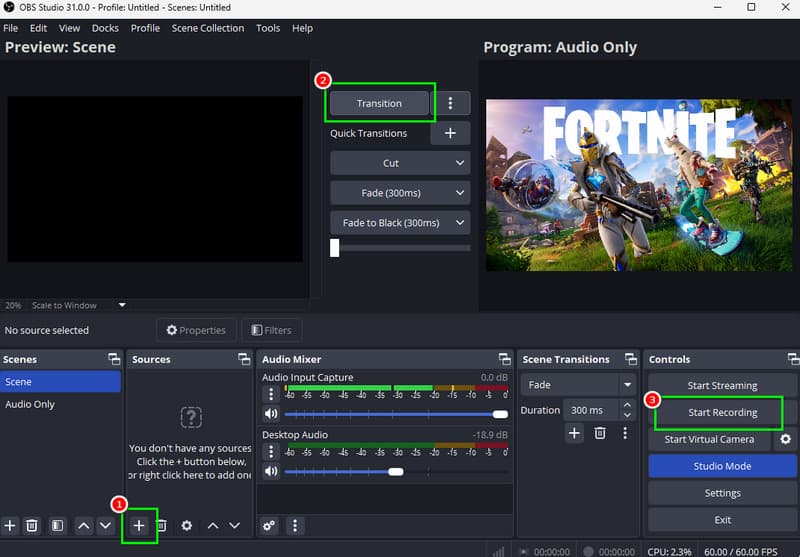
Step 1. Download OBS Studio on your Windows or Mac. Then launch it to start recording.
Step 2. From the main interface, go to the Sources section and click the + symbol. Then click Game Capture. Then select the game you want to capture.
Step 3. Next, click the Transition button. Then click the Start Recording option in the right interface.
Step 4. After the recording, click the Stop Recording button. To see the recording, go to the File > Show Recordings section.
Drawbacks
- The recorder has a slightly steep learning curve.
- It has high system resource usage.
- The setup might be complicated for some beginners.
Part 4. Record Games with Bandicam
If you are a non-professional user who wants to record your gameplay, you can use Bandicam. It is a lightweight recorder designed for smooth, efficient game capture. It offers a comprehensive interface, so you can set it up quickly and record easily without technical hurdles. Plus, it compresses recordings effectively, ideal for balancing quality and file size, which is also ideal for long sessions. It can also record almost all games. You can record Team Fortress, Fortnite, Tetris, Dota, LoL, and more. It also supports scheduled recording and hardware acceleration, making it more reliable for gamers who need better performance and simplicity. See the steps below and learn how to record games on PC using Bandicam.
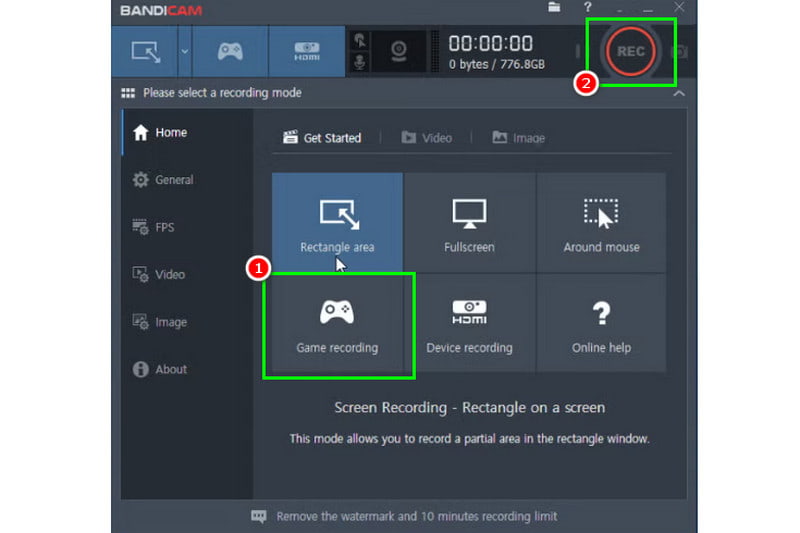
Step 1. Download and install Bandicam on your PC. After installation, start it and run it on your screen.
Step 2. Once the interface appears, click Game Recording and choose the game you want to capture.
Step 3. To begin the gameplay-recording process, click the REC button above. Once done, click Stop.
Drawbacks
- The recorder offers limited editing tools for enhancing recordings.
- There is a Bandicam watermark on the free version.
- To access the full features, you need the paid version.
Part 5. FAQs about Recording Games on PC
Is it easy to record any games on a computer?
It depends on the recorder you use. Some are simple to operate, while some require skill. If you are a beginner and want an easy way to record gameplay, you can use Vidmore Game Recorder, Bandicam, or Xbox Game Bar.
What is the best resolution and frame rate when recording gameplay?
For standard, the best resolution and frame rate is 1090p at 60fps. For high-end PCs, you can select 1440p or 4K at 60fps. If you are using a low-end computer, the best resolution and frame rate is 720p at 30fps.
Can I record my voice when recording my gameplay?
Absolutely, yes. Most recorders let you record game audio and your microphone. It is perfect if you want to stream and record gameplay at the same time. Some recorders you can use include Vidmore Game Recorder, OBS Studio, and Xbox Game Bar.
Conclusion
With this simple tutorial, you have learned how to record games on PC. So, if you are a gamer or streamer who needs to capture gameplay for various purposes, feel free to use the methods we provided in this post. Also, if you want to record your gameplay and save it in the best quality, you can use Vidmore Game Recorder. You can even use various editing tools to improve your recording for a better viewing experience, making it the best recording on your computer.