How to Fix Steam Recording No Audio: 7 Best Solutions
Steam can offer its built-in recording feature. This is ideal if you want to capture your gameplay and save it for later viewing. However, there are times when audio problems occur. After recording, you might not hear anything in your recording, making it frustrating for users. Well, these issues are often caused by audio device conflicts, outdated drivers, incorrect Steam recording settings, and more. So, do you want to learn how to fix Steam recording no audio issues? Then, read this post, as we offer all the best fixes you can use to deal with audio issues.

PAGE CONTENT
Part 1. Common Steam Recording Audio Problems
Before proceeding with the troubleshooting, it would be best to understand the most common audio issues that can occur when operating Steam Recording. To discover some of the common Steam recording audio problems, read everything in this section.
- • No Game Sound – If the audio is missing after the recording process, then there might be something wrong with the output device, or it cannot detect the game’s sound.
- • Mic Stuttery or Not Recorded – Your microphone might cut out randomly, sound choppy, or not appear in the recording at all. This is caused by microphone permission issues, driver conflicts, or incorrect settings.
- • Audio Too Quiet – There are times when the audio plays at a much lower volume. Some of the common reasons are reduced game volume, incorrect recording settings, and low microphone levels.
- • Audio/Video Desync – The audio does not align with the gameplay. The sound might be too advanced or too late. This issue might be because of the computer struggling to keep up with the recording process.
- • Distortion or Crackling – The sound may contain static, popping noises, or distorted audio that makes the recordings annoying to listen to. The reasons can be sample rate mismatches, audio drivers, or high system usage.
These are the common issues gamers or Steam users encounter when recording their gameplay. If you are encountering any of the problems above, there is no need for you to worry, as most of them can be resolved with a few adjustments.
Part 2. Top 7 Ways to Fix Steam Recording Audio Issues
Do you want to fix the Steam game recorder mic audio stuttering issue? In that case, read everything in this section, as we offer the best methods you can follow.
Method 1. Check Steam Recording Settings
Before proceeding with the recording process, it is highly recommended to check the recording settings of Steam. If the settings are configured incorrectly, there is a chance of encountering a missing audio issue. See the steps below and learn how to check the settings in Steam.
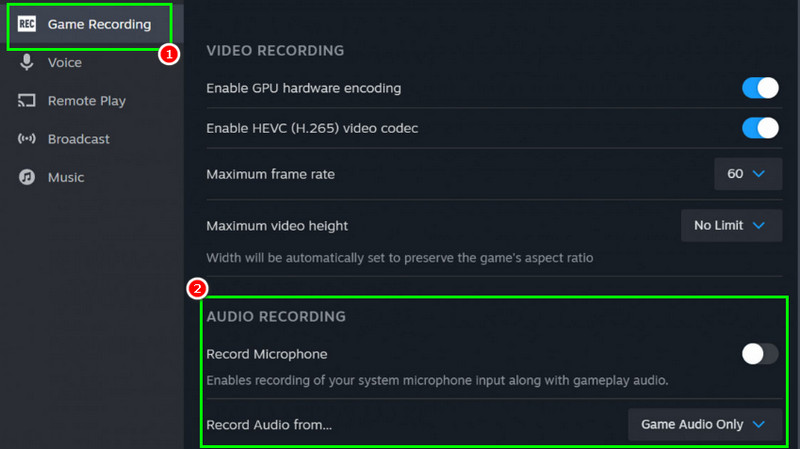
Step 1. Open Steam and proceed to the Steam > Settings > Game Recording section.
Step 2. Then, verify that recording is enabled. Go to the Audio Recording section and ensure that everything is already set. You can even record your voice by turning on the Record Microphone option.
Step 3. You can save the changes and start recording on Steam.
Method 2. Check Windows Default Audio Device
The Steam platform records audio from the output device currently chosen by Windows. If you have switched the output audio to the wrong speakers, headset, or monitors, Steam may record the game with no sound. To start with the process, see the steps below.
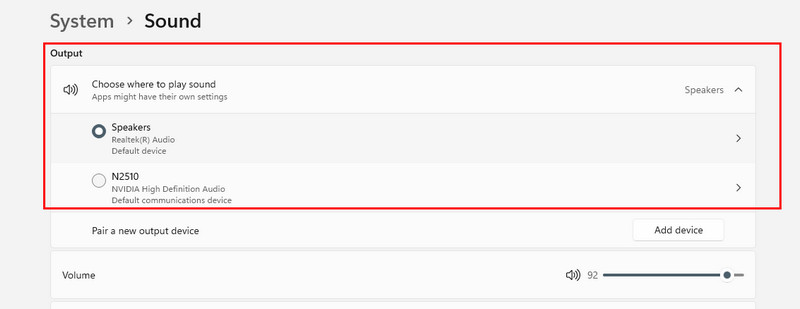
Step 1. Right-click the Speaker symbol in the taskbar. Then, proceed to the Sound Settings.
Step 2. From the Output section, ensure that you are using the right audio output. You can play audio to confirm the sound.
Step 3. After that, launch Steam and start testing the recording.
Method 3. Check Game Volume
Sometimes, the game itself is muted or in low volume settings. Even if Steam is working properly, it still can't get the audio if it is not at a higher volume level.
Step 1. Proceed to the Game's audio settings. Then, increase the Master Volume until you can hear your game clearly.
Step 2. You also have to ensure that the voice audio, effects, and music are enabled.
Step 3. You can also check the volume on your Windows to ensure that the slider is not muted. Then, start recording.
Method 4. Check Microphone Permission
If the microphone audio is missing, then your device might be blocking Steam from accessing it. This occurs after you change some of the privacy settings or after system updates.
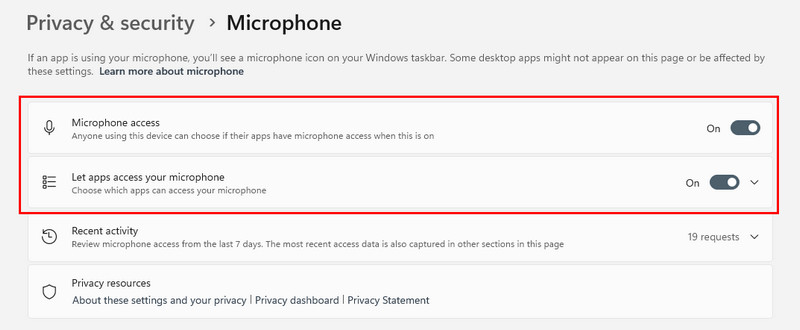
Step 1. Go to Settings and proceed to the Privacy & Settings > Microphone section.
Step 2. Then, ensure that Microphone Access is enabled. You can also enable the Let Desktop App Access Your Microphone option.
Step 3. You can restart Steam and create a new recording.
Method 5. Restart Steam
Sometimes, Steam cannot record video with audio because of temporary bugs or software conflicts. One of the basic ways to solve this problem is to restart the Steam platform. It refreshes the audio device detection and recording features. Proceed to the Task Manager and find the Steam platform. Then, right-click and select End Task. Once done, you can launch Steam.
Method 6. Update Audio Drivers
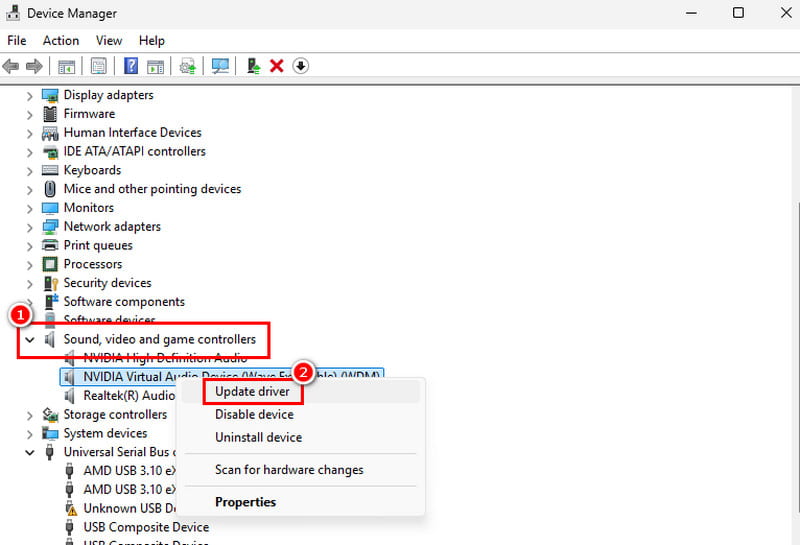
If you want to fix the Steam game recorder mic audio stuttering issue, you must update the audio driver. This ensures that your driver is the latest version and is not corrupted. To begin the updating process, right-click the Start button and click Device Manager. Then, find the Sound, Video and Game Controllers option, right-click it, and tap Update Driver. Once done, restart your computer. Then, run Steam and begin recording.
Method 7. Check Bluetooth or Headset Output
You can also check Bluetooth and headset output. Sometimes, Bluetooth headsets and headphones switch between different audio modes. Steam might record from one output while you are listening to another content. So, it would be best to disconnect and reconnect your headset. You can also go to the Windows Sound Settings to verify the correct headset is chosen as the default output device.
Part 3. Best Game Recorder for Better Recording
If your Steam can't still record audio, then the best solution you can do is to use another game recorder. If you need the best recorder that can help you capture both video and audio without any problems, feel free to access Vidmore Game Recorder. This is perfect since it ensures you get the result you need. You can even save your recordings with the best video and audio quality. Plus, it is free to use, so you can record anything without spending a penny. So, if you are looking for the best replacement for Steam for better recording, consider using Vidmore Game Recorder.
More Features
- The recorder can record various games. You can record PUBG, LoL, Dota, and more.
- It offers a simple user interface.
- It supports various output formats, such as MKV, FLV, MP4, AVI, etc.
- The program can capture gameplay in 4K, leading to better playback.
Check the steps below and learn how to record your gameplay.
Step 1. Start downloading Vidmore Game Recorder on your desktop. Then, prepare your game to start recording.
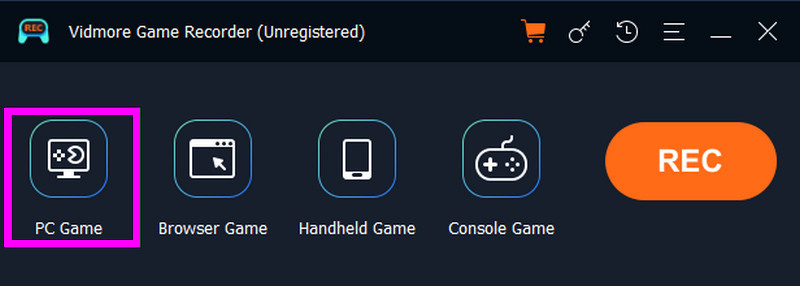
Step 2. From the interface, click the PC Game options and start choosing the game you want to record.
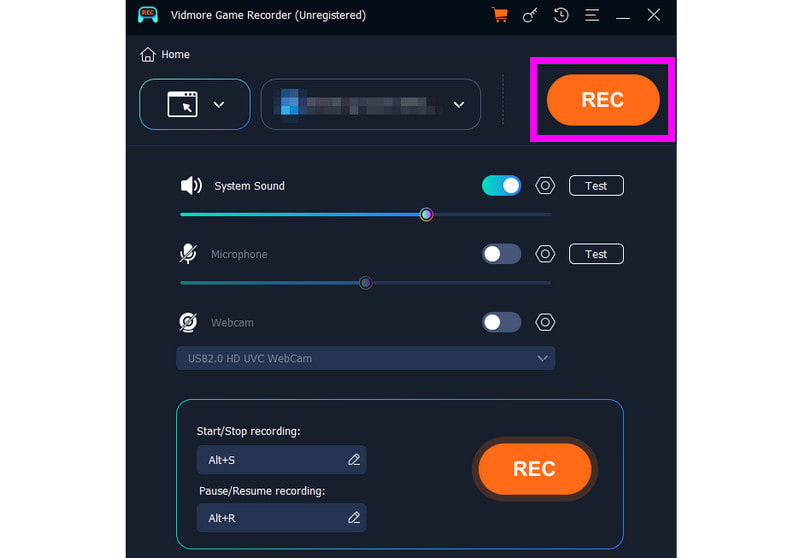
Step 3. Begin recording by tapping the REC button. To stop the recording process, tap the Stop button.
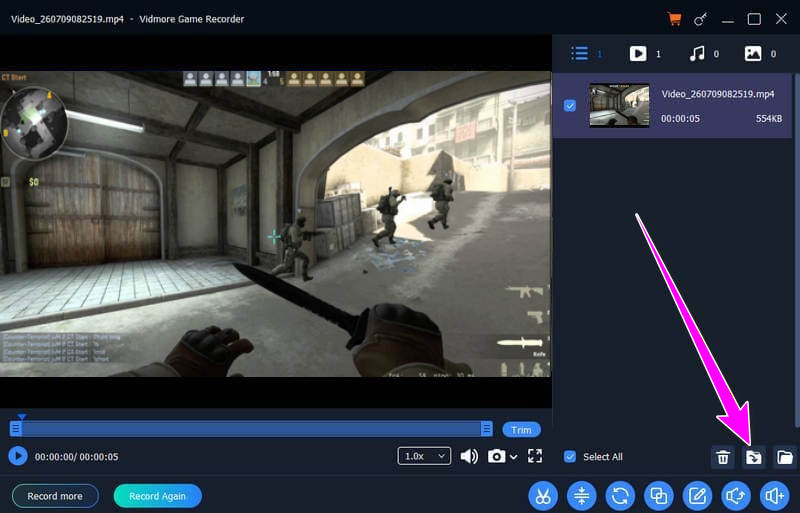
Step 4. Tap the Export button to start saving your recordings on your desktop.
Part 4. FAQs about Steam Recording Audio Issues
Is Steam the best game recorder?
The recorder feature of Steam is helpful. However, since there are some issues that you might encounter, it is best to use another recorder, like Vidmore Game Recorder. This program can offer a smoother recording process, making it an ideal recorder for all users.
Is the Steam platform easy to operate?
It depends on the user. If you are a gamer and always use Steam, then it is easy to use. However, for some beginners, this platform is too much due to its confusing user interface.
Do I need to update Steam to fix the audio problem?
Definitely, yes. Using the latest version of Steam can help you fix some bugs or problems. So, if you want a smoother recording process, always check for updates to the platform.
Conclusion
With these solutions, you can now fix the Steam recording audio issues. You even explored some of the common problems of Steam recording. Plus, if you want to record your gameplay without encountering any video and audio issues, we suggest using Vidmore Game Recorder. This recorder can offer all the features you need, resulting in better video and audio output.