Honest Review of Movavi Screen Recorder [with Alternative]
Movavi Screen Recorder is among the most reliable screen recorders you can use on your desktop. With its capability to capture high-quality content, it becomes a go-to recorder for some users. However, some still wonder if it is the best recorder they can access. Thankfully, this review will give you all the details you need. You will learn more about its features, limitations, and how to use it to record your screen. Without further ado, read this detailed review to learn more.

PAGE CONTENT
Part 1. Overview of Movavi Screen Recorder
Movavi Screen Recorder is an excellent recorder that you can operate on your Mac and Windows. This lets users record video and audio simultaneously or separately. It offers a simple user interface for easier recording. The best part here is that it can record various content on your screen. You can capture meetings, gameplay, videos, presentations, webcam, and more. It can even ensure you an excellent output quality for satisfying playback.
Key Features of Movavi Screen Recorder
In this Movavi Screen Recorder review, you will also learn more about its key features. To get more insights about its capabilities, see the information below.
Screen Recording
The core feature of the software is screen recording. This feature lets users capture any content from the screen. It includes videos, images, text-based information, webinars, gameplay, and more. The screen recording process is simple, thanks to its understandable user interface.
Scheduled Recording
This screen and audio recorder for Windows and Mac also offers a scheduled recording feature. This lets you set a start time and duration for automatic recording. This feature is ideal for capturing live streams, webinars, online classes, and more when you are away. Plus, the scheduler ensures that you won't miss any important events.
Support Audio and Webcam Integration
What makes the program powerful is that it lets you record system audio, microphone input, and webcam video. This feature is ideal if you want to create reaction videos, narrated tutorials, and online lessons. Plus, each source can be toggled independently, giving you full control over the recording setup.
Real-Time Annotation and Highlights
The recorder can also provide real-time annotation tools. It lets you draw shapes, arrows and freehand notes during the recording process. You can even use your cursor to highlight anything on the screen. This excellent feature is perfect if you are having an online class or showing workflow guides. This ensures that your viewers understand what you are doing.
Comprehensive User Interface
Another great thing the recorder offers is its easy-to-operate user interface. With its simple layout, you can navigate all the necessary functions without any hassle. This makes it perfect for non-professional users.
AI Noise Reduction
Movavi also offers an AI-powered noise reduction feature. This feature allows you to eliminate/remove background noise for clearer audio and a better listening experience. The feature is useful for recording gameplay commentary, meetings and lectures. So, if you want to remove background noise from audio, consider using this recorder.
Part 2. Limitations of Movavi Screen Recorder
Movavi Screen Recorder for Mac and Windows is an ideal tool for capturing your screen. However, there are still some limitations you might encounter when using it. To explore some of them, see all the details in this section.
Trial Version Restrictionsn
The free version only lasts for 7 days. Additionally, all recordings will have a watermark after saving. It can only record the first two minutes of the audio.
Limited Editing Capabilities
Movavi focuses mainly on recording. It offers only basic editing tools, such as a trimmer and cutter.
Expensive to Purchase
The recorder is a little bit expensive. If your focus is basic recording, it would be ideal to use an open-source screen recorder rather than spending a penny on this program.
Part 3. Pricing Plans of Movavi Screen Recorder
As explained, Movavi Screen Recorder for Windows and Mac is not 100% free. To access its overall features, you must get its subscription plan. To explore its pricing plans, you can check the table below.
| Plan | Price | Key Features | Duration |
| 1-Month Subscription | $19.95 | • Screen + audio recording • Webcam capture • No watermark • Annotation tools | 1 Month |
| 1-Year Subscription | $64.95 | • Full features • Free updates • No watermark • Scheduled recording | 12 Months |
| Personal License | $39.95 | • Unlimited recording • Webcam + audio capture • No watermarks | Lifetime |
| Business License | $49.95 | • All features • Company use rights | 1 Year |
Part 4. How to Use Movavi Screen Recorder
After learning everything, we can tell that Movavi is among the recorders you can rely on when it comes to recording any content from your screen. The best part is that it offers a simple user interface for a smoother, easier recording process. So, if you want to learn how to use Movavi Screen Recorder, see the steps below.
Step 1. Download Movavi Screen Recorder on your Windows or Mac computer. After that, run it to start the screen-recording process.
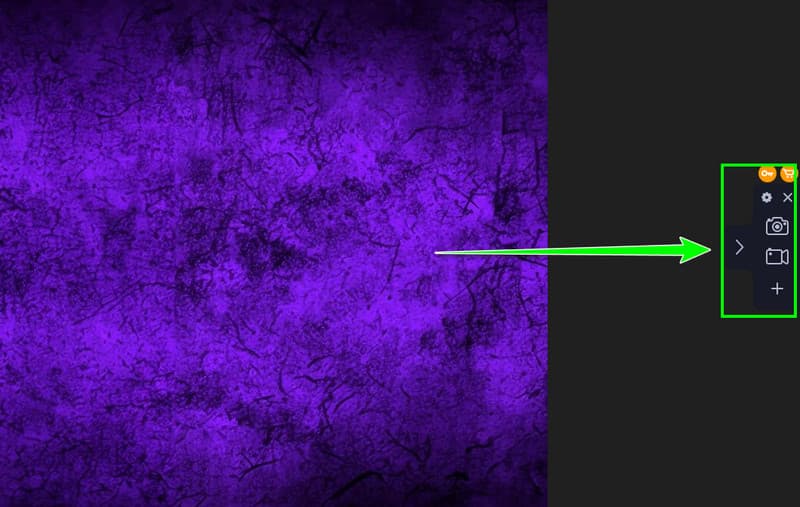
Step 2. After you open the recorder, you will see the Recorder software on your screen. Start clicking the Video symbol to select the screen area you want to capture.
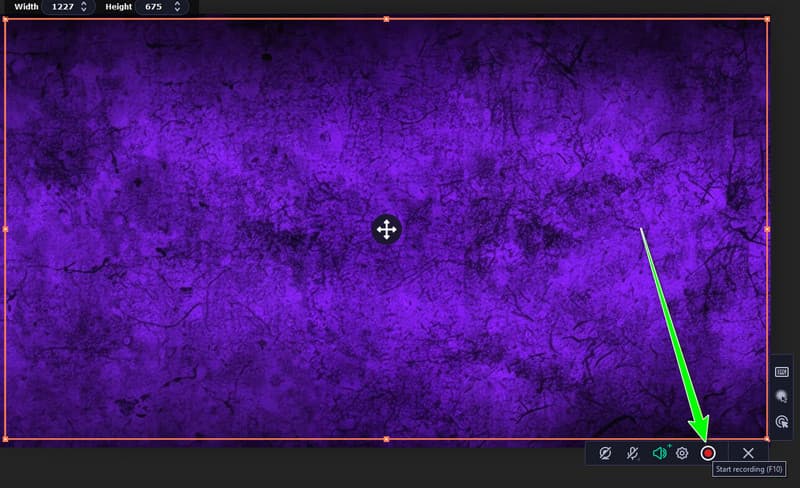
Step 3. Click the Recorder button to start recording. The final recording will begin after the three-second countdown.
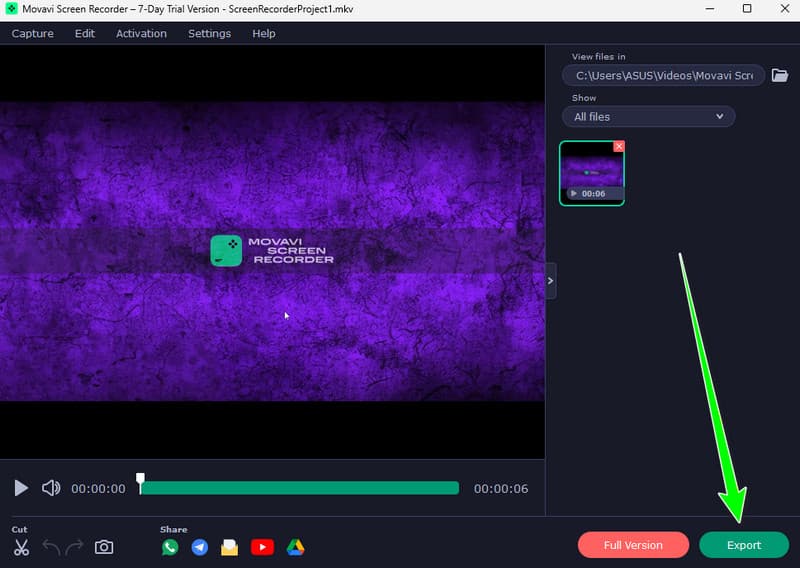
Step 4. To finish the recording process, click the Stop button. Then, hit Export to begin saving your recording on your device.
Part 5. Best Alternative to Movavi Screen Recorder
Movavi Screen Recorder is useful since it can record almost all content from the screen. However, it has some limitations, especially when using the free version. So, if you are looking for a better recorder that lets you record everything without restrictions, consider using Vidmore Screen Recorder.
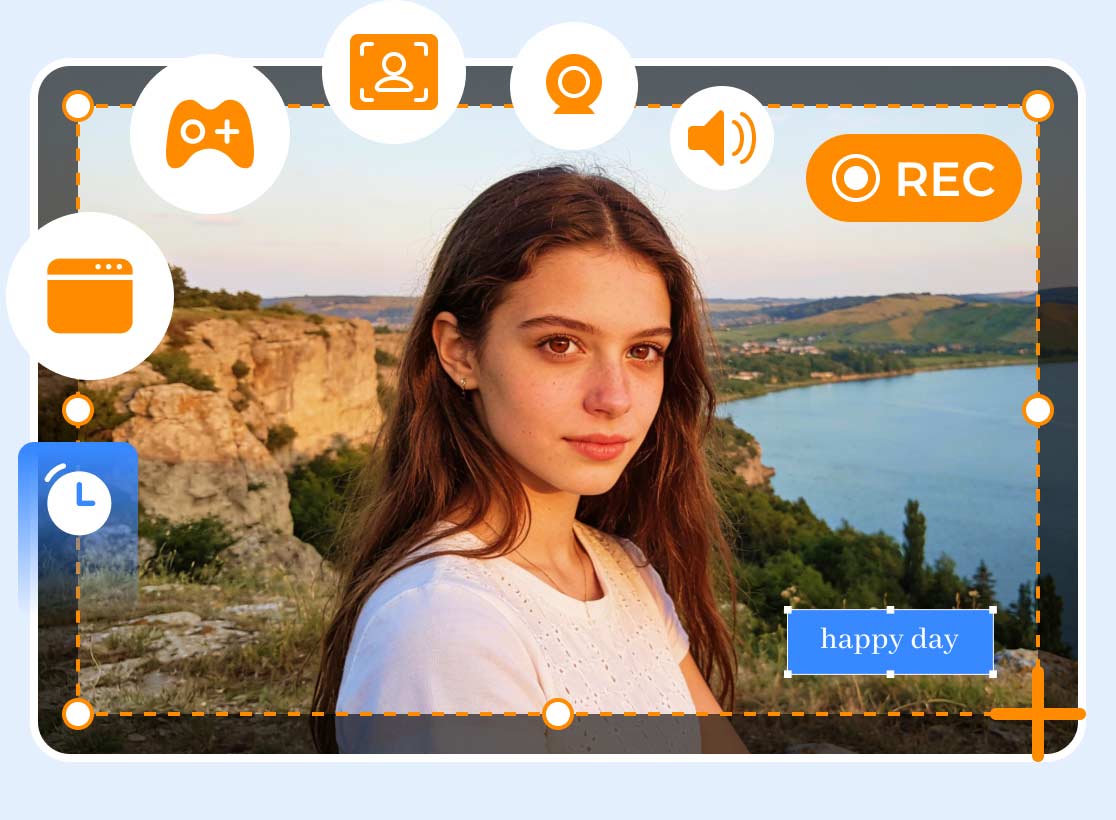
This recorder offers all the features you need. It can even capture content such as videos, gameplay, webinars, phone screen, and more. It also offers a comprehensive user interface, making it ideal for beginners. You can even save the video in up to 4K quality, along with audio or microphone input. Additionally, the recorder offers a Preview feature, allowing you to play and check the recorded content before saving. So, if you need a far superior recorder than Movavi, look no further than Vidmore Screen Recorder.
More Features
- It supports multi-mode recording features.
- The recorder ensures it records the screen with the best video quality for up to 4K and 120 FPS.
- It can record system audio and microphone input.
- The scheduled recording feature is also available.
- The program can offer an annotation tool for creating engaging tutorial videos.
To start recording your screen using Vidmore, check the instructions below.
Step 1. First, download Vidmore Screen Recorder on your computer. After installing it, run it to start recording your screen.
Step 2. From the interface, start selecting between Full and Custom. This lets you decide whether you capture the entire screen or a specific screen area.
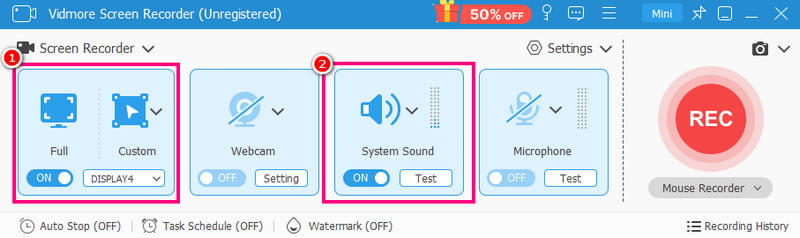
You can also turn on the System Audio function to record both video and audio.
Step 3. To start recording, press the REC button. You can also press the Alt + S keys as a shortcut.
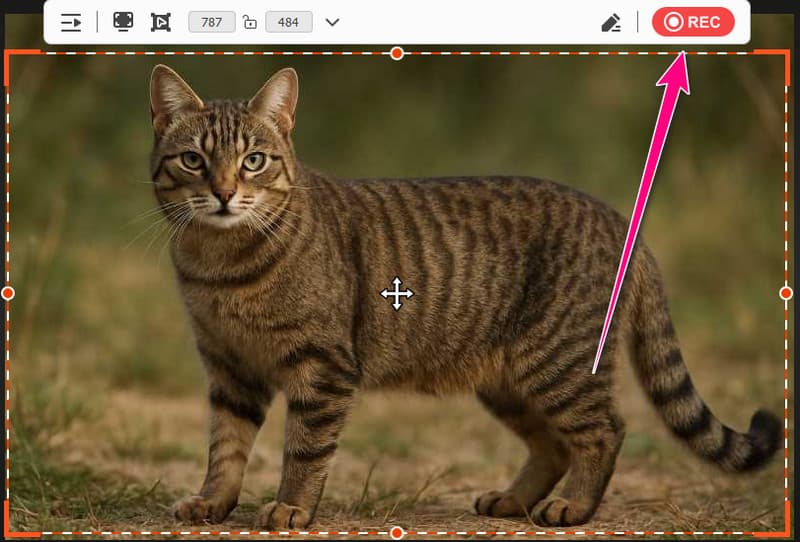
After recording, press the Stop button using the same shortcut keys.
Step 4. Once the Preview shows up, you can play the recording to check the result. If you are satisfied, click Export for the final saving process.
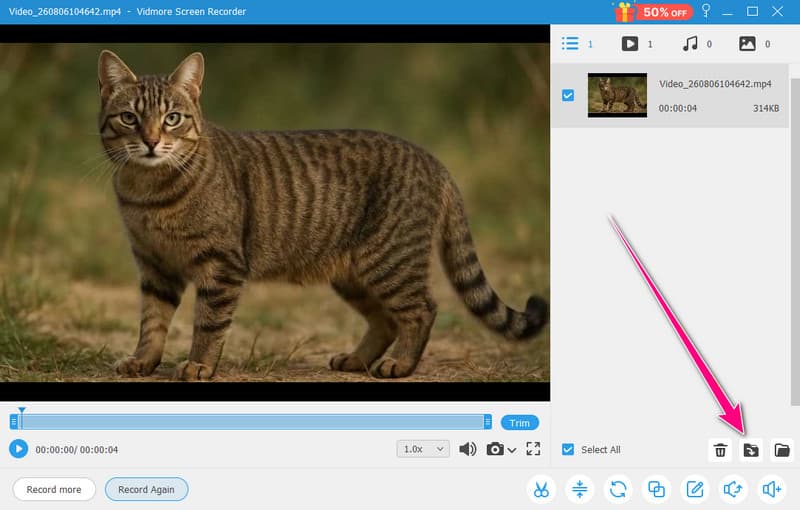
Vidmore Screen Recorder ensures that you can capture everything successfully. So, for an effective and successful recording process, download this recorder instantly!
Part 6. FAQs about Movavi Screen Recorder
Is Movavi Screen Recorder safe to use?
Definitely, yes. Movavi lets you record anything on your screen without worrying about your privacy and security. It ensures that all your data will be saved and won't be shared with other users without your consent.
What format does Movavi Screen Recorder support?
The good thing about the recorder is that it supports almost all popular formats for saving your recordings. You can export the video/recording as MP4, MKV, MOV, AVI, GIF, MP3, and more.
Is Movavi the best screen recorder?
For basic recording, this recorder is useful. However, it has various restrictions when using the free version. For a smoother recording process, you can try using Vidmore Screen Recorder since it ensures you get everything without any limitations.
Conclusion
Movavi Screen Recorder is ideal for a basic recording process since it has all the features you need. Thanks to this review, you have learned about its features, limitations, pricing, and method to record your screen. Plus, if you want a better recorder that can replace Movavis, we suggest using Vidmore Screen Recorder. This recorder allows you to record everything without any limitations. You can even save the recording with the best output quality for satisfying playback.