8 Ways on How to Take a Screenshot on Google Chrome
Is there any important information or a wonderful image that you want to capture on Google Chrome? If so, the best thing to do is to take a screenshot of it. This way, you can get all the content you need after the capturing process. However, if you don't have any idea how to take a screenshot on Google Chrome, you must visit this post. We are here to provide you with the best methods to check and use, helping you achieve your desired result. Without anything else, see this post and learn more about the discussion.

PAGE CONTENT
Part 1. Best Method to Take a Screenshot on Google Chrome
Are you looking for an amazing tool that helps you take a screenshot in Google Chrome? If so, we highly recommend using Vidmore Screen Recorder. This recorder features a Screen Capture option that enables you to take a screenshot directly in Google Chrome. You can capture any information, text messages, images, and more. What makes it more ideal is that the process is simple and smooth. What's more, you can improve the captured screen before saving. You can crop the image, use a pencil function to draw an element, use the eraser tool, and more. With that, we can tell that the program's screen capture feature is useful to all users.
If you want to learn how to take a screenshot on the Google Chrome browser, you can check the simple instructions below.
Step 1. The first thing to do is to download Vidmore Screen Recorder on your Mac or Windows. You can access the program by hitting the Download buttons below.
Step 2. After that, you can click the Dropdown button and select the Screen Capture feature. With that, you can now capture any information on Google Chrome.
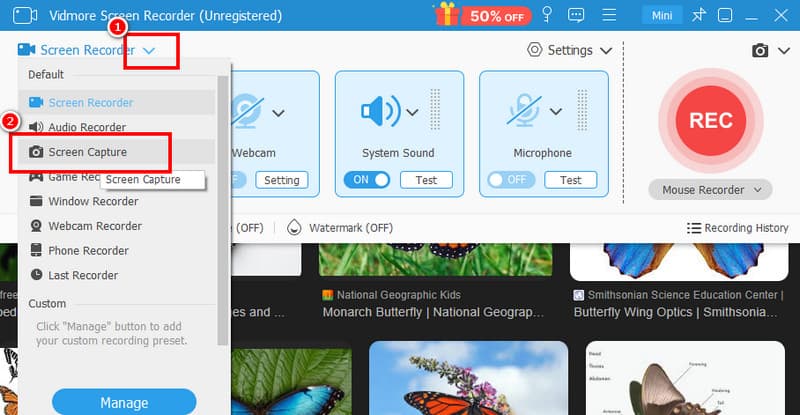
Step 3. After taking a screenshot, you can tap the Save function to keep the captured image data on your computer.
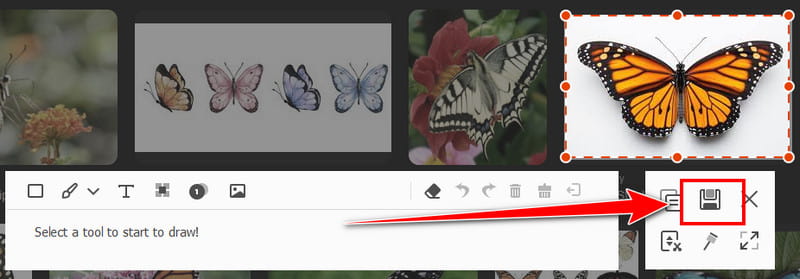
If you want to learn how to screenshot on Windows and Mac, there is no doubt that Vidmore Screen Recorder is among the best programs you can use. It can even provide a simple user interface to access the software smoothly. Thus, to perfectly take a screenshot on Google Chrome, use this program right away!
Part 2. Other Methods to Screenshot on Google Chrome
If you are looking for additional methods to capture content from Google Chrome, you can follow all the steps provided in this section.
Method 1. Take a Screenshot on Google Chrome Using the Developer Tool
The Developer Tool is helpful if you want to take a screenshot on Google Chrome. With this process, you can ensure that capturing anything on your screen is possible. The best part here is that there are two ways to take a screenshot. You can capture your preferred section of the screen or the entire screen. With this method, there is no doubt that you can achieve the desired result after the process.
Now, we will provide you with a guide on capturing the screen on Chrome.
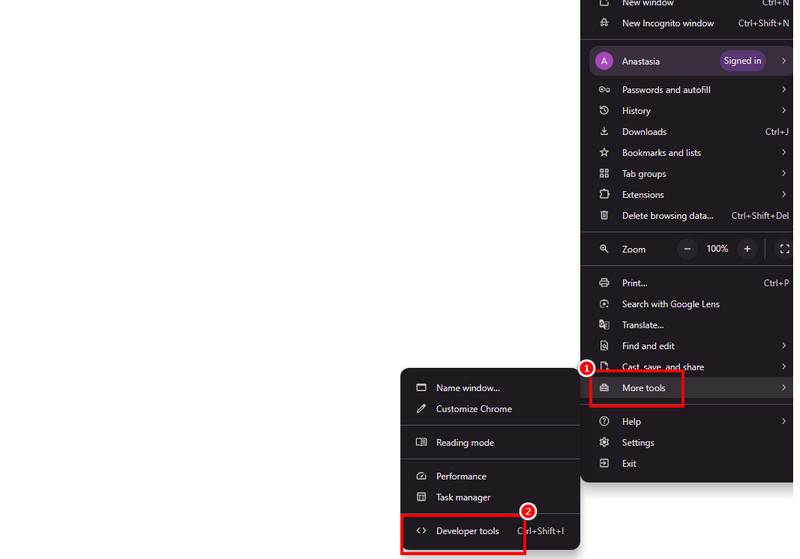
Step 1. Open the Google browser and click the three dots button in the corner. Then, tap the More Tools > Developer Tools.
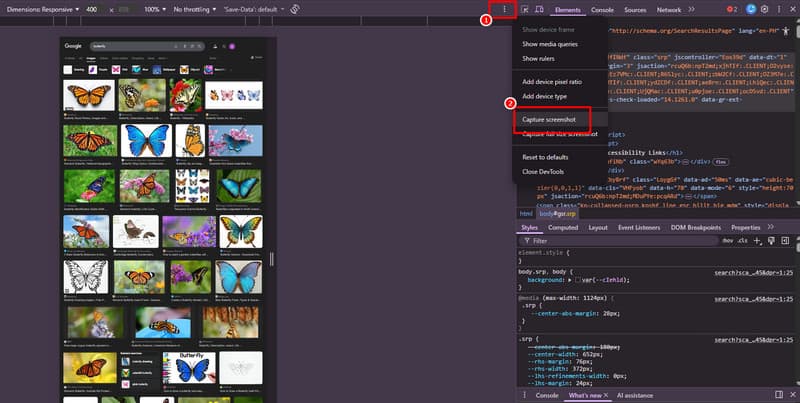
Step 2. Then, you will see another three dots on the screen. Click it and tap the Capture Screenshot function. With that, you can start taking a screenshot.
Method 2. Take a Screenshot on Google Chrome Using iOS
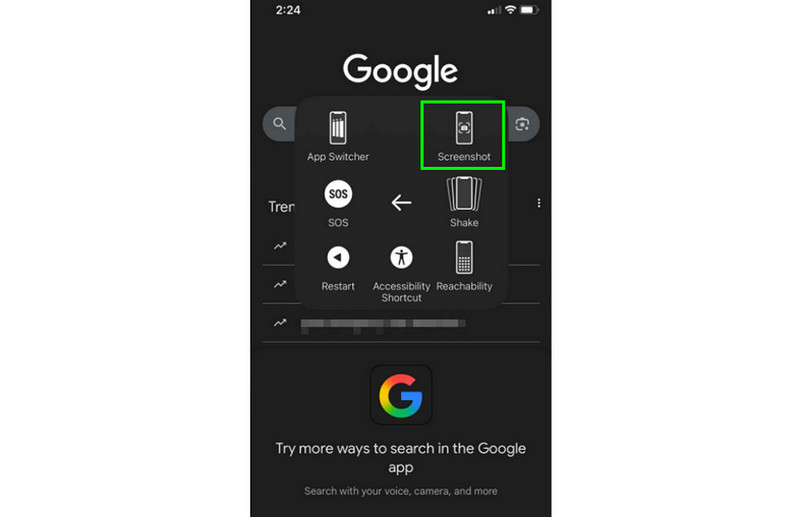
If you are operating an iOS device, there is no need to download any third-party applications. All you need to do is rely on the Assistive Touch feature on your device. With this method, you can capture any data from your screen, including photos, information, or other content. If you want to learn how to capture content from Google using iOS, follow the instructions below.
Step 1. On your iPhone, proceed to Google Chrome and browse the information you want to capture.
Step 2. Then, press the Assistive Touch feature and hit the Device > Screenshot function. With that, you can capture anything from Google Chrome.
Method 3. Take a Screenshot on Google Chrome Using Android
When using Android, you can rely on the buttons to take a screenshot in Google Chrome. Like iOS, you don't have to download any third-party apps on your phone, allowing you to save more space on your storage. To begin the capturing process, follow the steps below.
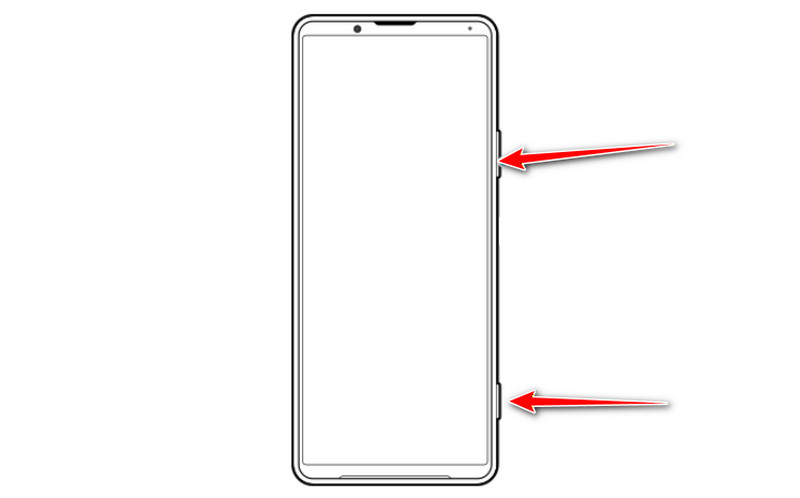
Step 1. On your Android, open Google Chrome and proceed to the information you want to take a screenshot of.
Step 2. Then, you can now press the Volume and Power buttons at the same time. After the process, your screenshot will be automatically saved on your mobile phone.
Method 4. Take a Screenshot on Google Chrome Using a Keyboard Shortcut
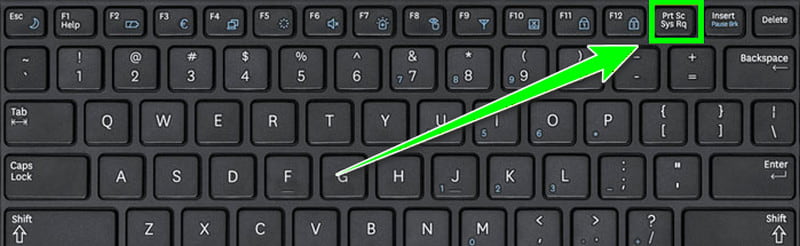
You can also use a keyboard shortcut to take a screenshot on Google Chrome. This method is perfect if you want to capture the screen instantly. What we like here is that you can decide on what part of the screen you want to capture. You can capture a specific area or even the entire screen. What we like here is that the process ensures that you can get the best image quality for a better experience. All you have to do is press the PrtScr key on your keyboard. After that, you can start capturing anything on your screen.
Method 5. Take a Screenshot on Google Chrome Using Chrome Flags
Chrome Flags is an experimental setting that can offer a screenshot function for capturing the screen when using Google Chrome. With this function, you can ensure to capture all the data from Chrome with the best quality. What makes it unique is that it can only be accessed through Google. With that, if you want to check the function, see the steps we have provided.
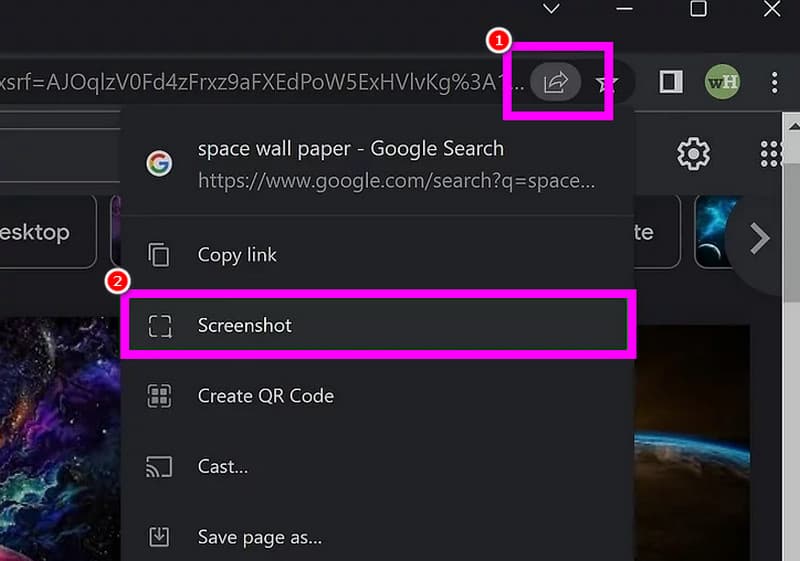
Step 1. From your browser, search for and type chrome://flags/. Then, type 'Screenshot' and enable it.
Step 2. Once done, click the Relaunch button. Then, Google will restart.
Step 3. You will see the Share function from the top interface. Click it and hit 'Screenshot' to start capturing anything from the screen.
Method 6. Take a Screenshot on Google Chrome Using Element Inspector
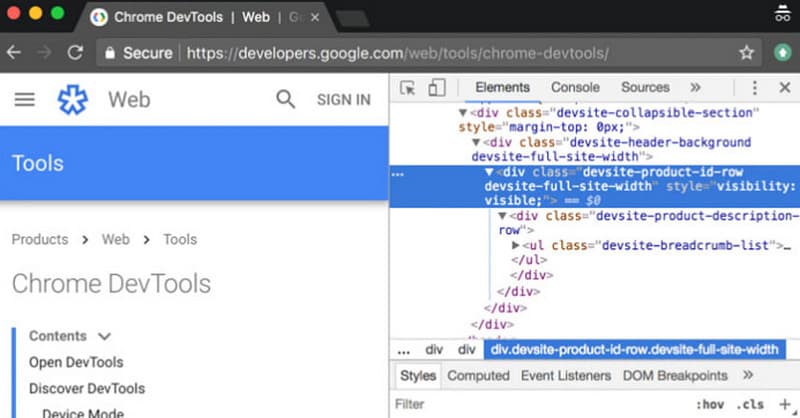
The Chrome Developer Tools can offer an advanced procedure for taking highly targeted screenshots. Using the Element Inspector, you can capture a single, specific element on a page. It's essential to follow the steps carefully, as this tool is created for detailed inspection and is ideal for isolating components, rather than capturing the entire screen. To learn the process, follow the instructions.
Step 1. Open Google and navigate to the page you want to capture.
Step 2. Press the Ctrl + Shift + I keys on Windows to open the Element Inspector tool.
Step 3. Then, press Ctrl+Shift+M to toggle the device toolbar, and select the device type and orientation. Then, click on the 'Screenshot' icon in the device toolbar and take a screenshot on the Chrome browser. The screenshot will be kept on your Windows PC
You can also check: Effective methods for taking a screenshot of a specific area on a PC.
Method 7. Take a Screenshot on Google Chrome Using an Extension
For an instant and efficient full-page capture, consider using a dedicated Chrome extension. A popular and best choice is GoFullPage, which seamlessly captures entire scrolling webpages. Follow the steps below to use it. Please note that compatibility can vary, and you may encounter occasional glitches or errors on certain websites.
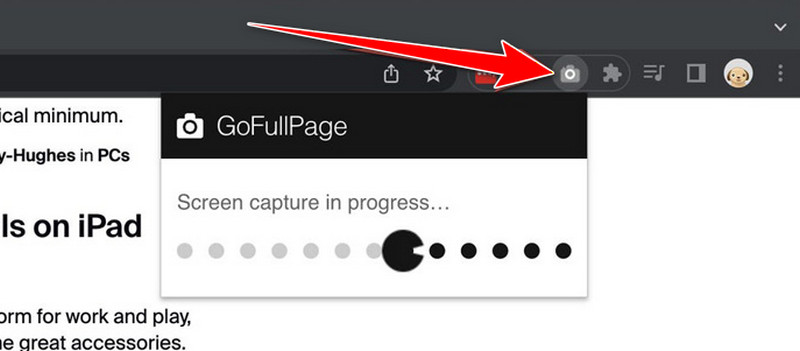
Step 1. Proceed to Chrome Web Store. Then, find GoFullPage and install the extension.
Step 2. Go to the web page you want to take a screenshot of on Chrome. Click on the GoFullPage icon in the Chrome toolbar and select Capture Whole Page in the drop-down menu.
Step 3. After that, right-click the captured image and select Save image to save it.
Now you know how to take a screenshot on Google Chrome effectively. All you have to do is choose your preferred methods and achieve the result you want.
Part 3. FAQs about How to Screenshot on Google Chrome
Can I take a screenshot of everything in Google Chrome?
The answer is no. There are some platforms, especially streaming services, that don't allow screenshots for privacy reasons. To access the data, it is recommended to ask for the owner's permission.
Is it easy to take a screenshot on Google?
Definitely, yes. Capturing any data from the screen is simple, as long as you have the right tool. If you are a beginner, using a simple tool like Vidmore Screen Recorder is recommended.
Can Chrome tell if you screenshot?
The answer is no. Websites are incapable of detecting some user activities, such as capturing the screen. With that, you can take a screenshot of any data you want.
Conclusion
To explore all the best methods on how to take screenshots on Google Chrome, we suggest reading this article. It has various methods you can follow to effectively capture any information on Google. Additionally, if you want to capture the entire screen or a specific area, it's best to use Vidmore Screen Recorder. With this useful program, you can easily capture your screen with the best image quality for an enhanced viewing experience.