Top 4 Methods to Convert OGG Files to Uncompressed WAV
You may have downloaded or received some game audio files or sound effects saved as an OGG Vorbis format. These OGG files are ideal for distribution. However, the compressed, lossy nature is not for professional editing. In some cases, you need to convert them to a lossless format, such as WAV, for a high-fidelity workflow. This guide shares four reliable ways to convert OGG to WAV for your needs.
PAGE CONTENT
Part 1. Why Convert Compressed OGG to Lossless WAV?
Before discussing the specific OGG to WAV conversion ways, we would like to talk about several main reasons why you need to convert.
OGG vs. WAV
OGG is a lossy audio format like MP3 or AAC. It will discard audio data that the human ear is less likely to hear. OGG files can deliver excellent sound quality at smaller file sizes. However, when you edit them, apply effects, or re-export them in a lossy format, your operations will easily introduce digital artefacts and degrade overall audio quality.
WAV is an uncompressed, lossless audio format. It contains all the audio data originally captured. A WAV file can provide a studio-quality audio that is ideal for audio editing and manipulation.
Why Convert OGG to WAV?
OGG is ideal for game development, web streaming, and final sharing. During audio recording, editing, or creation, WAV is the industry standard.
Most professional editing tools support WAV natively. You may need additional plugins to analyze and load OGG files.
Converting OGG to WAV can decode the compressed audio into full-resolution audio. This will prevent further quality loss during editing or encoding.
Sometimes you choose to convert OGG to WAV for personal reasons. For instance, you are unfamiliar with the OGG format, or your player often displays error messages when playing OGG files.
Part 2. Learn 4 Easy Ways for OGG to WAV Conversion
There are many OGG-to-WAV converters available to convert your audio files. This section outlines four reliable methods for handling the conversion. Below is a quick comparison of these conversion methods. Whether you want a dedicated desktop converter, a command-line tool, or an online option, you can find the converter you want.
| OGG to WAV Converter | Difficulty | Quality Control | Price | Best For |
| Vidmore Video Converter | Very Easy | Full output quality control | Freemium | Fast, high-quality batch conversions |
| FFmpeg | Advanced | Total command-line control | Free, open-source | Lossless command-line control |
| Adobe Audition | Intermediate | Professional control | Subscription | Professional audio-production and mastering |
| Zamzar | Very Easy | Basic | Free (with limits) | No-install, quick one-off conversions |
1. Vidmore Video Converter
Vidmore Video Converter is a powerful video and audio transcoding tool that can convert your compressed OGG files into lossless WAV files. It provides necessary fine-tune parameters for professional output requirements. This OGG to WAV converter supports batch conversion and advanced hardware acceleration. This ensures you can convert multiple audio files with super-fast speeds.
Step 1. Download and open this Vidmore OGG to WAV conversion tool on your Windows PC or Mac. Click the central part of the interface window or the Add Files button to add your OGG audio.
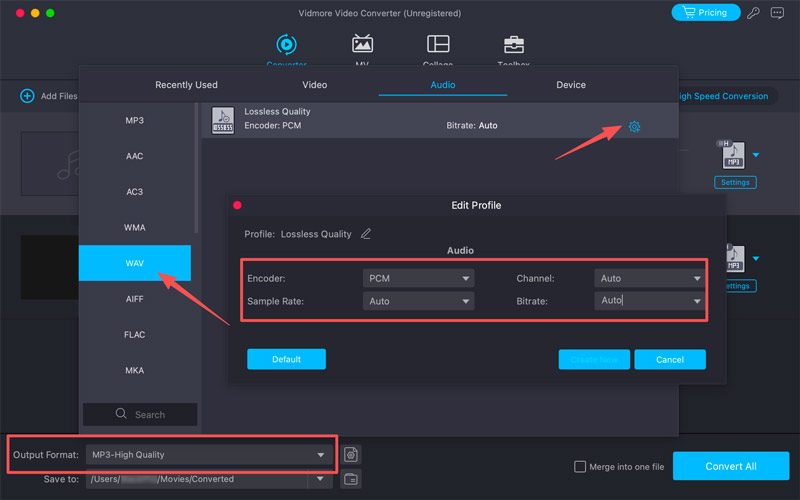
Step 2. Click Output Format, go to the Audio tab, and then select WAV from the left sidebar. Click the Custom Profile icon to adjust the encoder, sample rate, bitrate, and channel settings to match your project requirements.
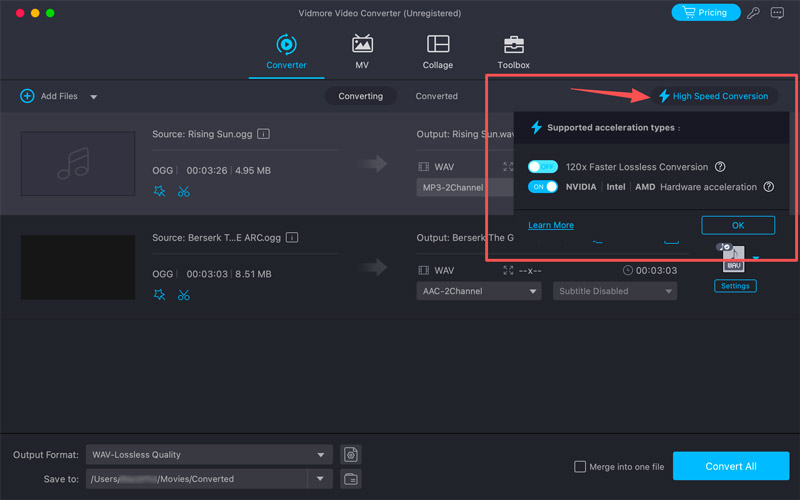
Step 3. Click Save to to set your output destination folder, then click Convert All. Before converting, you can edit audio and turn on High Speed Conversion.
2. FFmpeg (Lossless Command-Line Conversion)
If you want to convert OGG to WAV with total precision and are comfortable using a command-line tool, FFmpeg is the ideal option. It allows you to make the media conversion with total precision and no quality degradation.
Step 1. Download and install FFmpeg for your operating system. Ensure it is added to your system’s PATH. Then, open your Command Prompt (Windows) or Terminal (Mac).
Step 2. Go to the folder that contains your OGG file using the cd command. Run the command below and press Enter.
ffmpeg -i input.ogg output.wav
FFmpeg will decode the source OGG file and write the uncompressed WAV file to the same directory.
3. Adobe Audition
If you are dealing with serious audio post-production work and are already in the Adobe ecosystem, Adobe Audition is a conversion tool. Before converting OGG to WAV, it provides all the necessary editing, mixing, and sound design functions. Moreover, Audition gives full control over the output format, sample rate, and bit depth.
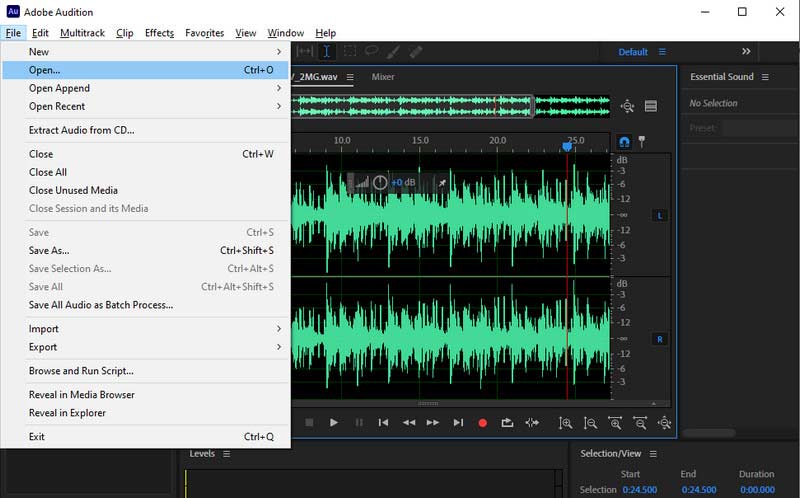
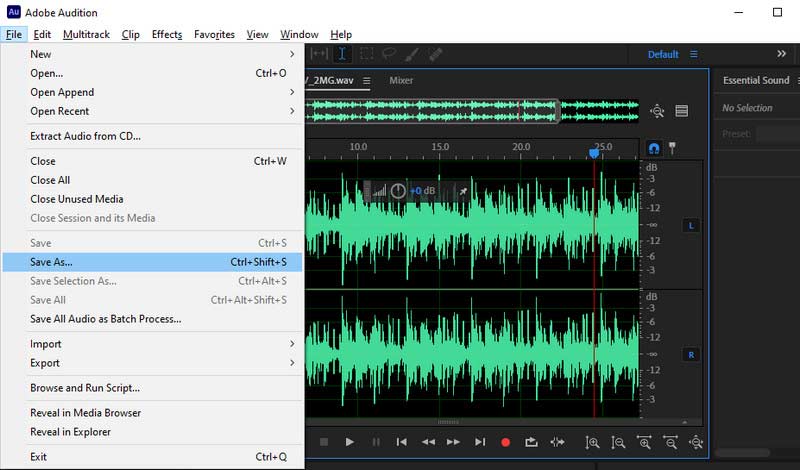
Step 1. Download and open Adobe Audition. Click File > Open to select your OGG file. Put it into the waveform editor and start your edits as needed.
Step 2. OGG to WAV conversion in Audition is simple. Once your audio is loaded, go to File > Save As and change the Format dropdown to Wave PCM (.wav). Verify the sample type and confirm your conversion action.
4. Zamzar (No-Install Solution for Small Files)
Zamzar is one of the most popular online converters, handling all types of video and audio conversions. If you need a reliable web-based alternative for OGG-to-WAV conversion, start with its online file converter.
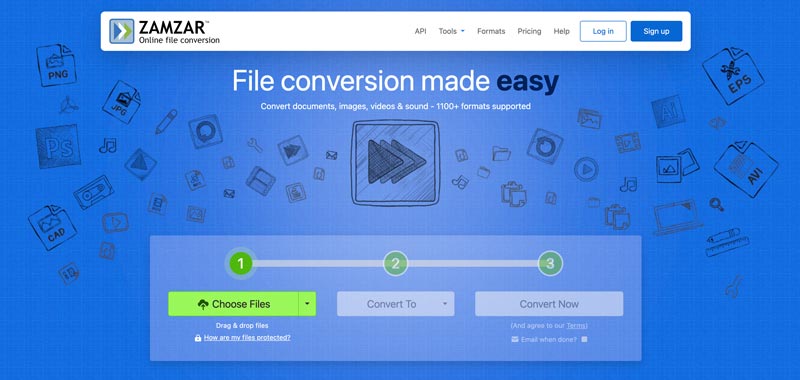
Step 1. Navigate to the Zamzar website on your web browser. Click the Choose Files button to browse and upload your OGG audio file.
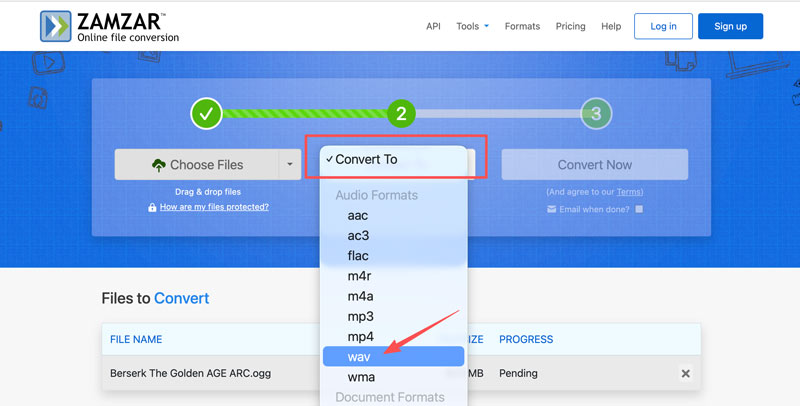
Step 2. In the Convert To dropdown menu, select WAV as the output format. You can also convert OGG to MP3 or another format you need.
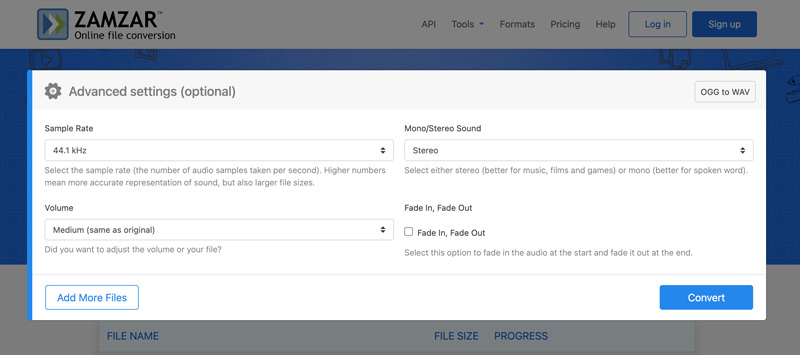
Step 3. Once selected, you can adjust advanced settings such as sample rate, volume, mono/stereo, and fade-in/fade-out. After that, click Convert to start the audio conversion from OGG to WAV. You need to manually download the WAV file after converting.
Part 3. FAQs of Converting OGG to WAV
Question 1. Does converting OGG to WAV improve the audio quality?
No. Conversion cannot restore the data that was discarded in the source OGG file. No new data is generated or added during OGG encoding to improve audio quality. The conversion only unpacks the compressed audio into a lossless WAV format.
Question 2. Are online converters safe to handle confidential audio?
There are several reputable services, such as Zamzar, CloudConvert, and FreeConvert, that use encrypted connections and guarantee that all your uploads are secure. These online converters will automatically delete your files from their servers within 24 hours. However, you should not use them to convert confidential, personal, or unreleased audio.
Question 3. Is WAV higher quality than MP3?
Yes, WAV can deliver a significantly higher sound quality than MP3. It is an uncompressed, lossless format that stores all the original captured audio data. A WAV file will not delete frequencies to save storage space. The full frequency range and dynamic depth are preserved.
By contrast, MP3 is a compressed, lossy audio format. It will discard some audio data that the human ear won’t notice. MP3 files can offer a fine quality for casual listening. But they cannot deliver the pristine fidelity of a WAV file.
Conclusion
This article outlines four efficient methods for converting OGG audio to WAV. Whatever the reason, when you need to convert your OGG files, select a preferred tool.
If you only have several small files to convert, start with the web-based Zamzar. If you prefer a dedicated media conversion and editing tool, try using the reputable Vidmore converter. However, for technical users and professionals, FFmpeg and Adobe Audition remain the industry standards.