Comprehensive VideoProc Converter AI Review [Latest 2026]
VideoProc Converter AI is among the most reliable and effective tools for video conversion, enhancement, and editing powered by artificial intelligence. This program is designed to handle everything from format conversion to upscaling and stabilization. It can even offer a streamlined workflow for both professionals and beginners. So, if you are interested in learning more about this software, start reading everything in this review.

PAGE CONTENT
Part 1. Overview of VideoProc Converter AI
VideoProc Converter is designed to convert videos, upscale, and edit. With this software, you can ensure to improve and get a better version of your video. So, if you are interested in learning more about the capabilities of the program, you can view all the features from this section.
Convert Video
One of the core features of the program is to convert video files. It can even offer a smooth and fast conversion process, allowing you to get the result without any issue. It can even support various formats, such as MP4, MKV, AVI, FLV, MOV, and more. With that, you can convert any formats, such as MKV to MOV, MP4 to AVI, FLV to MP4, and more.
Image AI Tool
Aside from converting video, you can also access the Image AI tool. This feature can help you upscale your images to 4K, 8K, and even 10K resolution. It can even restore old pictures, improve facial details, and deblur/denoise low-quality images. With this feature, you can ensure that getting the better version of your image is a possible task.
Frame Interpolation and Stabilization
Another feature you can access is the Frame Interpolation and stabilization. These features can help you deal with your videos. You can create extra frames for better and smoother playback or slow-motion effects. Plus, the Stabilization feature allows you to correct shaky videos from action cams, handheld devices, and drones.
Audio AI
The good part about the program is that it offers its Audio AI feature. It has a vocal remover you can access to isolate and remove vocals from your music tracks. You can also access the noise suppression to reduce wind, background, and any ambient noise in recordings.
Digitize DVD
What makes the VideoProc Converter powerful is that it can offer its DVD digitizer. This feature is perfect if you want to turn your DVD into a digital format. You can transcode your DVD to MP4, AVI, MP3, and other formats. The digitization process is also simple, making it ideal for non-professional users.
Downloader
Aside from dealing with your files, the program is also capable of downloading video and audio. With this feature, you can obtain your favorite content from various platforms. To download the content, all you need to do is copy and paste the URL into the software's interface.
Recorder
Are you looking for a desktop recorder? Well, the good news here is that you can also use VideoProc Converter. With the program's recorder feature, you can capture and record anything from your screen. You can record a video, audio, webcam, and more. During the recording process, you can also adjust the volume, open your mic and cam, and crop the output.
In this VideoProc Converter AI review, you have explored all the features that can help you improve your overall video. You can convert your media files, save them with super resolution, upscale images, and more. With that, we can tell that this program is among the most powerful video converters and editors.
You can also check: Learn everything about Wondershare Video Converter.
Limitations of VideoProc Converter AI
Learning Curve for AI Features
Advanced features like Super Resolution and Frame Interpolation may require experimentation to achieve an optimal result. These tools might be complicated for some non-professional users.
Limited Free Version
When using the free version, you can only deal with videos of limited length (5 minutes). Plus, some AI features are only available on the paid version.
Hardware Dependency
The program requires a good computer spec. You must have a better GPU and CPU for better acceleration. A poor computer spec can only lead to poor performance.
Basic Editing Tools
You can only access the basic editing tool in the program. You can crop, merge, add subtitles, and cut videos. For more advanced editing tools, it would be better to access advanced video editors.
Some Features Require Internet
Some features only work with an internet connection, such as downloading music or videos or accessing updates.
You can also visit: Detailed review of Any Video Converter.
Part 2. Pricing Plans of VideoProc Converter AI
VideoProc Converter is an excellent tool that can deal with your media files. However, since it is not 100% free, you might wonder about its pricing plans. In that case, you can check the details below to get more insights about the program's paid version.
| Pricing Plans | Premium 365 | Lifetime License | Family License |
| Price | $34.95 | $54.95 | $79.95 |
| Inclusions | • All-in-one: enhance, convert, edit & more. • Unlimited use of all AI tools for 1 year. • Average $2.91 per month. Install on 3 PCs. • 1-year access to all AI & media features. • 1-year updates included (major & minor). • Instant delivery of Full Version license code. • 30-day money-back guarantee. | • All-in-one: enhance, convert, edit & more. • Unlimited use of current & future AI tools. • One-time payment. Install on 1 PC. • Lifetime access to all AI & media features. • Lifetime updates (major & minor included). • Instant delivery of Full Version license code. • 30-day money-back guarantee. | • Provide everything from a Lifetime License. • Unlimited use of current & future AI tools. • One-time payment. Install up to 5 PCs. • Lifetime access to all AI & media features. • Lifetime updates (major & minor included). • Instant delivery of Full Version license code. • 30-day money-back guarantee. |
Part 3. How to Use VideoProc Converter AI to Convert
Do you want to learn how to use the VideoProc Converter AI to convert your video? In that case, you can follow/check the simple steps below.
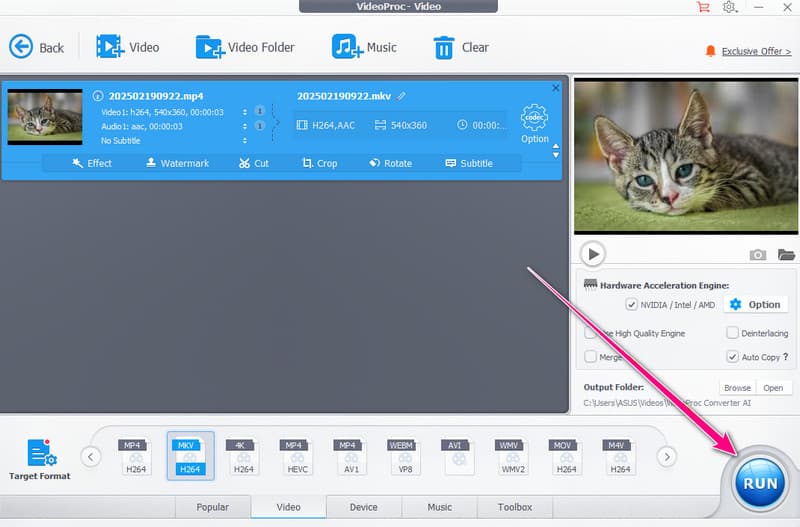
Step 1. Download and install VideoProc Converter AI. Launch it and select the Video Converter feature.
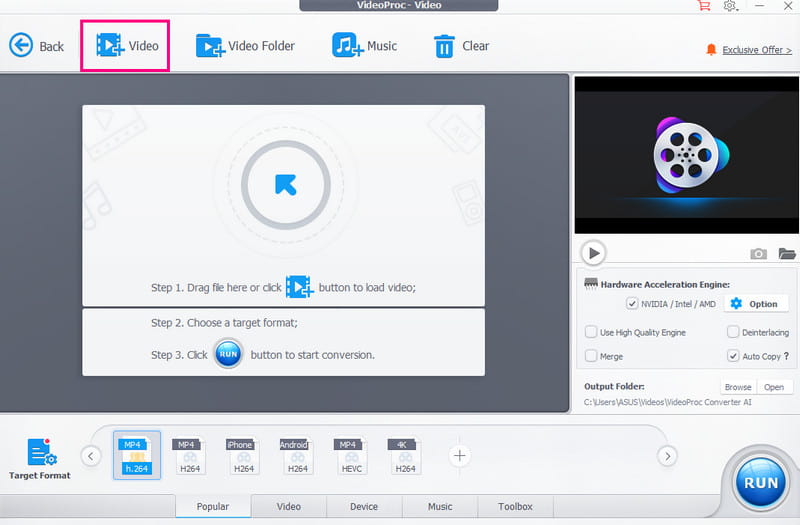
Step 2. Then, from the main interface, click the Video option to insert the video you want to convert. You can even attach multiple files since it supports the batch conversion feature.
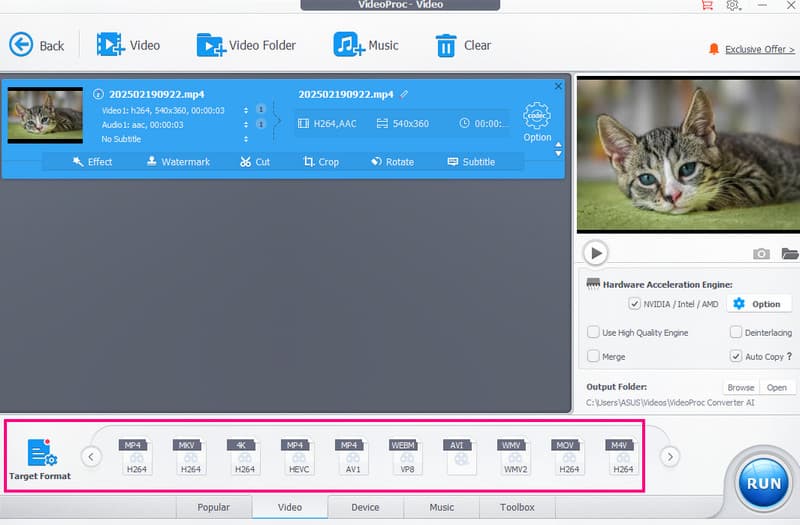
Step 3. You can now proceed to the Target Format and start choosing your preferred video format.
Step 4. For the last process, tap the RUN button to begin the video conversion procedure.
Pay a visit: A comprehensive review of HD Video Converter Factory.
Part 4. Best Alternative to VideoProc Converter AI
Are you searching for a better replacement for VideoProc Converter AI? In that case, we suggest using Vidmore Video Converter. This program is ideal if you want a faster conversion process. It can give you a 50× conversion speed. Plus, you can also have your video with the best quality, up to 4K. It also has an understandable layout, making it superior to VideoProc. The best part here is that it supports hundreds of media formats, including WMV, VOB, MP4, MKV, AVI, M4V, and more. It also supports a batch conversion feature, letting you convert more than one file to save more time. Thus, if you want an ideal alternative for VideoProc, always consider using Vidmore Video Converter.
More Features
- The program can offer both basic and advanced editing features to improve video and audio.
- It can also convert images with the best quality.
- It can offer its MV feature to create an engaging music video.
- The software can provide customizable video and audio settings.
To start converting your files with this converter, you can use the instructions below.
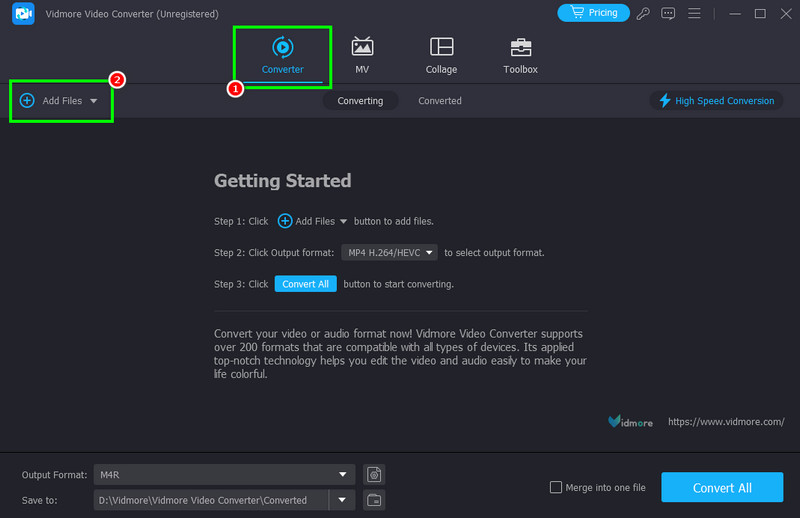
Step 1. Download and run Vidmore Video Converter on your desktop. Once the interface shows up, start the conversion process.
Step 2. Proceed to the Converter section and add the footage you want to convert by clicking the Add Files option.
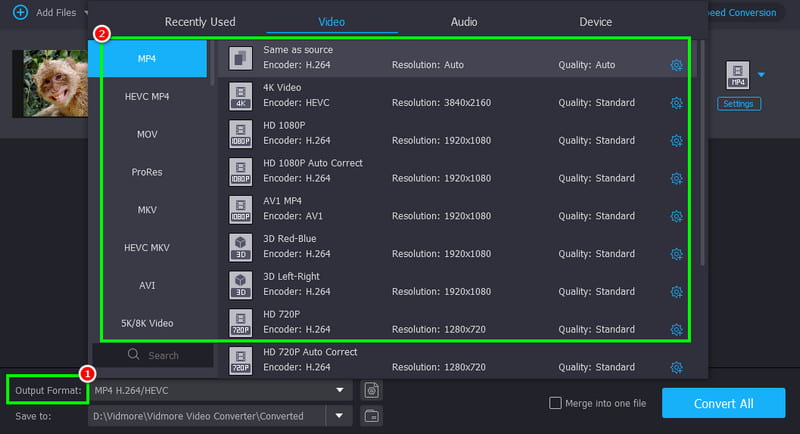
Step 3. You can now choose your preferred format from the Output Format section. You can even pick the quality you want.
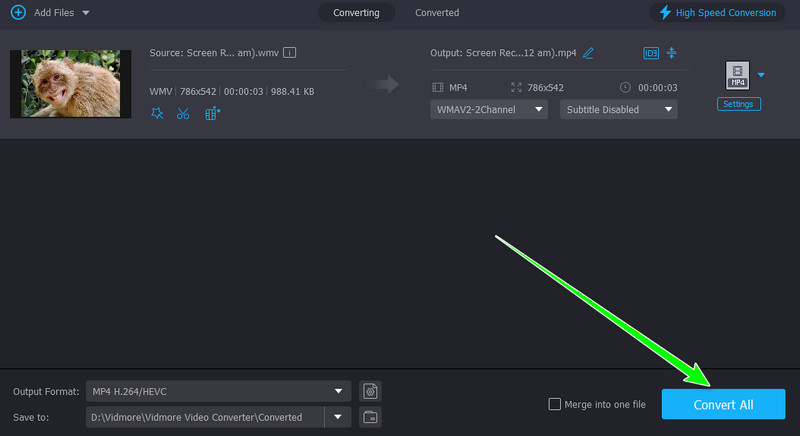
Step 4. To begin the video conversion process, you can hit the Convert All button below. Once the conversion process is done, you can check your video on your
With this converter, you can tell that converting your video files is simple and smooth. It can even offer various editing features that can help you improve your video. So, if you need a better alternative to VideoProc Converter AI, look no further than Vidmore Video Converter.
Part 5. Final Verdict
In this VideoProc Converter AI review, you have learned everything. You discover its engaging features and capabilities to convert video files. You can even access various editing features that can enhance your videos. With that, we can tell that this program is among the most reliable converters, enhancers, and editors for users. The only problem here is that you have to get its premium version to access its overall features.
Conclusion
VideoProc Converter AI is the best program you can use to improve your videos. With this review, you have explored its overall capabilities. You even discovered some of its limitations. Plus, if you need the best replacement for the tool, you can access Vidmore Video Converter. It has a fast conversion process and ensures to save the video with the best quality. It can even offer various video editing tools, making it an ideal converter and editor for all users.