Best Video Compressor: 10 Recommendations That Actually Work
Your phone lets you capture stunning 4K footage, and you can now easily access a wealth of high-resolution videos online. While this brings many benefits, it also comes with a significant drawback: these files are often massive and can quickly consume your device’s storage. Moreover, many social apps and platforms impose strict upload limits, making it difficult to share your videos directly. You might also struggle to attach large files to emails or send them quickly via messaging services. This is when you start searching for a reliable video compressor.
In many ways, video compression has become a necessity. Whether you are a social media creator, a business professional, or a casual user looking to reduce file sizes, you need a tool that gets the job done. Naturally, you want a compressor that efficiently shrinks the video without sacrificing quality.
This article reviews the 10 best video compressors available in 2026 across desktop, online, and mobile platforms, so you can easily find the right option for your needs.

How We Test the Video Compressors
To make sure our recommendations are reliable and useful, we tested every compressor through the exact same three test files: a hefty 1.2 GB 4K/120fps clip, a typical 380 MB 1080p video captured by an iPhone, and a smaller 75 MB 720p download.
We then judged each tool against five practical criteria that actually matter to users:
Compression efficiency - How much did the file shrink? We tracked output size as a percentage of the original, so you know what to expect.
Quality retention - Did the compressed version still look clean, or did we spot ugly blocking, smearing, color shifts, or other compression artifacts?
Speed - How long does compression take from start to finish?
Ease of use - Is the interface intuitive, or does it require technical expertise?
Platform and limitations - What devices does it support? Are there file size caps, watermarks, or daily limits?
PAGE CONTENT
Part 1. Quick Comparison Table of the Top 10 Video Compressors
Knowing which video compressor to use is essential. Every app promises smaller files and flawless quality, but the reality is rarely that simple. Some will ruin your video entirely, turning it into a pixelated mess. Others are so ineffective they barely reduce file size, and many come with hidden drawbacks like watermarks, strict caps, or intrusive ads. To skip the trial and find the right fit fast, check the comparison table below.
| Video Compressor | Platform | Ease of Use | Compression Efficiency | Quality | Speed |
| Vidmore Video Converter | Win/Mac | Easy | ★★★★★ | ★★★★★ | ★★★★ |
| HandBrake | Win/Mac/Linux | Moderate | ★★★★★ | ★★★★★ | ★★★★★ |
| Adobe Media Encoder | Win/Mac | Moderate | ★★★★ | ★★★★★ | ★★★★ |
| VLC Media Player | Win/Mac/Linux | Easy | ★★★ | ★★★ | ★★★ |
| FFmpeg | Win/Mac/Linux | Difficult | ★★★★★ | ★★★★ | ★★★★★ |
| FreeConvert | Online (Browser) | Very Easy | ★★★★ | ★★★★ | ★★ |
| Media.io | Online (Browser) | Very Easy | ★★★ | ★★★★ | ★★★ |
| Panda Video Compressor | iOS/Android | Very Easy | ★★★★ | ★★★ | ★★★ |
| YouCut | iOS/Android | Easy | ★★★★ | ★★★ | ★★★★ |
| InShot | iOS/Android | Very Easy | ★★★★ | ★★★★ | ★★★★ |
Part 2. Top 5 Video Compressors for Windows & Mac
We assessed each tool on compression efficiency, quality, speed, and overall ease of use. You can directly navigate to the desired video compressor through the comparison table. This section will start with the desktop programs. Compared to online video reducers and mobile apps, they can better handle large files and offer full control.
1. Vidmore Video Converter
Best for: Users who want a powerful, all-in-one tool that handles video resizing, compression, editing, and conversion without a learning curve.
Score: 9.1/10
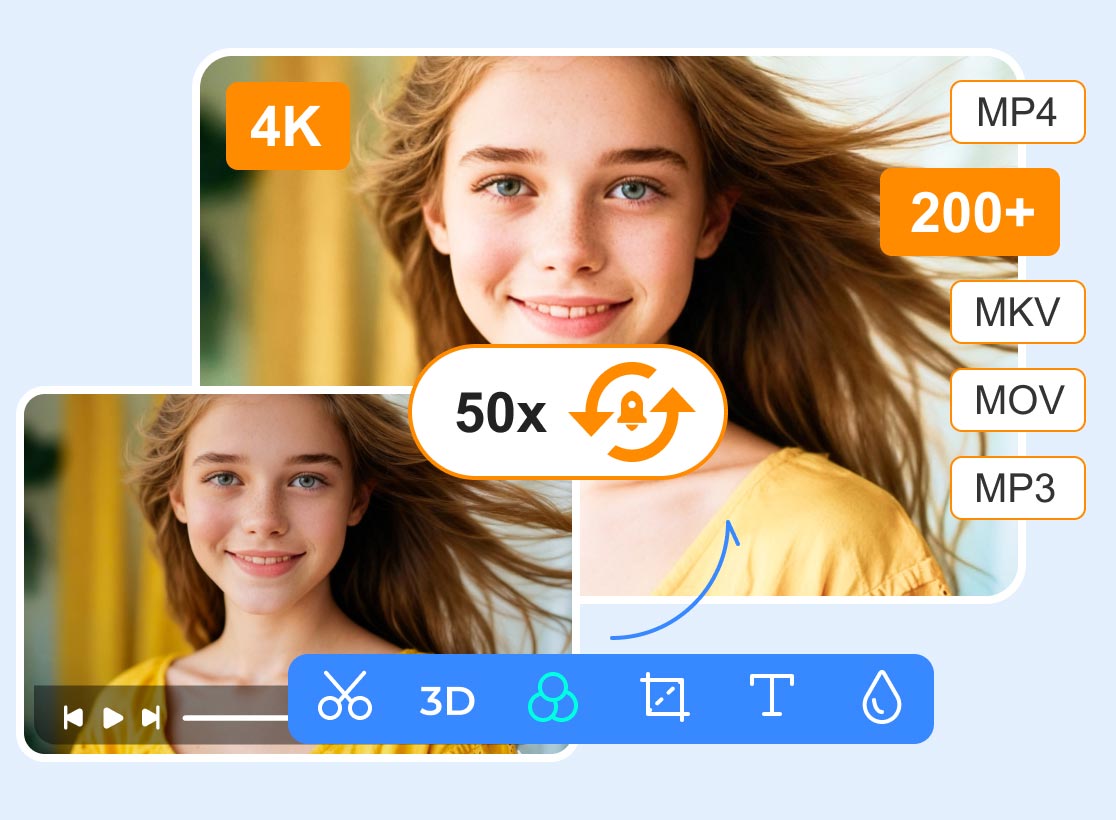
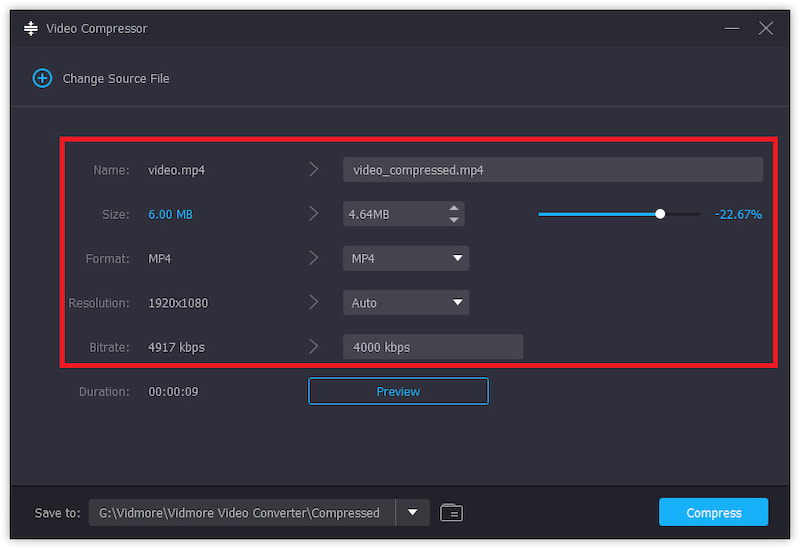
Vidmore Video Converter is an all-in-one video processing tool that handles video compression, format conversion, and basic editing. It supports over 200 formats with hardware acceleration. This ensures it compresses large 4K files quickly. The software has a dedicated Video Compressor that prioritizes simplicity. It lets you directly control the output file size and the compression degree. Moreover, Vidmore provides trimming and cropping tools to help you reduce file size without quality loss.
Pros:
- Excellent compression efficiency
- Supports 200+ formats
- Controls the output file size, compression degree, bitrate, resolution, etc.
- Advanced hardware acceleration
- Offers all frequently used editing features
Cons:
- Paid software (free trial limited to compressing 5 files)
- Requires modern computer hardware
2. HandBrake – The Best Free Video Compressor
Best for: Users who want a free video compressor that gives maximum control.
Score: 9.3/10
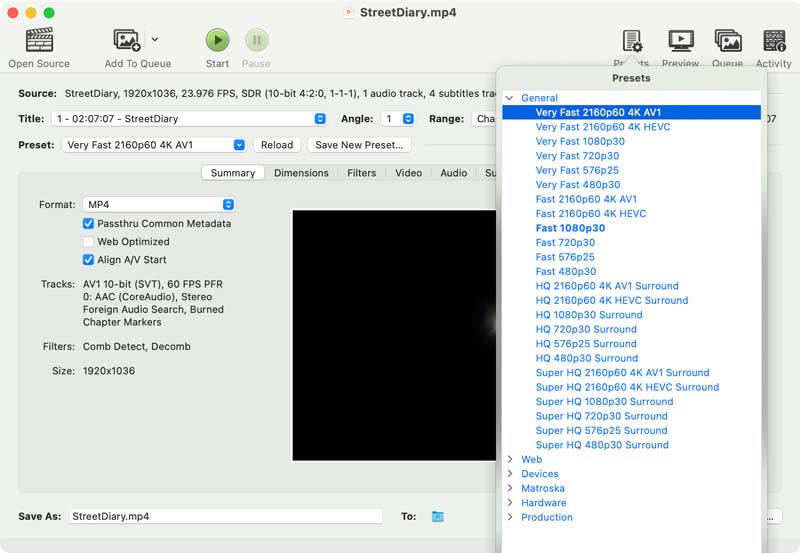
When you search for the best free video compressor, HandBrake is often the default answer. If you are willing to learn the basics of video encoding, HandBrake is a good recommendation. This open-source tool can compress a large 4K video into a smaller file while maintaining high quality. This free video compressor offers unparalleled control over encoding parameters. Like Vidmore, it lets you freely adjust codec, bitrate, RF value, and more.
Pros:
- Completely free and open-source
- Has no file size limits or watermarks
- Supports hardware acceleration
- Offers precise two-pass encoding
Cons:
- The interface is not user-friendly for beginners
- Provides no built-in preview player
- Requires knowledge of codec settings
Learn more details on how to use HandBrake to compress videos.
3. Adobe Media Encoder
Best for: Editors already in the Adobe ecosystem and often handle professional video workflows.
Score: 8.4/10
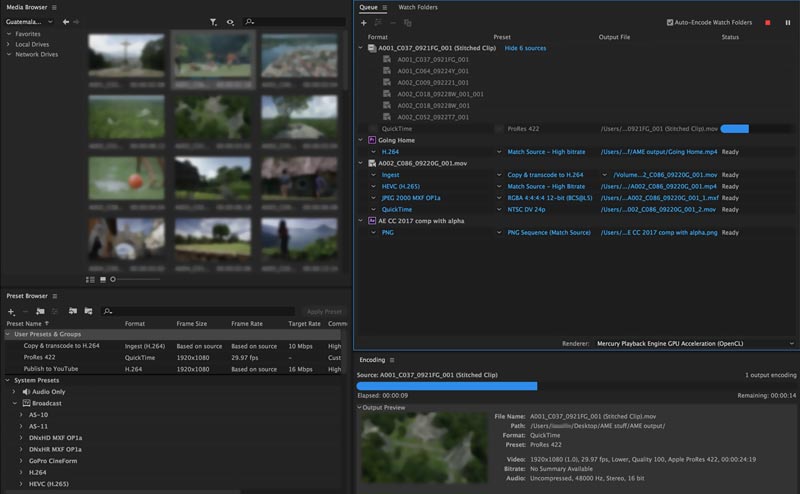
If you are already paying for Adobe Creative Cloud, Adobe Media Encoder is a great choice for video compression. It integrates with Premiere Pro, Audition, and After Effects, making it the go-to tool for professional video editors. The professional-grade encoding software supports batch processing and GPU acceleration. It also gives deep control over codecs, bitrates, and others.
Pros:
- Deep integration with Adobe ecosystem
- Delivers excellent quality, professional-grade output
- Supports a huge range of formats
- Supports hardware acceleration
Cons:
- Adobe subscription (Creative Cloud) required
- Steep learning curve
- Expensive for most casual users
- Can be overkill for simple video compression tasks
4. VLC Media Player
Best for: Users who already have VLC and rarely have many video compression tasks.
Score: 7.1/10
Can VLC compress a video? If you already have the media player on your computer and don’t want to install a dedicated video compressor, VLC is a “good enough” option. You can access its video compressor through the Convert/Save feature. You can easily adjust the video codec, bitrate, resolution, and frame rate to reduce file size. For occasional compression needs, VLC does the job.
Pros:
- Free, may already be installed
- No learning curve if you know VLC
- Compress MKV, MP4, AVI, FLV and more formats.
Cons:
- Limited compression options
- Interface is not optimized for compression workflows
- No video compression preview
- Slower than dedicated video compressors
5. FFmpeg Video File Compressor
Best for: Command-line enthusiasts and developers who want maximum control.
Score: 7.6/10
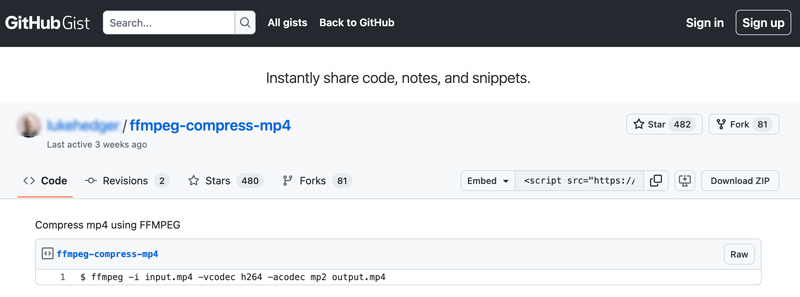
FFmpeg is not a friendly video compressor if you are not familiar with command-line utilities. Although it can be the most powerful video compressor on this list, it isn't suitable for beginners or most general users. FFmpeg gives you fine-grained control over video quality, file size, resolution, bitrate, and more. It lets you easily reduce file size while preserving source quality.
Pros:
- Completely free and open-source
- Supports virtually every codec and format
- High video compression quality
Cons:
- Command-line interface
- Steep learning curve
- Offers no GUI
Part 3. Top 2 Online Video Compressors
If you only have one or several clips to compress and don’t want to install software, online video compressors are a good choice. They are designed for convenience and can be a great option for users who need to compress a video once.
1. FreeConvert Video Compressor
Best for: Quick, online video compressions of files under 1 GB.
Score: 8.8/10
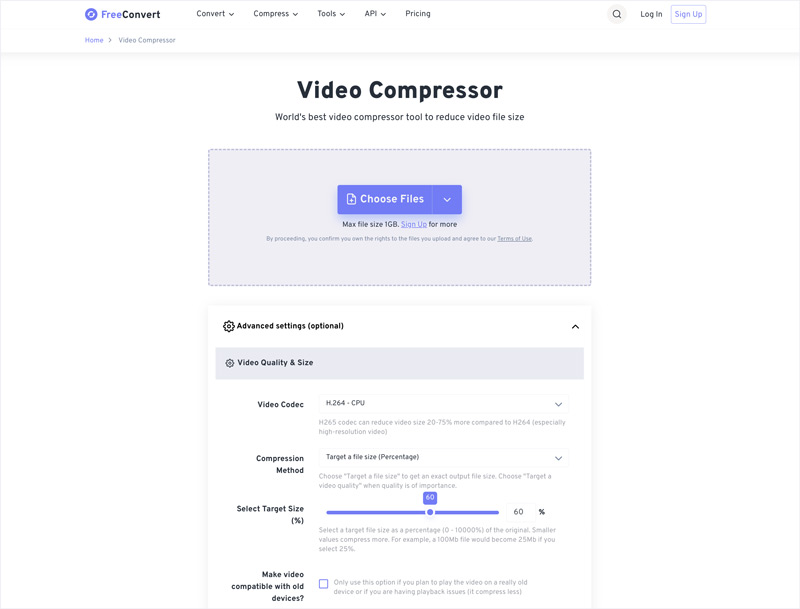
FreeConvert is a reliable online video, audio, image, and document editing platform. It provides many tools for different compression, conversion, and editing needs. It has an individual Video Compressor page for you to handle video compression tasks. FreeConvert allows you to set a target file size or compression percentage. It also offers several compression methods for you to choose from.
Pros:
- Compress videos online with no watermark
- No account registration or sign-in required
- Supports files up to 1GB for free
- Supports all commonly used video formats
Cons:
- Upload and download speeds depend on internet connection
- Takes longer to compress a video
- Has a 1GB file limit
2. Media.io Online Video Compressor
Best for: Users who want AI-assisted compression online.
Score: 8.4/10
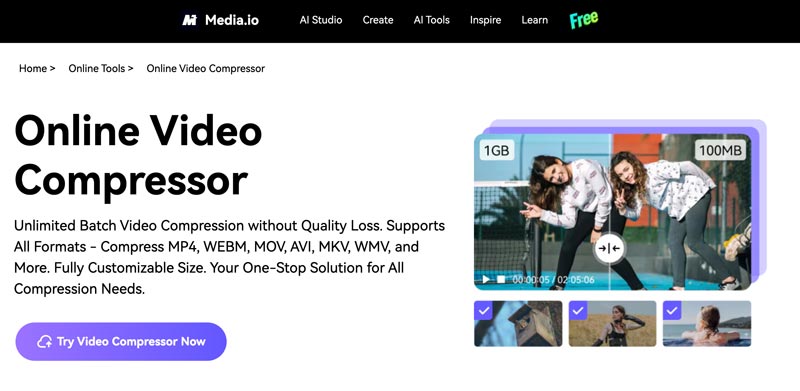
Media.io Online Video Compressor offers a straightforward way to compress video files under 2GB. It offers video compression alongside other tools, such as video editing, enhancement, and conversion. It lets you drag the compression slider to freely reduce a video file. You can directly see the final file size. In my tests, this online video compressor often maintained good visual quality.
Pros:
- Supports batch processing
- Often delivers good quality
- Offers a preview player
Cons:
- The free version has a 10-minute limit
- Slower than desktop tools
- Uploads a video file of less than 2GB
- Requires signing in to Wondershare
Part 4. Top 3 Video Compressors for iOS & Android
In some cases, you may want to directly edit and compress a video on your phone for quick sharing or uploading. Mobile video compression apps are essential for creators on the go.
1. Panda Video Compressor
Best for: Users who want a simple, effective video compressor app with replacement capability.
Score: 8.7/10
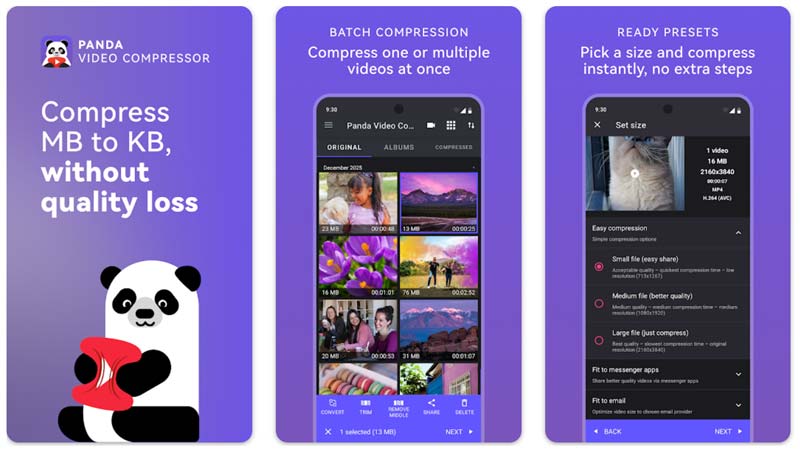
Panda Video Compress & Convert is one of the most popular mobile compression apps for both Android and iOS users. It allows you to compress a video and optionally replace the original file. This feature is very helpful for managing device storage. The app also offers a “Fit to Email” preset that automatically compresses a video to an email-friendly file size.
Pros:
- Good video compression efficiency
- Feature-rich and easy to use
- Offers a replace original video option
- Dedicated email-size presets
- Compresses multiple videos at once
Cons:
- Free version has ads and feature limits
- May crash on older phones
- Batch processing is paid
- Offers no fine-grained control
2. YouCut
Best for: YouTubers and social media creators who want professional-grade edits and photo videos.
Score: 7.8/10
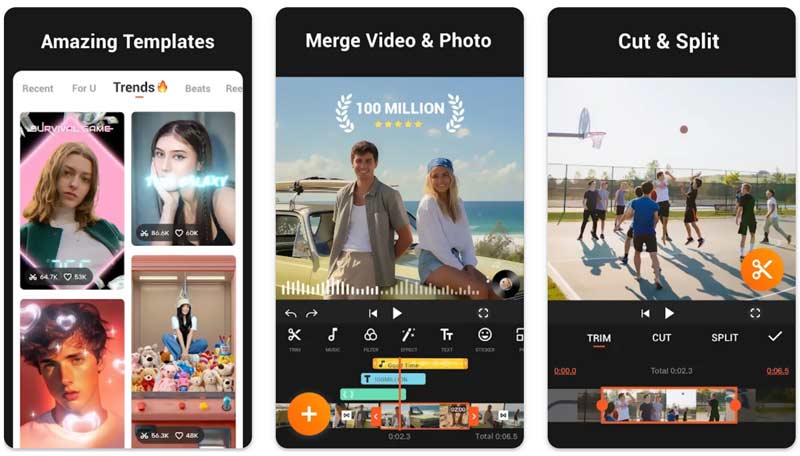
YouCut Video Editor & Maker is a feature-rich video editor app that includes compression capabilities. It supports 4K videos and can reduce file size by over 90% when compressing videos. Unlike many competitors, YouCut’s free version doesn’t force watermarks on exports. Moreover, this video compressor app sets no time limits. Learn to compress videos for YouTube.
Pros:
- Compresses videos for free with no watermark
- Provides commonly used editing functions
- Supports 4K footage
Cons:
- Some Pro features require a subscription
- The free version comes with ads
3. InShot Video Editor & Maker
Best for: Creators who prefer to edit and export directly to social media.
Score: 8.0/10
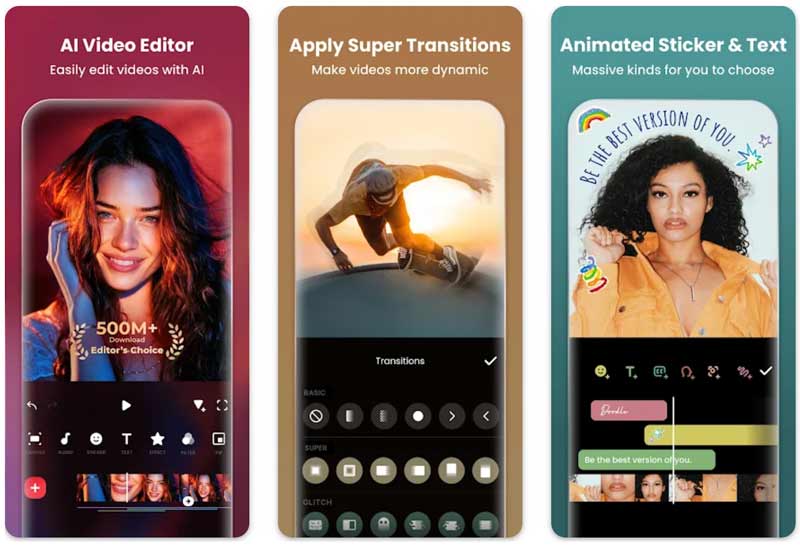
InShot is a very popular video editing and creation app known for its high-quality exports. It supports HD and 4K editing and offers the features you need to quickly edit content for social media. Like YouCut, InShot isn’t a dedicated video compression app. Its export settings include a resolution and bitrate selector that can work as a good compressor to reduce file size.
Pros:
- Provides a full editing suite
- Offers various export options
- Supports 4K editing
- Reduces the video file size while maintaining quality
- Allows direct social media exports
Cons:
- Offers less efficient compression
- The free version comes with a watermark and ads
Part 5. FAQs of the Best Video Compressor
Question 1. Are free video compressors safe to use?
Yes. Many free video compressors are safe to use. You can use reputable ones like HandBrake, FFmpeg, and VLC to compress videos safely. Generally, online tools are riskier. So you should stick to well-known names like FreeConvert and Media.io. Avoid random sites that ask for permissions or install browser extensions. Moreover, you should not upload any sensitive video to an online tool.
Question 2. What is the best video compressor for Discord?
The best video compressor for Discord depends on whether you want a desktop app, an online tool, or a mobile app. If you prefer a free video compressor, start with HandBrake. If you want an online tool, FreeConvert is an excellent choice. On mobile, Panda’s Discord preset is a solid shortcut.
Question 3. Which video compressor has the best quality?
If you want the maximum quality after compression, HandBrake and FFmpeg are the top contenders. They give you full control over encoding parameters. In my tests, HandBrake often kept the nearly original quality.
Question 4. Can I compress videos online for free?
Yes, you can compress videos online for free. FreeConvert and Media.io are two reliable options. Both offer free online compression with no watermark.
Question 5. Does video compression reduce quality?
Yes, video compression often reduces quality. Most video compressors use lossy compression to shrink file size. With a reliable tool, you can make a video smaller while maintaining near-original visual clarity.
Conclusion
Looking for the best video compressor to shrink file sizes without sacrificing quality?
This post reviews the top 10 contenders to help you quickly find the perfect match. If you want maximum control for free, start with HandBrake. Adobe Creative Cloud users should try Media Encoder. For quick, online video compression, choose FreeConvert. Ultimately, different users have different needs-choose the tool that best fits your workflow.