GoPro Video Editing Process: Easy Ways to Edit Videos
How to edit GoPro videos? Editing your GoPro videos is a great way to polish your raw footage. You can add effects, crop, add text, enhance the quality and more. Luckily, this guide will offer the best methods you can use to effectively edit your GoPro videos. You will also explore tips for capturing high-quality clips using GoPro cameras. Without further ado, read this post to learn more about the best GoPro video editing process.

PAGE CONTENT
Part 1. How to Edit GoPro Videos in Various Aspects
Do you want a smooth GoPro video editing process? If you want the best version of your video, you must use an exceptional video editor and enhancer. This way, you can achieve the result you need. If you need the best video editor and enhancer, look no further than VidHex Video Enhancer.
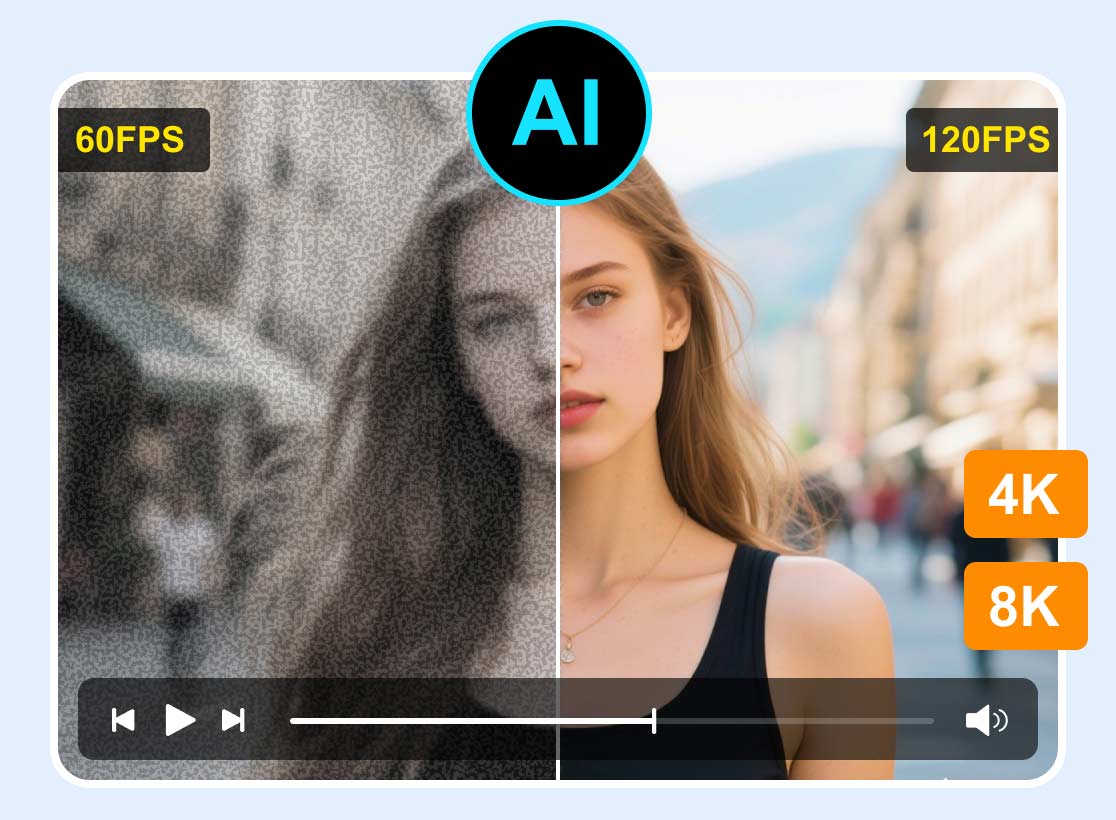
This program is the best option if you want to edit and enhance your GoPro video. It can offer all the features you need. These include general enhancement, a video denoiser, a quality enhancer, a frame rate enhancer, and more. The best part here is that the software is powered by artificial intelligence. It ensures you get high-accuracy results, leading to better video playback. Not only that, but you can also choose your desired resolution. You can save the video in up to 1080p, 2K, and even 4K. With that, we can tell VidHex is a go-to video editor for improving your GoPro videos.
More Features
- The program can offer a smooth video editing and enhancement process.
- It can also optimize the brightness and contrast of the video.
- The software can automatically stabilize video, ideal for dealing with shaky footage.
- The program offers various video editing features. It can denoise the video, crop, trim, merge, add watermarks, rotate, and more.
AI Enhancement Models
- General Enhancement Model
- Face Model
- SDR to HDR Model
- Frame Interpolation Model
- Colorize Model
- Low-Light Enhancement Model
- Detail Restoration Model
- Video Denoise Model
- Color Enhancement Model
- Video Quality Repair Model
- Anime Model
How do you edit GoPro videos? If you want the best way to edit your GoPro videos, follow the simple instructions below.
Step 1. First, download and install VidHex Video Enhancer on your Mac or Windows computer. After that, launch it to start editing your GoPro videos.
Improve the Video Resolution
Step 2. If you want to improve the resolution of your GoPro videos, proceed to the Output Resolution section. Then, you can choose your desired video resolution.
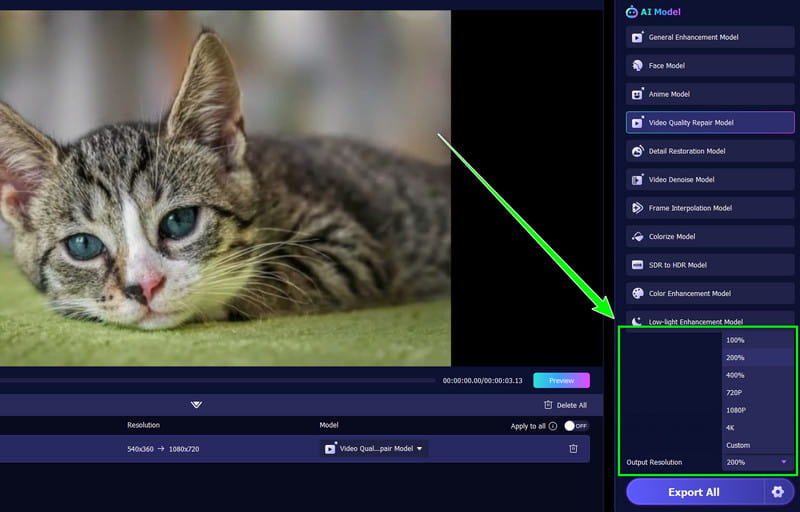
You can improve the video up to 100%, 200%, 400%, and even 4K.
Denoise the Video
Step 3. If you want to denoise the video, you can select the Video Denoise Mode With the program's AI-powered technology, the video will be automatically denoised.
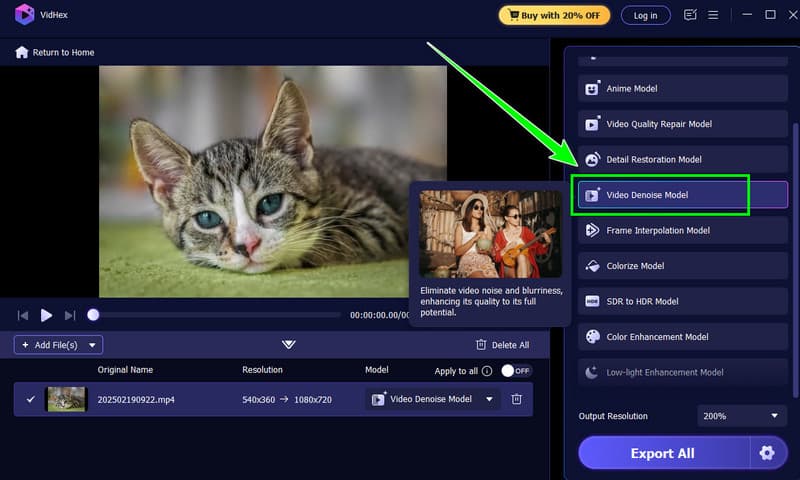
With this feature, you can get a crisper video output for a better viewing experience.
Improve Video Frame Rates
Step 4. For smoother motion, you can also improve the video frame rate. Select the Frame Interpolation Model feature from the right interface. You can even improve the frame rate up to 4×.
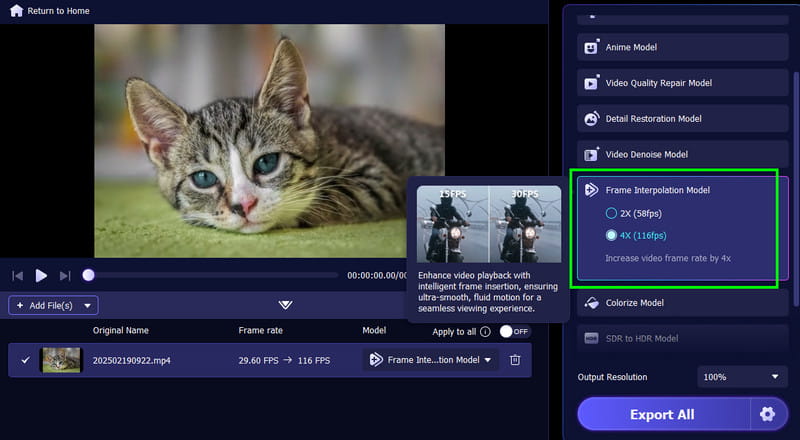
With this method, you can ensure better and smoother playback.
Brighten Low-Light Videos
Step 5. If you have a low-light video from GoPro, then you can rely on the Low-light Enhancement Model feature.
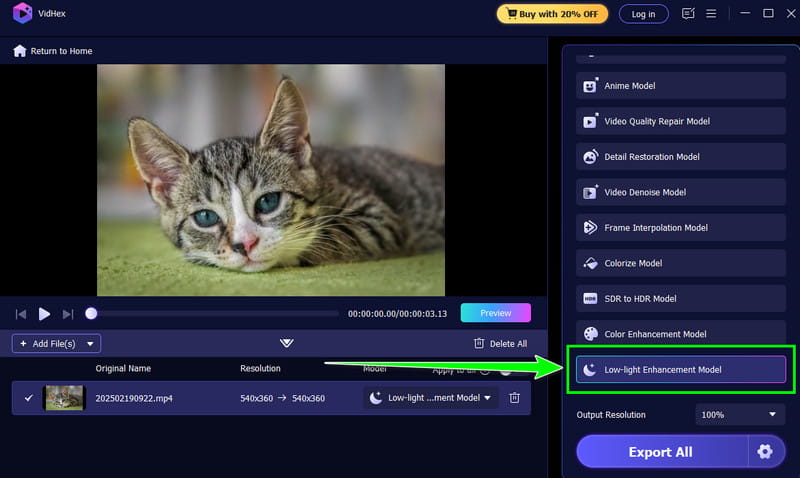
This lets you get a brighter version of your videos for better video playback.
Step 6. After enhancing and editing your videos, you can tap the Preview feature. This lets you view the result before proceeding with saving. Once satisfied, hit the Export All button below.
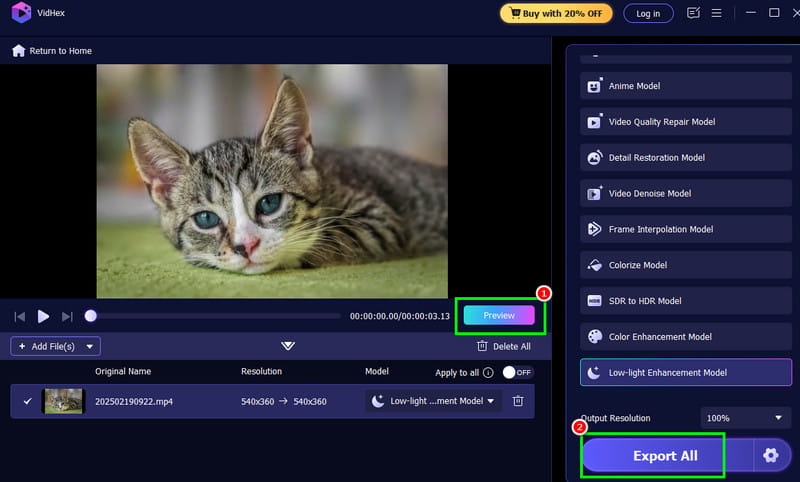
With these methods, you can get a better version of your GoPro videos. With that, it would be better to use VidHex Video Enhancer for a better GoPro video editing process.
Part 2. Tips for Capturing High-Quality Footage in a GoPro Camera
Do you want to learn more about how to capture high-quality footage when using your GoPro camera? In that case, you can explore all the helpful tips in this section.
Use Proper Lighting
Use proper lighting when capturing and making a video. Better lighting is necessary for crisp and clear clips. Plus, natural light works best, so always aim to shoot during golden hours, like morning or late afternoon, for a balanced tone. In addition, you must remember to avoid capturing directly into the sun. This helps you prevent overexposure and harsh shadows.
Stabilize Your Shots
Even though GoPro offers built-in stabilization, you must put extra effort into ensuring a better result. For better stabilization, you must use helpful equipment, such as mounts, a tripod, and gimbals, to minimize shake, especially when capturing fast movements. A stable clip can make your content look professional and be easy to edit. Well, you can also stabilize a video using a good video editor.
Choose Proper Resolution and Frame Rate
To capture high-quality footage, you must match your settings to your activity. Higher resolutions, like 4K, and better frame rates, like 60 fps, are ideal for good results and smooth playback. During the capturing process, always balance the quality with practicality depending on your video/project.
Keep Your GoPro Lens Clean
During the footage capturing process, you must always use a clean lens. You can wipe the lens using a microfiber cloth. This way, you can ensure you capture sharp and vibrant footage.
Leverage Protune Settings
You can also use the Protune settings on GoPro. This unlocks advanced controls for sharpness, ISO, and color. Capturing in flat color profiles offers you more flexibility in post-production editing. The good thing about this feature is that it helps you achieve professional-grade video tailored to your style.
Part 3. FAQs about Editing GoPro Videos
What are the best video editors to edit and enhance GoPro videos?
If you want to edit and enhance your GoPro videos, you must use an exceptional video editor. Some of the editors you can use are VidHex Video Enhancer, Final Cut Pro, DaVinci Resolve, Adobe Premiere Pro, and more.
What is the best frame rate when editing GoPro videos?
The best frame rate will depend on your purpose. If you capture footage for cinematic storytelling, 24 fps is ideal. For sports and slow-motion, the best frame rate is 60 fps or higher. Remember that a higher fps can give smoother playback but requires more storage.
How can I export/save GoPro clips without losing quality?
The best solution is to save the captured video at a higher resolution, such as 1080p or 4K. You can also use a bitrate for crisp visuals. Plus, always remember to avoid excessive compression, which can result in pixelation.
Conclusion
For a successful GoPro video editing process, you can use the methods we have shown in this guide. You can enhance the resolution, denoise the video, adjust the frame rate, and improve low-light videos. So, if you are looking for the best video editor and enhancer, always use VidHex Video Enhancer. This program ensures you get the best results after the enhancement process.