Edit Videos on iPhone: The 4 Top Apps You Actually Need
Whether you are a social media creator or a casual user, you often need to edit videos on an iPhone before sharing them. For instance, you may want to cut out unwanted parts, add effects, or improve the audio.
Most Apple users may prefer to polish videos directly on their iPhone. The truth is, your iPhone is already a powerful editing studio. Here is a quick guide to four methods to edit videos on iPhone. You can compare them and select the editor app that matches your skill level and goals.

PAGE CONTENT
- Part 1. The iOS Photos App - Quick & Built-in
- Part 2. iMovie - Free, Official Video Editor from Apple
- Part 3. CapCut - Advanced Editor App for Social Media
- Part 4. LumaFusion - Multi-Track Editing for Professionals
- Part 5. Bonus: Ultimate Video Editor & Converter on Desktop
- Part 6. FAQs of Editing Videos on iPhone
Part 1. The iOS Photos App on iPhone - Quick & Built-in
For beginners and most casual users, the built-in Photos app is sufficient for basic editing needs. It offers trimming, cropping, and various adjustments for overall effects, audio, and playback speed. That covers about 80 percent of what casual users need. If you only need a video trimmer on your iPhone, rotate orientation, or apply a filter, this is the fastest path.
To trim the video length in Photos, open the clip, tap Edit (on the bottom or in the upper-right corner), then use the yellow handles at the bottom of the timeline to drag the start and end points.
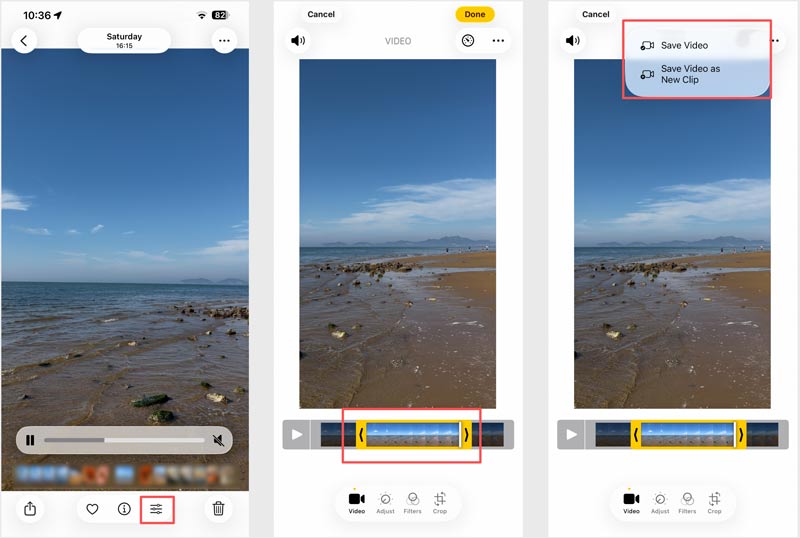
You can also rotate, crop to a specific aspect ratio, apply basic color filters, and adjust other options to enhance your video.
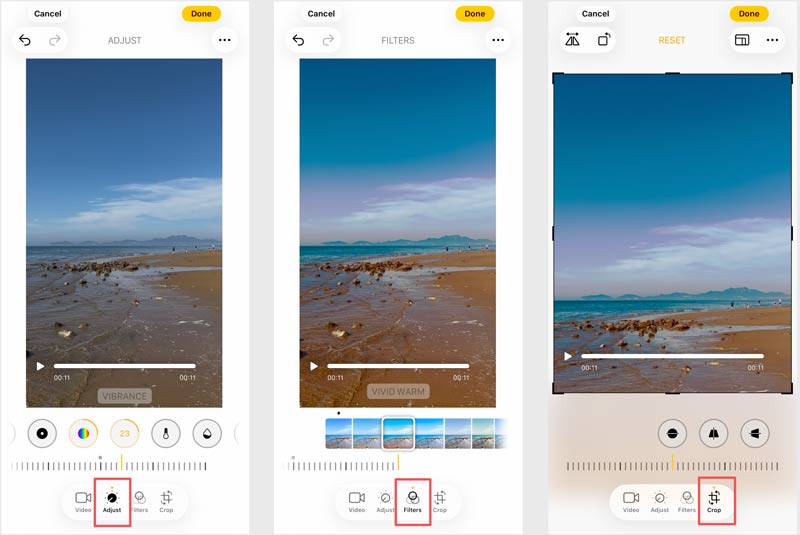
Limits: This pre-installed iPhone video editor has no multi-clip timeline, audio track separation, or other advanced functions. If you need them, want to stitch multiple clips together, or add background music, the Photos app is no longer suitable.
Part 2. iMovie - Free, Official Video Editor from Apple
If you need a more capable video editor with advanced functions, such as merging several clips into one or adding background music, try using the iMovie app. Compared with the desktop version, the iMovie for mobile app lacks some powerful features. But it still gives you a real timeline, multiple audio tracks, transitions, titles, and basic color correction.
Open iMovie on your iPhone and tap Create Project. If you need to edit and merge several video clips, select Movie to move on. Browse and choose videos from your iPhone’s Photos app. It’s best to select them one by one in your preferred order.
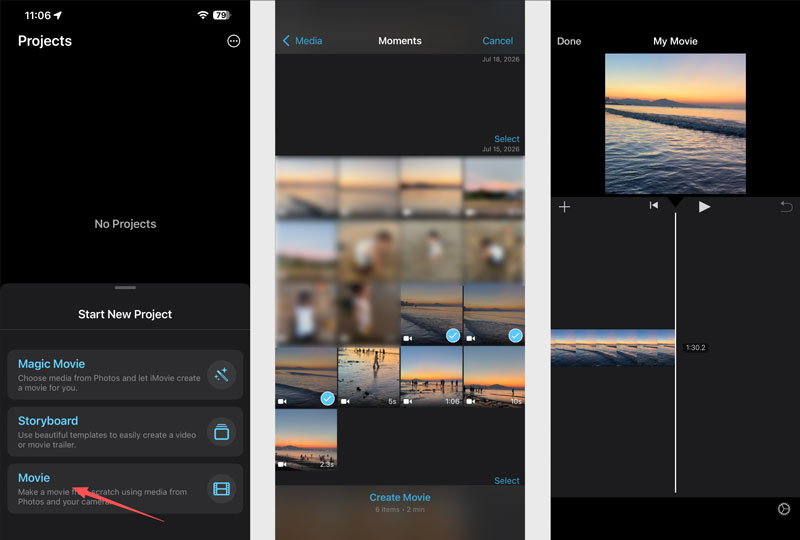
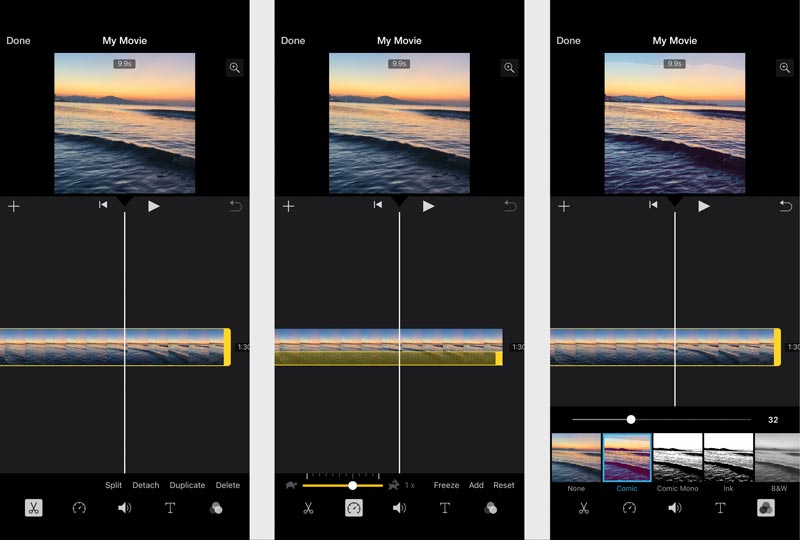
Tap a clip and go to related options to apply splitting, detaching, deleting, color grading, speed changes (slow-mo/fast-mo), or cropping. You can also add transitions as needed.
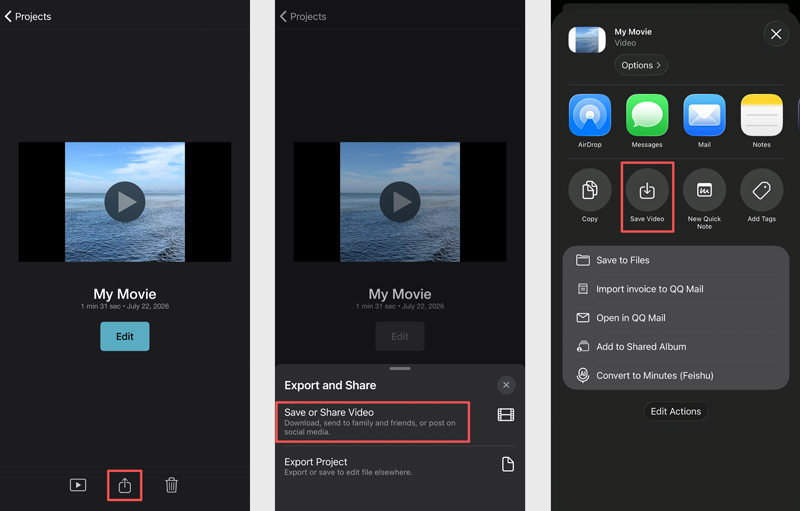
After editing videos in iMovie, tap Done > Share > Save or Share Video. You can select a desired export solution, such as “Save Video”, “Save to Files”, “AirDrop”, or “Mail”.
Limits: iMovie is a free, stable video editor that carries necessary editing tools. It is ideal for beginners. However, its feature set is limited. It may lack advanced functions you need.
Part 3. CapCut - Advanced Editor App for Social Media
If you often edit videos on your iPhone for sharing to social apps like TikTok, Facebook, X, and Instagram, CapCut is an ideal choice. It has become the default editor for social media.
CapCut is designed with a professional-grade timeline with various templates, effects, and royalty-free music and sound effects. It can work as a free video editor for iPhone, though some effects require a subscription to remove watermarks.
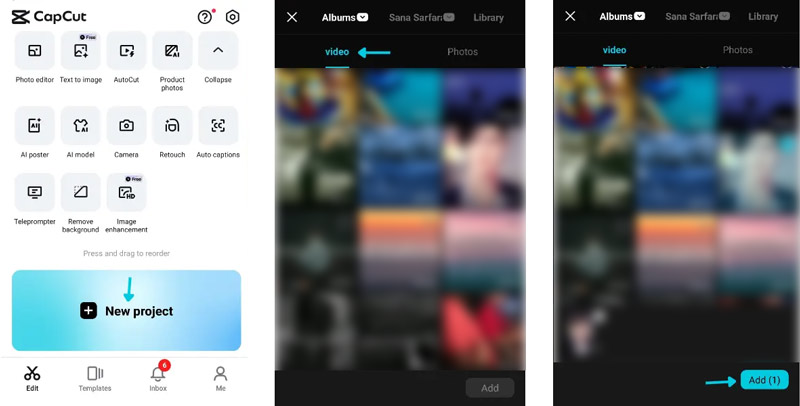
To get started, download and open CapCut, tap New project, and select your clips.
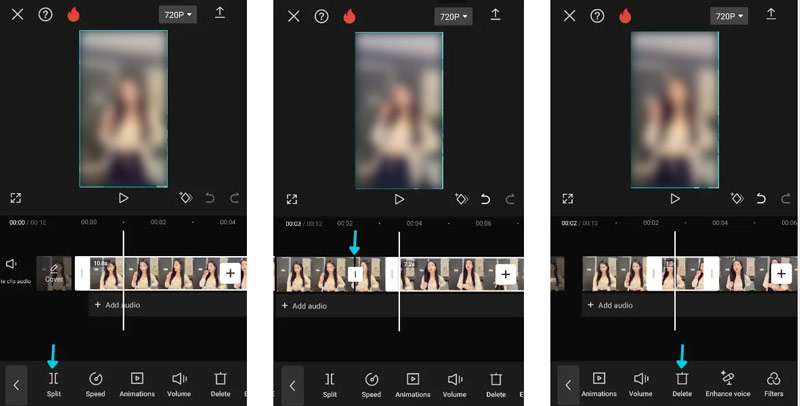
You can split clips by tapping the timeline and selecting Split. Add text, animation, music, and more as needed. You can also adjust the playback speed, enhance voice, apply filters, and use other features.
Export your edited video at 1080p or 4K directly to your camera roll or share to TikTok, Instagram, Facebook, or YouTube within the app.
Limits: The free version of CapCut includes a watermark on exports. What’s more, some advanced functions are limited to the subscription.
Part 4. LumaFusion - Multi-Track Video Editing for Professionals
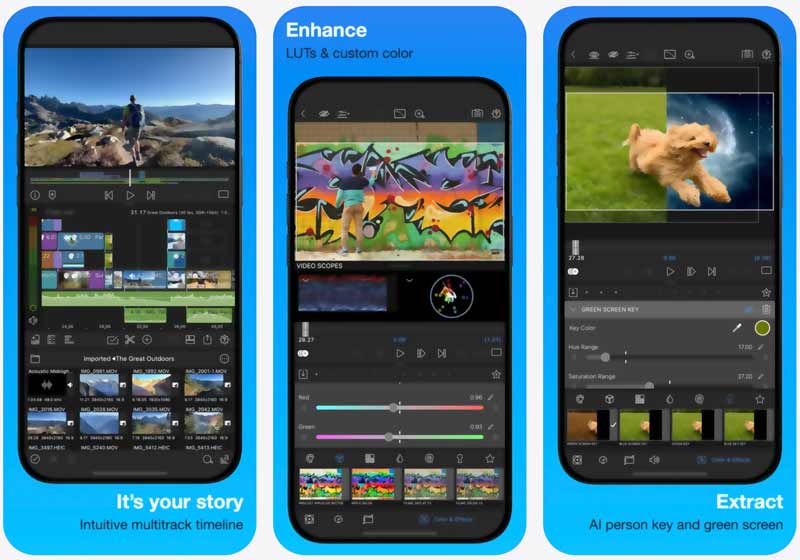
LumaFusion is a paid app (one-time purchase) that offers professional editing features. It provides you with necessary desktop-grade editing options on an iPhone. For instance, you get up to six video/audio tracks to handle your workflow. You can add narration, sound effects, and background music according to your needs. It supports 4K ProRes and HDR media, color correction, advanced audio controls, and more.
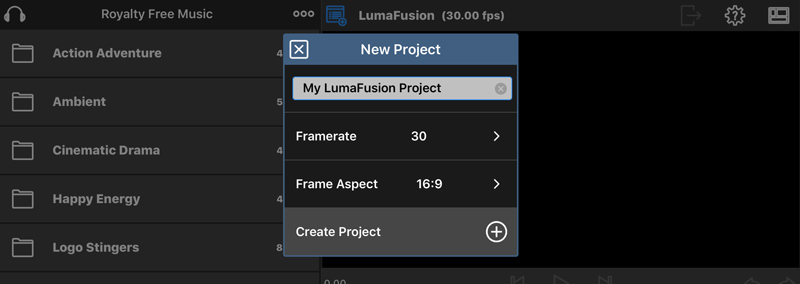
Purchase LumaFusion from the App Store and launch it. Create a new project and set the resolution to 1080p at 60fps or 4K.
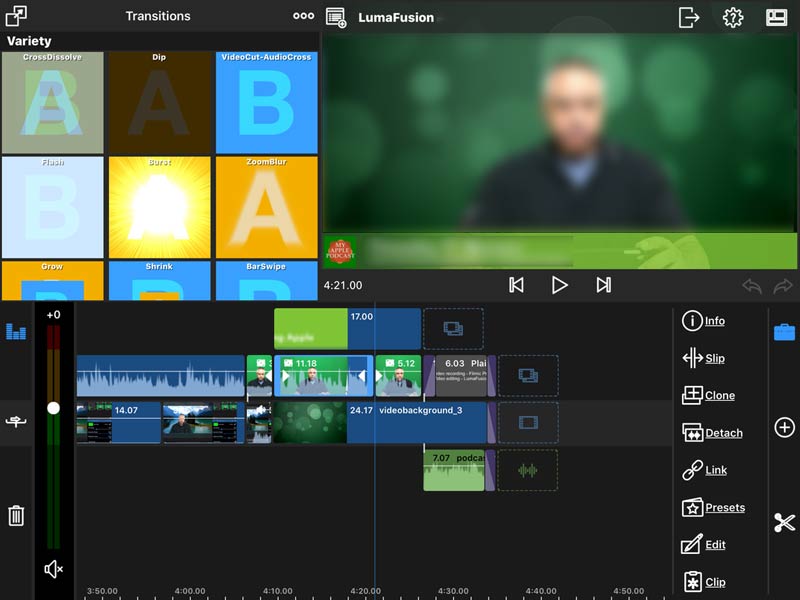
Import video clip(s) you want to edit, then drag assets into the timeline. You can use the inspector panel to freely adjust each layer’s opacity, position, scale, rotation, and audio levels.
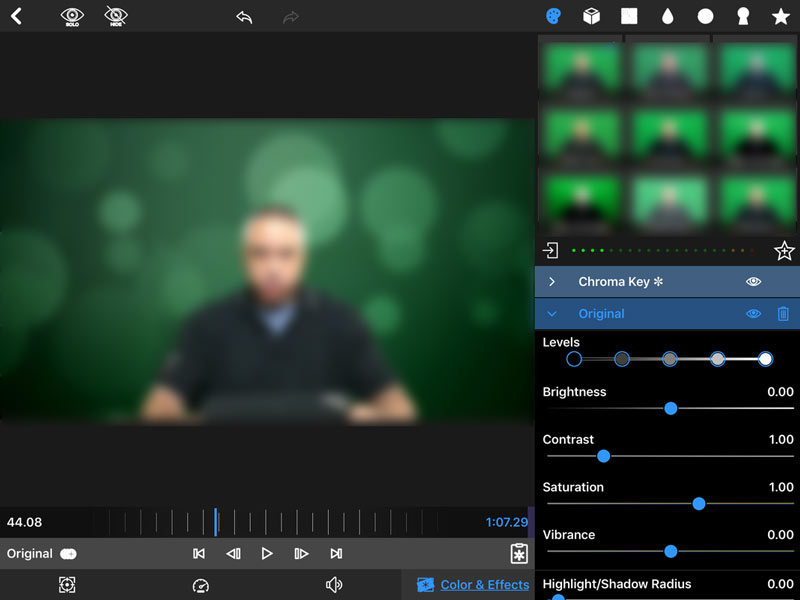
You can edit the video with the offered tools and optimize effects via the Effects icon above the timeline. After editing the video, tap Share > Export Movie, then choose your destination, such as the Files app, AirDrop, or Dropbox.
Limits: Besides the high price ($29.99 one-time), LumaFusion has a steep learning curve. It does not offer a trial version to test its editing capabilities. For users who just need basic edits, this app is absurd overkill.
Part 5. Bonus: Ultimate Video Editor & Converter on Desktop
If you are searching for a versatile desktop tool that carries all the necessary editing, enhancement, and conversion functions, turn to the reputable Vidmore Video Converter. It supports all the commonly used video and audio formats (200+) and includes a built-in video editor/enhancer.
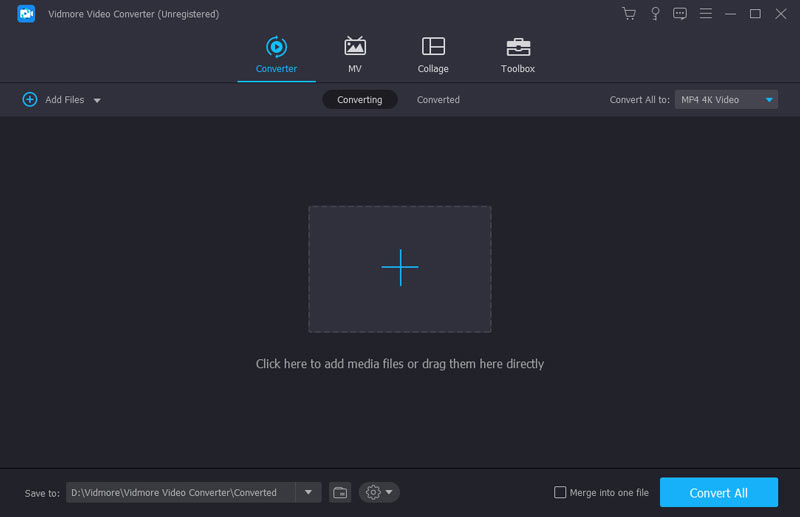
Step 1. Download and launch this video editing and conversion tool on your PC or Mac. Click + to add your video file(s). As mentioned, all commonly used formats are supported.
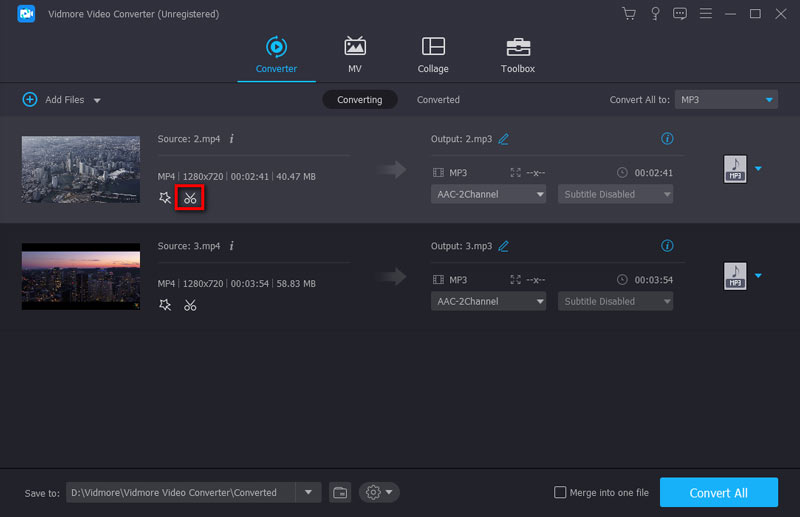
Step 2. Once loaded, click the Cut or Edit icon to display related editing features.
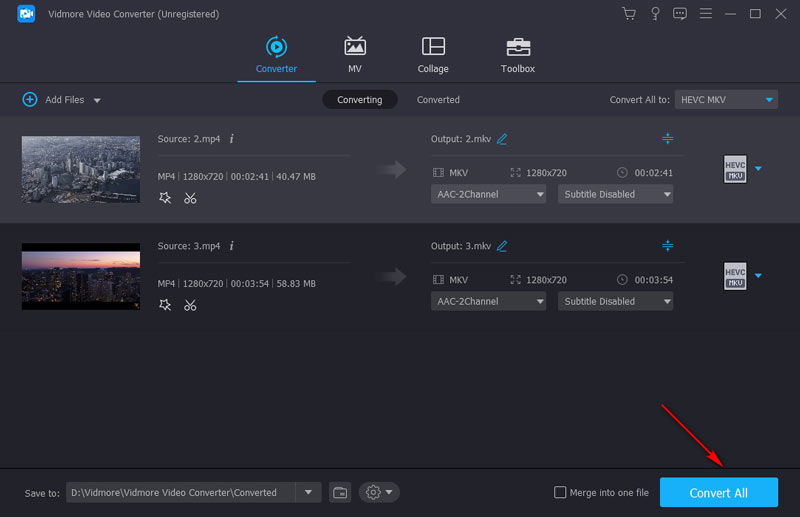
Step 3. Vidmore provides a straightforward way to edit your video and enhance the output quality. After editing, you can select a preferred format. Choose a desired destination folder and click Convert All.
This is especially useful when you need to prepare footage shot on your iPhone for platforms that require specific formats, or when you want to compress large 4K files for easier sharing and storage. Check out more video editors.
Part 6. FAQs of Editing Videos on iPhone
Question 1. How do I edit and merge multiple videos into one on my iPhone?
You can use iMovie to merge multiple videos on your iPhone. Open the iMovie app, tap Create Project > Movie, select your video clips in order, then tap Create Movie. Check that your added clips are in the desired order, then tap Done and share to save.
Question 2. Can I edit 4K videos on my iPhone?
Yes. If you are using a modern iPhone, you can directly capture 4K videos on your device. After that, you can go to the Photos app to view and edit them. Basic editing tools and options are offered. What’s more, the iMovie app supports 4K editing and exporting on an iPhone 6s or later. Most third-party apps also support 4K videos natively.
Question 3. Which app is best for editing videos on iPhone for TikTok?
As mentioned, CapCut is an ideal choice to edit videos for social media. It is one of the most popular video editing apps among TikTok creators. CapCut integrates directly with the platform and offers necessary functions for editing and enhancement. Moreover, it collects a massive library of trending effects and music.
Conclusion
This post shares four methods to edit videos on iPhone. If you need to trim or rotate a clip for quick sharing, use the built-in Photos app. If you are a social creator and need free music and various trending effects, CapCut is an ideal option. If you want to build multi-track projects, turn to LumaFusion.