Merge Videos: 7 Best Methods to Combine All Videos
Need to merge videos effectively? Combining all the footage is the best way to stitch vacation clips, combine product demo segments, or make long–form videos. Instead of juggling a dozen separate files, merging lets you create a seamless video that is easier to play, share, and upload. This is especially useful for casual users, content creators, marketers, and educators who need a clean outcome without awkward transitions or gaps. With the right tool, combining videos is simple. In this tutorial, we will cover all the methods you can use to merge video files on your desktop, mobile phone, and browser. Read on for more insights.

PAGE CONTENT
Part 1. Merge Videos on Windows and Mac
If you want to learn how to merge two or more videos on Windows or Mac, proceed to this section, where we provide detailed methods you can rely on.
Method 1. Merge Videos Using VLC
VLC is more than just a capable video and audio player. It offers a video merger feature that lets you combine multiple videos into a single file. The good thing is that it can play the videos automatically, which is better for the audience. What's more, merging videos is simple. You can even save them in various formats. To see what it can do, follow the steps below.
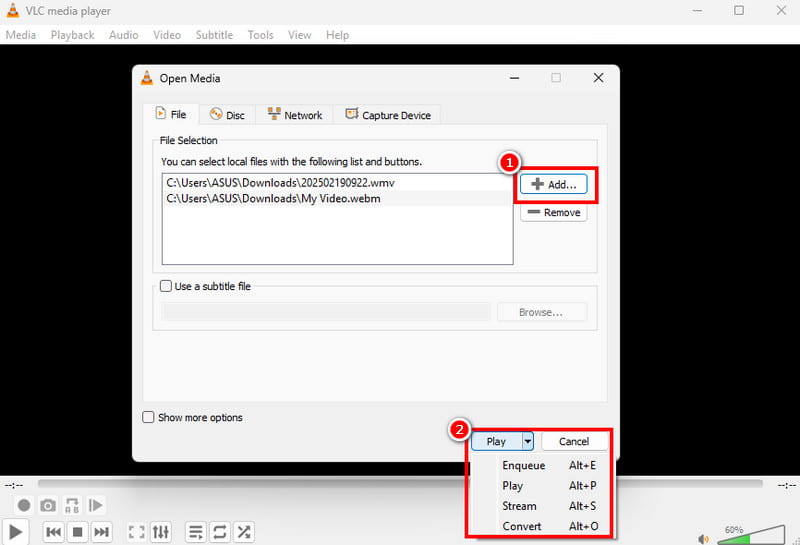
Step 1. Download and install VLC on your Windows or Mac. Then go to Media > Open Multiple Files.
Step 2. Then click Add to add all the videos you want to merge.
Step 3. Finally, click the drop-down button below to start converting or playing the video.
Limitations
- The program's interface looks outdated.
- The tool sometimes crashes.
- It can't offer some necessary video editing functions.
Method 2. Combine Videos Using FFmpeg
FFmpeg is an open-source command-line tool you can access on your computer. With the right command, you can merge your videos successfully. It can even let you combine YouTube videos if you want to. What we like here is that you can tweak your videos in many ways. You can compress video with FFmpeg, crop, trim, adjust speed, and more.
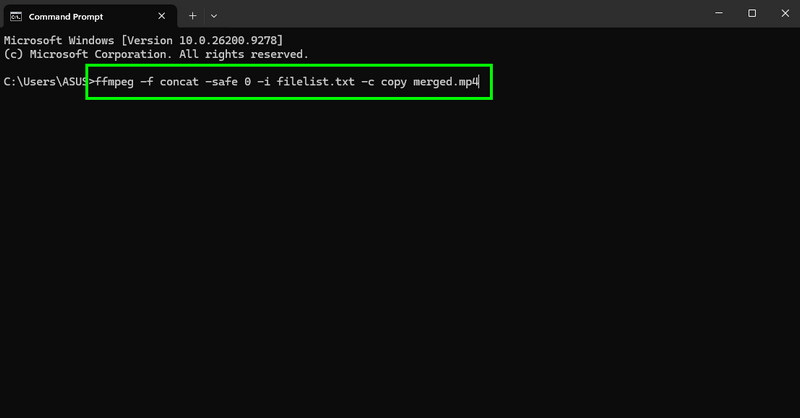
Step 1. Download and set up FFmpeg on your desktop. After that, launch CMD on Windows and Terminal on Mac.
Step 2. You can start running the command. The command is ffmpeg -f concat -safe 0 -i filelist.txt -c copy merged.mp4.
Step 3. Then press Enter to start merging and save the output.
Limitations
- Setting up the tool is time-consuming.
- It requires a skilled user because you need the right command to get the desired result.
Method 3. Merge Videos Using Vidmore Video Converter
Do you want the best video merger that lets you combine all the videos and organize them based on your preferences? If so, we suggest using Vidmore Video Converter. This program is ideal since it offers all the necessary features. You can also add a human touch with editing tools such as a trimmer, effects, filters, watermarks, and more. You can also export/save the video in different formats and at the best quality, making it one of the most powerful video mergers out there. To get the result you need, consider using Vidmore on Windows and Mac.
More Features
- It offers a range of basic and advanced video and audio editing features.
- The software supports many formats, including MP4, MKV, FLV, AVI, MOV, MP3, AAC, AC3, FLAC and more.
- It can convert video and audio smoothly and instantly.
- The program offers a comprehensive user interface.
Step 1. Download and install Vidmore Video Converter on your computer. Then, run it to start the video-merging procedure.
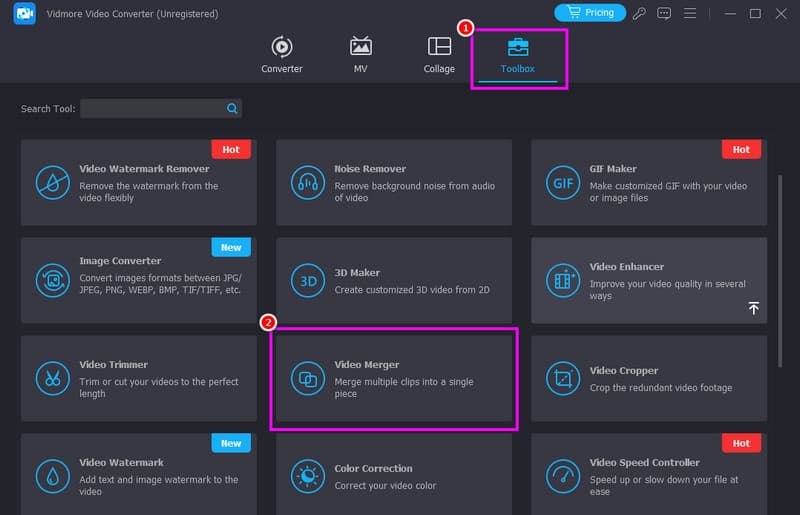
Step 2. After you launch the interface, navigate to Toolbox and click the Video Merger feature. Tap Plus to add all the videos you want to combine.
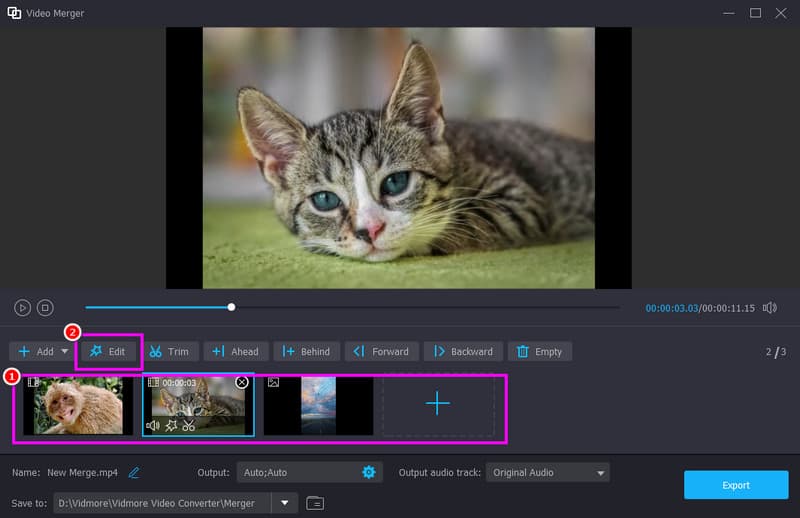
Step 3. You can now arrange the videos in your preferred order. You can also click Edit to crop, trim, add effects, and more.
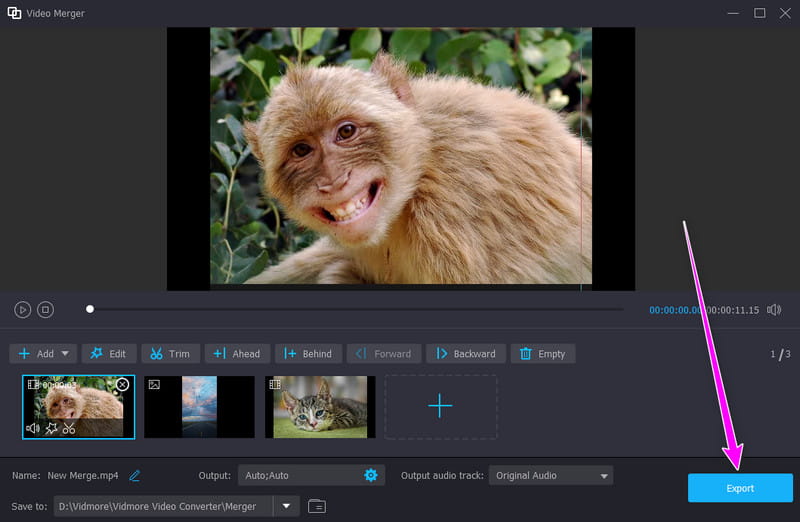
Step 4. In the final step, click Export below to save the combined videos.
Part 2. Combine Videos on Android and iOS
If you are using your Android or iOS devices, you might wonder how to merge videos effectively. Luckily, this section covers the best methods to get the result you want. Without further ado, explore all the methods below.
Method 1. Merge Videos Using iMovie
iPhone users can merge videos in the iMovie app. This app is ideal if you don't want to install any third-party video editors. It's especially suitable for users because of its simple interface and smooth merging process. Moreover, besides merging, you can also edit your clips in various ways. You can add text to the video, trim, crop, add filters and effects, add background music, and more. You can even save the output in the best quality for better playback.
Step 1. On your iPhone, launch the iMovie app. Then tap the Movie option and select all the videos you want to merge. After that, tap the Create Movie option.
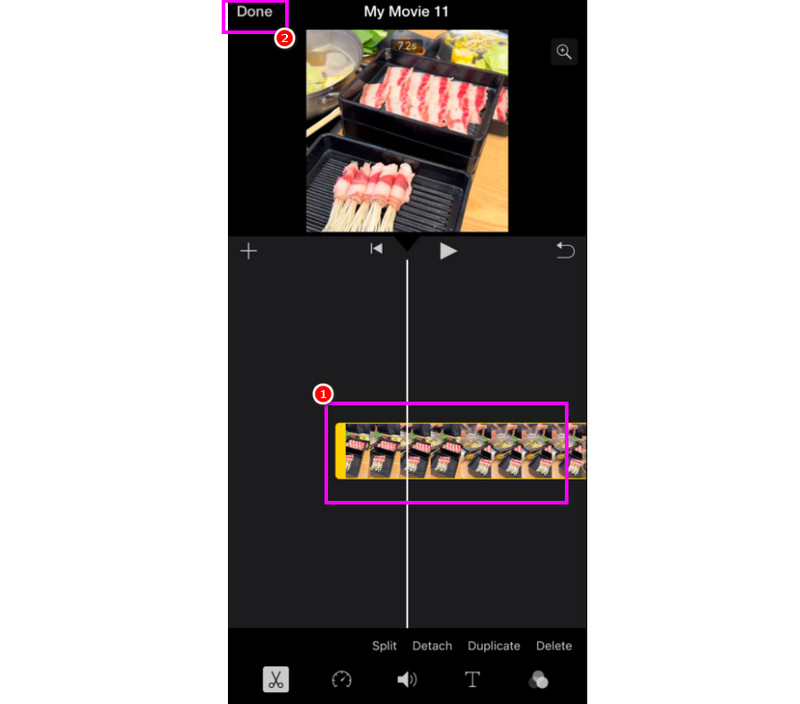
Step 2. From the Timeline section, you can start organizing the videos. You can also use various editing tools to improve the clips.
Step 3. Tap the Done button above to save the combined videos to your device.
Limitations
- The app is not suitable for long videos.
- Sometimes, the app doesn't perform well.
- It lacks some advanced video editing tools.
Method 2. Merge Videos Using Photos App
Photos app is also reliable for merging videos on iPhone. With its Slideshow feature, you can merge videos and images effectively. This feature is perfect if you want to create memories without encountering any hassle. You can even choose your desired themes and transition styles, making it more useful. To learn how to merge videos on iPhone, follow the steps below.
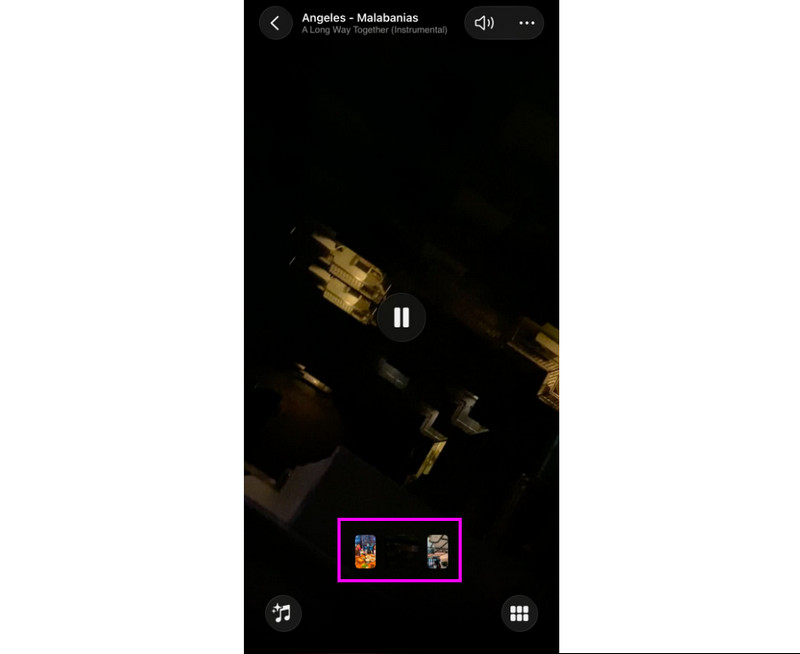
Step 1. Launch the Photos app and start selecting all the videos you want to combine.
Step 2. Then, tap the three-dots button above and tap the Slideshow feature.
Step 3. You can now start watching the video. You can also tap Save to save the merged video to your Photos app.
Limitations
- The app doesn't have enough editing tools for video enhancement.
- There are times when the feature automatically cuts the video.
Method 3. Combine Videos Using Google Photos App
For Android users, you can also use the Google Photos app. With its Highlight Video feature, you can combine the videos and watch them smoothly. Like the methods above, merging videos is simple, making it ideal for all types of users. See the steps below and learn how to merge two videos.
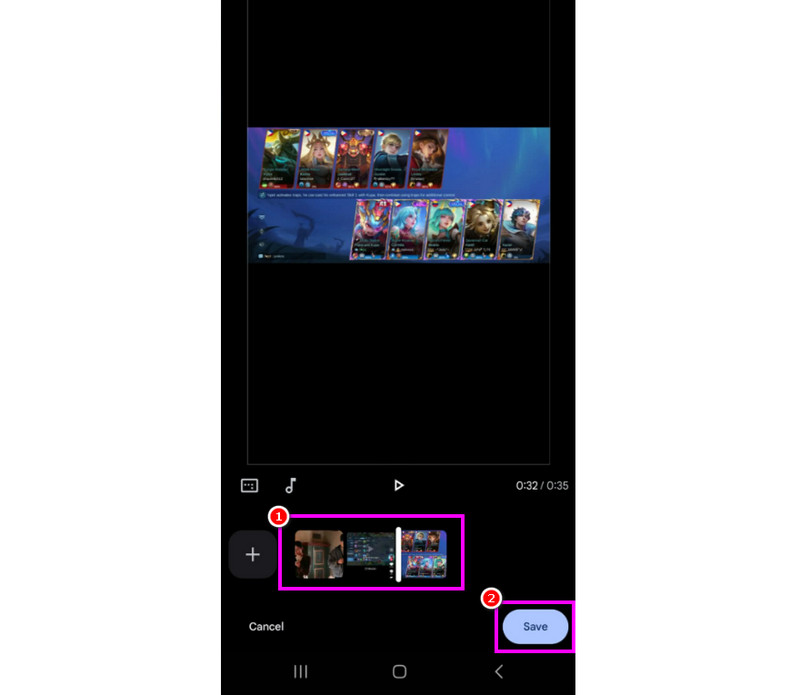
Step 1. Run the Google Photos app on your Android device. After that, press the Plus button above and select the Highlight Video feature.
Step 2. Select the videos you want to merge. You can even add more than two videos. Then arrange the videos below.
Step 3. After organizing the videos, you can tap the Save button below.
Limitations
- It can only merge and add background music. It can't offer other basic editing tools.
- The output quality is limited.
Part 3. Merge Videos Online
Do you want to merge videos online? Then, we suggest using Clideo. This video editing tool offers a Video Merger feature that lets you combine videos without issues. We like that you can use a Fade effect for a smoother transition. It also supports a drag-and-drop feature for arranging your videos in the timeline. Beyond merging MP4 files and other video formats, it also offers various editing functions. You can change the aspect ratio, adjust duration, insert background music, and more. You can also save the video in various output formats, like MP4, WEMB, WMV, VOB, AVI, FLV, etc. You can even access this tool on any web platform. To start learning how to merge videos online for free, follow the steps below.

Step 1. Go to the Clideo website and access the Video Merger feature. Then tap Choose Files to upload the videos from your device.
Step 2. From the Timeline section, click and drag the videos to arrange them in your preferred order.
Step 3. Tick the Export button below to save the video to your computer.
Limitations
- The tool needs a fast/stable internet connection.
- The Video watermark will appear on the video in the free version.
Part 4. FAQs about Merging Videos
Will combining footage reduce the video quality?
Not necessarily. If the clips share the same codec, format, and resolution, tools like VLC, Vidmore, and FFmpeg can merge videos without affecting the quality.
What is the best video merger out there?
If you want a reliable and powerful video merger, look no further than Vidmore Video Converter. Its Video Merger feature ensures you get the result you need, with all the tools you need. No quality loss and the steps are easy.
Do I need the internet to merge videos?
Fortunately, not necessary. Online video mergers need the internet connection. But you can use various offline video mergers to merge videos effectively. Some options include Vidmore Video Converter, VLC, FFmpeg, and more.
Conclusion
To merge videos successfully, you can use the methods we covered in this tutorial. With that, you can watch your favorite movies or clips without playing them one by one. Also, if you want a reliable video merger that lets you organize, edit, and export videos in the best quality, Vidmore Video Converter is a great option. This program's helpful features ensure you can combine all your videos and improve them smoothly and effectively!