How to Fix Game Bar Won't Record Issue for Better Recording
Want to learn how to solve Game Bar won't record problems? Well, encountering this kind of problem can be frustrating, especially when you want to record/capture a great moment in-game. There are various reasons why the issue occurs, such as outdated graphic drivers, insufficient storage, unavailable shortcuts, and more. The good thing here is that solving this issue is possible. In this tutorial, we will walk you through the best methods you can follow/use to easily fix the recording issue when using the Game Bar tool. Without anything else, read this guidepost and explore the best methods for a better recording process.

PAGE CONTENT
Part 1. Why Xbox Game Bar Is Not Recording
If the Game Bar is not recording, there are various reasons behind it. In this section, we will give some of the reasons why such issues occur.
Outdated Graphics Driver
If you can't record on Game Bar, then maybe you are running an outdated GPU or graphics driver. As we all know, the GPU acts as the bridge between Windows and graphics hardware, and Game Bar relies on this connection to record video smoothly. If the drivers are outdated, Game Bar will have a hard time recording.
Insufficient Storage Space
Game Bar captures video directly to your storage. You must know that if you are recording lengthy game sessions, the file will get a larger file size. If your storage is full, Windows may block the recording process to prevent system instability.
Conflicting Background Applications
If there is another app or software running in the background, Game Bar might detect it, which can affect the recording feature. Always ensure that there is no other screen-recording or overlay software when using Game Bar.
Part 2. Quick Checks Before Troubleshooting
Before diving into more advanced methods to fix the issue, run through these quick checks. It can resolve the issue more than you would expect.
- Make Sure Game Bar is Enabled - Open your Windows Settings and navigate to the Gaming > Xbox Game Bar section. Then, ensure that this option is toggled on.
- Check Whether the Game is Recognized - Game Bar can only show the recording button if the software is identified as a game. You can press Win + G while the game is running and see if the recording will start. Game Bar can record Fortnite, LoL, Dota, and more.
- Check Storage Availability - Recording can consume a large amount of storage space. Ensure that you have enough space before using Game Bar to record your gameplay.
- Restart the Game and Game Bar - A simple restart can remove glitches or memory conflicts, resulting in the recording feature freezing. Restart and re-launch the game and Game Bar, and try recording again.
Part 3. Best Fixes to Solve Game Bar Won't Record Issue
If the quick checks didn't solve the problem, read here and learn more about the most effective methods to fix the recording issue in Game Bar.
Method 1. Repair Game Bar
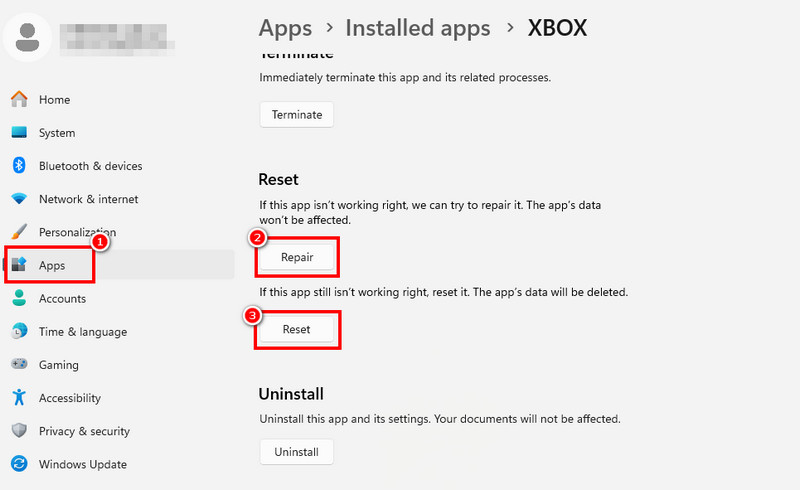
If the Xbox Game Bar recording is not working, you can try repairing it. To start the process, go to Settings and proceed to the Apps > Installed Apps section. Then, look for the Xbox app and click the three-dot button to select the Advanced Options button. Then, scroll down and tap the Repair button. You can also click Reset to start resetting Xbox. Once done, start recording your gameplay.
Method 2. Update Windows
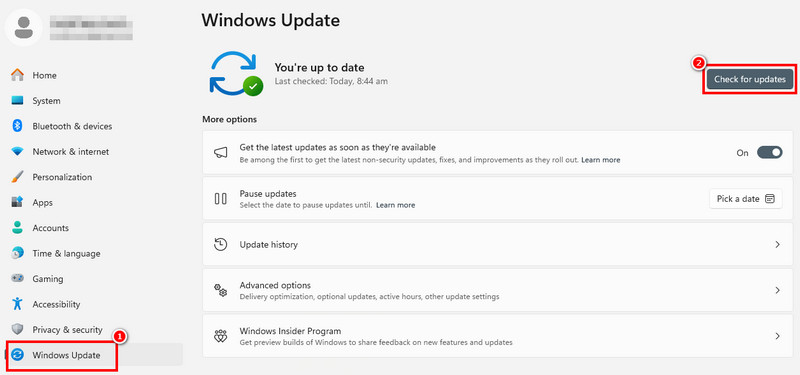
Since Game Bar is a built-in component of Windows, missing system updates can run outdated code, which can also result in recording issues. If the issue occurs, start updating your Windows OS. To start updating Windows, open the Settings app and navigate to the Windows Update section. Then, click the Check for Updates button. After the loading process, the updating process will start.
Method 3. Check Background Recording
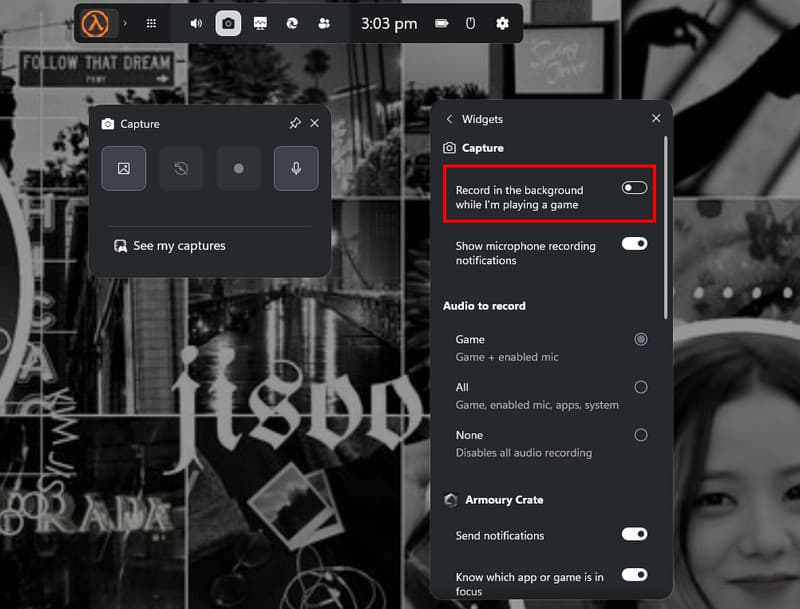
If recording is not working in Game Bar, you can check background recording. This helps you start recording the entire gameplay. To start the process, open the Game Bar by pressing the WIN + G keys. Then, tap the Settings option and go to the Widgets. Once done, toggle on the Record in the background while I'm playing a game option.
Method 4. Update GPU Drivers
Outdated graphics drivers are also among the reasons why Gamer Bar is not performing well. So, always ensure that you are using the latest driver for better performance. This way, you can record almost all games. You can record Team Fortress, Clash of Clans, LoL, and more.
Method 5. Check Recording Shortcuts
Checking the recording shortcuts is also helpful. There are times when the shortcut is not assigned appropriately, resulting in recording errors. To check the recording shortcuts, open the Game Bar settings and proceed to the Shortcuts section. Then, start arranging the shortcut keys based on your preferences. If necessary, reset the shortcut to its default.
Part 4. Best Program to Record Game Effectively
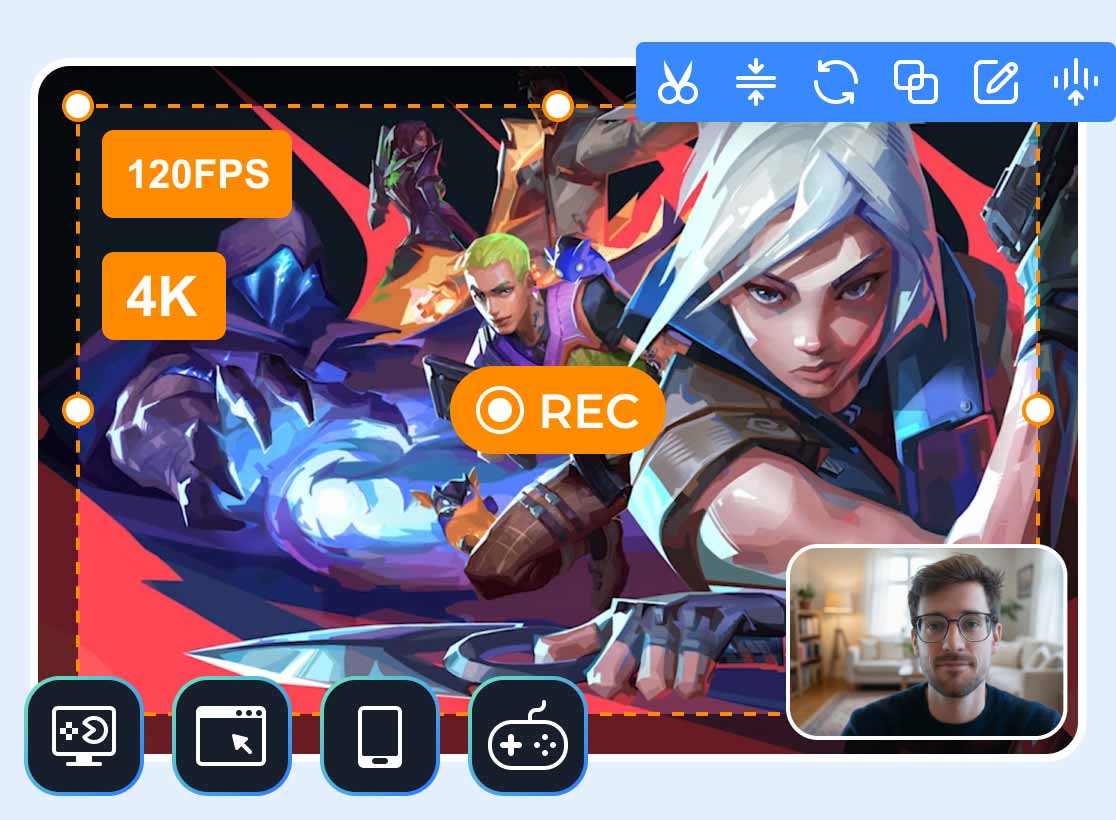
Do you need a better game recorder that won't show you any recording issues? In that case, the best alternative you can use is Vidmore Game Recorder. This program is ideal since it can record your gameplay from start to finish. With its simple layout, you can record all games, making it ideal for all kinds of users. What we like about this recorder is that you can add your webcam, making it suitable for streamers. You can even export your recorded gameplay to any format, like MP4, FLV, AVI, M4V, and more. Lastly, it ensures that your recordings have the best output quality for better playback.
More Features
- The recorder can record various games, such as LoL, Dota, Fortnite, Counter-Strike, and more.
- It can support commentary recording.
- The program can show its history section to check all the recorded gameplay.
- The software can offer a smooth export process.
To start recording your gameplay using Vidmore Game Recorder, see the instructions below.
Step 1. Download and run Vidmore Game Recorder on your desktop. To access the recorder instantly, tap the button below.
Step 2. From the interface, tap the PC Game feature and select the game you want to capture.
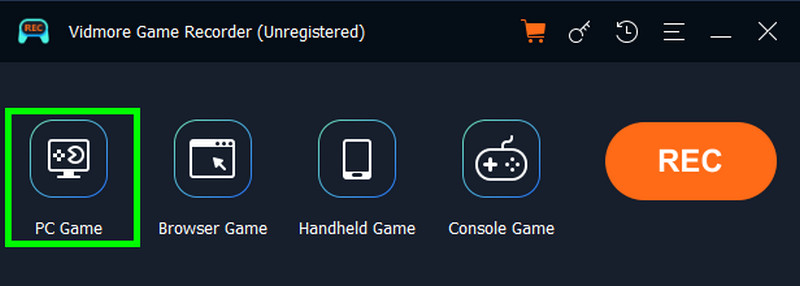
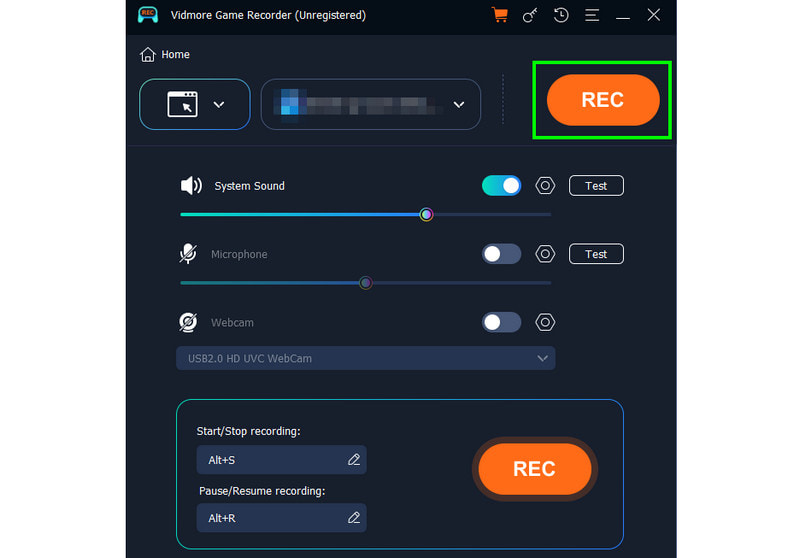
Step 3. To start the capturing process, click the REC button. To finish the recording, click the Stop button.
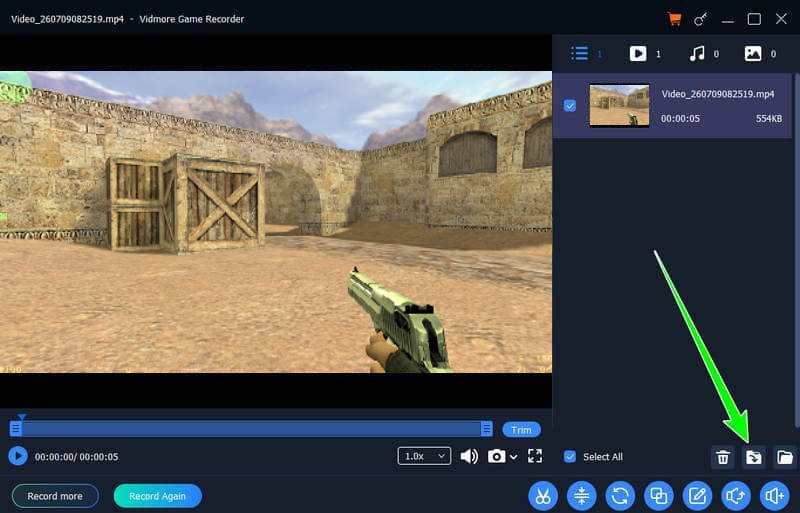
Step 4. Finally, tap Export to start saving the recorded gameplay on your desktop. You can even use the Preview feature to check the recording while using the recorder.
Part 5. FAQs about Game Bar Won't Record
Can Game Bar record games that are not in full-screen?
Yes. However, there are times when the tool is having a hard time recognizing windowed or borderless games as 'games', which disables the Record button. Thus, it would be better to record gameplay in full-screen for smoother recording.
Is Game Bar the best recorder?
For Windows, you can rely on this recorder to capture your gameplay. It is because it ensures to record your gameplay effectively. However, if you need a more advanced recorder that can give you more features, try Vidmore Game Recorder. This recorder can record gameplay with higher quality, leading to better playback.
Is it free to use the Xbox Game Bar?
Definitely, yes. Since it is pre-built in Windows, you can record gameplay for free. It can even let you take a screenshot of your gameplay, making it more reliable.
Conclusion
Now, you can fix the Game Bar won't record issues, thanks to the methods we have provided in this tutorial. You even explore the reasons why such issues occur. Thus, always rely on the methods above for an effective recording process. Plus, if you want to replace the Xbox Game Bar to record games, feel free to access Vidmore Game Bar. This video recorder is far superior since it ensures to record all gameplay without encountering any issues or limitations. It can even export your recording in the best quality for a satisfying viewing experience.