How to Record CSGO Gameplay Without Any Lag [Detailed]
CSGO is among the most popular games you can access on your computer. Well, various players/gamers want to capture their gameplay for various reasons. Maybe they want to collect their highlights, share epic battles with friends, showcase their talents, and more. So, are you looking for the best way to learn how to record CSGO gameplay? Luckily, this tutorial will provide all the ways you can use to record your plays. You can start by checking this guide and exploring all the most reliable gameplay-recording procedures.

PAGE CONTENT
How to Choose a Good Game Recorder?
With so many game recorders out there, it might be complicated to choose what is best. So, if you want a simple guide to learn how to select the best recorder, you can check the details below.
Ease of Use
When choosing a game recorder, always consider checking its user interface. If you are a beginner, a recorder with a comprehensive interface would be ideal.
Platform Supported
Always ensure the compatibility of the recorder. It is ideal if it works on both Windows and Mac. You can also check if it supports console or mobile recording.
FPS (Frames Per Second)
A good recorder can handle at least 60 FPS for smoother gameplay capture. If you want a high-end recorder, consider using one that supports 120 FPS.
Clarity
When using a game recorder, choose one that can handle High Definition or 4K recording. This way, you can get a clear and crisp recording after the recording process.
Editability
A good gameplay recorder must offer built-in editing tools. It must have a cropper, trimmer, overlays, and more.
Price
Some game recorders are free, and some are not. If you want basic recording, use a free recorder. If you are a professional who prefers high-end recording, you can use a recorder with subscription plans for better features.
Part 1. Comparison of the Best CSGO Game Recorders
Do you want to get more insights about the best CSGO gameplay recorders? Then, you can check the detailed comparison table below.
| CSGO Game Recorders | In-Game Demo Recorder | Vidmore Game Recorder | SteelSeries Moments |
| Ease of Use | Simple | Super Easy | Simple |
| Clarity | Demo files (game engine replay) – require conversion for video | Records in HD/4K with adjustable bitrate | High‑quality clips, but limited resolution settings compared to pro recorders |
| Supported Platform | Works only inside CSGO | Windows and Mac | Windows |
| FPS Performance | Captures gameplay events, not raw FPS video | Supports up to 60–120 FPS depending on hardware | Records highlights at smooth FPS, optimized for gameplay |
Part 2. Record CSGO by In-Game Demo Recorder
Want to record CSGO in demo format? Recording the gameplay is a simple task. The best part here is that you don't have to access or install any third-party recorder. With its built-in demo recorder feature, you can capture your entire gameplay effectively and smoothly. The recorded demos can be reviewed later for highlights, content creation, and strategy analysis. Plus, using this tool ensures smooth recording without any external software. To start recording your gameplay in CSGO, follow the instructions provided below.
Step 1. Download and launch CSGO and open the developer console. You can also hit the ~ key on your keyboard.
Step 2. Then start recording by typing record demo name (your preferred file name). Once done, you can start playing your match as usual.
Step 3. To finish the recording, you must open the console again and type stop. The recorded gameplay will be saved under the CSGO folder. With this free screen recorder with no watermark, you can capture your gameplay smoothly.
Limitations
- The recording will be saved as a demo file, not a direct video file. You must convert it to a video file.
- The tool is incapable of capturing external overlays, such as OBS overlays, Discord, and more.
- For extended matches, the file can get larger.
- The recordings or demos are not viewable in standard media players.
Part 3. Best Way to Record CSGO Without Lag
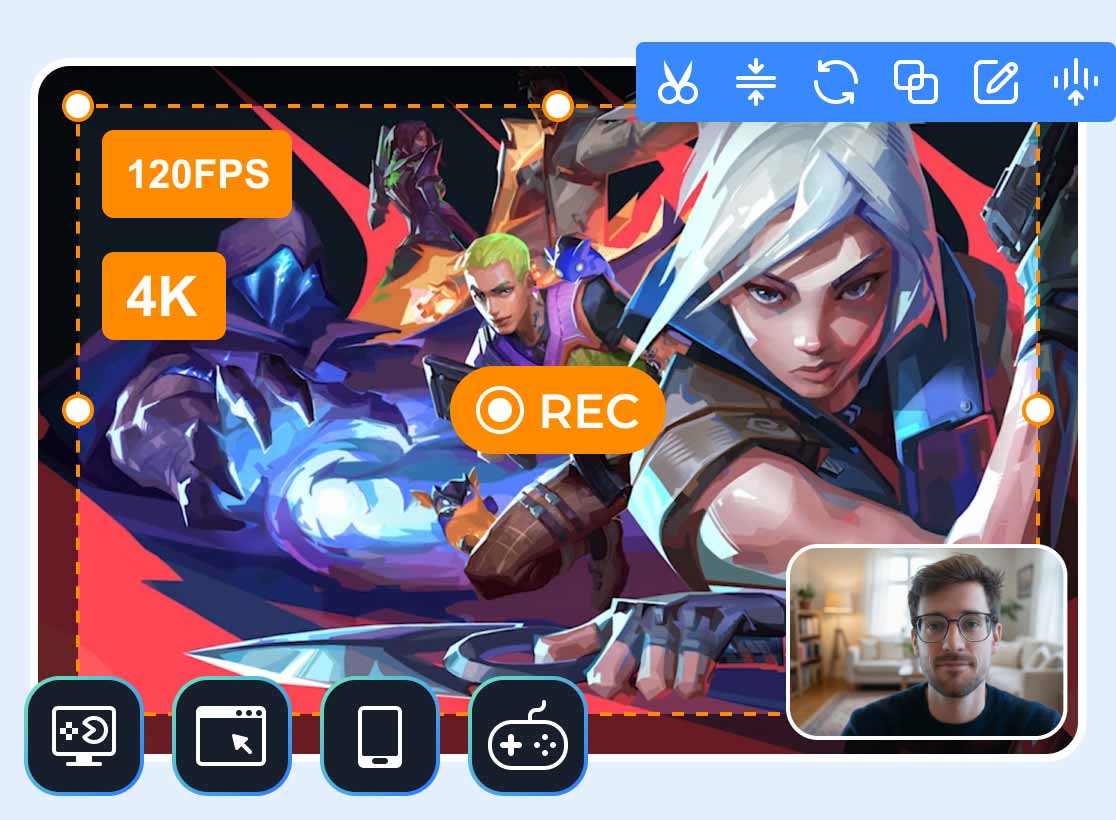
CS: GO's built-in recorder has several limitations. So, if you want the best recorder with all the features you need, we recommend Vidmore Game Recorder. This recorder helps you record your CSGO gameplay without lag. What we like here is that you can easily operate it, thanks to its neat and simple user interface. You can even record the gameplay in 4K with 120 FPS, ensuring that you can get a high-quality recording after the capturing process. Additionally, you can access various annotation tools. You can add text, shapes, lines, colors, and more. You can also include your webcam during the recording process. Therefore, if you want a far superior game recorder, always use Vidmore Game Recorder.
More Features
- The recorder can offer basic editing tools, such as trimmer, effects, playback speed adjuster, and more.
- It offers various shortcut keys for an easier recording process.
- The program can record various games. It can record League of Legends, Dota, Fortnite, and more.
- The software is available on both Mac and Windows.
Do you want to record kills in CSGO? Then, check out and follow the methods below.
Step 1. Download and install Vidmore Game Recorder on your computer. Then, start running it to begin recording your CSGO gameplay.
Step 2. After you launch the main interface, proceed to the PC Game feature. Then, choose the CSGO game. Another interface/window will pop up on your screen.
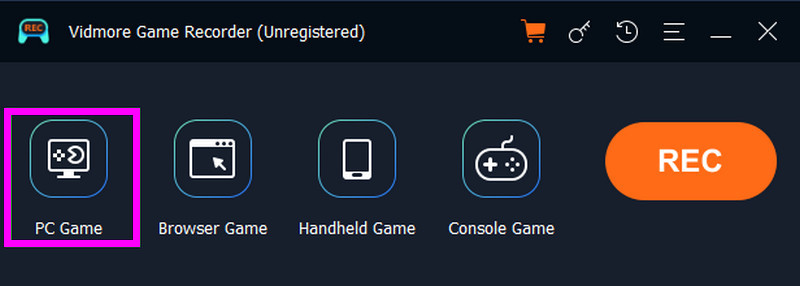
Step 3. After setting up everything, you can start the gameplay recording process by hitting the REC button. The process will start after the three-second countdown. With that, you can start playing your games.
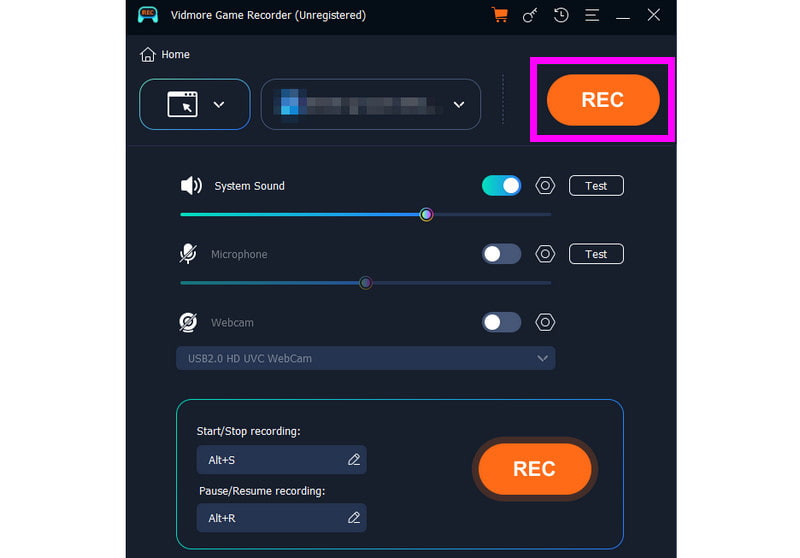
Hit Stop to finish the recording.
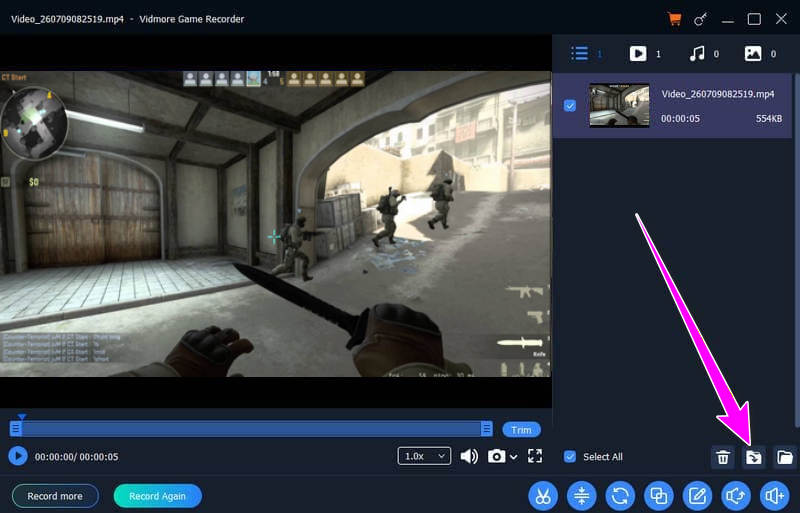
Step 4. Once the Preview shows up, you can check your gameplay by clicking the Play button. If you are satisfied with the result, hit the Export button.
Part 4. Record CSGO with SteelSeries Moments
SteelSeries Moments is another smart recording tool that is designed to automatically detect highlights in various games like CSGO. Since it can automatically record any highlights from your gameplay, there is no need for you to undergo a manual process. You can record kills, clutch plays, round wins, and more. This automation makes it simpler for gamers/players to save clips without any distractions during gameplay. The tool is helpful because you can set everything up to match your needs. You can also customize shortcut keys for a more efficient recording process. You can also trim the recording and share it with other players or gamers.
If you want to record 30 seconds of gameplay in CSGO, you can follow the steps below.
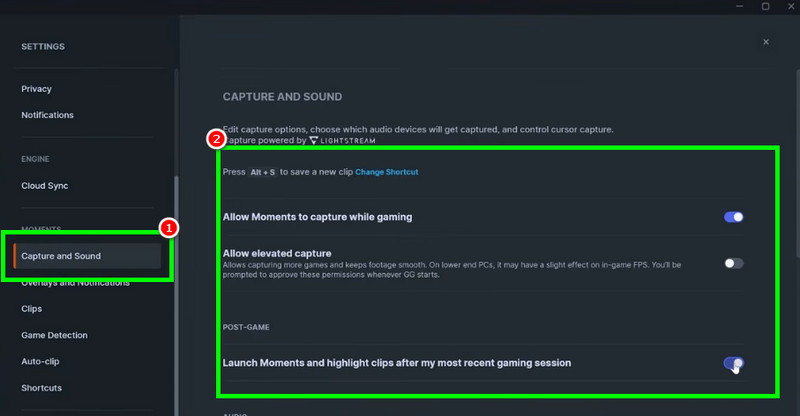
Step 1. The first thing to do is to download and install SteelSeries Moments on your computer. After that, launch it to start setting up everything.
Step 2. From the left interface, click the Capture and Sound option. Then start enabling the Allow Moments to capture the gaming option.
Step 3. Now, you can launch CSGO and start playing. The recorder will automatically capture your gameplay. After the gameplay, you can go to the Moments library to access the recording.
Limitations
- Since it is an automated detection, it may miss certain custom or subtle highlights.
- It has limited control compared with other traditional gameplay recorders.
- It doesn't offer advanced editing tools. To edit the recording, use a separate editor.
- Recording a lengthy gameplay session can also result in a larger file size.
Part 5. FAQs about Recording CSGO
Which CSGO recorder gives the best output quality?
If you are looking for the best gameplay recorders that can give the best quality when recording CSGO, we suggest using Vidmore Game Recorder. This recorder can record your gameplay up to 4K resolution. It ensures that you can watch your matches satisfyingly, making the recorder ideal for users.
Can I record voice chat along with the gameplay in CSGO?
When using the demo recorder, you can't record the voice chat. If you want to capture voice chat while recording the gameplay, you must use other software. You can use Vidmore Game Recorder, OBS Studio, Nvidia ShadowPlay, and more.
Is it easy to record CSGO gameplay?
It depends on the tools you use. If you are a beginner, use a simple-to-use gameplay recorder for a smoother, easier recording process.
Conclusion
Thanks to this tutorial, you have learned how to record CSGO gameplay successfully. So, always use the methods we have provided to collect your matches successfully. Also, if you need a powerful gameplay recorder, feel free to use Vidmore Game Recorder. This program can offer all the features you need and save the final recordings with the best quality, which is perfect for all gamers.