How to Convert WMV to MP4 [Desktop, Browser, and Mobile]
Many users still own collections of outdated WMV (Windows Media Video) files, which were once common on PCs but are now difficult to play on modern platforms and devices. Do you still want to play your videos smoothly on modern platforms? In that case, the best option is to use a different format, such as MP4. Luckily, this post offers the best ways to convert WMV to MP4. Well, MP4 has become the standard format for web streaming, mobile viewing, and editing tools. Read on to learn the conversion process for a better viewing experience.

PAGE CONTENT
Part 1. An Introduction to WMV and MP4 Formats
What is the WMV Format?
The WMV video format was created by Microsoft. It is primarily intended for streaming and Windows-based applications. In the early 2000s, it gained popularity for online video distribution through robust compression that minimized file size without sacrificing quality. Nevertheless, WMV files frequently have compatibility issues outside the Windows ecosystem, limiting their use on contemporary platforms and devices.
What is the MP4 Format?
The MP4 container format was developed by the MPEG organization. The format is extensively used for metadata, audio, video, and subtitles. It offers effective compression and high-quality playback across devices by supporting advanced codecs such as H.264 and H.265. Thanks to its extensive interoperability with online browsers, mobile devices, and editing applications, MP4 is now the preferred option for streaming, sharing, and editing.
You can also view the table below for more information on the two formats.
| WMV | vs. | MP4 |
| .wmv | File Extension | .mp4 |
| Older codecs (WMV9/VC-1), less efficient today | Compression Quality | Modern codecs (H.264/H.265) and sharper at the same bitrate. |
| 20–40% larger for the same quality. | File Size | Smaller and more efficient compression |
| Best on Windows, but limited on macOS, mobile, and the web. | Compatibility | Plays on all modern devices, browsers, and platforms. |
| Legacy archives and Windows-based streaming | Use Case | Universal sharing, streaming, editing, and storage. |
Part 2. Take a Peek at the Best WMV to MP4 Converters
Before proceeding with the most effective WMV-to-MP4 conversion process, you can first check the table below for more insights into the converters.
| WMV to MP4 Converters | Platform | Speed | Quality | Privacy | Ease of Use | Price |
| Vidmore Video Converter | Mac and Windows | Up to 50× faster | Up to 4K | Safe | Simple | Free Subscription starts at $19.45 |
| FFmpeg | Mac and Windows | Fast | Up to 4K | Safe | Complicated | Free |
| VLC | Mac and Windows | Fast | Up to 1080p | Safe | Simple | Free |
| Vidmore Free Video Converter Online | Browser | Depends on the internet | Up to 4K | Safe | Simple | Free |
| WaveSpeed Video Converter | Browser | Depends on the internet | Up to 1080p | Risky | A little bit confusing | Free |
| Video Converter and Compressor | Android and iOS | Standard | Up to 1080p | Safe | Simple | Free Subscription starts at $4.00 |
| iConv | iOS | Standard | Up to 1080p | Safe | Simple | Free Subscription starts at $19.55 |
Part 3. Convert WMV to MP4 on Desktop
If you want to convert WMV to MP4 on a desktop, you can use any of the methods we have provided in this section.
Method 1. Convert WMV to MP4 Using Vidmore Video Converter
One of the most effective ways to convert WMV to MP4 is to use Vidmore Video Converter. This program is perfect if you want a smooth conversion process, as it offers a straightforward user interface. Aside from that, it can also convert multiple WMV files at once, thanks to its batch conversion feature. What we like here is that the software lets you save the video at the best possible quality, up to 4K. You can also adjust more parameters, such as frame rate, sample rate, bitrate, encoder, and more. Thus, if you want a powerful WMV-to-MP4 converter, we suggest using Vidmore Video Converter.
Best for: Ideal for a fast and smooth conversion.
Step 1. First, download and install Vidmore Video Converter on your desktop. You can access it on your Mac and Windows.
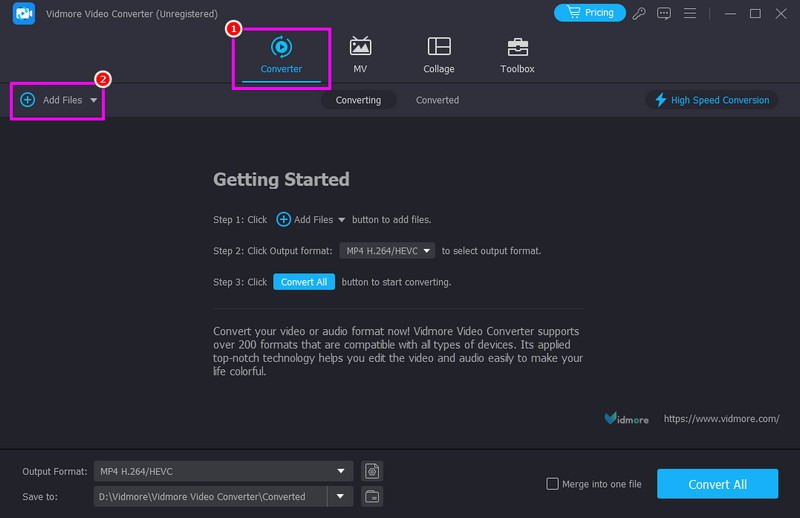
Step 2. Next, go to the Converter feature and tap Add Files to select the WMV file you want to convert.
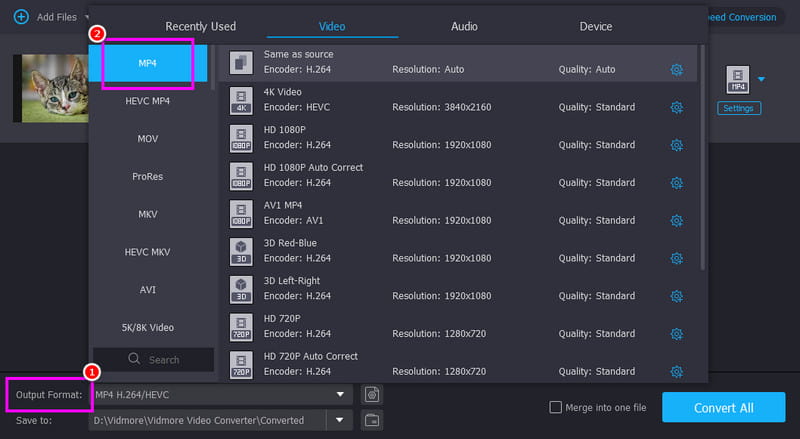
Step 3. Then, proceed to the Output Format section and select MP4. You can also pick/choose the video quality you want.
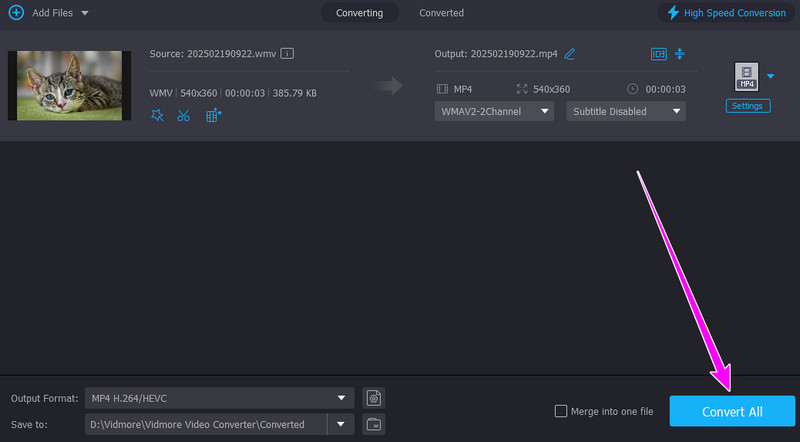
Step 4. Lastly, tap the Convert All button below to start the WMV-to-MP4 conversion.
Method 2. Transfer WMV to MP4 Using FFmpeg
Video files can be converted, recorded, and streamed using the robust, open-source FFmpeg multimedia framework. With this command-line tool, you can ensure WMV files are transcoded to MP4 format. It can even provide sophisticated options for batch processing, compression, and information retention. For professional users, FFmpeg offers unparalleled versatility and speed, though it requires command-line usage. The only drawback here is that it is unsuitable for non-professional users, as it uses commands or codes.
Best for: perfect for advanced users who want precise control over conversion settings.
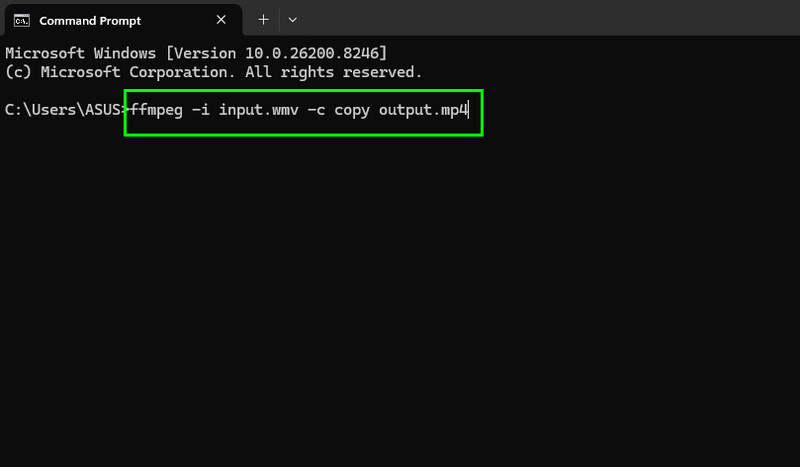
Step 1. Download and install the FFmpeg tool on your desktop. After setting it up on your computer, launch CMD.
Step 2. You can now start typing the command in the CMD. You can type ffmpeg -i input.wmv -c copy output.mp4. After that, press the Enter key.
Method 3. Change WMV to MP4 Using VLC
VLC Media Player is a cross-platform, free media player that may also be used as a flexible video converter. Users don't need additional plugins or complicated installations to convert WMV files to MP4, thanks to its straightforward UI. It is a reliable option for regular conversions, as it supports various codecs. You can also convert other formats, such as HEVC to MP4, MKV to AVI, FLV to MOV, etc. The only problem here is that its layout is looking outdated. Check the steps below to learn how to convert WMV format to MP4.
Best for: Ideal for casual users looking for a simple, quick, and free way to convert files.
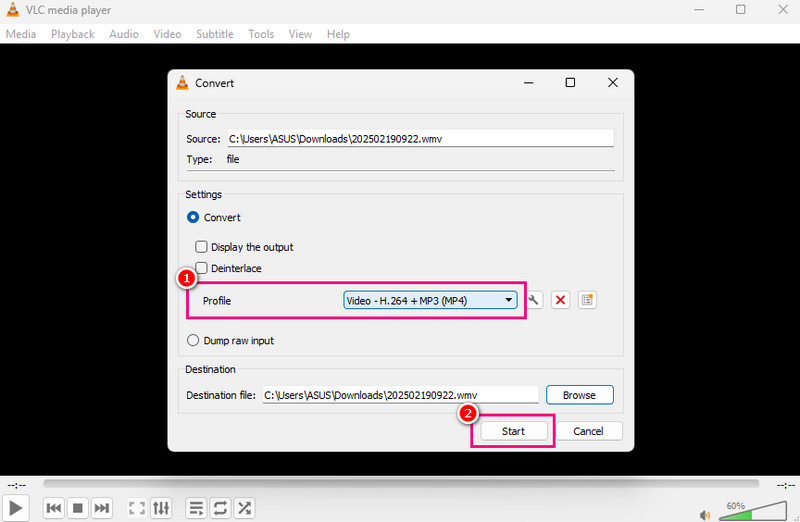
Step 1. Launch VLC on your desktop, then select Media> Convert / Save.
Step 2. Then, click the Add option to add the WMV file. After that, hit the Convert / Save option below.
Step 3. From the Profile section, click the MP4 format. Tap the Start button to begin the WMV-to-MP4 conversion.
Part 4. Change WMV to MP4 Online
In this section, we will show you all the methods you can follow to convert WMV to MP4 effectively.
Method 1. Change WMV to MP4 Using Vidmore Free Video Converter Online
You can use Vidmore Free Video Converter Online to convert WMV to MP4. This tool is ideal for all users, as its simple UI makes it easy to navigate. You can even adjust the video settings, such as frame rate, bitrate, resolution, zoom mode, and more. In addition, the tool supports various formats. It includes MKV, AVI, FLV, MOV, VOB, and more. With that in mind, consider using this tool to ensure a successful conversion process.
Best for: The tool is ideal for fast and simple conversion.
Step 1. Access Vidmore Free Video Converter Online on your browser. After that, hit the Start Converting Video button. Then, upload the WMV file from your device.

Step 2. Proceed to the Output section and start choosing the MP4 format.
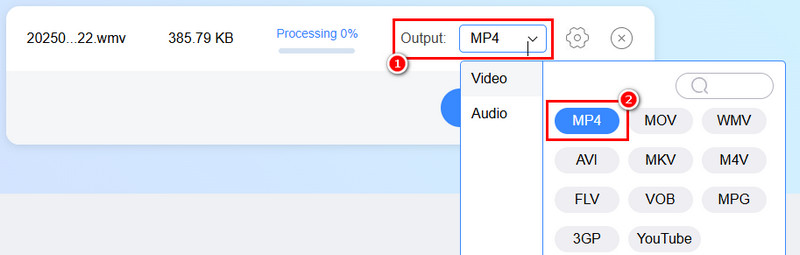
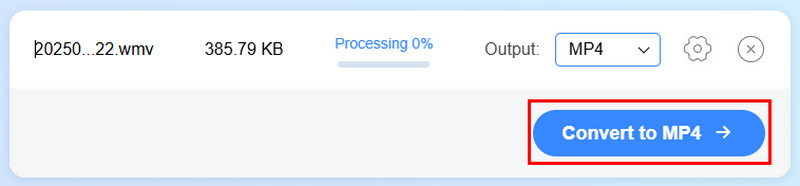
Step 3. For the last step, tap the Convert to MP4 button below to start the conversion.
Method 2. Convert WMV to MP4 Using WaveSpeed Video Converter
For users who require compatibility across modern platforms, WaveSpeed Video Converter is an AI-powered solution that makes video format conversion quick, easy, and high-quality. It can even support numerous formats, such as MP4, MOV, AVI, MKV, WMV, FLV, and GIF. You can also use this tool to convert more files, such as 3GP to MP4, AVI to MP4, MKV to AVI, and more. The platform emphasizes speed and offers free customization options, such as changing bitrate and resolution.
Best for: useful for creators, marketers, and everyday users who want a fast conversion process.
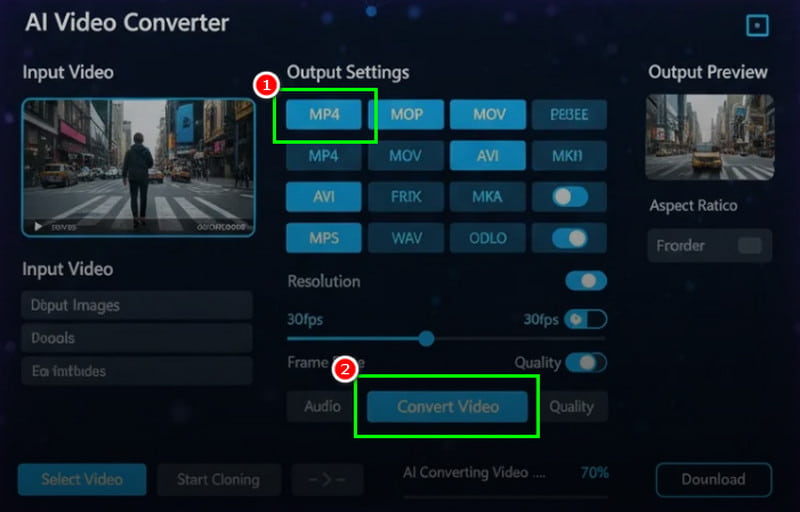
Step 1. After you access the WaveSpeed Video Converter tool, start adding the WMV file.
Step 2. Then, choose the MP4 file and tap the Convert Video button below.
Step 3. Tap the Download function to save the converted video.
Part 5. Transcode WMV to MP4 on Android and iOS
If you want to convert WMV to MP4 using your Android and iOS devices, see the best methods in this section.
Method 1. Transcode WMV to MP4 Using Video Converter and Compressor
If you want to transfer WMV to MP4 format on your mobile, you can use the Video Converter and Compressor app. This converter is ideal if you want an instant conversion process. It can also convert more files, like M4V to MP4, AVI to MKV, FLV to MOV, etc. What we like here is that the user interface is simple, making it accessible to all types of users.
Best for: Perfect for beginners who want to edit and convert videos.
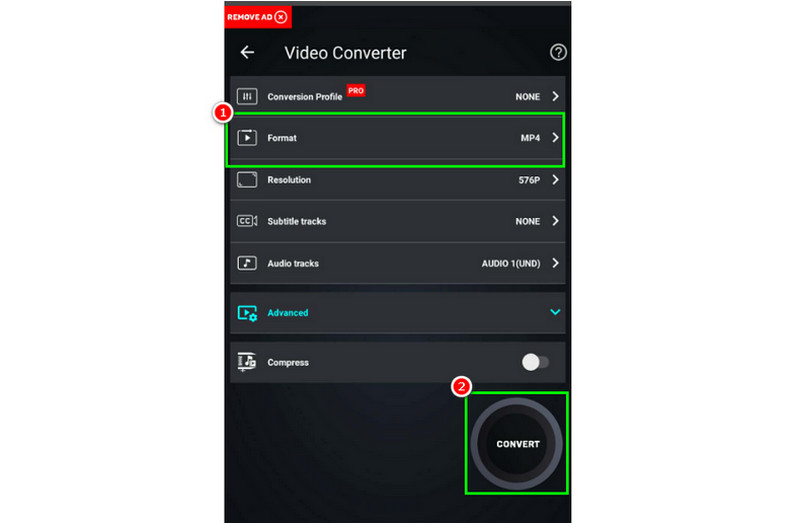
Step 1. Download the Video Converter and Compressor app on your device. Then, install it to start the process.
Step 2. From the interface, press the Convert or Compress button to add the video from your device.
Step 3. Then, select MP4 and tap Convert to start the conversion.
Method 2. Convert WMV to MP4 Using iConv
iConv is another WMV-to-MP4 converter you can use on your iOS device. With this tool's simple layout, you can achieve the output format you need after the conversion process. The best part is that the file conversion is fast. The only drawback is that annoying ads keep popping up during the process.
Best for: Perfect for iPhone users who want to convert video files.
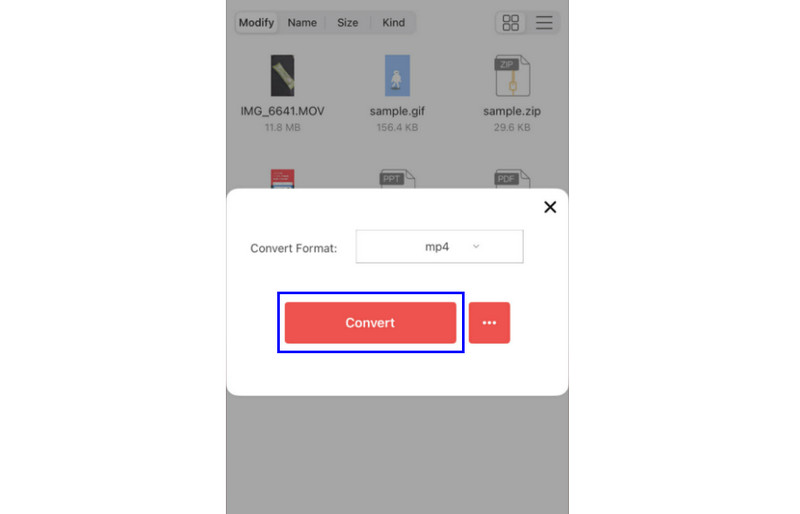
Step 1. Download iConv on your device and launch it to begin converting your WMV to MP4.
Step 2. Then, click Plus to add the WMV file that you want to convert.
Step 3. In the Convert Format section, tap MP4. Then, press Convert to start the process.
Part 6. FAQs about Converting WMV to MP4
Why should I convert WMV to MP4?
Converting WMV to MP4 is an ideal choice if you want a smoother video playback. The good part here is that you can play MP4 on all platforms, making it the best format.
How long does the conversation take?
It depends on the converter you use. If you want a fast conversion speed, you can use Vidmoore Video Converter. It has a 50× faster conversion speed, making it the most powerful converter out there.
Does transcoding WMV to MP4 reduce file size?
Definitely, yes. The MP4 format generally produces a smaller file with good video quality, making it easier to share and store without significant quality loss.
Conclusion
Converting WMV to MP4 is the best solution if you want a smoother playback. With an MP4 file, you can play your video on any modern device, in any editing software, or in any media player. With that, follow all the methods from this guidepost to successfully convert your WMV files to MP4 formats. Additionally, if you want a powerful converter, we suggest using Vidmore Video Converter. This program offers a fast conversion process, a user-friendly interface, and can save your video in the best possible quality.