How to Export GIFs from After Effects with the Creation Process
Are you curious about how you can save your GIFs in After Effects? Well, in case you are searching for an effective means of exporting GIFs from After Effects, then you have come to the right place. The problem with After Effects is that it does not have GIF export capabilities, and you have to find other ways to finish this task. Don’t worry. This guide will help you know how you can export GIFs from After Effects easily and efficiently.

PAGE CONTENT
Part 1. Export GIF from After Effects via GifGun
As a well-known editor, Adobe After Effects comes with a variety of tools with enhanced capabilities. Nevertheless, it may not be easy for users to export their work as GIF animations. This is because Adobe After Effects lacks an inherent feature that makes GIF creation easy. Luckily, one can use plugins, like GifGun, to create GIF animations using Adobe After Effects.
Here’s how to export animated GIFs in After Effects:
Step 1. First things first, you have to install GifGun by obtaining it from its official website. This plugin is crucial since After Effects doesn’t support exporting GIFs natively.
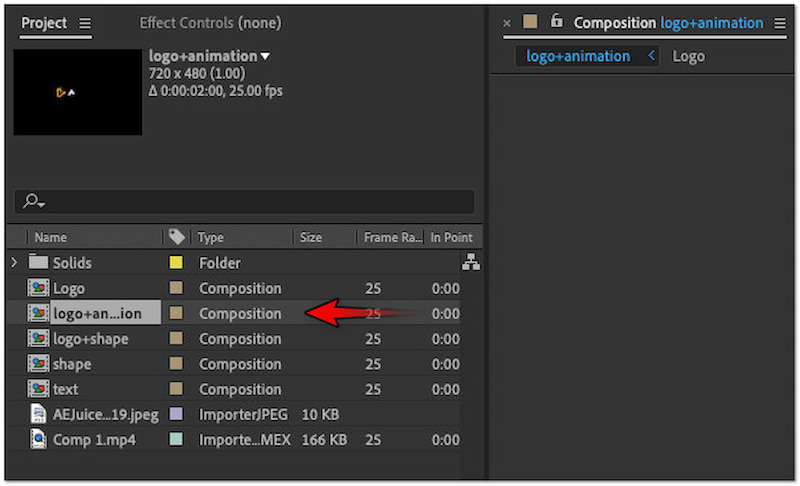
Step 2. Ensure your After Effects project is all set and complete before initiating the export process. Afterward, select the composition you want to export as a GIF in the Project panel.
Step 3. Switch to the Window tab in the top menu and select GifGun plugin. In the GifGun window, click the Gear button to configure the output parameters.
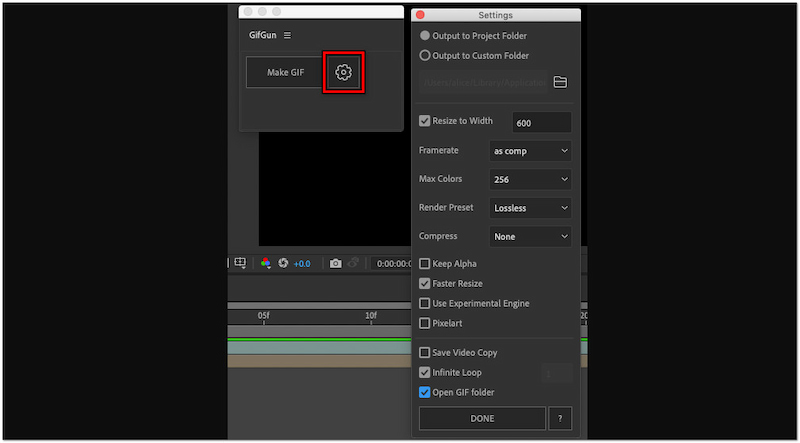
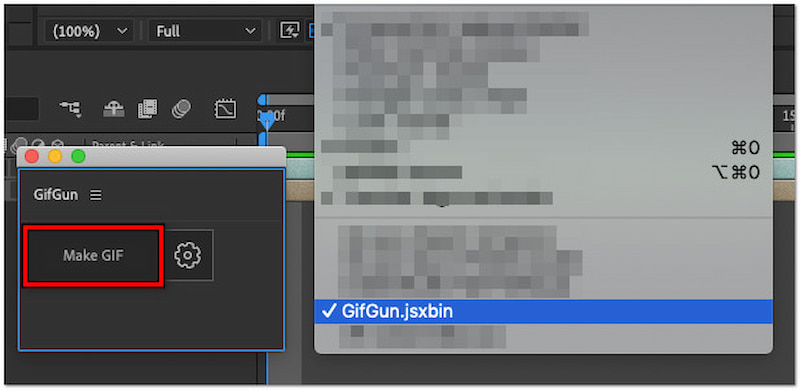
Step 4. At this stage, click Make GIF to start the rendering process. Please be informed that it may take some time, depending on your GIF’s size and complexity.
Note: By default, the GIF animation will loop forever. Depending on your preference, you can choose to loop GIFs once or twice.
Part 2. How to Make a GIF in After Effects
If you want to add some creativity to your online content, GIFs are a great way to do so. These animated files allow you to add interactive elements to showcase your creativity on social media platforms. After Effects, being a powerful and versatile software, includes animation tools for creating stunning GIFs. However, the process might be confusing if you’re a non-professional.
Here’s how to create an animated GIF in After Effects:
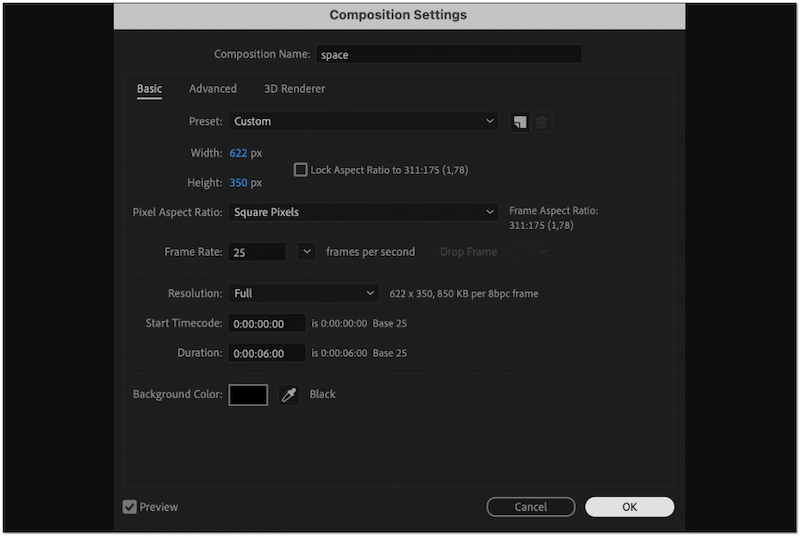
Step 1. Start by going to the Composition tab and selecting New Composition from the dropdown menu. Set the composition parameters according to your project’s preference.
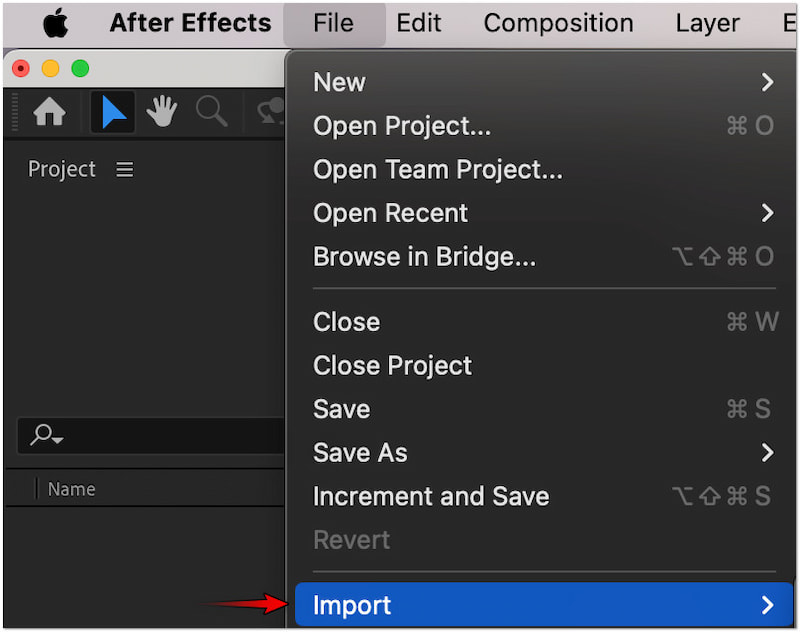
Step 2. Once that is done, switch to the File tab and select Import to add assets. Organize your assets in the Project panel so you can easily access them.
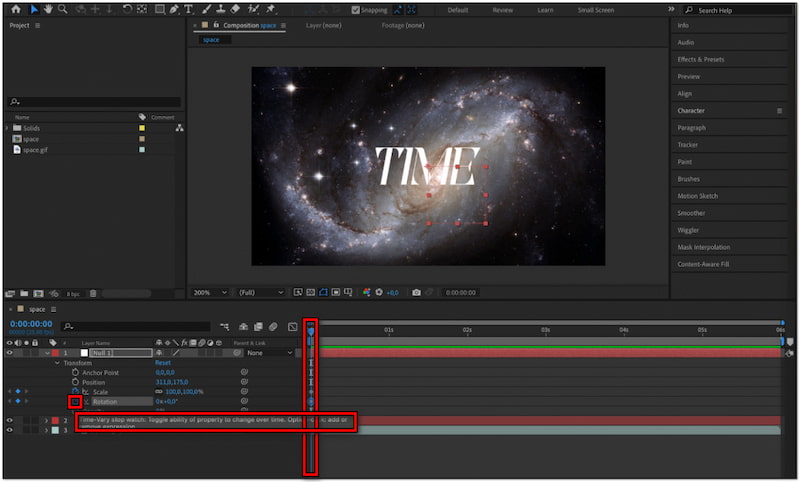
Step 3. Arrange the imported assets to your desired order and begin the animation. Keyframe the opacity, position, rotation, and scale to bring new life to your elements.
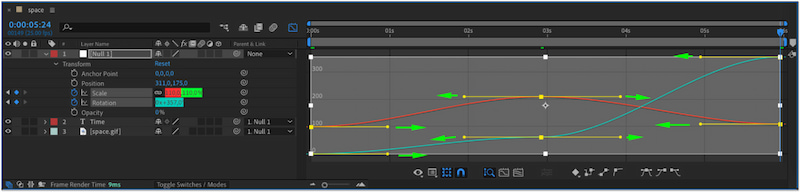
Step 4. Use the Graph Editor to give the GIF a more professional look. Configure the speed and flow of your animation to ensure it will run seamlessly.
Step 5. Proceed to the Layers tab, click New, and select Adjustment Layer. Create an adjustment layer and place it on top of other layers.
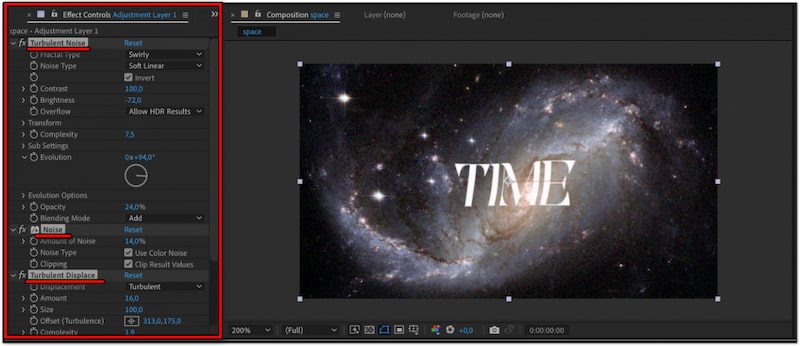
Tip
Part 3. Bonus Tip: Best Tool to Create a GIF
Suppose your goal is to create and export GIFs with ease; After Effects is hard to deal with. Why not consider an alternative option - Vidmore Video Converter. It can make the process more convenient. Except for converting media files, as its name suggests, it comes with a toolset boasting over 20+ practical tools. This includes a dedicated GIF Maker for creating and exporting personalized animated GIFs.
With Vidmore Video Converter, you have two ways to create an interesting GIF. On the one hand, you can import a video and cut it into a preferred segment to make a GIF. On the other hand, you can add multiple photos to create a GIF sequence. Not only that, but it also lets you edit your GIF to make it more creative. You can access tools for rotating, cropping, adding filters, adjusting effects, and inserting watermark text or custom images.
Here’s how to create and export GIFs from the After Effects alternative:
Step 1. Beforehand, get a free download of Vidmore Video Converter. Install the multimedia software and wait for the installation process to finish.
Step 2. After completing the installation, launch the Vidmore Video Converter right away. Switch to the Toolbox tab and select the GIF Maker from the available tools.
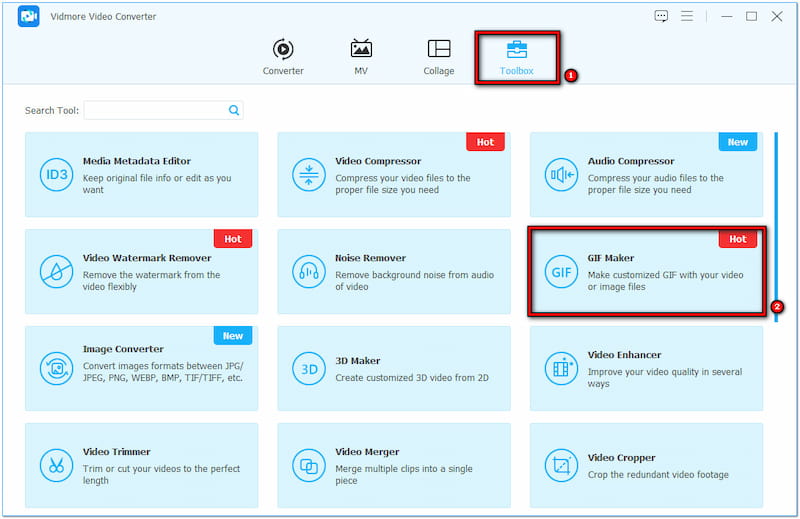
Step 3. Upon clicking it, you will be prompted to upload your media file. For this tutorial, we will select the Video to GIF option to demonstrate the GIF creation.
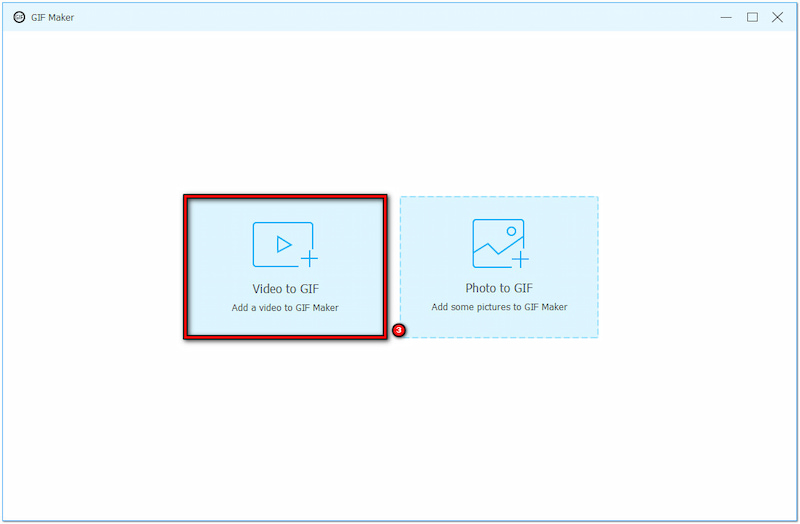
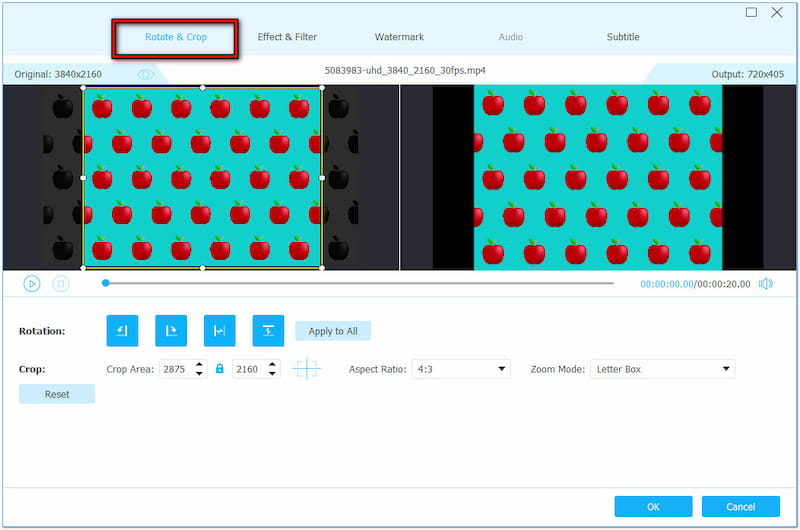
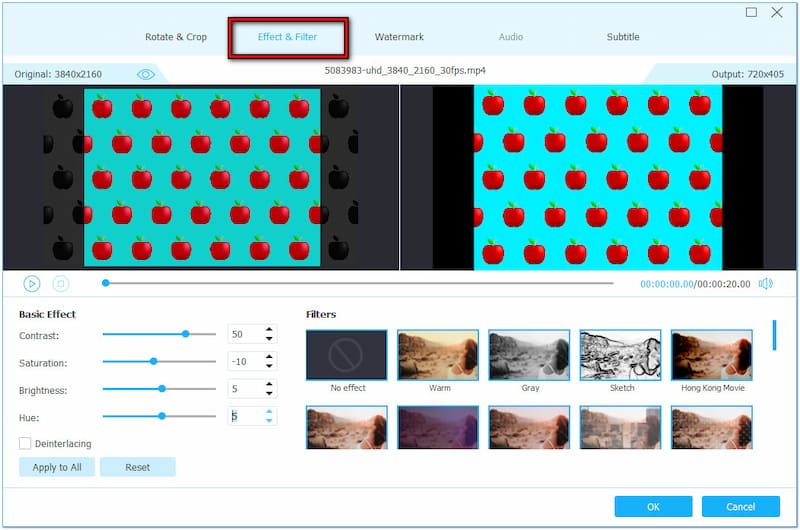
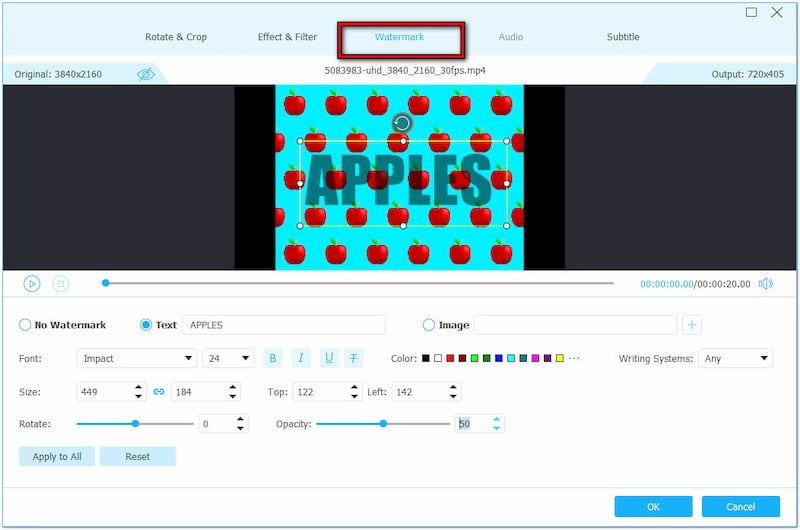
Step 4. At this point, click Edit to start elevating your GIF. Here are the things you can do:
Rotate & Crop: Correct the orientation and dimension of your GIF according to your preference.
Effects & Filters: Adjust basic effects like contrast, saturation, brightness, and hue or add filter.
Watermark: Overlay personalized text to your GIF or upload a custom image/sticker.
Step 5. After completing the previous step, check the Loop Animation box to ensure a looping effect. Then, click Generate GIF to export your created GIF on your local drive.
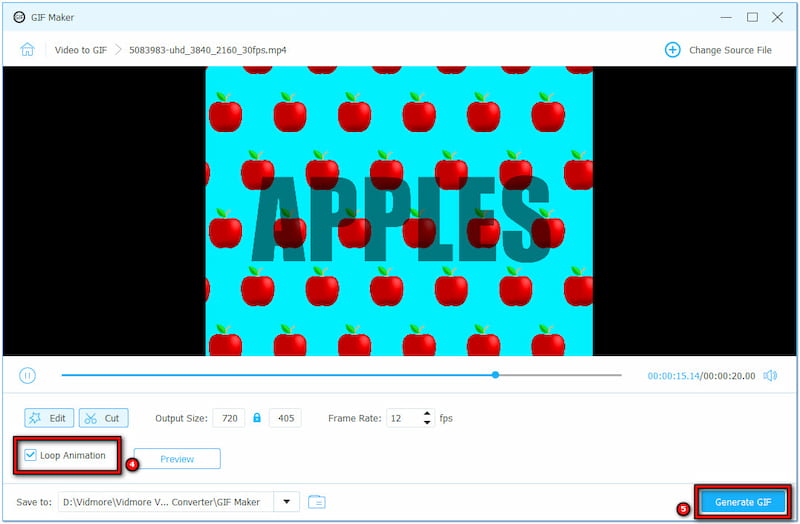
Vidmore Video Converter provides a faster workflow for creating and exporting GIFs. Through the GIF Maker, you can generate creative GIFs that align with your preference hassle-free. You might also be interested in how to make GIFs from images; simply check this one.
Part 4. FAQs about Exporting GIFs from After Effects
How to compress GIFs in After Effects?
Set the resolution to Half and lower the frame rate of your project to compress GIF. Also, consider trimming your GIF if its duration is too long.
How do I quickly export in After Effects?
In actuality, there’s no way to export GIFs in After Effects quickly. If you’re looking for a fast and efficient solution to export GIF, save it in a different format and use a GIF converter.
How do you reverse a GIF in After Effects?
Simply select the layers’ keyframes and right-click them. Then, select Keyframe Assistant and click Time-Reverse-Keyframe to reverse GIF in After Effects.
Why is my GIF quality poor after exporting from After Effects?
GIFs have limited colors (256 max), which can reduce quality. To improve results, you can optimize resolution, frame rate, and color settings by enhancement tools, like ezgif, Photoshop, or VidHex.
Can After Effects export GIFs directly?
As we mentioned before. The answer is NO. After Effects does not support exporting GIFs natively. You need to use plugins or export your project as a video first and then convert it to a GIF using other tools, like Vidmore Video Converter.
Conclusion
And there you have it! You now have the knowledge of how to export GIFs from After Effects. Using plugins, exporting GIFs from After Effects is possible. However, many non-professionals find this process a bit challenging as it requires expertise. That’s why we present Vidmore Video Converter to be a go-to platform for creating and exporting GIFs effortlessly. If you know another solution for exporting GIFs in After Effects, share it with us in the comment below.