Top 6 MP4 Cutters to Trim Your Videos with No Quality Loss
What is the best MP4 cutter?
For quick, basic video edits, you often need an MP4 trimmer. Surely you want a video cutting tool that actually preserves quality. Many related tools, including free, online ones, claim to help you easily remove unwanted segments from your MP4 files without losing quality. However, most of them either re-encode the whole file into a blurry mess or watermark the result. With that in mind, this post reviews 6 MP4 cutters in detail.

How to Choose a Suitable MP4 Cutter
The MP4 video cutter you choose determines whether that process takes thirty seconds or thirty frustrating minutes. If you need to snip a clip for a quick social media post, a full desktop editor is overkill. If you are cutting footage for a client project, an online tool will likely frustrate you. Here is what to evaluate:
- Quality preservation. Does the MP4 cutter re-encode your video or use lossless stream copying? Lossless MP4 cutters trim the video stream without re-encoding.
- Ease of use. If the tool is complex to use and takes a long time to understand, it has already cost you more time than the task itself.
- Output formats. Can the video cutter export in MP4 and other formats you need?
- Batch processing. Cutting a single file is easy. What if you need to handle multiple videos, especially large ones? Ensure your selected MP4 cutter can edit them at once.
- Editing features. Do you need just cutting, or do you also want other editing functions like cropping, rotating, effects, filters, or transitions?
- Platform. Is this MP4 video cutter available on Windows, macOS, Linux, or as an online tool?
PAGE CONTENT
Part 1. A Quick Side-by-Side Comparison of 6 MP4 Cutters
The good news is that you have real options - some free, some paid, some that run entirely in your browser. Let me walk you through the six best MP4 cutter tools I have tested, starting with a quick comparison table.
| MP4 Cutter | Quality Preservation | Output Formats | Batch Processing | Editing Features | Ease of Use |
| Vidmore Video Converter | Excellent | 200+ formats | Yes | Cutting, cropping, effects, watermarks, subtitles, and more | Very Easy |
| LosslessCut | Lossless (stream copy) | MP4, MKV, MOV, AVI | Yes (export segments individually) | Basic cutting, chapter editing, audio extraction | Easy |
| VLC Media Player | Good | MP4, FLV, MOV, AVI, etc. | No | Basic recording/cutting | Moderate |
| Avidemux | Lossless (keyframe cutting) | MP4, AVI, MPEG | Yes (Joblist) | Cutting, filtering, encoding | Moderate (dated interface) |
| Shotcut | Excellent (non-destructive) | Hundreds via FFmpeg | No (manual) | Full multi-track editing, filters, effects | Moderate |
| Kapwing | Good (re-encodes) | MP4, GIF, others | No | AI subtitles, silence removal, resizing | Easy |
Part 2. Top 6 MP4 Video Cutters Tested
This section will help you learn more about the 6 MP4 cutter recommendations. You can also navigate to the video cutter you want based on the comparison table above.
1. Vidmore Video Converter
Best for: Users who want a powerful MP4 cutter with all the necessary editing functions and export options.
Score: 9.1/10
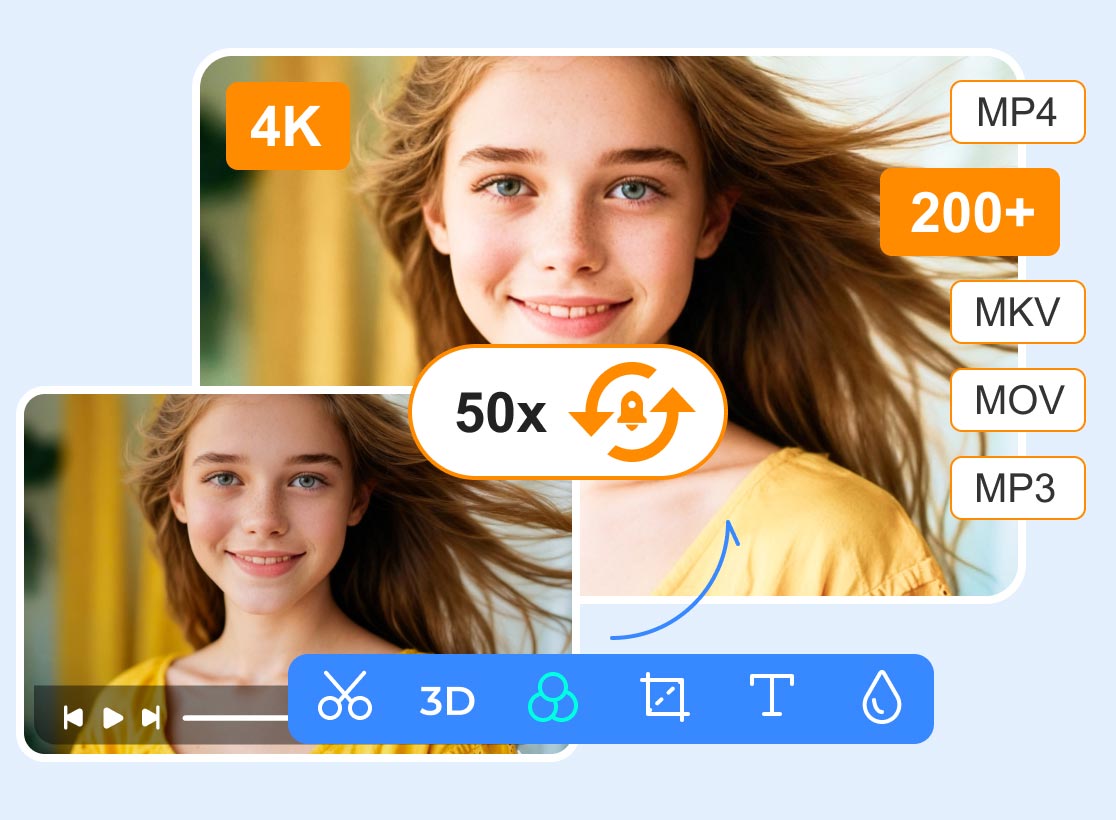
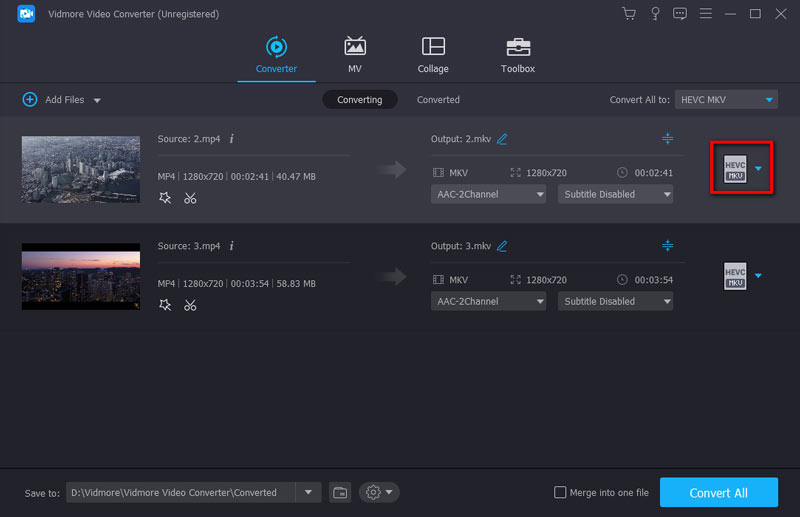
Vidmore Video Converter is a powerful video editing and conversion suite that goes far beyond simple cutting. It handles over 200 video and audio formats, including MP4, AVI, MOV, and MKV. As an MP4 video cutter, the software offers 50x faster processing speeds with GPU hardware acceleration.
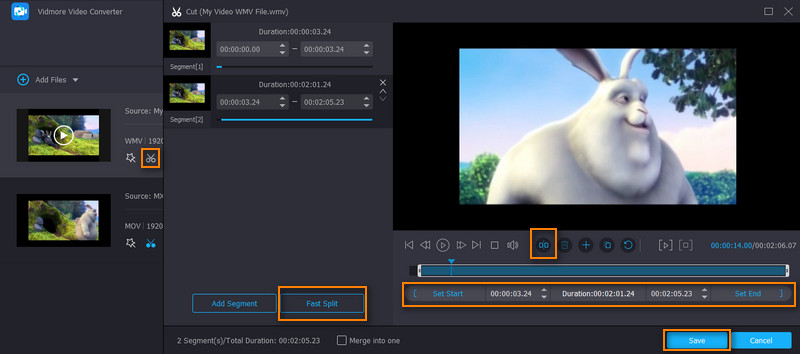
Vidmore also lets you crop, rotate, adjust effects, add filters, watermarks, audio tracks, and subtitles, and even create GIFs from videos. Vidmore lets you export to dozens of formats and device presets. Moreover, it supports batch processing to handle multiple files without losing quality.
Pros:
- Supports 200+ video and audio formats
- Preserves the source quality after trimming or editing
- Supports batch cutting and processing capabilities
- Advanced hardware acceleration for high performance
Cons:
- The free version comes with limitations
2. LosslessCut
Best for: Users who need lightning-fast, lossless trimming without quality loss.
Score: 8.7/10
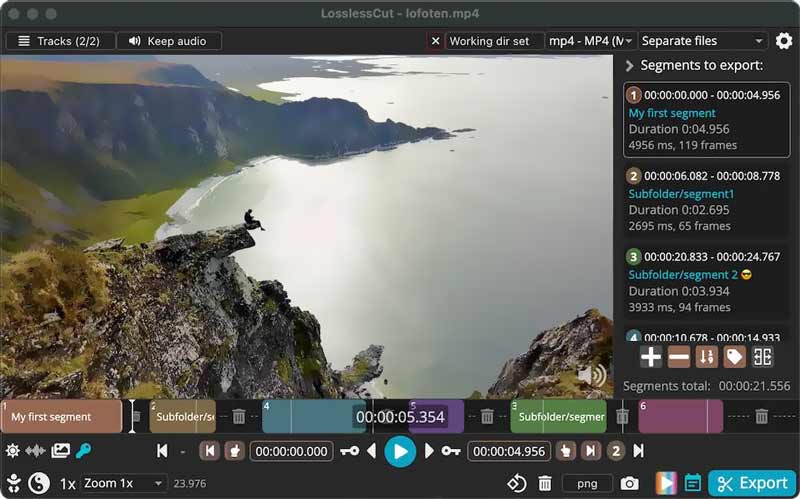
LosslessCut is the tool I reach for more than any other. It does exactly one thing - cut segments from video files - and it does it perfectly. Because it copies the original video stream directly, there is no quality loss whatsoever. A 4K file cut in LosslessCut is bit-for-bit identical to the original outside the removed segments.
Pros:
- Zero quality loss
- Extremely fast - cuts are nearly instant
- Free and open-source
- Available for Windows, macOS, and Linux
Cons:
- Limited to cutting-no advanced editing features
- Interface can look busy at first glance
3. VLC Media Player
Best for: Users who already have VLC on their computer and need a quick trim.
Score: 5.8/10
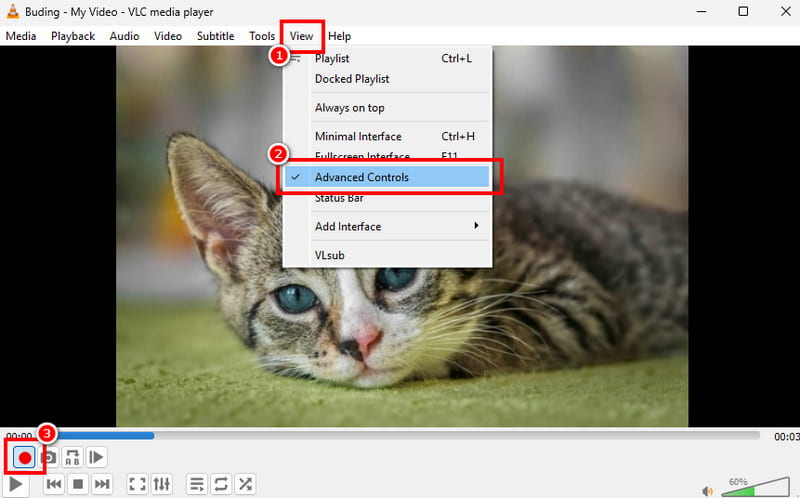
VLC is not designed as a dedicated MP4 video cutter. However, it lets you trim a video and save only the main content. It offers trim features in VLC. To cut an MP4 video using VLC, you should go to Advanced Controls from the View menu, then hit the Record button to capture only the necessary parts of your video.
Pros:
- Completely free
- May already be installed for most users
- Provides powerful playback and recording features
Cons:
- Not designed for precise MP4 cutting
- Offers no preview of your cut before export
- Supports no batch processing
4. Avidemux
Best for: Technical users who need a free, open-source cutting tool with a few extra filters.
Score: 8.1/10
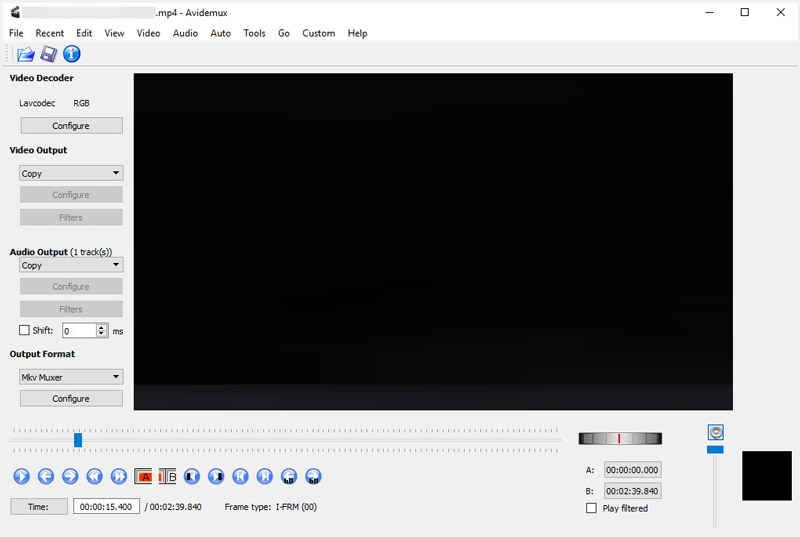
Avidemux is a free, open-source video editor that performs lossless cutting by default, so your video quality stays intact. Unlike LosslessCut, it also gives you a filter stack - you can crop videos or rotate/denoise them. Plus, there are a handful of other adjustments without re-encoding the entire file.
Pros:
- Free, open-source
- Cuts videos with no quality loss
- Handles all frequently used video formats
Cons:
- Steep learning curve
- Interface feels outdated
- No timeline-based editing
5. Shotcut
Best for: Users who want a free, full-featured video editor that can also handle cutting.
Score: 7.9/10
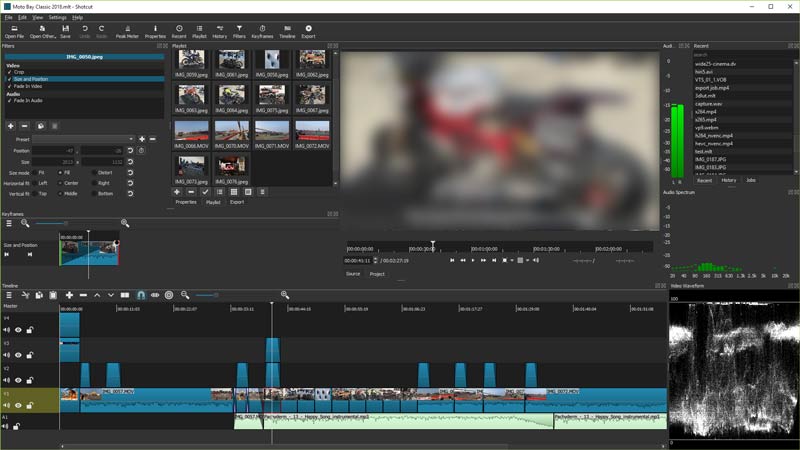
Shotcut is another open-source video editor that can help you trim MP4. It can cut and export videos without watermarks or time limits. You don’t need to upgrade or purchase a subscription to access essential features. It offers a multi-track timeline that lets you easily trim clips, apply transitions, and make other edits.
Pros:
- Full editing suite at no cost
- High-quality export options
- Cross-platform
Cons:
- Can be complex for simple cuts
- Requires more system resources
6. Kapwing
Best for: Users who prefer a web-based video cutter and don’t want to install software.
Score: 7.5/10
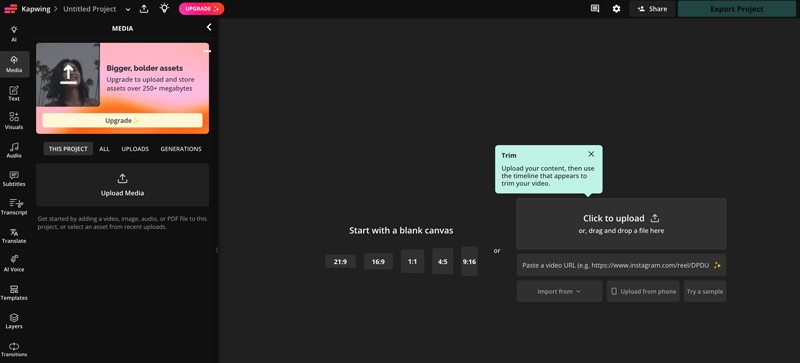
Kapwing is a famous online video editor that can handle MP4 cutting tasks directly in your web browser. It is widely used for creating short-form social content. This MP4 video cutter lets you easily upload your file, drag the trim handles, and then export.
Pros:
- Cuts MP4 files from any browser
- Requires no installation
- Provides multiple commonly used editing features
Cons:
- Needs a good network to upload and download files
- Free trial version adds a watermark and has export limits
- Requires an internet connection
Part 3. FAQs of MP4 Cutter
Question 1. Will cutting an MP4 reduce its quality?
Yes, you may lose some quality during trimming. If you use a lossless cutter, such as LosslessCut or Avidemux, to trim an MP4 video, the output quality will keep the same. Vidmore and Shotcut can also preserve quality if you set the same or a high enough bitrate.
Question 2. Can I cut MP4 videos for free without watermarks?
Yes. Open-source MP4 cutters like the recommended LosslessCut, Avidemux, Shotcut, and VLC above are all completely free with no watermarks.
Question 3. Can I cut MP4 videos on my iPhone?
Yes, you can open the video in your iPhone’s Photos app, use the built-in tool to trim it, and save only the part you need. Mobile video-cutting and editing apps like CapCut are also popular for on-the-go editing.
Conclusion
This post gives you 6 strong contenders for video cutting. Choose the right MP4 cutter for your needs. If you need speed and lossless quality, start with LosslessCut. If you want an all-in-one video processing suite with cutting, conversion, and editing capabilities, Vidmore Video Converter is a clear winner. If you need a quick cut and already have VLC installed, you can use its recording feature to get the job done.