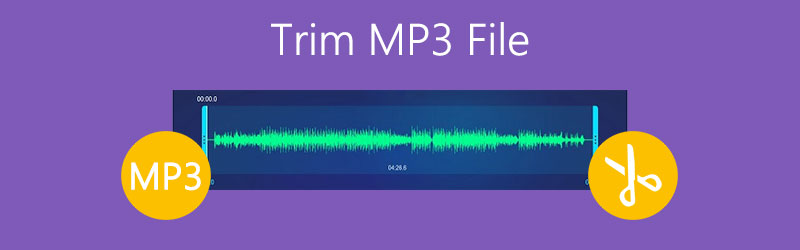
How to Trim MP3 File on Web, Windows, Mac & Mobile
There is a reason as to why you need to cut out short audio content. For some, they need to trim audio files like MP3 to be able to upload them on their social accounts. This is a better action though instead of compressing the file which will only lose the sound quality of the audio. Therefore, in this article, we will geek out on some of the best programs to trim or crop MP3 files for all platforms.
PAGE CONTENT
| Tools | Platform | Best for | Limits |
| Online MP3 Cutter | Online | Quick MP3 trimming without installing software | Requires an internet connection; basic editing features |
| Clideo | Online | Simple MP3 trimming and quick edits | Free version has limitations such as watermarks or file-size restrictions |
| Vidmore Video Converter | Windows, Mac | Precise MP3 trimming and batch audio editing | Desktop software; free trial has limitations |
| Windows Media Player | Windows | Basic audio playback and simple trimming with a plugin | Requires a third-party plugin; limited editing features |
| VLC Media Player | Windows, Mac, Linux | Free audio playback and basic audio clipping | Trimming workflow is a little complex |
| Media Converter | Android | Trimming and converting audio files on Android | Mobile app; features may vary by version |
| GarageBand | iPhone, iPad, Mac | Editing and trimming audio on Apple devices | More complex than a dedicated audio trimmer; designed primarily for music creation |
Part 1. Online Tools to Cut MP3 File for Free
1. Online MP3 Cutter
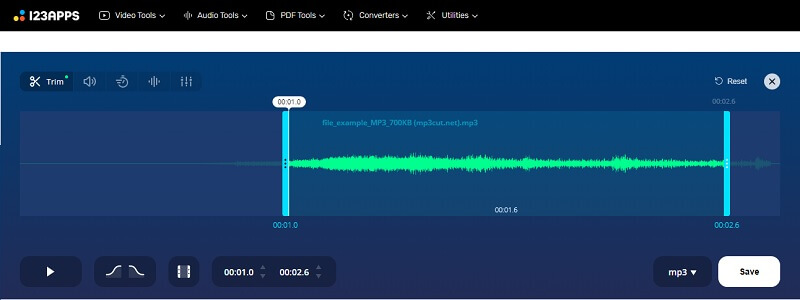
One of the best tools that you may use to cut or clip MP3 files is Online MP3 Cutter. This is a browser-based program that enables you to edit audio by cutting, trimming, adding sound effects, etc. In addition to MP3, it supports audio formats including AIFF, FLAC, OGG, and many others. On top of that, you can easily transfer the processed MP3 to your iPhone and set it as your ringtone. Find out how to trim an MP3 file using this tool through the following steps.
Step 1. First, visit the official site of 122apps to reach the main webpage.
Step 2. From here, go to the Audio Tools section and then select Trim from the menu. You should then see the music editor for cutting MP3 files.
Step 3. Click the Open File button and upload your target MP3 to cut.
Step 4. Move the slider to the part of the audio that you want to remove or cut. Click the Play button to listen to the modified audio before cutting the portion of the audio permanently.
Step 5. Once ready, click the Save button at the right portion. Then click the Save button again from the next panel and the trimmed audio will be downloaded automatically.
2. Clideo
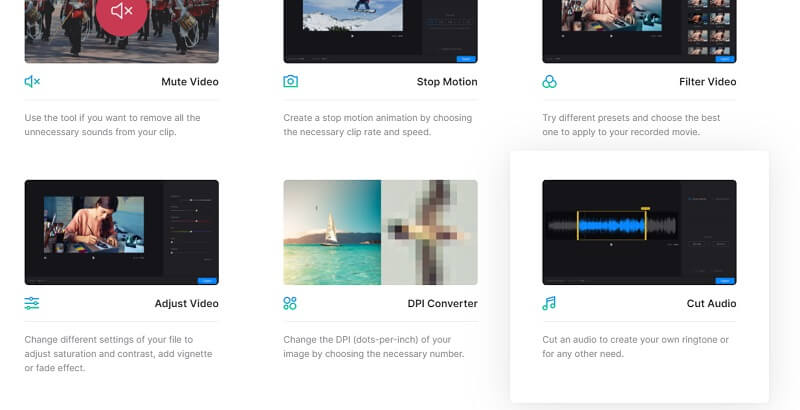
Clideo is another tool that helps you cut and split MP3 files directly in your web browser. It also supports many audio formats, including WAV, WMA, M4R, OGG, and more. Cutting MP3 files is also simple. Just upload the song or audio clip you want to cut. Then select the part that you want to remove. Alternatively, you can select the part of the audio you want to keep. To trim an MP3 online using MP3 Cutter Online & Free, see the steps below.
Step 1. Open a web browser on your computer and launch Clideo.
Step 2. Browse through all the tools in the program and look for the Cut Audio option. Upload an MP3 file afterward.
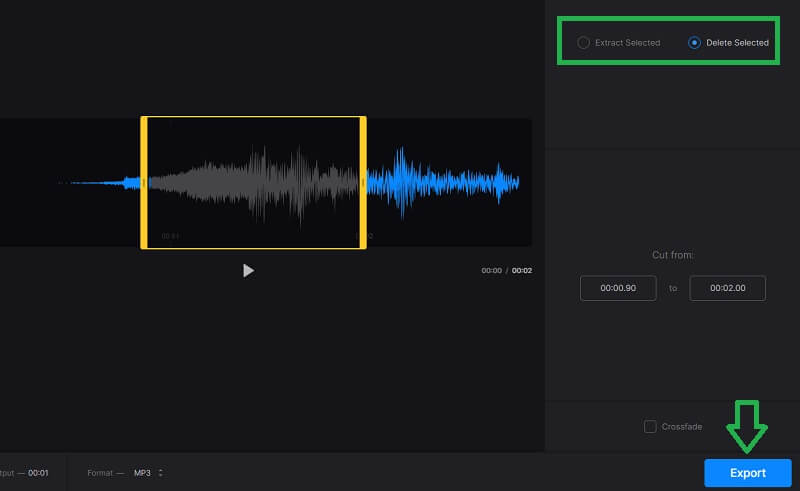
Step 3. Select the portion of the audio and choose between the Extract Selected and Delete Selected options based on your requirements.
Step 4. Finally, click the Export button located at the bottom right portion of the interface.
Part 2. How to Crop MP3 File on Windows and Mac
1. Vidmore Video Converter
For a more reliable and efficient trim MP3 app, Vidmore Video Converter is the tool you should use. Although it is tailored for converting files, it also works perfectly as an audio/video editor. This desktop program lets you cut or split any audio format including MP3. Aside from that, the tools can be used as an MP3 metadata editor because it is capable of editing metadata of audio files. This includes Title, Artist, Composer, Year, and many more. Furthermore, you can set a thumbnail for the MP3 file to easily distinguish the track or song. Above all, this is compatible with both Mac and Windows OS. Learn further about its bells and whistles by taking the following steps.
Step 1. Install Vidmore Video Converter
To get started, click one of the Free Download buttons above to get the installer of the app. Install and launch the app afterward. Just choose the platform that suits the system you are running.
Step 2. Load an MP3 file
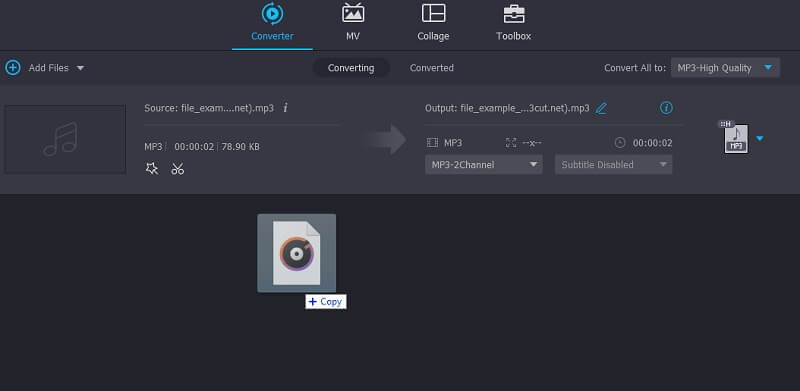
To load an MP3 file, click the Plus icon, browse through your folder and find the MP3 file. Also, you may drag and drop the audio clip onto the program which is another way of uploading an MP3 file.
Step 3. Trim the MP3 clip
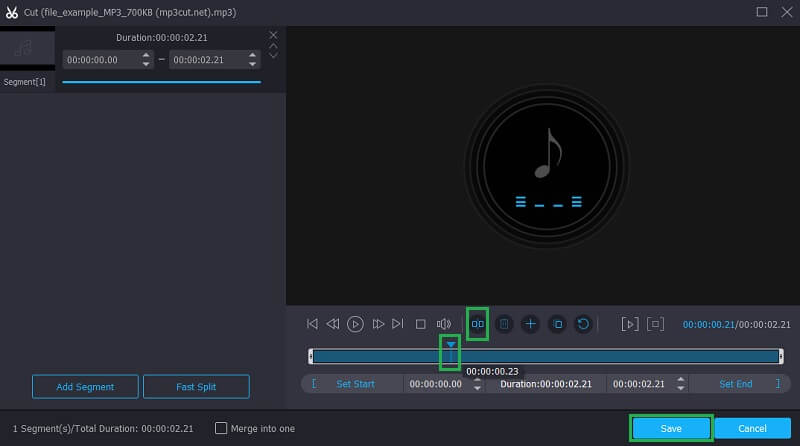
Once the audio file is loaded, click the Cut icon that looks like scissors and another window will appear. Now mark the part of the audio to retain or cut using the Playhead and hit the Split button. Once you are done, just hit the Save button to apply the changes.
Step 4. Save the output
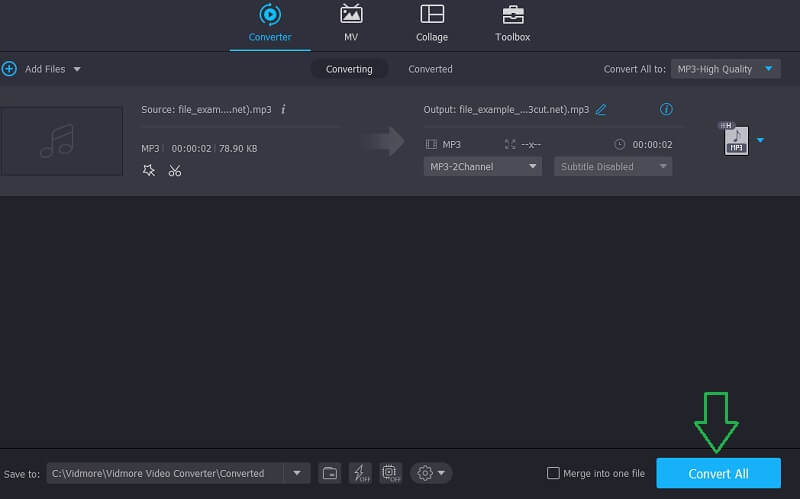
Before saving the output, you may change the format by unfolding the Profile menu and selecting your desired audio format for the trimmed audio. On the other hand, you may retain the original format by selecting the same file format. Then, click on the Convert All button to start processing the audio. The audio playback can be played once the conversion is done.
2. Windows Media Player
If you wish to edit and cut an MP3 file on your Windows 10 PC using a native app, then you should opt to use Windows Media Player. This is famously known as a media player that also offers features for editing audio. That includes cutting or splitting audio files like MP3. That catch is that you need to install its plugin called SolveigMM WWP Trimmer Plugin to fully utilize the editing features. To know how this is done, here's an instructional guide you can refer to.
Step 1. If you are using Windows 10, you can simply download and install the plugin on your computer and learn how to trim MP3 files on Windows 10 easily. Yet if you are using an older Windows version, you need to integrate the plugin to Windows Media Player manually.
Step 2. After downloading the plugin on your computer, launch Windows Media Player and click the Tools option from the main toolbar. Hover the mouse cursor to Plug-ins and select SolveigMM WMP Trimmer Plugin from the options. By then, you will now be able to edit and cut MP3 files using Windows Media Player.
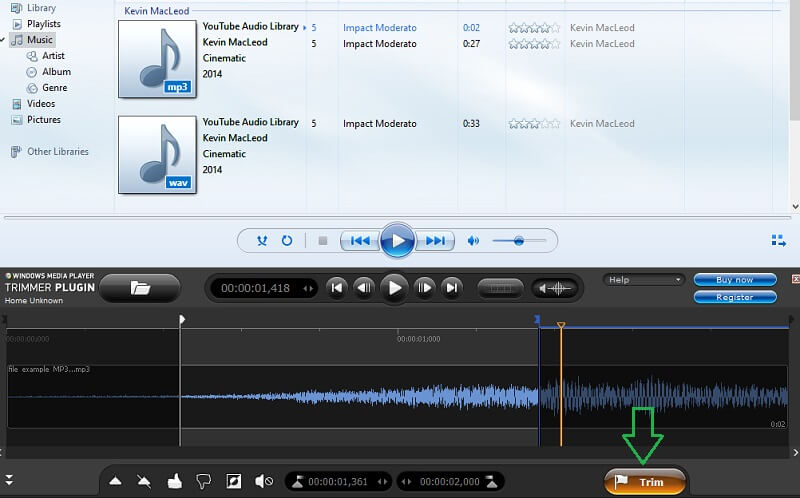
Step 3. Load the MP3 file on the app and select it from your libraries. You should see the audio timeline of the selected audio at the bottom of the interface. From here, select the part that you want to trim and click on the Trim button.
Step 4. Select a folder where you want to save your MP3 file and hit the Save button to confirm the changes.
3. VLC Media Player
VLC is a free media player that is also packed with an audio trimming capability. It does implicitly cut MP3 files in an easy manner. In other words, you are not only getting a media player but also an audio editor when using VLC. One of the major downsides that might concern you though is that it gives you little to no controls at all in terms of trimming the file. Also, you have to look manually for the trimmed file to get the audio playback. Nevertheless, let's learn how you can cut MP3 files using VLC.
Step 1. Run the VLC app on your computer and head over to the main menu of the app.
Step 2. Click on View and select Advanced Controls. Next load the MP3 file from your local drive.
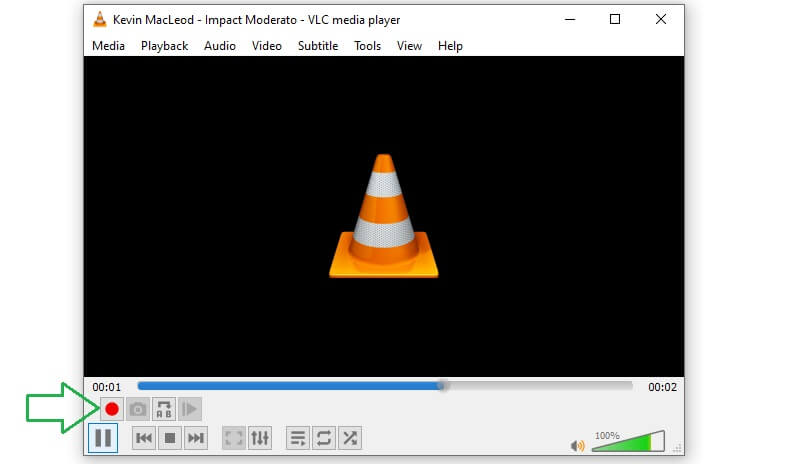
Step 3. Now play the MP3 file and decide which part of the audio you wish to start trimming. Play the audio and click the Record button at the bottom of the interface once the playhead reaches the endpoint. The name of the folder where the trimmed audio is stored is My Music. From this folder, you will get the audio playback of the audio file.
Part 3. How to Trim MP3 on Android and iPhone
1. Media Converter (Android)
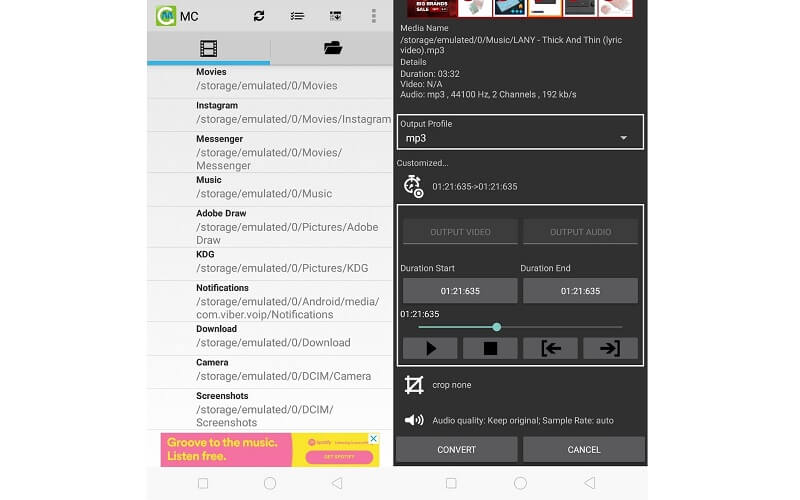
You can also trim mp3 files on Android devices directly by using Media Converter. The app is developed to aid in converting media files to famous media formats including MP3, OGG, AVI, WAV, and even MP4. Besides this capability, it also enables chopping MP3 clips in case you need to make a ringtone.
2. GarageBand (iPhone)
GarageBand is an application that comes with Mac, iPhone, and iPad to produce music and edit audio. You can use the tool to record and edit audio segments, as well as cut unnecessary parts of an MP3 file.
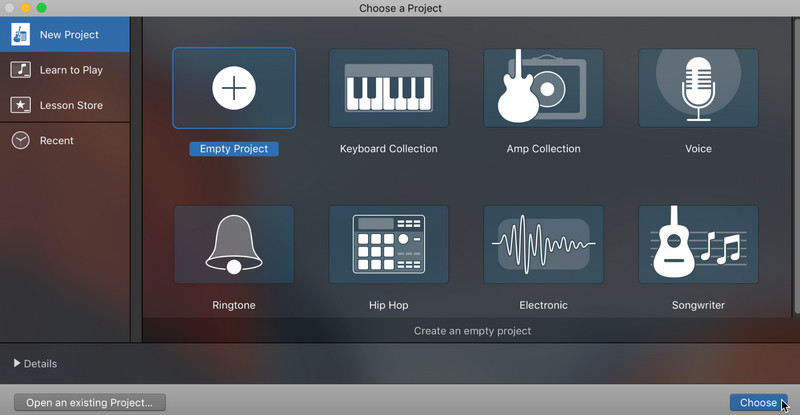
Step 1. Launch GarageBand and create a new project. You need to select Audio Recorder as the project type.
Step 2. Tap the Tracks > Loop Browser button, and select Files to find and import the audio file you want to edit.
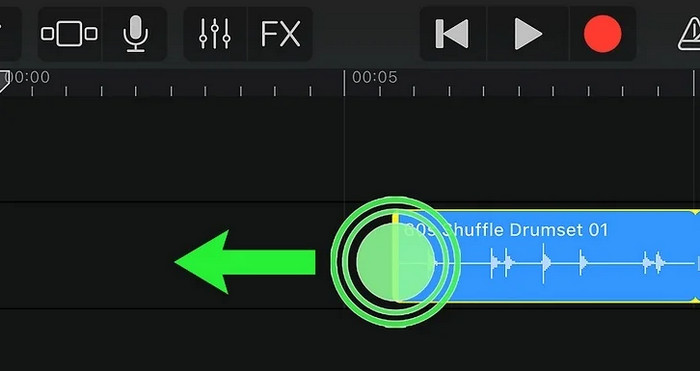
Step 3. Then, drag the audio file into the Tracks area. The audio waveform will appear on the timeline. Next, tap the audio clip to select it. Drag the left or right edge inward to remove unwanted parts from the beginning or end.
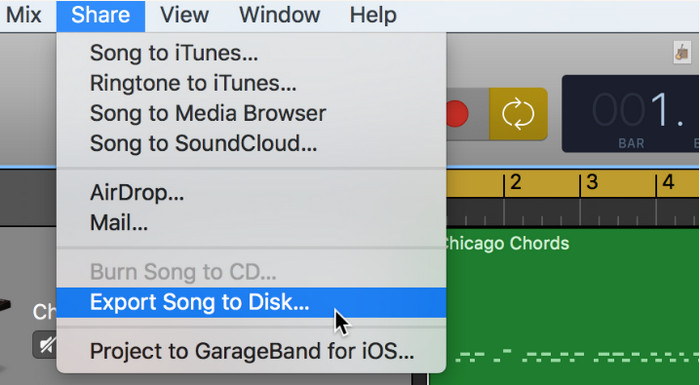
Step 4. Finally, tap the Navigation button and choose My Songs to save the project. Touch and hold the project, select Share, and choose the location you want to save it.
Part 4. FAQs of Trimming MP3
How to trim MP3 files on Windows 10?
There are a lot of MP3 trimmers that are compatible with Windows PC. One of them is Vidmore. This tool does not only allow you to cut MP3 files from your Windows PC but you can also do the same on your Mac. Needless to say, you can trim whatever OS you are running.
Can Windows Media Player edit MP3 files?
By default, Media Player is for streaming audio and video files but this also helps you edit files such as cutting MP3 files through the use of a plugin.
What is the difference between cropping and splitting?
Cropping means cutting a small portion of an audio or video. This is usually done when you are trying to shorten a clip. Whereas splitting lets you cut the clip into two which entails cutting a large portion of the audio.
Conclusion
To sum up, these are tools that will help you cut MP3 files. Online apps are the most convenient for cutting audio in the browser without installation. Desktop programs also let you use the cutting feature more stably without an internet connection. And mobile apps can help you edit your MP3 files directly from your smartphone. Choose what suits you best!
MP3 Tips