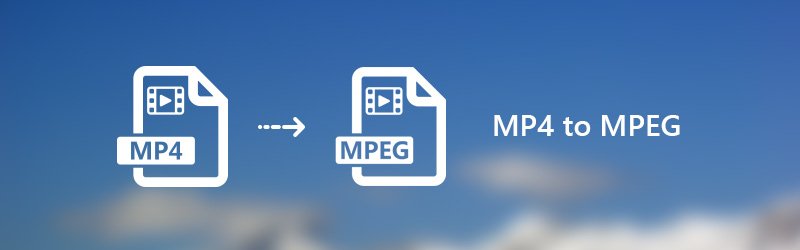
Convert MP4 to MPEG/MPEG-1/MPEG-2 Online and Offline [6 Easy Ways]
MPEG is an organization of digital video compression standard, including MPEG-1, MPEG-2, MPEG-4, MPEG-7, MPEG-MAR and MPEG-DASH. MP4 is a digital multimedia format based on MPEG-4 Part 14 that is compatible with almost all computers, mobile phones and webs. Though MP4 files are widely supported by most players and devices, you still need to convert MP4 to MPEG to get better quality videos in certain cases.
However, what is the easy method on converting MP4 videos to MPEG? From this article, you can get online and offline ways to convert MP4 to MPEG/MPEG-1/MPEG-2 and more. Just keep on reading to learn more.
PAGE CONTENT
Part 1. Best Way to Convert MP4 to MPEG on Windows and Mac
1. Convert MP4 to MPEG via Vidmore Video Converter
Vidmore Video Converter is a MP4 to MPEG batch converter that can batch convert MP4 to MPEG videos with lighting fast speed. Thanks to the most advanced acceleration technology, you can convert MP4 videos to MPEG format at 50x faster speed. All your converted MPEG video files will be in the high visual quality. Moreover, you can edit MP4 files before the conversion with the built-in lightweight video editor. It is your one-stop solution to convert and edit any video on Window and Mac.
Main Features of the MP4 to MPEG Converter
- Convert MP4 to MPEG and other 200+ video and audio formats.
- 50x faster video conversion speed than common video converters.
- Fully control the output quality with the professional video professional algorithms.
- Edit MP4 videos before converting to MPEG with clipping, merging, rotating, adding watermark and more.
- Enhance video quality to rescue old videos from image noise and poor quality.
How to Convert MP4 to MPEG without Losing Quality
Step 1. Free download, install and launch this MP4 to MPEG converter software. Click “Add File” to import MP4 files.
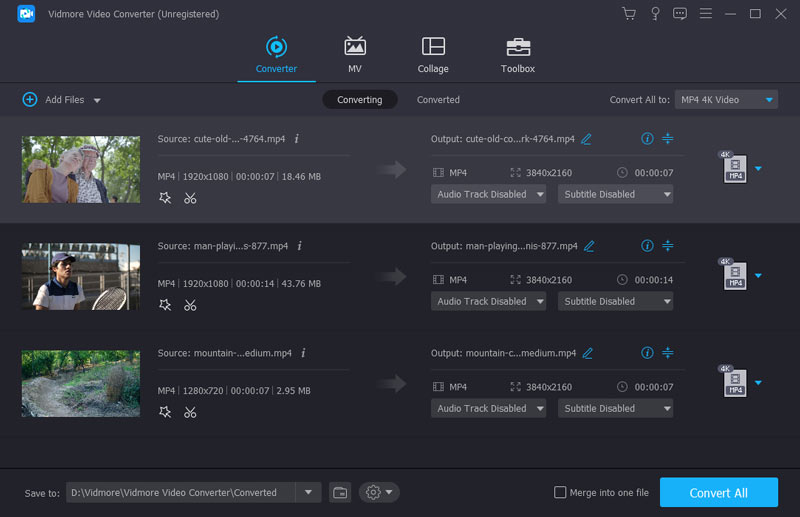
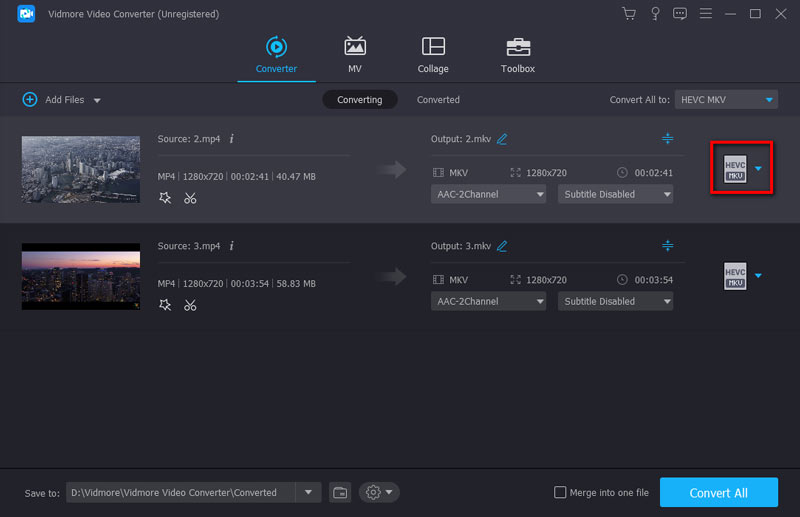
Step 2. From the “Profile” drop-down list, specify MPEG as the output format. You can also choose which portable device you may use to get compatible formats.
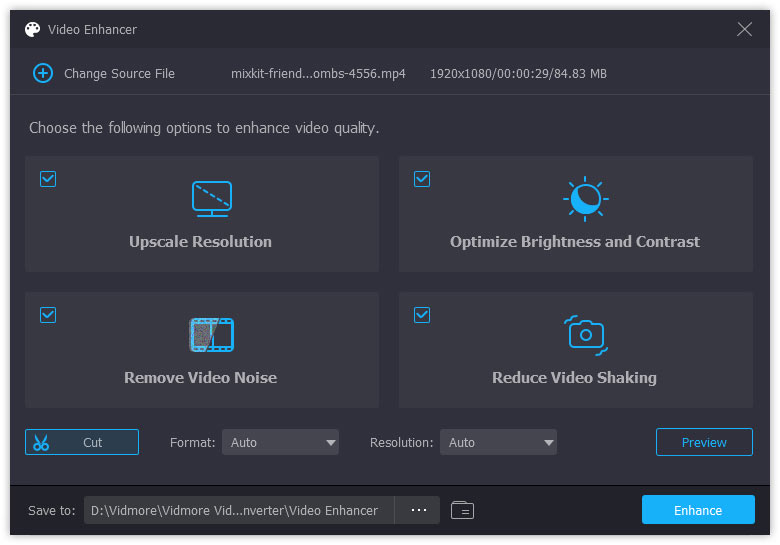
Step 3. Click “Edit” to access most video editing tools, like “Rotate”, “3D”, “Crop”, “Effect”, “Enhance” and “Watermark”. In addition, you can click “Clip” on the top toolbar to get its video clipper too.
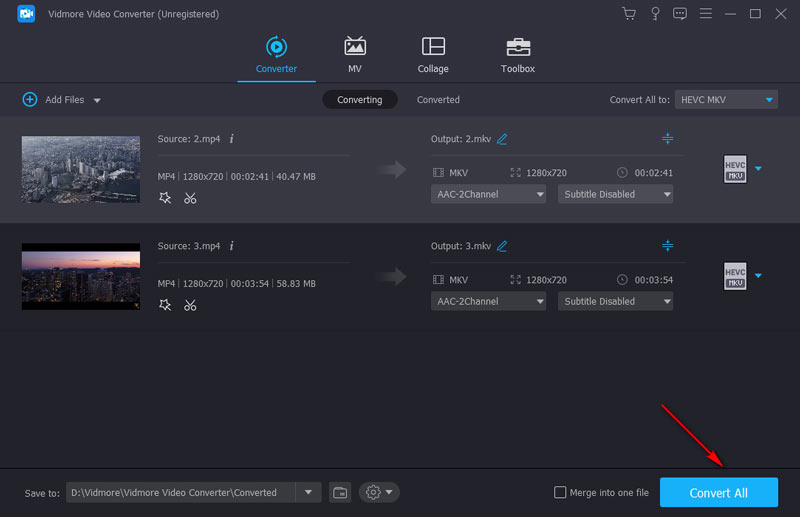
Step 4. Click “Browse” to change its output folder if necessary. At last, click “Convert” to convert MP4 to MPEG on Windows with the original quality.
2. Convert MP4 to MPEG via VLC Media Player
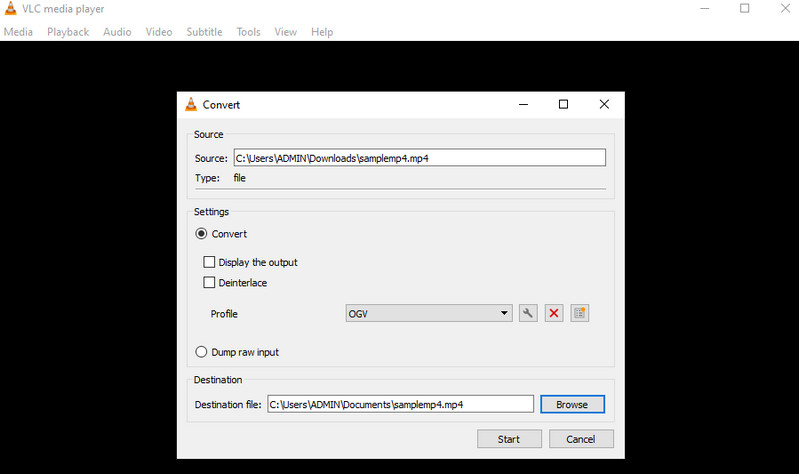
If you need to convert MP4 to MPEG for free on Windows, Mac, and Linux, look no further than VLC Media Player. While it is the most popular media player, it can also be used to manipulate video files allowing you to convert, rotate, crop, cut, trim, etc. Surprisingly, this program also integrates a batch conversion feature to help you save time and effort. Among its exceptional features is its ability to sync subtitles audio and video filters. We listed the steps to use this video converter MP4 to MPEG.
Step 1. Open the installed VLC Media Player app on your computer and go to the Convert/Save panel.
Step 2. Upload the MP4 video you like to convert and select MPEG as the output format.
Step 3. Finally, click the Convert/Save at the bottom of the Start panel.
Part 2. 4 Ways to Make MP4 into MPEG Online
If you do not want to install any third-party software, you can also use an online video converter to solve the problem. Here’re top 4 MP4 to MPEG online converters with many positive reviews. You can choose any one to convert MP4 video to MPEG online for free.
1. Convert MPEG to MPEG with Vidmore Free Online Video Converter
Vidmore Free Online Video Converter supports MP4 to MPEG batch conversion online. There is no file size limitation. Thus, you can convert several MP4 files to MPEG simultaneously. In a word, it is a 100% free, safe and clean MPEG to MPEG online converter for all users.
Step 1. Visit https://www.vidmore.com/free-online-video-converter/. Click “Add files to convert” to get Vidmore launcher.
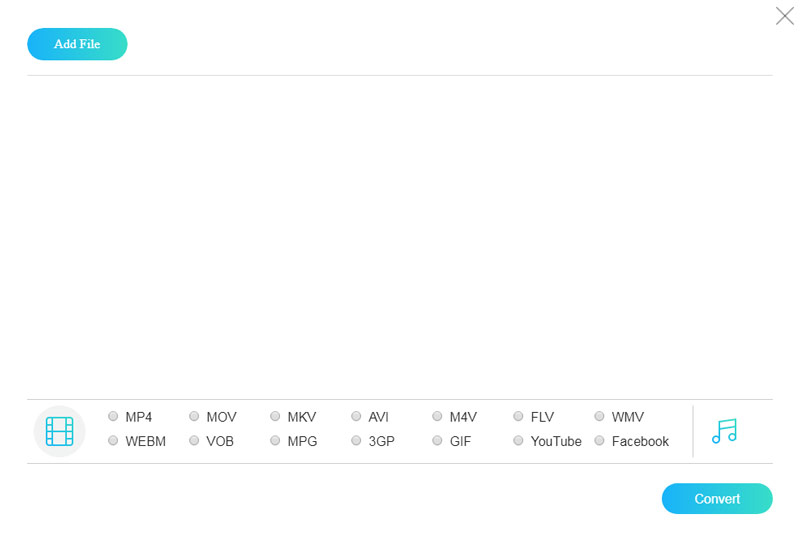
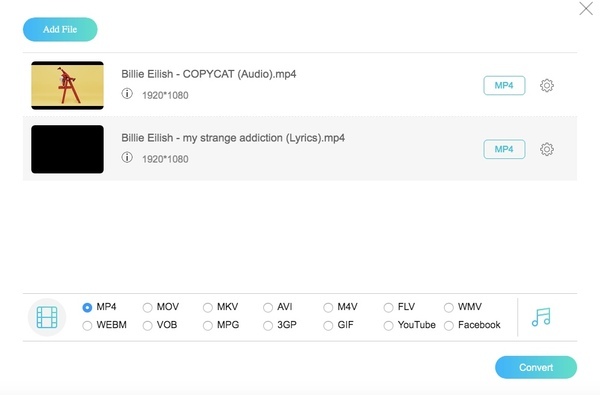
Step 2. Browse and select which MP4 file you want to convert to MPEG format. After importing MP4 files, set MPEG as the output format. You can get all output video and audio formats on the bottom.
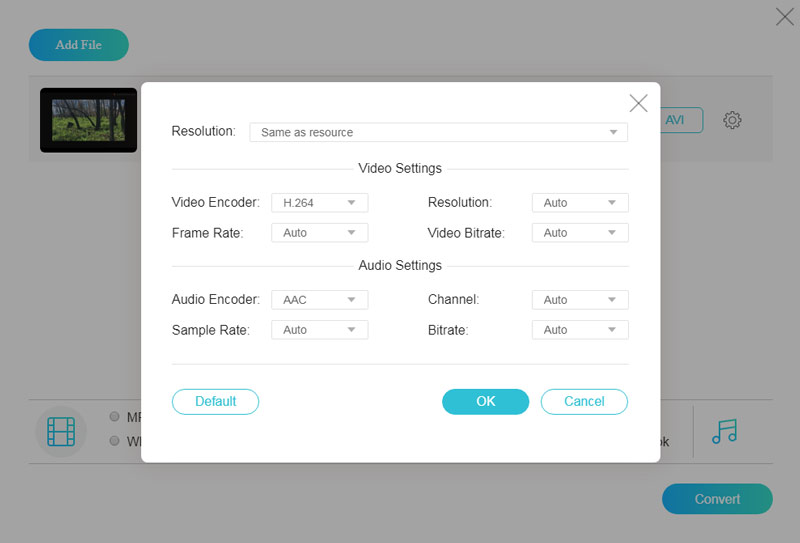
Step 3. If you want to customize output settings, you can click “Settings” next to the MP4 video file. Later, you can adjust video encoder, resolution and more.
Step 4. Click “Convert” and set the destination folder. The MP4 to MPEG online free converter will complete the process immediately.
2. Change MP4 to MPEG with Convertfil
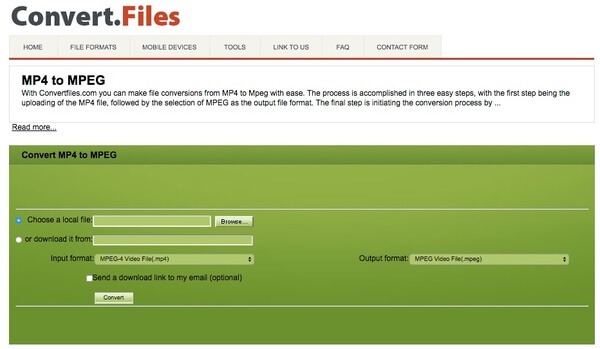
Convertfiles is capable to change the file format from MP4 to MPEG online for free. You can also send a download link to your email to get the converted MPEG file on other devices. Though you can convert a MP4 file to MPEG online per time.
Step 1. Visit Convertfiles at http://www.convertfiles.com/convert/video/MP4-to-MPEG.html.
Step 2. Click “Browse” to add a MP4 video.
Step 3. Mark before “Send a download link to my email” and enter your email address if necessary.
Step 4. Click “Convert” to convert a MP4 video to MPEG online.
3. Turn MP4 to MPEG with Convertio
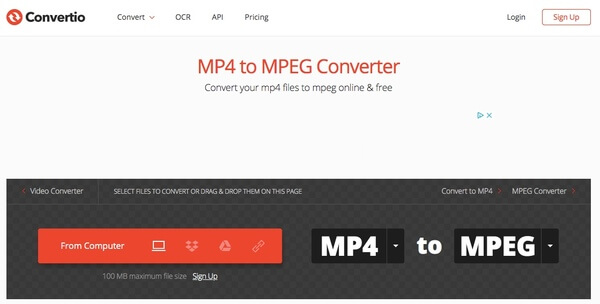
Convertio allows users to add MP4 files from desktop, URL, Dropbox or Google Drive. The maximum file size ups to 100MB. If your MP4 movie is smaller than 100MB, you can change the format from MP4 to MPEG for free online with Convertio.
Step 1. Open https://convertio.co/mp4-mpeg/ to navigate Convertio.
Step 2. Import your MP4 file to the MP4 to MPEG format converter online.
Step 3. Click “Convert” to convert MP4 video to MPEG online for free.
4. Transfer MP4 to MPEG with Online Convert
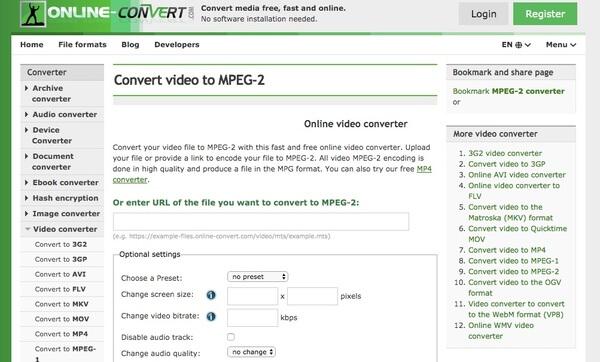
Online Convert allows users to convert MP4 video to MPEG-1 or MPEG-2. From this section, you can use it as your MP4 to MPEG-2 converter to convert MP4 videos no more than 100MB.
Step 1. Run Online Convert with https://video.online-convert.com/convert-to-mpeg-2.
Step 2. Upload a MP4 video from desktop or enter the URL of the MP4 file.
Step 3. Manage MP4 video settings with built-in functions if necessary.
Step 4. Click “Convert” to convert a MP4 video to MPEG online.
Part 3. FAQs about Converting MP4 to MPEG
How to convert MP4 to MPEG with HandBrake?
HandBrake is a professional video transcoding software. You can change the codecs of your MP4 video to many codecs, including MPEG-2 and MPEG-4. First, drop an MP4 file to HandBrake's interface. Then, click Video and change Video Encoder to MPEG-2 or MPEG-4. Finally, click Start Encode to start the conversion.
Can I convert MP4 to MPEG using VLC Media Player?
Yes, you can. VLC Media Player can play video and convert formats and codecs. Click Media> Convert/Save on the top menu. Then add the MP4 file in the pop-up window and click Convert/Save. You can edit the selected format including codecs. VLC Media Player supports MPEG-1, MPEG-2 and MPEG-4 codecs.
What are the steps of utilizing FFmpeg to convert MP4 to MPEG?
As a command-line base tool, FFmpeg supports almost all formats and codecs. Take converting MP4 to MPEG-2 as an example. Firstly, Press Win+R and type cmd. Then, press Enter to open to Command Prompt. Secondly, input ffmpeg -i input.mp4 -c:v mpeg2video -q:v 6 -c:a mp2 output.mpg and click Enter to start the conversion.
How do I convert a video to MPEG on iPhone and Android devices?
Many MP4 to MPEG converter apps are available on Google Play and App Store such as VLC Media Player, Media Converter, The Video Convert, etc. For example, you can use a Video Converter and Compressor on your iPhone. Tap Video Converter in the app and upload your MP4 file. Then, you can choose MPEG format and other details like resolution, bitrate and more. At last, choose CONVERT and wait for the mew MPEG video.
Conclusion
All in all, this post offers 6 practical ways to help you convert MP4 to MPEG. You can choose one tool as you need. If you want to convert large files without quality loss, definitely Vidmore Video Converter should be your first choice. You can convert MP4 files to MPEG at 50× faster speed while preserving the original quality. By the way, it has the free version. Download and have a try right now!
MP4 & MPEG