Best 7 Tools for Converting Your MP4 Video to MOV Format
Nowadays, more and more file formats are being developed to meet the needs of different users. For most users, the most common video format is still MP4, which contains much information while keeping the file size relatively small. However, sometimes people need files in MOV for Apple devices or editing tools.
In this article, we will discuss how to convert MP4 files to MOV format in detail and list several common video format converters for you. After reading our content, we hope you can find your favorite tool and finish the conversion operation.

PAGE CONTENT
Before writing, how we test software for posts:
Disclaimer: All the content on our website is written by humans in our editorial team. Before writing, we do deep research about the topic. Then, it takes us 1-2 days to select and test tools. We test software from device and system requirements, functions, use experience, etc. To make our test more comprehensive, we also view review websites, like G2, Trustpilot, etc., to gather real users' experiences for reference.
Part 1. Why We Need to Convert MP4 to MOV (QuickTime)
There are various reasons why you need to convert MP4 to QuickTime format, there are:
Compatibility with Apple Devices and Software
When talking about QuickTime, the ideal format we have is MOV format. This format is perfect if you are using Apple devices, such as iPad, iPhone, MacBook, and more. It can even give you an excellent quality, allowing you to have a better viewing experience.
Professional Video Editing
When it comes to editing videos, especially on Apple software, it is best to deal with MOV files. It can work efficiently and can overcome any restrictions.
For Archiving Purposes
In terms of archiving, QuickTime or MOV format is more suitable. It is perfect for using high-quality codecs within the container or the MOV.
Part 2. Quick Comparison: Top 7 MP4-to-MOV Ways
| Platform | Quality | Editing | Batch conversion | Speed | Ease of use | Free/Paid | |
| Vidmore Video Converter | Windows/Mac | Lossless (4K supported) | Trim/merge/filter | √ | Very Fast (50x) | √ | Start from: $14.95 |
| QuickTime Player | Mac | Depends on | Cut/rotate | × | Medium | √ | Free |
| VLC Player | Windows/Mac | Good | Limited | √ | Medium | × | Free |
| Handbrake | Windows/Mac | High | Limited | √ | Slow | × | Free |
| Vidmore Free Video Converter Online | Online | Up to 1080p | × | √ | Fast | √ | Free |
| CloudConvert | Online | Good | × | √ | Medium | √ | Paid |
| Convertio | Online | Good | × | √ | Medium | √ | Partly free |
Part 3. How to Convert MP4 to MOV via Desktop Tools [More Stable]
Option 1. Vidmore Video Converter
A good tool can significantly improve your efficiency of converting MP4 to MOV. When you need to convert video formats, we recommend using the best video converter, Vidmore Video Converter. Trusted by users worldwide, it helps you convert your videos between more than 200 formats but also enables you to convert your videos to a format suitable for a certain device.
The advanced technology it uses makes it possible for you not to worry about any loss in the quality of your videos. You are free to choose whether you want to output your video in 1080p or 4K, and the whole process will be completed quickly. You don't have to worry about not knowing how to use it; its interface is quite simple, and you'll soon find the needed features.
Here is what you need to do to change MP4 to MOV with Vidmore Video Converter.
Step 1. Download and install the Vidmore Video Converter on your computer. Open it and choose Converter.
Step 2. Click Add Files on the main interface to import your video.
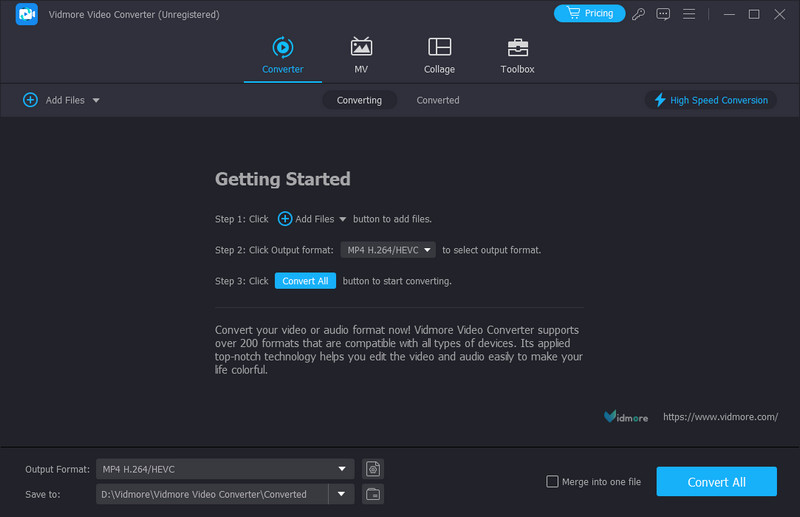
Step 3. Click Output Format to choose your target format.
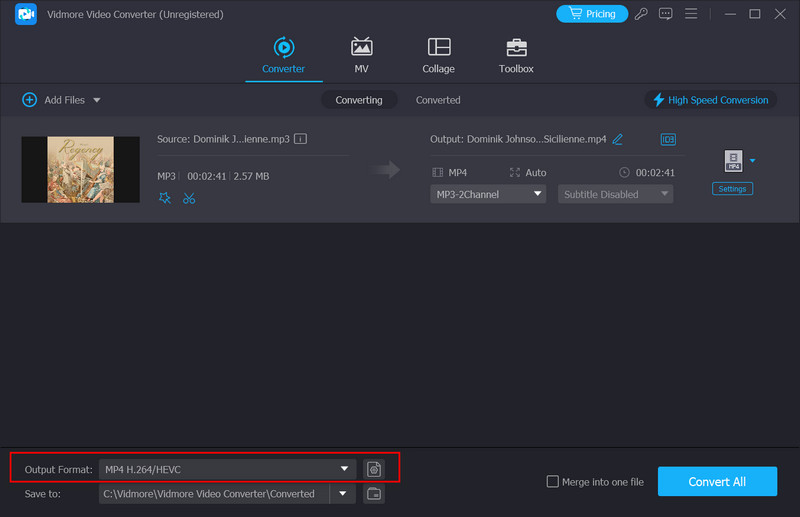
Step 4. Drop down the menu next to Save to to choose an output folder.
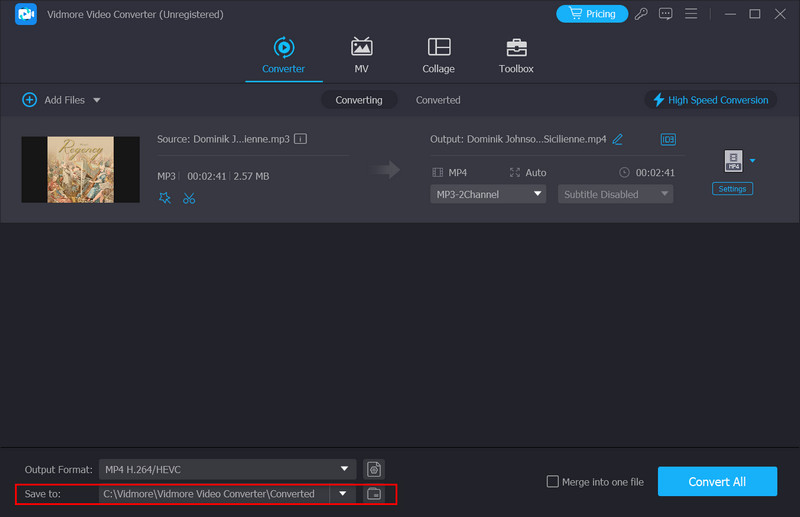
Step 5. After finishing all the settings, click Convert All to let the process begin. Your converted video will be ready in a second.
Option 2. QuickTime Player
QuickTime Player is another good choice for transforming MP4 to MOV. Developed by Apple, it allows users to play, create, and edit multimedia files. This tool offers functions like trimming, adding text, and adjusting playback speed. The formats it supports include MP4, MOV, M4V, MPEG, AVI, etc. QuickTime Player will be your best assistant if you need to handle high-quality videos or perform some basic editions to your video on devices that run the iOS system.
Next, we will teach you how to convert MP4 to MOV using QuickTime Player.
Step 1. Open QuickTime Player on your computer. Select File > Open File to add your MP4 video.
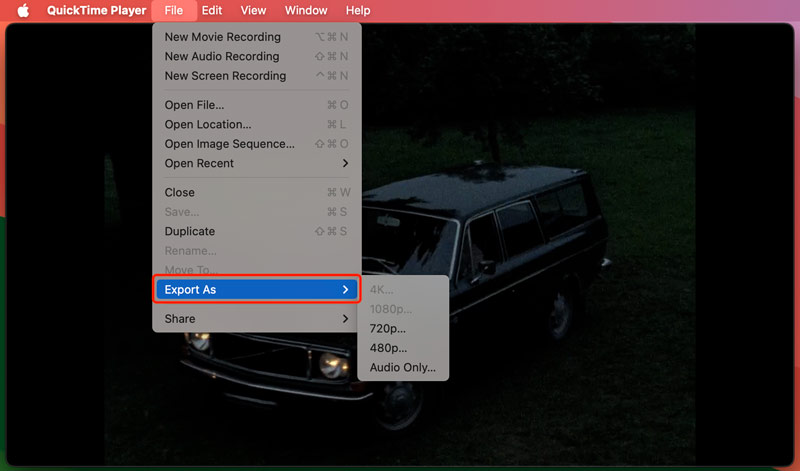
Step 2. Choose File > Export As. Then, a new window will jump out. You can choose the resolution of your exported video among 4K, 1080p, 720p, and 480p.
Step 3. Then, the video will be exported as a MOV file automatically.
Option 3. VLC Player
When you try to find a good tool for transforming MP4 to MOV, you can't go wrong with VLC Player. It is a free multimedia player that is famous for supporting many video and audio formats. This player was developed by the VideoLAN project. Now, it can be used on devices with Windows, macOS, Linux, Android, and iOS systems installed. It can be used to play almost any multimedia file, and it also supports changing the format of video and audio files, which makes it a popular choice for users who need to edit their works.
Here, we will lead you in applying VLC Player to convert MP4 to MOV.
Step 1. Download VLC Player. Open it and choose Media > Convert/Save.
Step 2. In the new window, choose Add to upload your MP4 video. Then click Arrow > Convert.
Step 3. Choose your target format in the drop-down menu in the Profile section. Then, choose a folder to save your video under the Destination file.
Step 4. Finally, click Start to export MP4 to MOV.
Option 4. Handbrake
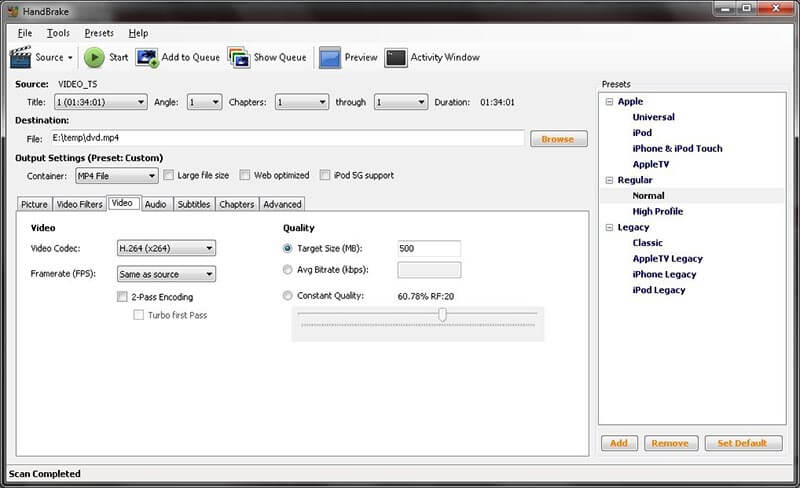
HandBrake can convert video files between many popular formats as a free video converter. The input and output formats it supports include MP4, MKV, AVI, etc. HandBrake can be used on Windows, macOS, and Linux systems. In addition to the most basic format conversion functions, it allows you to compress the file size before outputting the video. This feature greatly facilitates users in storing and distributing videos. In addition, you can also use some essential editing functions HandBrake provides to change the effect of the video.
Here, we will teach you how to convert MP4 to MOV with HandBrake.
Step 1. Launch HandBrake on your computer. Please open it and click the Open Source tab to add your MP4 file.
Step 2. Select your target format under the Format option. Under the Presets section, you can adjust the video quality.
Step 3. If you want to do more advanced editions, choose the options including Video Audio, Subtitles, Chapters, and Picture.
Step 4. Once finished with all the settings, click Start to convert your video.
Part 4. How to Convert MP4 to MOV with Online Tools [More Handy]
Option 1. Vidmore Free Video Converter Online
If you're worried about downloading additional software that will affect your device's memory and operating speed, an online product may be a better choice. You can choose from several products on the market, and Vidmore Free Video Converter Online is undoubtedly one of the best.
Compared to the desktop version, this MP4 to MOV converter is virtually indistinguishable in functionality and is relatively lightweight to run. You can do everything from the web page and even do some simple editing on the output video. There are no viruses or advertisements to bother you during the running process, so you can use it without any worries.
To convert MP4 to MOV for free online, follow the steps below.
Step 1. Type the official website of Vidmore Free Video Converter into your browser, then enter it.
Step 2. Click Add Files to convert on the page to upload your MP4 video to the platform. Note that you may need to install Vidmore Launcher first.
Step 3. After entering the new window, choose your target format at the bottom.
Step 4. If you need to edit your video before export, click the Settings icon on the right side. Then, you will be able to change the settings.
Step 5. Finally, click Convert and select your output folder.
Option 2. CloudConvert
Another online converter that can assist you in converting MP4 to QuickTime format is CloudConvert. Like the others we have introduced above, this converter can give you a simple conversion process. It can even ensure preserving the video quality for a better viewing experience.
Besides, the tool can also offer helpful features to edit the video. You can change the resolution or bitrate, and add watermarks, etc. CloudConvert also supports inputting and saving via the cloud platform, which is very convenient. However, it is not totally free. Free users have time and file limits. But still, to convert the MP4 files effectively, follow the simple steps below.
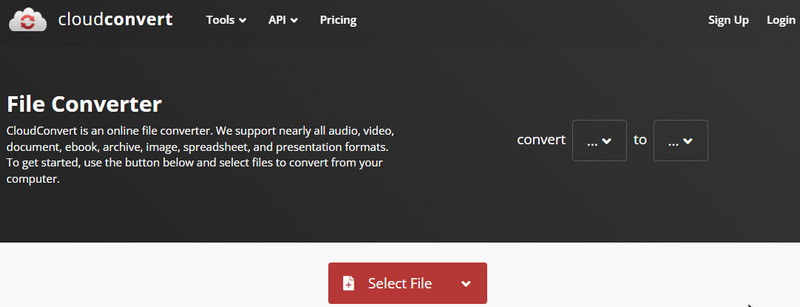
Step 1. On your browser, go to the main website of the CloudConvert. Then, you can begin adding the MP4 file by clicking the Select File button.
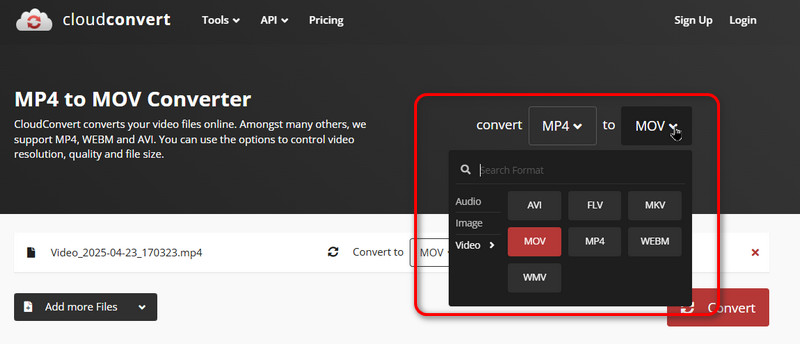
Step 2. For the next step, choose to convert MP4 to MOV. You can see all the formats CloudConvert supported here.
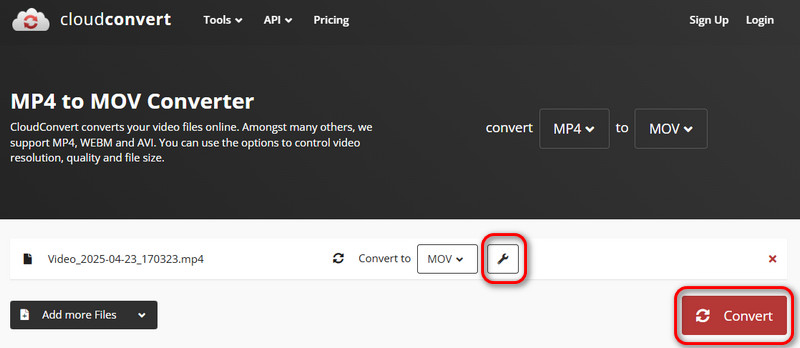
Step 3. You can also adjust other settings by clicking the wrench icon. After setting, you can click Convert to change MP4 to MOV.
Option 3. Convertio
Convertio is a reliable tool to convert MP4 to QuickTime online. With this web-based media converter, you can ensure to achieve your main objective successfully. The good thing about the tool is it can offer an ultra-fast conversion process. With that, you can save more time when dealing with your MP4 files.
Aside from that, it also has a simple and friendly user interface, making it more accessible to novices. It can even convert up to two MP4 files at the same time, which makes it more satisfying for all users. Lastly, it also supports various video formats, such as WMV, MKV, VOB, TS, M4V, and more. However, it demands a strong internet connection for a smooth conversion process. See the steps below and follow how to transform MP4 to MOV online.
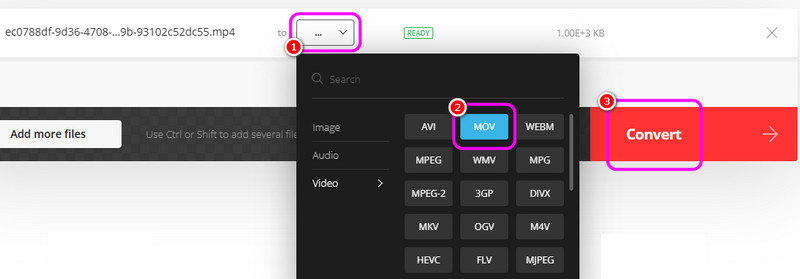
Step 1. Access the Convertio tool on your browser. After that, go to the Choose Files option and add the MP4 file you want to transcode.

Step 2. After that, hit the Dropdown button and select the Video section to choose the MOV format. Then, tick Convert to start transforming the MP4 file to MOV format.
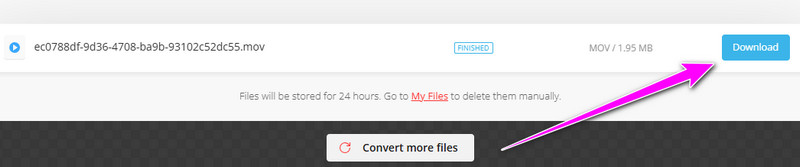
Step 3. Finally, you can start saving the converted video file by hitting the Download button.
Part 5. FAQs about Convert MP4 to MOV
How do you convert MP4 to MOV with iMovie?
You need to open iMovie to convert MP4 to MOV with iMovie on your device. After launching it, click File at the top of your screen and choose Import. Select your video and click Project > Project Settings. Navigate to the General tab and choose Video Settings > Format > MOV. After finishing all the settings, press OK to keep the change.
Can I convert MP4 to MOV with an iPhone?
Yes, you can convert your MP4 video to MOV on your iPhone. You need to open the Photos App on your iPhone and find the video file you need to convert. Tap Share > More, and scroll down to see the Convert to option. Next, the list of supported options will appear. Select MOV. If you need to change the default name of the video, enter it on your converted video. Finally, tap Convert.
How can I convert MP4 to MOV with an Android phone?
Currently, Android phones don't support direct video format conversion. So, consider choosing some good third-party software to convert MP4 video to MOV on your Android phone. You can also upload the video to your computer first and then use professional desktop software to do the operation; we highly recommend you try Vidmore Video Converter.
Conclusion
Converting video format is a common editing operation, but the good or bad tools may directly affect the quality of the converted video. So, it would help if you thought deeply before choosing a tool. This article has detailed six standard MP4 to MOV video converters for you. You can choose the most suitable one for yourself according to their characteristics.
MP4 & MOV